Send deduplicated partner outreach emails from Google Sheets via Zoho ZeptoMail

Workflow preview

Workflow preview
100%
Send deduplicated partner outreach emails from Google Sheets via Zoho ZeptoMail preview
Open on n8n.io

1. Workflow Overview

Send personalized cold outreach emails to partners without ever contacting the same person twice. This workflow reads a lead list from Google Sheets, validates and deduplicates entries, checks a tr...

Best for

  • Lead Nurturing automation workflows
  • advanced n8n builders looking for reusable templates

Tools used

n8n-nodes-base.stickynote, n8n-nodes-base.removeduplicates, n8n-nodes-base.filter, n8n-nodes-base.splitinbatches, n8n-nodes-base.googlesheets, n8n-nodes-base.code, n8n-nodes-base.switch, n8n-nodes-base.set

Source and attribution

This workflow is cataloged by N8N Workflows and links back to its original n8n.io source page by Panth1823.

Original n8n.io source

1.1 Workflow description

Title
Send deduplicated partner outreach emails from Google Sheets via Zoho ZeptoMail
Workflow name
Send deduplicated partner outreach emails from Google Sheets via Zoho ZeptoMail

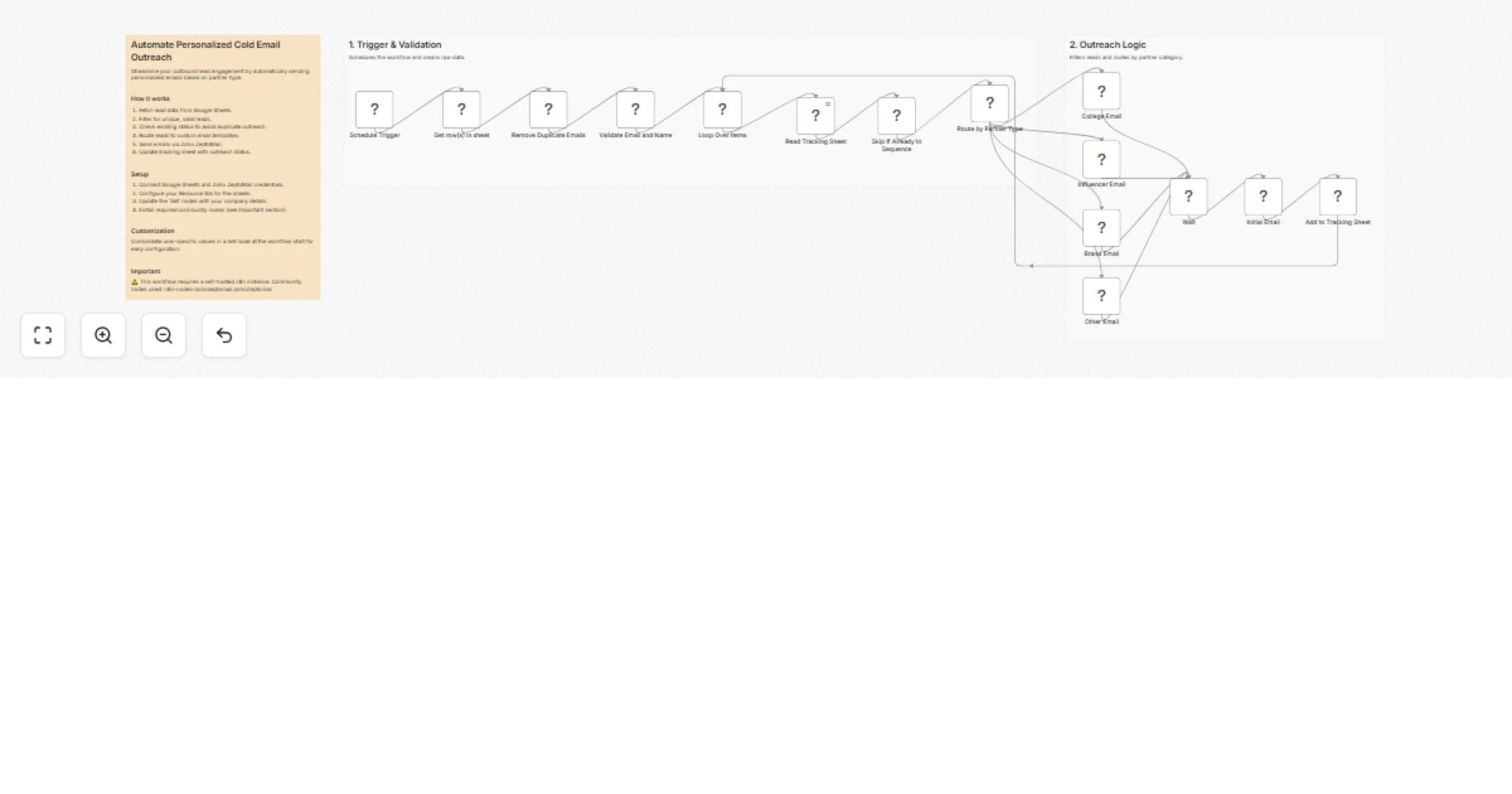
Send personalized cold outreach emails to partners without ever contacting the same person twice. This workflow reads a lead list from Google Sheets, validates and deduplicates entries, checks a tracking sheet to skip anyone already in sequence, then routes each lead to a tailored email template based on their partner type all sent via Zoho ZeptoMail with status logged back automatically.

Who it's for

Startups, agencies, or creator platforms running partnership outreach across multiple lead categories (colleges, influencers, brands) who want personalized messaging at scale without a dedicated CRM.

How it works

  1. A Schedule Trigger fires and reads all rows from your leads Google Sheet
  2. Duplicate emails are removed and rows missing a name or email are filtered out
  3. Each lead is looped one at a time and checked against a Tracking Sheet anyone with a status of sent, followup_1, completed, replied, or unsubscribed is skipped entirely
  4. Qualifying leads are routed through a Switch node based on Partner Type:
  • College — campus partnership pitch, addressed to the institution
  • Influencer — collab-focused email, first-name personalized
  • Brand — brand partnership proposal with company name
  • Other — generic but warm outreach for uncategorized leads
  1. The correct email template is assembled in a Set node with a dynamic subject and HTML body
  2. Email is sent via Zoho ZeptoMail
  3. The lead is appended to the Tracking Sheet with status sent — preventing any re-contact on future runs

Setup

  1. Connect your Google Sheets and Zoho ZeptoMail credentials in n8n
  2. Set your leads sheet and tracking sheet Resource IDs in all Google Sheets nodes
  3. Replace all [YOUR COMPANY] placeholders inside the four email Set nodes
  4. Update the sender address in the ZeptoMail send node
  5. Add your mail agent ID from ZeptoMail into the send node
  6. Ensure your leads sheet has columns: Name, Email, Company, Partner Type
  7. Ensure your tracking sheet has columns: Email, Status

Partner type values (in your sheet)

College · Influencer · Brand · anything else → routed to the Other template

Requirements

  • Self-hosted n8n instance (community node required)
  • Community node: n8n-nodes-zohozeptomail
  • Active Zoho ZeptoMail account with a configured mail agent

1.2 Logical Blocks

This catalog entry is organized from the workflow JSON. The node-level section below shows the executable blocks available for review before importing the template.

2. Block-by-Block Analysis

Block 1 - Main Sticky

Type / Role
n8n-nodes-base.stickyNote - stickyNote
Config choices
Version 1

Block 2 - Remove Duplicate Emails

Type / Role
n8n-nodes-base.removeDuplicates - removeDuplicates
Config choices
Version 2

Block 3 - Validate Email and Name

Type / Role
n8n-nodes-base.filter - filter
Config choices
Version 2.3

Block 4 - Loop Over Items

Type / Role
n8n-nodes-base.splitInBatches - splitInBatches
Config choices
Version 3

Block 5 - Read Tracking Sheet

Type / Role
n8n-nodes-base.googleSheets - googleSheets
Config choices
Version 4.7

Block 6 - Skip If Already In Sequence

Type / Role
n8n-nodes-base.code - code
Config choices
Version 2

Block 7 - Route by Partner Type

Type / Role
n8n-nodes-base.switch - switch
Config choices
Version 3.4

Block 8 - College Email

Type / Role
n8n-nodes-base.set - set
Config choices
Version 3.4

Block 9 - Influencer Email

Type / Role
n8n-nodes-base.set - set
Config choices
Version 3.4

Block 10 - Brand Email

Type / Role
n8n-nodes-base.set - set
Config choices
Version 3.4

Block 11 - Other Email

Type / Role
n8n-nodes-base.set - set
Config choices
Version 3.4

Block 12 - Add to Tracking Sheet

Type / Role
n8n-nodes-base.googleSheets - googleSheets
Config choices
Version 4.7

Block 13 - Wait

Type / Role
n8n-nodes-base.wait - wait
Config choices
Version 1.1

Block 14 - Get row(s) in sheet

Type / Role
n8n-nodes-base.googleSheets - googleSheets
Config choices
Version 4.7

Block 15 - Schedule Trigger

Type / Role
n8n-nodes-base.scheduleTrigger - scheduleTrigger
Config choices
Version 1.3

Block 16 - Initial Email

Type / Role
n8n-nodes-zohozeptomail.zohoZeptomail - zohoZeptomail
Config choices
Version 1

Block 17 - Section Sticky 1

Type / Role
n8n-nodes-base.stickyNote - stickyNote
Config choices
Version 1

Block 18 - Section Sticky 2

Type / Role
n8n-nodes-base.stickyNote - stickyNote
Config choices
Version 1

3. Summary Table

Workflow Send deduplicated partner outreach emails from Google Sheets via Zoho ZeptoMail
Complexity advanced
Nodes 18
Categories Lead Nurturing
Author Panth1823
Published 06 Apr 2026

4. Reproducing the Workflow from Scratch

  1. 1. Download the workflow JSON

    Use the JSON export at /data/workflows/14811/14811.json as the source template for this automation.

  2. 2. Import the template into n8n

    Open n8n, import the downloaded JSON, and review each node before activating the workflow.

  3. 3. Configure credentials and variables

    Replace placeholder credentials, API keys, webhook URLs, account IDs, and environment-specific values with your own settings.

  4. 4. Test with sample data

    Run the workflow manually or in a staging workspace, inspect node output, and confirm downstream systems receive the expected data.

  5. 5. Activate and monitor

    Enable the workflow only after testing, then monitor executions, errors, and rate limits during the first production runs.

5. General Notes & Resources

Review imported nodes carefully before activation. This catalog entry is intended to help you inspect the workflow structure, understand required services, and find related templates faster.

Node names, credentials, schedules, webhook paths, and external service limits may need adjustment for your workspace.

Frequently asked questions

What does Send deduplicated partner outreach emails from Google Sheets via Zoho ZeptoMail do?

Send personalized cold outreach emails to partners without ever contacting the same person twice. This workflow reads a lead list from Google Sheets, validates and deduplicates entries, checks a tr...

What do I need before importing this workflow?

Review the workflow JSON, configure any required credentials in n8n, and test the automation in a safe workspace before using it in production.

Can I customize this workflow?

Yes. Use the block-by-block analysis and the downloadable JSON to inspect each node, then adjust credentials, prompts, schedules, filters, or destinations for your Lead Nurturing use case.