Block 1 - Overview
- Type / Role
- n8n-nodes-base.stickyNote - stickyNote
- Config choices
- Version 1


 Early Deal
AI Resume Screener — Google Forms to Automated Shortlisting & Email Automatically score every job application with AI, update your tracking sheet, and send personalised emails to candidates — al...
n8n-nodes-base.stickynote, n8n-nodes-base.code, n8n-nodes-base.wait, n8n-nodes-base.googlesheetstrigger, n8n-nodes-base.googlesheets, @n8n/n8n-nodes-langchain.agent, @n8n/n8n-nodes-langchain.lmchatgooglegemini, n8n-nodes-base.httprequest
This workflow is cataloged by N8N Workflows and links back to its original n8n.io source page by Nirav Gajera.
Original n8n.io sourceThis workflow automates your entire first-round resume screening process. When a candidate submits your Google Form application, the workflow triggers, extracts their details, scores them against the job description using AI, writes the results back to your Google Sheet, and sends the right email — a congratulations to shortlisted candidates, a polite rejection to others.
Your HR team only reviews candidates the AI has already scored 7 or above.
Built for companies hiring across multiple roles simultaneously, HR teams wanting to reduce screening time, and startups with no dedicated recruiting staff.
Processed column, never scores the same application twiceNew Google Form submission
↓
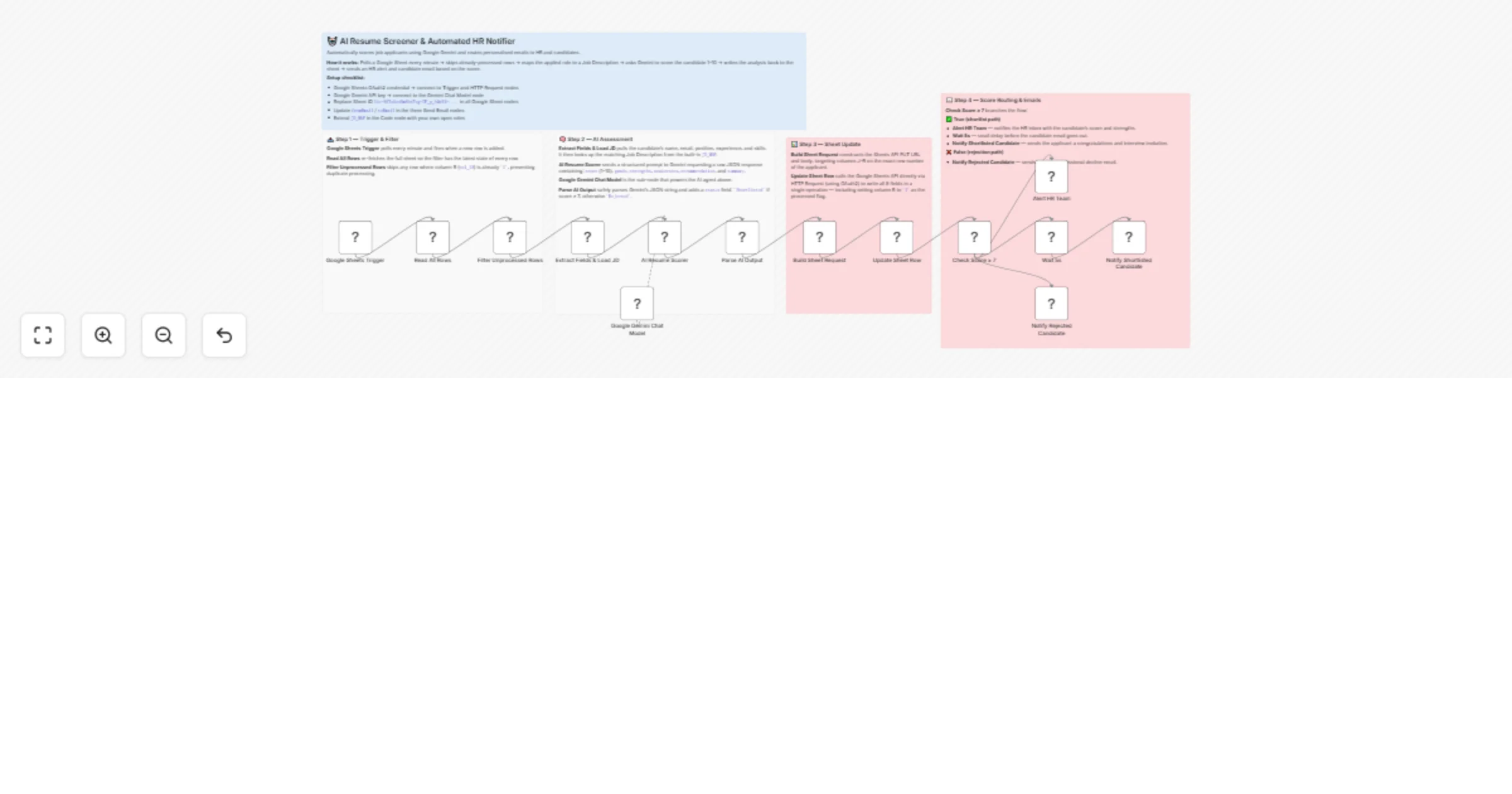
Google Sheets Trigger (rowAdded, polls every minute)
↓
Read All Rows → Filter Unprocessed Rows (col_18 / Processed ≠ 1)
↓
Extract Fields + Load Job Description
→ name, email, phone, position, experience, skills, cover note
→ loads matching JD from built-in map
↓
AI Resume Scorer (Google Gemini)
→ score: 1–10
→ grade: Strong Yes / Maybe / No
→ strengths, weaknesses, recommendation, summary
↓
Parse AI Output (3-layer fallback)
↓
Build Sheet Request → Write to Sheet via API
→ writes score, grade, strengths, weaknesses,
recommendation, summary, status, timestamp, Processed=1
↓
Score ≥ 7?
✅ YES → Alert Email to HR + Wait 10s → Shortlist Email to Candidate
❌ NO → Rejection Email to Candidate
The AI scores each candidate from 1 to 10 against the job description:
| Score | Grade | Action |
|---|---|---|
| 8–10 | Strong Yes | Shortlisted ✅ |
| 7 | Strong Yes / Maybe | Shortlisted ✅ |
| 5–6 | Maybe | Rejected ❌ |
| 1–4 | No | Rejected ❌ |
For each application the AI also provides:
Five roles are pre-configured and auto-matched by position name:
| Role | Key Requirements |
|---|---|
| Frontend Developer | 2+ yrs React/Vue, HTML/CSS/JS, REST APIs, Git |
| Backend Developer | 2+ yrs Node.js/Python/Java, PostgreSQL/MongoDB, Docker |
| UI/UX Designer | 2+ yrs UI/UX, Figma or Adobe XD, portfolio |
| Project Manager | 3+ yrs PM, PMP/Scrum preferred, Jira/Asana |
| Digital Marketing Executive | 2+ yrs digital marketing, Google Ads, Meta Ads, GA4 |
Add more roles by editing the JD_MAP object in the Extract Fields + Load JD node.
Congratulations [Name] - You have been shortlisted!Strong Candidate - [Name] for [Position]Your application for [Position] - UpdateCreate a Google Form with these fields:
| Field | Type |
|---|---|
| Full Name | Short answer |
| Email Address | Short answer |
| Phone Number | Short answer |
| Select the Position You Are Applying For | Dropdown |
| Years of Experience | Short answer |
| Relevant Skills | Long answer |
| Cover Note | Long answer |
Link the form to a Google Sheet (Responses tab).
The form creates columns A–H automatically. Add these columns manually for AI results:
| Col | Header | Filled by |
|---|---|---|
| A | Timestamp | Google Forms |
| B | Select the Position... | Google Forms |
| C | Full Name | Google Forms |
| D | Email Address | Google Forms |
| E | Phone Number | Google Forms |
| F | Years of Experience | Google Forms |
| G | Relevant Skills | Google Forms |
| H | Upload CV | Google Forms |
| I | Cover Note | Google Forms |
| J | AI Score | This workflow |
| K | Grade | This workflow |
| L | Strengths | This workflow |
| M | Weaknesses | This workflow |
| N | Recommendation | This workflow |
| O | Summary | This workflow |
| P | Status | This workflow |
| Q | Processed At | This workflow |
| R | Processed | This workflow (1 = done) |
> Important: The workflow uses column R (Processed) to track which rows have been scored. Rows where R = 1 are skipped on subsequent triggers.
| Credential | Used for | Free? |
|---|---|---|
| Google Sheets Trigger OAuth2 | Detects new rows | Free |
| Google Sheets OAuth2 | Read rows + write results | Free |
| Google Gemini (PaLM) API | AI resume scoring | Free tier available |
| SMTP | Sending emails | Depends on provider |
In the Read All Rows and Write to Sheet via API nodes, replace the Sheet ID with your own:
https://docs.google.com/spreadsheets/d/YOUR_SHEET_ID/...
In all three email nodes, update:
fromEmail — your HR sending addresstoEmail — your internal HR inbox| Node | Type | Purpose |
|---|---|---|
| Google Sheets Trigger | Trigger | Fires on new row (polls every minute) |
| Read All Rows | Google Sheets | Reads all form responses |
| Filter Unprocessed Rows | Code | Skips rows where Processed = 1 |
| Extract Fields + Load JD | Code | Extracts candidate data + matches JD |
| AI Resume Scorer | AI Agent | Scores candidate vs JD using Gemini |
| Google Gemini Chat Model | LLM | AI model for scoring |
| Parse AI Output | Code | Parses JSON with 3-layer fallback |
| Build Sheet Request | Code | Prepares API write request for exact row |
| Write to Sheet via API | HTTP Request | Writes results to columns J–R |
| Score ≥ 7? | IF | Routes by score |
| Alert Email - HR Team | Email Send | Notifies HR of strong candidates |
| Wait 10s | Wait | Prevents SMTP rate limiting |
| Shortlist Email - Candidate | Email Send | Congratulations to shortlisted |
| Rejection Email - Candidate | Email Send | Polite rejection to others |
Why HTTP Request for sheet write instead of Google Sheets node?
The standard Google Sheets node cannot reliably write to a specific row by row number. Using the Sheets API PUT values/{range} endpoint writes to the exact cell range Form responses 1!J{rowNum}:R{rowNum} — always the correct row regardless of concurrent submissions.
Why Read All Rows then Filter instead of reading one row?
The Google Sheets Trigger fires on rowAdded but may not pass the exact new row data reliably. Reading all rows and filtering by Processed ≠ 1 is more reliable and handles backlog processing too.
The Processed column (R)
Set to 1 after scoring completes. This prevents re-processing if the trigger fires again before the workflow finishes, or if old unprocessed rows exist.
3-layer AI output fallback:
Col J (AI Score): 8
Col K (Grade): Strong Yes
Col L (Strengths): 3+ yrs React experience; Strong TypeScript skills; Relevant API work
Col M (Weaknesses): No Docker experience mentioned; No TypeScript explicitly listed
Col N (Recommendation): Invite for technical interview
Col O (Summary): Strong frontend candidate with solid React/Vue background. Experience aligns well with role requirements. Minor gaps in DevOps knowledge.
Col P (Status): Shortlisted
Col Q (Processed At): 2026-03-18T10:30:00.000Z
Col R (Processed): 1
Add more roles:
Edit the JD_MAP object in Extract Fields + Load JD:
const JD_MAP = {
 'Your New Role': 'ROLE: ... REQUIREMENTS: ...',
 // add as many as needed
};
Change the score threshold:
In the Score ≥ 7? IF node, change rightValue: 5 to any number. Setting to 8 makes the bar higher (only Strong Yes candidates shortlisted).
Add a second HR alert channel: After the HR Alert Email, add a Slack or Telegram node to ping your team instantly for high-scoring candidates.
Add calendar booking link: Include a Calendly link in the shortlist email so candidates can self-schedule interviews immediately.
Extend with CV parsing: Add a Google Drive node before the AI scorer to download the CV attachment, extract text, and include it in the AI prompt for more accurate scoring.
Processed column must exist in your sheet (column R) before activating the workflowkey.trim() normalization in the code handles this automaticallyBuilt with n8n · Google Gemini AI · Google Forms · Google Sheets · SMTP
This catalog entry is organized from the workflow JSON. The node-level section below shows the executable blocks available for review before importing the template.
| Workflow | Screen job applications from Google Forms with Google Gemini and email results |
|---|---|
| Complexity | advanced |
| Nodes | 19 |
| Categories | HR, AI Summarization |
| Author | Nirav Gajera |
| Published | 18 Mar 2026 |
Use the JSON export at /data/workflows/14138/14138.json as the source template for this automation.
Open n8n, import the downloaded JSON, and review each node before activating the workflow.
Replace placeholder credentials, API keys, webhook URLs, account IDs, and environment-specific values with your own settings.
Run the workflow manually or in a staging workspace, inspect node output, and confirm downstream systems receive the expected data.
Enable the workflow only after testing, then monitor executions, errors, and rate limits during the first production runs.
Review imported nodes carefully before activation. This catalog entry is intended to help you inspect the workflow structure, understand required services, and find related templates faster.
Node names, credentials, schedules, webhook paths, and external service limits may need adjustment for your workspace.
AI Resume Screener — Google Forms to Automated Shortlisting & Email Automatically score every job application with AI, update your tracking sheet, and send personalised emails to candidates — al...
Review the workflow JSON, configure any required credentials in n8n, and test the automation in a safe workspace before using it in production.
Yes. Use the block-by-block analysis and the downloadable JSON to inspect each node, then adjust credentials, prompts, schedules, filters, or destinations for your HR, AI Summarization use case.