Schedule BlueSky posts and threads using Google Sheets as content calendar
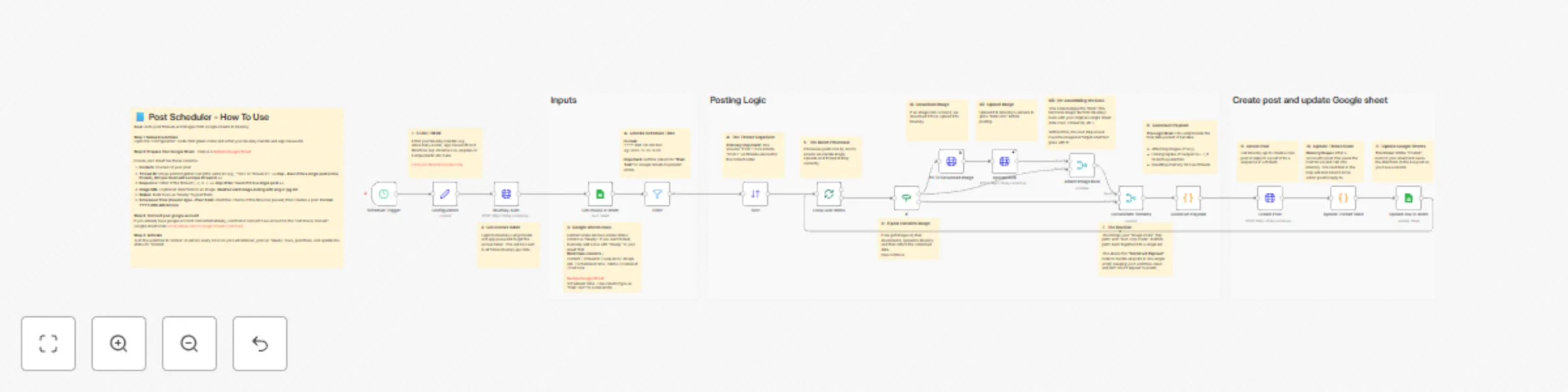
Workflow preview

$20/month : Unlimited workflows
2500 executions/month

THE #1 IN WEB SCRAPING
Scrape any website without limits
HOSTINGER  Early Deal
DISCOUNT 20% Try free
Early DealDISCOUNT 20%
Self-hosted n8n
Unlimited workflows - from $4.99/mo

#1 hub for scraping, AI & automation
6000+ actors - $5 credits/mo
Important notice
This workflow is provided as-is. Please review and test before using in production.
Overview
This workflow turns a Google Sheet into a fully automated content calendar for BlueSky. It handles single posts, multi-post threads, and image attachments, allowing you to manage your entire social presence from a simple spreadsheet.
Who is this for
Ideal for social media managers, content creators, and growth marketers who want to schedule content in bulk without using expensive third-party tools.
What it does
It runs on a schedule to check your Google Sheet for posts marked "Ready." It automatically handles:
- Threading: Links posts together if they share a Thread ID and Sequence.
- Images: Downloads image URLs and uploads them as blobs to BlueSky.
- Status Updates: Marks rows as "Posted" and saves the live URL back to your sheet.
How to set up
- Google Sheet: Create a sheet with these columns:
Content,Thread ID,Sequence(use '1' for single posts),Image URL,Scheduled Time,Status,Post Link.- Important: Even if it is a single post (not a thread), you must add a unique
Thread ID. - Note:
Image URLis optional. - Format: Set the "Scheduled Time" column type to Plain Text to prevent date errors.
- (A sample Google Sheet link is provided inside the workflow notes).
- Important: Even if it is a single post (not a thread), you must add a unique
- Credentials: Enter your BlueSky Handle and App Password in the "Configuration" node.
- Select Sheet: In both the "Get row(s)" and "Update row" nodes, select your specific Google Sheet.
🚀 The BlueSky Growth Suite
This workflow is part of a 3-part automation suite designed to help you grow on BlueSky:
- Part 1: Post Scheduler (This template)
- Part 2: Analytics Tracker (Track likes/reposts back to Sheets)
- Part 3: Lead Magnet Bot (Auto-DM users who reply to your posts)