Block 1 - Sticky Note
- Type / Role
- n8n-nodes-base.stickyNote - stickyNote
- Config choices
- Version 1


 Early Deal
If your team shares an inbox and someone has to manually read every email to decide where it goes, this workflow takes that off your plate. Emails come in, AI reads them, and the right Slack channe...
n8n-nodes-base.stickynote, n8n-nodes-base.gmailtrigger, n8n-nodes-base.set, @n8n/n8n-nodes-langchain.openai, n8n-nodes-base.code, n8n-nodes-base.switch, n8n-nodes-base.slack, n8n-nodes-base.googlesheets
This workflow is cataloged by N8N Workflows and links back to its original n8n.io source page by Anwar Bouilouta.
Original n8n.io sourceIf your team shares an inbox and someone has to manually read every email to decide where it goes, this workflow takes that off your plate. Emails come in, AI reads them, and the right Slack channel gets notified with a summary and priority level.
Teams that receive a mix of sales inquiries, support requests, and billing questions through a shared inbox. Instead of someone triaging emails by hand every morning, the AI handles it in real time.
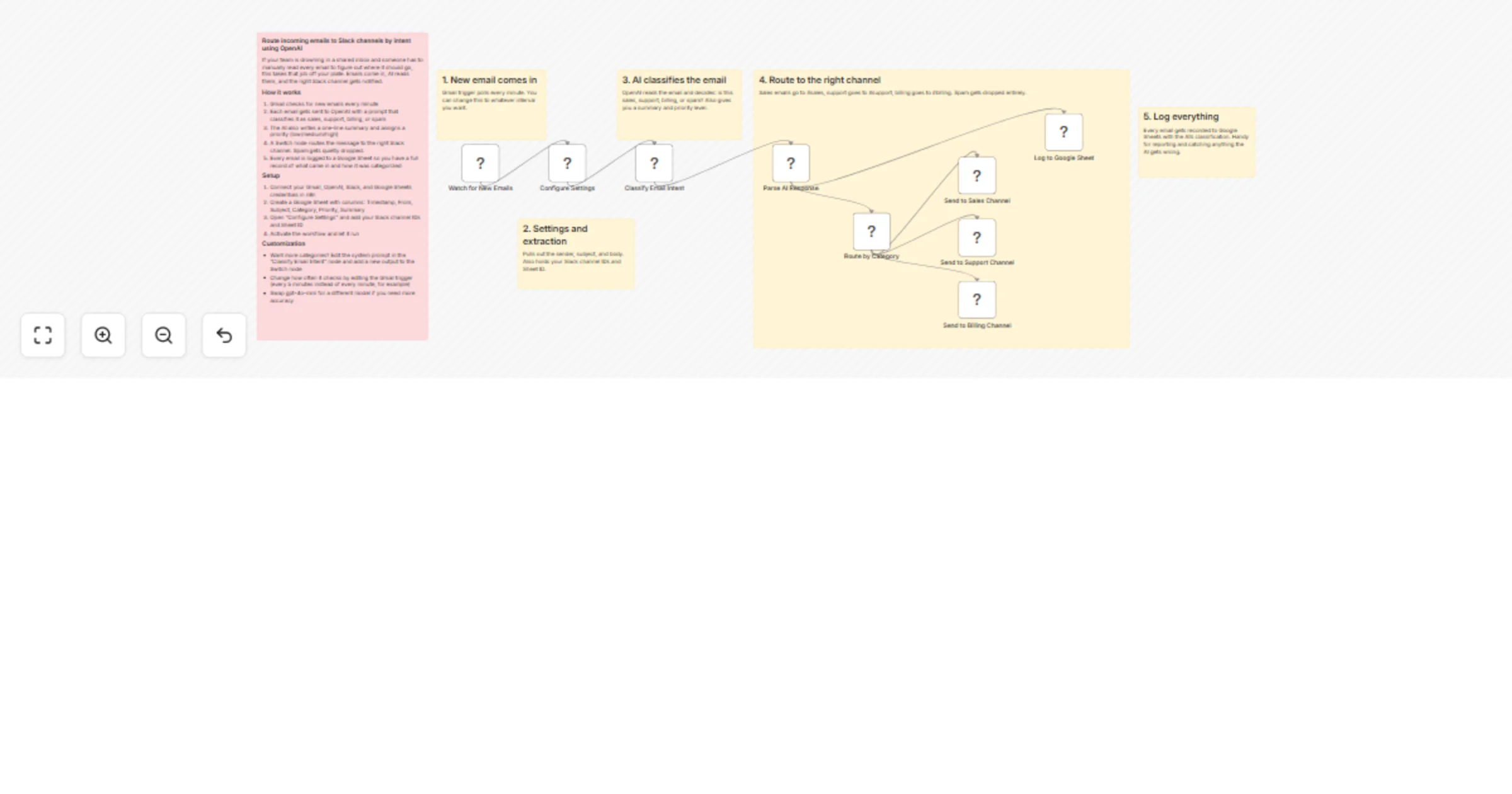
The workflow polls Gmail for new emails every minute. Each email gets sent to OpenAI (gpt-4o-mini by default) with a prompt that classifies it into one of four categories: sales, support, billing, or spam.
The AI also writes a short summary and assigns a priority level (low, medium, or high). A Switch node then routes the message to the correct Slack channel. Spam gets quietly dropped so your team never sees it.
Every email that comes through gets logged to a Google Sheet with its timestamp, sender, subject, category, priority, and AI summary. So you always have a record of what came in and how it was handled.
Want more categories? Edit the system prompt in the "Classify Email Intent" node to add new categories (e.g. "partnerships", "recruitment"), then add matching outputs to the Switch node and wire them to new Slack channels.
You can also change the polling interval on the Gmail trigger if every minute is too frequent. And if you want more accurate classification, swap gpt-4o-mini for gpt-4o in the OpenAI node, though it'll cost a bit more per email.
This catalog entry is organized from the workflow JSON. The node-level section below shows the executable blocks available for review before importing the template.
| Workflow | Route Gmail emails to Slack by intent using OpenAI and log to Sheets |
|---|---|
| Complexity | advanced |
| Nodes | 15 |
| Categories | Ticket Management, AI Summarization |
| Author | Anwar Bouilouta |
| Published | 19 Mar 2026 |
Use the JSON export at /data/workflows/14178/14178.json as the source template for this automation.
Open n8n, import the downloaded JSON, and review each node before activating the workflow.
Replace placeholder credentials, API keys, webhook URLs, account IDs, and environment-specific values with your own settings.
Run the workflow manually or in a staging workspace, inspect node output, and confirm downstream systems receive the expected data.
Enable the workflow only after testing, then monitor executions, errors, and rate limits during the first production runs.
Review imported nodes carefully before activation. This catalog entry is intended to help you inspect the workflow structure, understand required services, and find related templates faster.
Node names, credentials, schedules, webhook paths, and external service limits may need adjustment for your workspace.
If your team shares an inbox and someone has to manually read every email to decide where it goes, this workflow takes that off your plate. Emails come in, AI reads them, and the right Slack channe...
Review the workflow JSON, configure any required credentials in n8n, and test the automation in a safe workspace before using it in production.
Yes. Use the block-by-block analysis and the downloadable JSON to inspect each node, then adjust credentials, prompts, schedules, filters, or destinations for your Ticket Management, AI Summarization use case.