Route and log incoming emails with GPT-4, Excel 365 and Telegram
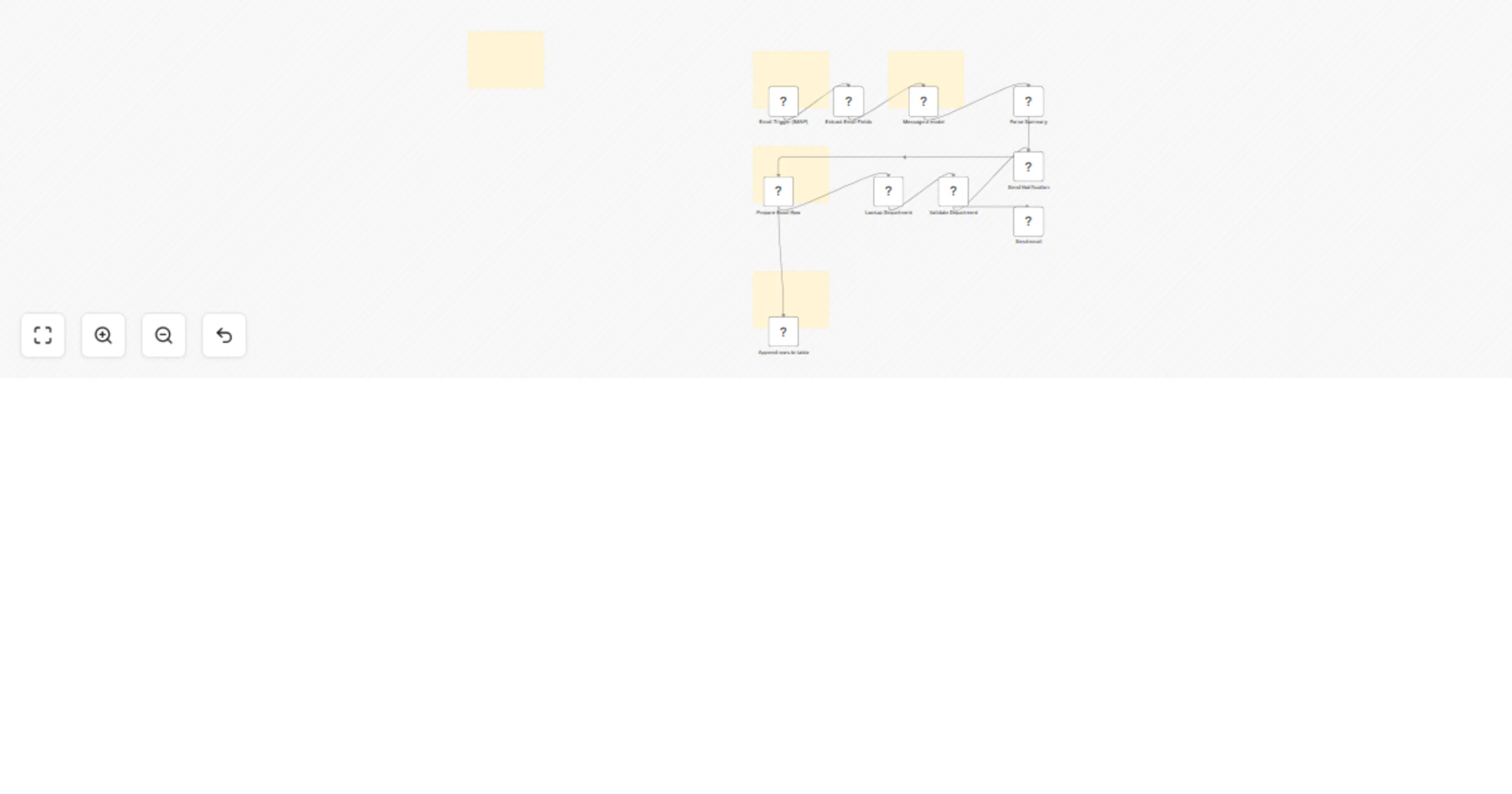
Workflow preview


 Early Deal
DISCOUNT 20%

Overview
AI Email Analyzer with Department Routing and Excel Logging (n8n Workflow)
Overview
This workflow automatically analyzes incoming emails using AI, categorizes them, routes them to the appropriate department, logs the results in Excel 365, and sends notifications to the responsible team member via Telegram.
It helps teams automate email triage, prioritize issues, and ensure that important messages are routed to the correct department without manual sorting.
This workflow is designed to be scalable, easy to configure, and adaptable for multiple business use cases such as support management, internal operations, finance monitoring, and technical issue tracking.
Features
- AI-powered email analysis
- Automatic email categorization
- Department routing based on AI classification
- Priority detection (High / Medium / Low)
- Attachment detection
- Action-required detection
- Spam filtering
- Excel 365 email logging
- Department contact lookup from Excel
- Telegram notifications to the responsible team member
- Modular workflow design for easy extension
How It Works
- Email Trigger
- The workflow listens for new incoming emails using IMAP, Gmail, or Outlook.
- Email Data Extraction
- Key email information such as sender, subject, and body content is extracted and prepared for analysis.
- Email Body Limiting
- The email body is truncated to avoid excessive token usage when sending content to the AI model.
- Batch Processing
- Emails are processed one by one to prevent rate limits when calling the AI API.
- AI Email Analysis
- The email is sent to an AI model that analyzes the message and returns structured JSON data including:
- summary
- category
- priority
- department
- attachment detection
- action required
- spam detection
- Department Lookup
- The workflow looks up the responsible department contact using an Excel 365 sheet that maps departments to their respective PIC (Person in Charge).
- Email Logging
- The analyzed email data is appended to an Excel sheet for tracking and auditing.
- Telegram Notification
- The responsible department PIC receives a Telegram notification containing the email summary and priority details.
Setup Steps
1. Import the Workflow
Import the workflow JSON file into your n8n instance.
2. Configure Email Trigger
Connect your email account using one of the following: - IMAP - Gmail - Outlook
Set the trigger to detect new incoming emails.
3. Configure OpenAI
Add your OpenAI API credentials in n8n.
The AI model is used to analyze incoming email content and generate structured data such as summary, category, department, and priority.
4. Prepare the Excel File
Create an Excel file with two sheets.
File example: Email_Automation.xlsx
Sheet 1: Email_Log
Timestamp Sender Subject Category Priority Department Action Attachment Spam Summary Required
This sheet stores the processed email records for auditing and tracking.
Sheet 2: Department_Routing
Department PIC_Name Email Telegram_Chat_ID
Support Andi [email protected] 12345678 Sales Rina [email protected] 23456789 Finance Budi [email protected] 34567890 Technical Dodi [email protected] 45678901 Management CEO [email protected] 56789012 General Admin [email protected] 67890123
This sheet maps departments to the responsible team member and their Telegram chat ID.
5. Configure Telegram
Create a Telegram Bot and connect it to n8n.
Ensure the Telegram Chat IDs in the Excel routing sheet are correct so notifications are delivered to the right person.
6. Configure Excel Credentials
Connect your Excel 365 account to n8n and select the Excel file used for logging and department routing.
7. Test the Workflow
Send a test email to your monitored inbox.
The workflow should: 1. Analyze the email using AI 2. Determine category and department 3. Log the result in Excel 4. Send a Telegram notification to the responsible department
Example Output
Example AI output:
{
 "summary": "Customer asking about invoice payment status",
 "category": "Invoice",
 "priority": "Medium",
 "department": "Finance",
 "has_attachment": true,
 "action_required": true,
 "spam": false
}
Example Telegram notification:
📩 New Email Routed
Department: Finance
Priority: Medium
From: [email protected]
Subject: Invoice payment status
Summary:
Customer asking about invoice payment status
Action Required: Yes
Attachment: Yes
Requirements
- n8n
- OpenAI API key
- Email account (IMAP / Gmail / Outlook)
- Microsoft Excel 365
- Telegram Bot
Customization Ideas
You can extend this workflow by adding: - Jira ticket creation for technical issues - Slack or Microsoft Teams notifications - CRM integration for sales leads - sentiment analysis for customer emails - automated support ticket creation - SLA monitoring and escalation
Notes
This workflow demonstrates how AI can automate email intake, classification, and operational routing for teams.
It can be adapted for customer support, internal operations, finance monitoring, and technical issue tracking.