Block 1 - Email Trigger (IMAP)
- Type / Role
- n8n-nodes-base.emailReadImap - emailReadImap
- Config choices
- Version 2.1


 Early Deal
AI Email Analyzer with Department Routing and Excel Logging (n8n Workflow) Overview This workflow automatically analyzes incoming emails using AI, categorizes them, routes them to the appropriate d...
n8n-nodes-base.emailreadimap, n8n-nodes-base.set, n8n-nodes-base.code, n8n-nodes-base.microsoftexcel, n8n-nodes-base.stickynote, n8n-nodes-base.emailsend, n8n-nodes-base.telegram, n8n-nodes-base.if
This workflow is cataloged by N8N Workflows and links back to its original n8n.io source page by Ramdoni.
Original n8n.io sourceThis workflow automatically analyzes incoming emails using AI, categorizes them, routes them to the appropriate department, logs the results in Excel 365, and sends notifications to the responsible team member via Telegram.
It helps teams automate email triage, prioritize issues, and ensure that important messages are routed to the correct department without manual sorting.
This workflow is designed to be scalable, easy to configure, and adaptable for multiple business use cases such as support management, internal operations, finance monitoring, and technical issue tracking.
Import the workflow JSON file into your n8n instance.
Connect your email account using one of the following: - IMAP - Gmail - Outlook
Set the trigger to detect new incoming emails.
Add your OpenAI API credentials in n8n.
The AI model is used to analyze incoming email content and generate structured data such as summary, category, department, and priority.
Create an Excel file with two sheets.
File example: Email_Automation.xlsx
Timestamp Sender Subject Category Priority Department Action Attachment Spam Summary Required
This sheet stores the processed email records for auditing and tracking.
Department PIC_Name Email Telegram_Chat_ID
Support Andi [email protected] 12345678 Sales Rina [email protected] 23456789 Finance Budi [email protected] 34567890 Technical Dodi [email protected] 45678901 Management CEO [email protected] 56789012 General Admin [email protected] 67890123
This sheet maps departments to the responsible team member and their Telegram chat ID.
Create a Telegram Bot and connect it to n8n.
Ensure the Telegram Chat IDs in the Excel routing sheet are correct so notifications are delivered to the right person.
Connect your Excel 365 account to n8n and select the Excel file used for logging and department routing.
Send a test email to your monitored inbox.
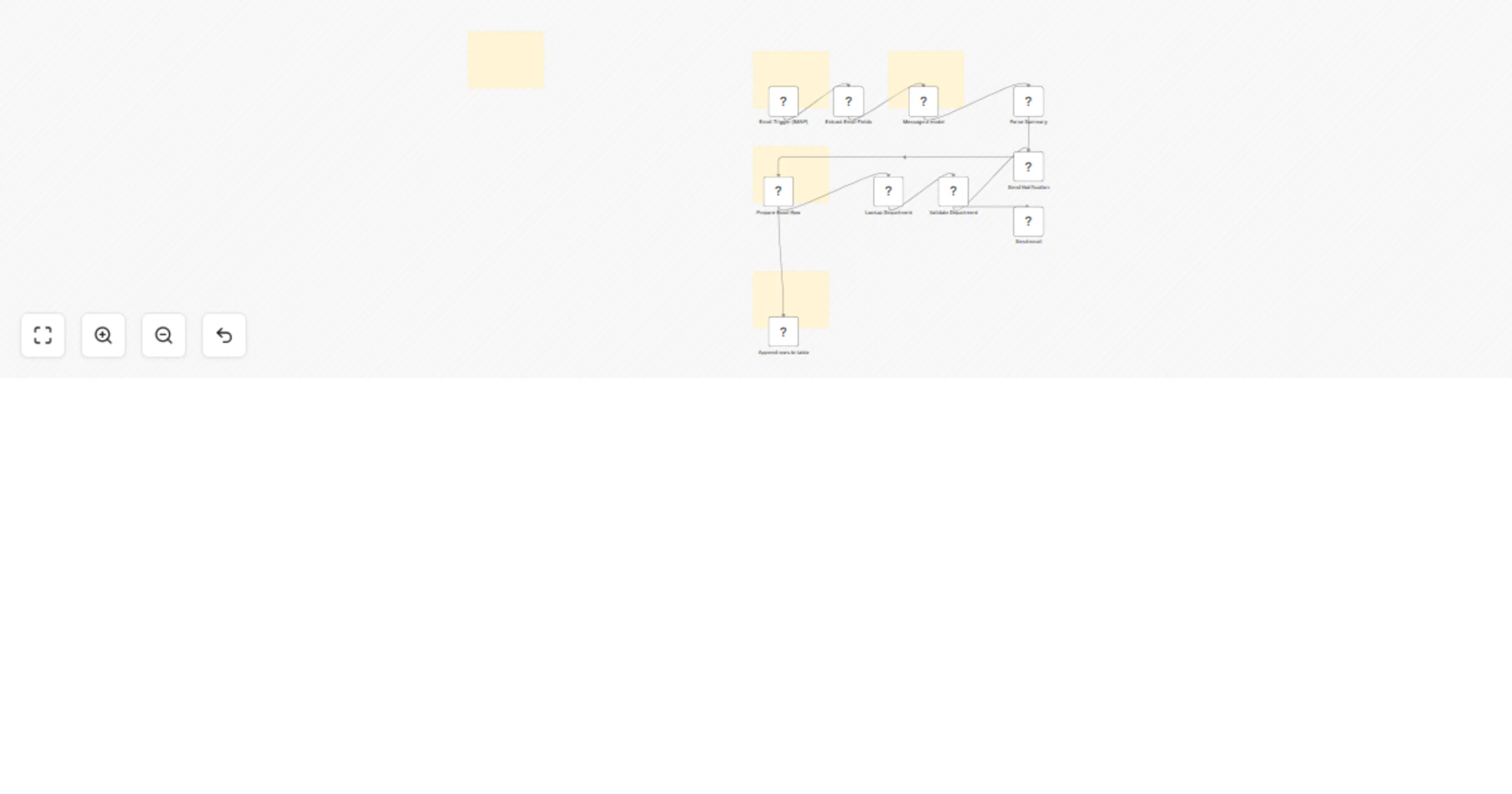
The workflow should: 1. Analyze the email using AI 2. Determine category and department 3. Log the result in Excel 4. Send a Telegram notification to the responsible department
Example AI output:
{
 "summary": "Customer asking about invoice payment status",
 "category": "Invoice",
 "priority": "Medium",
 "department": "Finance",
 "has_attachment": true,
 "action_required": true,
 "spam": false
}
Example Telegram notification:
📩 New Email Routed
Department: Finance
Priority: Medium
From: [email protected]
Subject: Invoice payment status
Summary:
Customer asking about invoice payment status
Action Required: Yes
Attachment: Yes
You can extend this workflow by adding: - Jira ticket creation for technical issues - Slack or Microsoft Teams notifications - CRM integration for sales leads - sentiment analysis for customer emails - automated support ticket creation - SLA monitoring and escalation
This workflow demonstrates how AI can automate email intake, classification, and operational routing for teams.
It can be adapted for customer support, internal operations, finance monitoring, and technical issue tracking.
This catalog entry is organized from the workflow JSON. The node-level section below shows the executable blocks available for review before importing the template.
| Workflow | Route and log incoming emails with GPT-4, Excel 365 and Telegram |
|---|---|
| Complexity | advanced |
| Nodes | 15 |
| Categories | Ticket Management, AI Summarization |
| Author | Ramdoni |
| Published | 11 Mar 2026 |
Use the JSON export at /data/workflows/13989/13989.json as the source template for this automation.
Open n8n, import the downloaded JSON, and review each node before activating the workflow.
Replace placeholder credentials, API keys, webhook URLs, account IDs, and environment-specific values with your own settings.
Run the workflow manually or in a staging workspace, inspect node output, and confirm downstream systems receive the expected data.
Enable the workflow only after testing, then monitor executions, errors, and rate limits during the first production runs.
Review imported nodes carefully before activation. This catalog entry is intended to help you inspect the workflow structure, understand required services, and find related templates faster.
Node names, credentials, schedules, webhook paths, and external service limits may need adjustment for your workspace.
AI Email Analyzer with Department Routing and Excel Logging (n8n Workflow) Overview This workflow automatically analyzes incoming emails using AI, categorizes them, routes them to the appropriate d...
Review the workflow JSON, configure any required credentials in n8n, and test the automation in a safe workspace before using it in production.
Yes. Use the block-by-block analysis and the downloadable JSON to inspect each node, then adjust credentials, prompts, schedules, filters, or destinations for your Ticket Management, AI Summarization use case.