Research people with Perplexity AI and log results to Google Sheets
Workflow preview

$20/month : Unlimited workflows
2500 executions/month

THE #1 IN WEB SCRAPING
Scrape any website without limits
HOSTINGER  Early Deal
DISCOUNT 20% Try free
Early DealDISCOUNT 20%
Self-hosted n8n
Unlimited workflows - from $4.99/mo

#1 hub for scraping, AI & automation
6000+ actors - $5 credits/mo
Overview
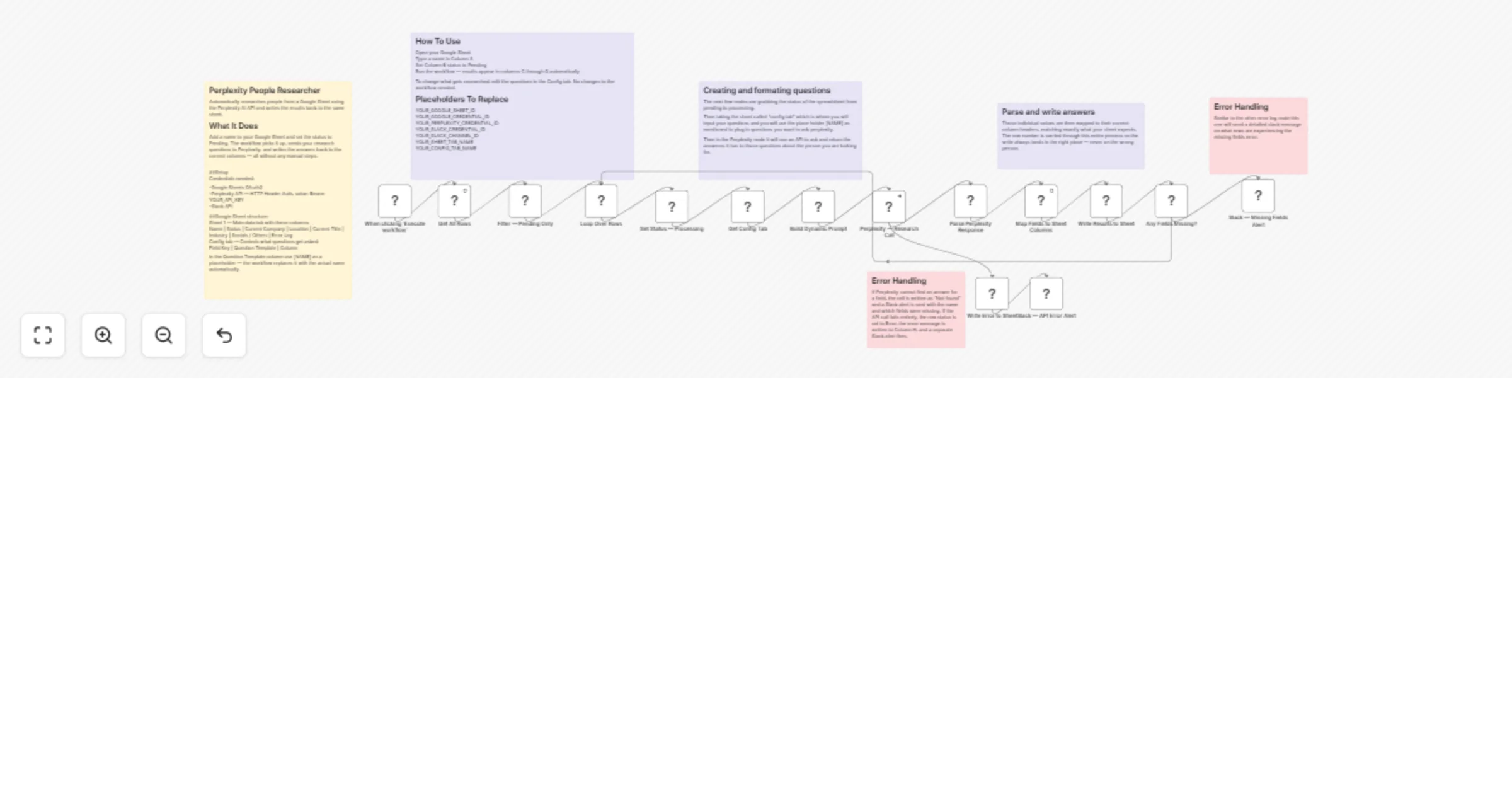
What This Workflow Does You have a Google Sheet where you type in a person's name and set their status to Pending. This workflow checks that sheet on a schedule, finds anyone marked Pending, and automatically researches them using the Perplexity AI API. The results get written back to the same row — current company, location, job title, industry, and social media. When done the status flips to Done. If anything goes wrong or a field comes back empty, you get a Slack notification.
Setup Steps
- Google Sheet Create a sheet with two tabs. The first tab is your main data sheet with these columns: Name, Status, Current Company, Location, Current Title, Industry, Socials / Others, Error Log. The second tab is called Config and is where you write your research questions using [NAME] as a placeholder for the person's name.
- Credentials You need three credentials set up in n8n — Google Sheets OAuth2, a Perplexity API key set up as HTTP Header Auth with the value Bearer YOUR_API_KEY, and a Slack API connection pointed at the channel you want alerts sent to.
- Placeholders After importing the JSON, find and replace all placeholders with your real values — your Google Sheet ID, credential IDs, and Slack channel ID.
- Run It Type a name in Column A, set Column B to Pending, and execute the workflow. Everything else is automatic it will run every desired time you will I preffer every 15 minutes depending on your usage