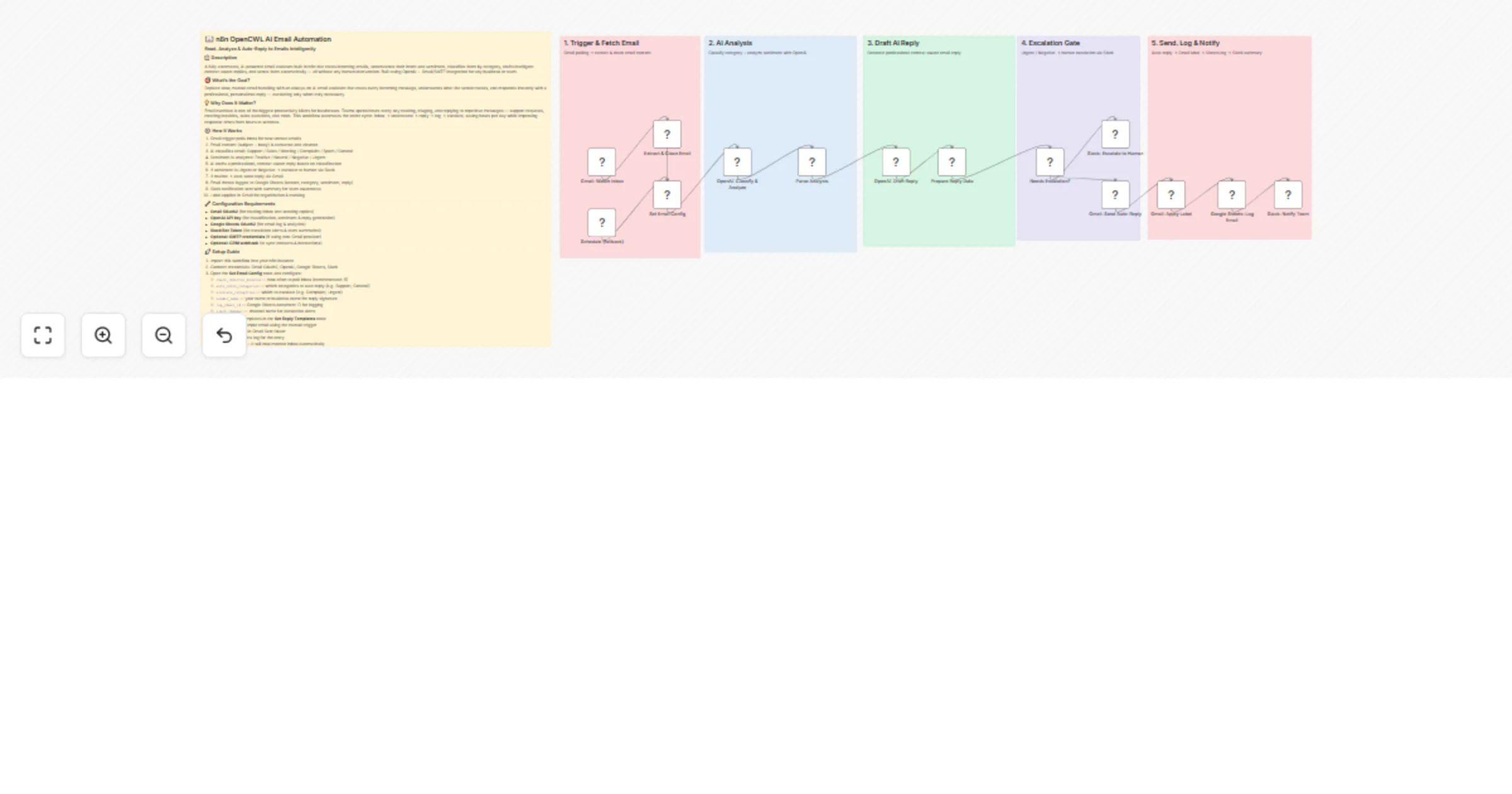
Read, analyze, and auto-reply to Gmail emails with OpenAI, Slack, and Sheets

Workflow preview

Workflow preview
100%
Read, analyze, and auto-reply to Gmail emails with OpenAI, Slack, and Sheets preview
Open on n8n.io

1. Workflow Overview

A fully automated, AI powered email assistant built in n8n that reads incoming emails, understands their intent and sentiment, classifies them by category, drafts intelligent context aware replies,...

Best for

  • Ticket Management automation workflows
  • AI Chatbot automation workflows
  • advanced n8n builders looking for reusable templates

Tools used

n8n-nodes-base.stickynote, n8n-nodes-base.gmailtrigger, n8n-nodes-base.scheduletrigger, n8n-nodes-base.set, n8n-nodes-base.code, n8n-nodes-base.if, n8n-nodes-base.slack, n8n-nodes-base.gmail

Source and attribution

This workflow is cataloged by N8N Workflows and links back to its original n8n.io source page by Oneclick AI Squad.

Original n8n.io source

1.1 Workflow description

Title
Read, analyze, and auto-reply to Gmail emails with OpenAI, Slack, and Sheets
Workflow name
Read, analyze, and auto-reply to Gmail emails with OpenAI, Slack, and Sheets

A fully automated, AI-powered email assistant built in n8n that reads incoming emails, understands their intent and sentiment, classifies them by category, drafts intelligent context-aware replies, and sends them automatically β€” all without any human intervention. Built using OpenAI + Gmail/SMTP integration for any business or team.

🎯 What's the Goal?

Replace slow, manual email handling with an always-on AI email assistant that reads every incoming message, understands what the sender needs, and responds instantly with a professional, personalized reply β€” escalating only when truly necessary.

πŸ’‘ Why Does It Matter?

Email overload is one of the biggest productivity killers for businesses. Teams spend hours every day reading, triaging, and replying to repetitive messages β€” support requests, meeting inquiries, sales questions, and more. This workflow automates the entire cycle: inbox β†’ understand β†’ reply β†’ log β†’ escalate, saving hours per day while improving response times from hours to seconds.

βš™οΈ How It Works

  1. Gmail trigger polls inbox for new unread emails
  2. Email content (subject + body) is extracted and cleaned
  3. AI classifies email: Support / Sales / Meeting / Complaint / Spam / General
  4. Sentiment is analyzed: Positive / Neutral / Negative / Urgent
  5. AI drafts a professional, context-aware reply based on classification
  6. If sentiment is Urgent or Negative β†’ escalate to human via Slack
  7. If routine β†’ auto-send reply via Gmail
  8. Email thread logged to Google Sheets (sender, category, sentiment, reply)
  9. Slack notification sent with summary for team awareness
  10. Label applied in Gmail for organization & tracking

πŸ”§ Configuration Requirements

  • Gmail OAuth2 (for reading inbox and sending replies)
  • OpenAI API key (for classification, sentiment & reply generation)
  • Google Sheets OAuth2 (for email log & analytics)
  • Slack Bot Token (for escalation alerts & team summaries)
  • Optional: SMTP credentials (if using non-Gmail provider)
  • Optional: CRM webhook (to sync contacts & interactions)

πŸš€ Setup Guide

  1. Import this workflow into your n8n instance
  2. Connect credentials: Gmail OAuth2, OpenAI, Google Sheets, Slack
  3. Open the Set Email Config node and configure:
  • check_interval_minutes β€” how often to poll inbox (recommended: 5)
  • auto_reply_categories β€” which categories to auto-reply (e.g. Support, General)
  • escalate_categories β€” which to escalate (e.g. Complaint, Urgent)
  • sender_name β€” your name or business name for reply signature
  • log_sheet_id β€” Google Sheets document ID for logging
  • slack_channel β€” channel name for escalation alerts
  1. Customize reply templates in the Set Reply Templates node
  2. Run a test with a sample email using the manual trigger
  3. Verify reply quality in Gmail Sent folder
  4. Check Google Sheets log for the entry
  5. Activate workflow β€” it will now monitor inbox automatically
  6. Monitor escalation volume in Slack and tune thresholds weekly

πŸ“ž Contact Us

Need help setting up or customizing this workflow for your business? πŸ‘‰ https://www.oneclickitsolution.com/contact-us/

1.2 Logical Blocks

This catalog entry is organized from the workflow JSON. The node-level section below shows the executable blocks available for review before importing the template.

2. Block-by-Block Analysis

Block 1 - Overview & Instructions

Type / Role
n8n-nodes-base.stickyNote - stickyNote
Config choices
Version 1

Block 2 - 1. Trigger

Type / Role
n8n-nodes-base.stickyNote - stickyNote
Config choices
Version 1

Block 3 - 2. Analysis Phase

Type / Role
n8n-nodes-base.stickyNote - stickyNote
Config choices
Version 1

Block 4 - 3. Reply Generation

Type / Role
n8n-nodes-base.stickyNote - stickyNote
Config choices
Version 1

Block 5 - 4. Escalation Gate

Type / Role
n8n-nodes-base.stickyNote - stickyNote
Config choices
Version 1

Block 6 - 5. Output Phase

Type / Role
n8n-nodes-base.stickyNote - stickyNote
Config choices
Version 1

Block 7 - Gmail: Watch Inbox

Type / Role
n8n-nodes-base.gmailTrigger - gmailTrigger
Config choices
Version 1

Block 8 - Schedule (fallback)

Type / Role
n8n-nodes-base.scheduleTrigger - scheduleTrigger
Config choices
Version 1.3

Block 9 - Set Email Config

Type / Role
n8n-nodes-base.set - set
Config choices
Version 2

Block 10 - Extract & Clean Email

Type / Role
n8n-nodes-base.code - code
Config choices
Version 2

Block 11 - Parse Analysis

Type / Role
n8n-nodes-base.code - code
Config choices
Version 2

Block 12 - Prepare Reply Data

Type / Role
n8n-nodes-base.code - code
Config choices
Version 2

Block 13 - Needs Escalation?

Type / Role
n8n-nodes-base.if - if
Config choices
Version 1

Block 14 - Slack: Escalate to Human

Type / Role
n8n-nodes-base.slack - slack
Config choices
Version 1

Block 15 - Gmail: Send Auto-Reply

Type / Role
n8n-nodes-base.gmail - gmail
Config choices
Version 2.1

Block 16 - Gmail: Apply Label

Type / Role
n8n-nodes-base.gmail - gmail
Config choices
Version 2.1

Block 17 - Google Sheets: Log Email

Type / Role
n8n-nodes-base.googleSheets - googleSheets
Config choices
Version 4.4

Block 18 - Slack: Notify Team

Type / Role
n8n-nodes-base.slack - slack
Config choices
Version 1

Block 19 - OpenAI: Classify & Analyze

Type / Role
@n8n/n8n-nodes-langchain.openAi - openAi
Config choices
Version 2.1

Block 20 - OpenAI: Draft Reply

Type / Role
@n8n/n8n-nodes-langchain.openAi - openAi
Config choices
Version 2.1

3. Summary Table

Workflow Read, analyze, and auto-reply to Gmail emails with OpenAI, Slack, and Sheets
Complexity advanced
Nodes 20
Categories Ticket Management, AI Chatbot
Author Oneclick AI Squad
Published 03 Mar 2026

4. Reproducing the Workflow from Scratch

  1. 1. Download the workflow JSON

    Use the JSON export at /data/workflows/13830/13830.json as the source template for this automation.

  2. 2. Import the template into n8n

    Open n8n, import the downloaded JSON, and review each node before activating the workflow.

  3. 3. Configure credentials and variables

    Replace placeholder credentials, API keys, webhook URLs, account IDs, and environment-specific values with your own settings.

  4. 4. Test with sample data

    Run the workflow manually or in a staging workspace, inspect node output, and confirm downstream systems receive the expected data.

  5. 5. Activate and monitor

    Enable the workflow only after testing, then monitor executions, errors, and rate limits during the first production runs.

5. General Notes & Resources

Review imported nodes carefully before activation. This catalog entry is intended to help you inspect the workflow structure, understand required services, and find related templates faster.

Node names, credentials, schedules, webhook paths, and external service limits may need adjustment for your workspace.

Frequently asked questions

What does Read, analyze, and auto-reply to Gmail emails with OpenAI, Slack, and Sheets do?

A fully automated, AI powered email assistant built in n8n that reads incoming emails, understands their intent and sentiment, classifies them by category, drafts intelligent context aware replies,...

What do I need before importing this workflow?

Review the workflow JSON, configure any required credentials in n8n, and test the automation in a safe workspace before using it in production.

Can I customize this workflow?

Yes. Use the block-by-block analysis and the downloadable JSON to inspect each node, then adjust credentials, prompts, schedules, filters, or destinations for your Ticket Management, AI Chatbot use case.