Personalized lead nurturing with GPT-4.1 based on commitment scoring via Google Sheets

Workflow preview

Workflow preview
100%
Personalized lead nurturing with GPT-4.1 based on commitment scoring via Google Sheets preview
Open on n8n.io

Important notice

This workflow is provided as-is. Please review and test before using in production.

1. Workflow Overview

AI Powered Personalized Email Nurturing This workflow automates sending tailored onboarding and follow up emails based on lead commitment levels. It's designed for coaches, consultants, and service...

Best for

  • Lead Nurturing automation workflows
  • Multimodal AI automation workflows
  • intermediate n8n builders looking for reusable templates

Tools used

n8n-nodes-base.if, n8n-nodes-base.googlesheetstrigger, n8n-nodes-base.gmail, @n8n/n8n-nodes-langchain.openai, n8n-nodes-base.googlesheets, n8n-nodes-base.stickynote

Source and attribution

This workflow is cataloged by N8N Workflows and links back to its original n8n.io source page by Matthew.

Original n8n.io source

1.1 Workflow description

Title
Personalized lead nurturing with GPT-4.1 based on commitment scoring via Google Sheets
Workflow name
Personalized lead nurturing with GPT-4.1 based on commitment scoring via Google Sheets

AI-Powered Personalized Email Nurturing

This workflow automates sending tailored onboarding and follow-up emails based on lead commitment levels. It's designed for coaches, consultants, and service-based businesses who want to personalize their outreach and nurture prospects more effectively.


How It Works

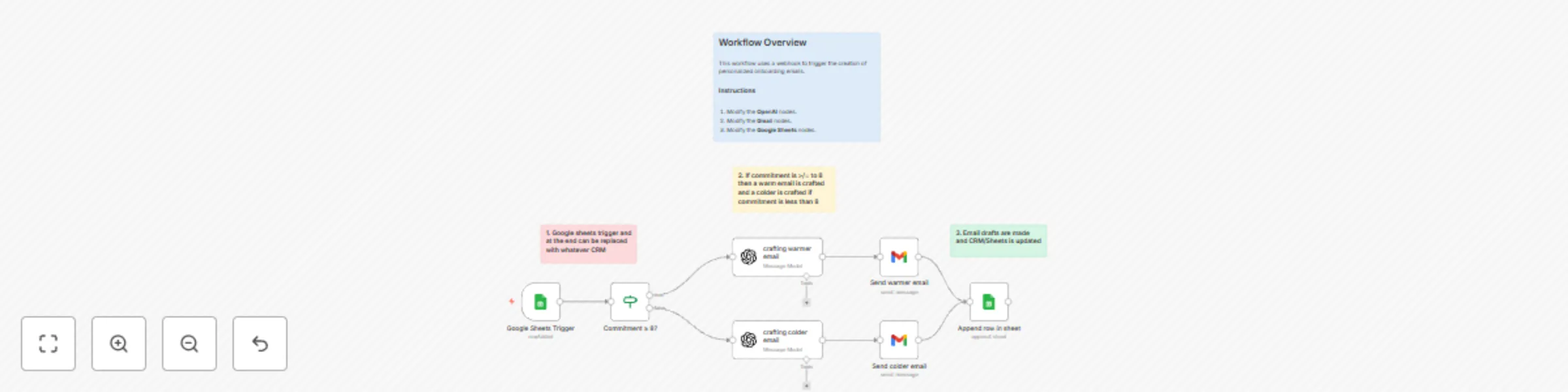
  1. Triggered by New Data: The workflow automatically starts whenever a new row is added to your specified Google Sheet.
  2. Assess Commitment: An If node checks the "Commitment" score from your Google Sheet data.
    • If the commitment score is 8 or higher, the lead is considered "warm" and receives a detailed onboarding email.
    • If the commitment score is below 8, the lead is considered "colder" and receives a gentle nudge email.
  3. Craft Warm Email (for high commitment): For "warm" leads, an OpenAI node generates an aspirational and confident first-touch email. This email highlights their goals, introduces your flagship offers, and invites them to a 30-minute discovery call.
  4. Craft Colder Email (for lower commitment): For "colder" leads, a different OpenAI node generates an encouraging, non-pushy follow-up email. This email thanks them for sharing their goals, reinspires them with the ROI of personal branding, asks a reflective question, and offers a no-pressure Q&A session.
  5. Send Emails: The appropriate Gmail node sends the personalized email to the lead.
  6. Record Activity: Finally, the Google Sheets node appends the lead's information and details of the sent email to a separate "Contacts" sheet, keeping a clear record of all interactions.

Google Sheet Structure

Your primary Google Sheet (the one triggering the workflow) must have the following exact column headers:

  • Email
  • First name
  • Last name
  • Phone number
  • Industry
  • Title
  • Three goals you wish to achieve this year
  • 1-10 how commited are you to your goals

Your secondary Google Sheet (for appending contacts) must have these exact column headers:

  • name
  • email
  • phone
  • industry
  • title
  • three goals
  • commitment

Setup Instructions

  1. Add Credentials:

    • In n8n, add your OpenAI API key via the Credentials menu.
    • Connect your Google account via the Credentials menu for Google Sheets and Gmail access.
  2. Configure Google Sheets Trigger:

    • Select the Google Sheets Trigger node.
    • Choose your Google Sheets credential, select your spreadsheet, and the specific sheet name that contains your incoming lead data.
  3. Configure Commitment Logic:

    • Select the Commitment ≥ 8? If node.
    • The condition is set to ={{ $json['1-10 how commited are you to your goals'] }} >= 8. Ensure your Google Sheet column name for commitment matches exactly, including spacing and capitalization.
  4. Configure OpenAI Nodes:

    • Select both crafting warmer email and crafting colder email nodes.
    • Choose your OpenAI credential from the dropdown.
    • Crucially: In both nodes' Messages section, replace placeholder information with your actual company name, founder name, and any specific details about your flagship offers and booking links (https://calendly.com/brandied/discovery).
  5. Configure Gmail Nodes:

    • Select both Send warmer email and Send colder email nodes.
    • Choose your Gmail credential.
  6. Configure Append Row in Sheet:

    • Select the Append row in sheet node.
    • Choose your Google Sheets credential, select the spreadsheet and sheet name where you want to log sent emails (your "Contacts" sheet).
    • Verify that the column mappings correctly align with the "Google Sheet Structure" for your secondary sheet.

Customization Options 💡

  • Commitment Threshold: Adjust the number in the Commitment ≥ 8? If node to change what constitutes a "warm" lead (e.g., gte 7 for a commitment score of 7 or higher).
  • Email Content & Tone: Modify the prompts in the crafting warmer email and crafting colder email OpenAI nodes to fine-tune the email tone, length, specific calls to action, or any other elements to better suit your brand voice and strategy.
  • Follow-Up Cadence: Instead of immediate sending, you could introduce a Wait node after the email crafting to space out follow-ups or integrate with an email sequence tool.
  • CRM Integration: Replace the final Google Sheets node with an integration to your CRM (e.g., HubSpot, Salesforce) to automatically log these interactions and enrich lead profiles directly within your CRM.

1.2 Logical Blocks

This catalog entry is organized from the workflow JSON. The node-level section below shows the executable blocks available for review before importing the template.

2. Block-by-Block Analysis

Block 1 - Commitment ≥ 8?

Type / Role
n8n-nodes-base.if - if
Config choices
Version 2

Block 2 - Google Sheets Trigger

Type / Role
n8n-nodes-base.googleSheetsTrigger - googleSheetsTrigger
Config choices
Version 1

Block 3 - Send colder email

Type / Role
n8n-nodes-base.gmail - gmail
Config choices
Version 2.1

Block 4 - Send warmer email

Type / Role
n8n-nodes-base.gmail - gmail
Config choices
Version 2.1

Block 5 - crafting warmer email

Type / Role
@n8n/n8n-nodes-langchain.openAi - openAi
Config choices
Version 1.8

Block 6 - Append row in sheet

Type / Role
n8n-nodes-base.googleSheets - googleSheets
Config choices
Version 4.6

Block 7 - crafting colder email

Type / Role
@n8n/n8n-nodes-langchain.openAi - openAi
Config choices
Version 1.8

Block 8 - Sticky Note

Type / Role
n8n-nodes-base.stickyNote - stickyNote
Config choices
Version 1

Block 9 - Sticky Note1

Type / Role
n8n-nodes-base.stickyNote - stickyNote
Config choices
Version 1

Block 10 - Sticky Note2

Type / Role
n8n-nodes-base.stickyNote - stickyNote
Config choices
Version 1

Block 11 - Sticky Note3

Type / Role
n8n-nodes-base.stickyNote - stickyNote
Config choices
Version 1

3. Summary Table

Workflow Personalized lead nurturing with GPT-4.1 based on commitment scoring via Google Sheets
Complexity intermediate
Nodes 11
Categories Lead Nurturing, Multimodal AI
Author Matthew
Published 17 Jul 2025

4. Reproducing the Workflow from Scratch

  1. 1. Download the workflow JSON

    Use the JSON export at /data/workflows/6099/6099.json as the source template for this automation.

  2. 2. Import the template into n8n

    Open n8n, import the downloaded JSON, and review each node before activating the workflow.

  3. 3. Configure credentials and variables

    Replace placeholder credentials, API keys, webhook URLs, account IDs, and environment-specific values with your own settings.

  4. 4. Test with sample data

    Run the workflow manually or in a staging workspace, inspect node output, and confirm downstream systems receive the expected data.

  5. 5. Activate and monitor

    Enable the workflow only after testing, then monitor executions, errors, and rate limits during the first production runs.

5. General Notes & Resources

Review imported nodes carefully before activation. This catalog entry is intended to help you inspect the workflow structure, understand required services, and find related templates faster.

Node names, credentials, schedules, webhook paths, and external service limits may need adjustment for your workspace.

Frequently asked questions

What does Personalized lead nurturing with GPT-4.1 based on commitment scoring via Google Sheets do?

AI Powered Personalized Email Nurturing This workflow automates sending tailored onboarding and follow up emails based on lead commitment levels. It's designed for coaches, consultants, and service...

What do I need before importing this workflow?

Review the workflow JSON, configure any required credentials in n8n, and test the automation in a safe workspace before using it in production.

Can I customize this workflow?

Yes. Use the block-by-block analysis and the downloadable JSON to inspect each node, then adjust credentials, prompts, schedules, filters, or destinations for your Lead Nurturing, Multimodal AI use case.