Matthew
Workflows by Matthew
Generate qualified Instagram leads from hashtags with Apify and Google Sheets
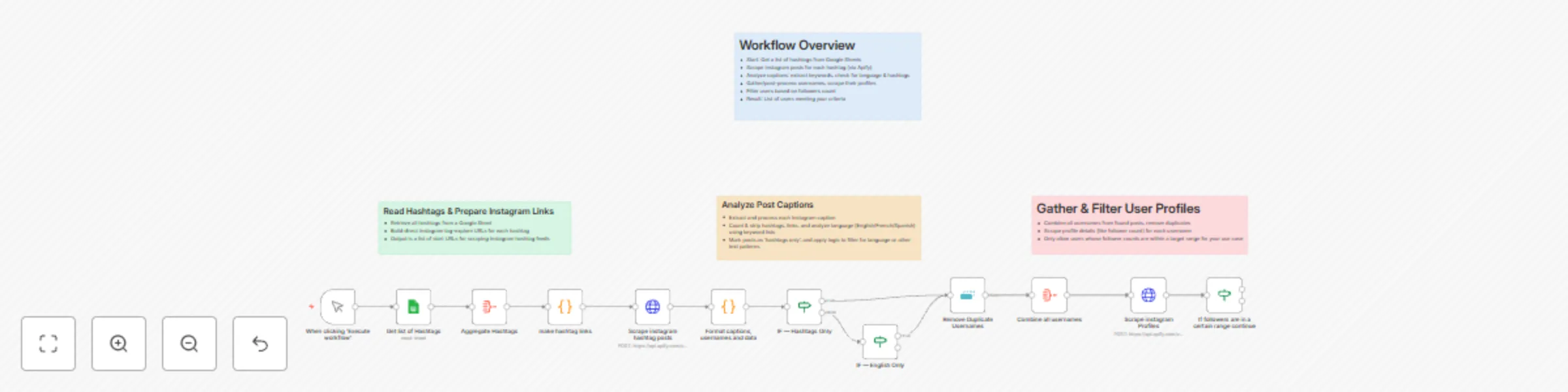
# Instagram Hashtag Lead Generation Automate the process of finding and qualifying Instagram leads based on hashtags. This workflow reads hashtags from Google Sheets, scrapes Instagram for posts using Apify, analyzes caption content and language, compiles unique usernames, gathers detailed user info, and filters leads based on follower count. --- ## How It Works 1. **Fetch Hashtags** The workflow starts and pulls a list of hashtags from a Google Sheet. 2. **Scrape Instagram Posts** For each hashtag, it builds Instagram explore URLs and scrapes posts using Apify. 3. **Analyze Captions** Each caption is cleaned, hashtags and links are removed, and language/content is analyzed (English/French/Spanish). 4. **Extract & Filter Usernames** Usernames are combined and deduplicated, their Instagram profiles scraped for follower counts and other details. 5. **Qualified Leads** Only users with followers in your target range are kept as qualified leads for outreach or analysis. --- ## Requirements - An n8n instance. - Apify API key. - Google account with a Sheet containing hashtags. - Apify Instagram Scraper actor access. - The Google Sheet should have a column with hashtags. --- ## Setup Instructions 1. **Add Credentials** In n8n, add your Apify API key and Google Sheets credentials. 2. **Configure Google Sheets Nodes** Choose your credentials, spreadsheet, and sheet name in the “Get list of Hashtags” node. 3. **Configure Apify Request Nodes** Enter your Apify API key and select the Instagram scraper actors. 4. **Adjust Filtering** Edit the min/max follower count in the relevant filter node to match your needs. 5. **Test & Run** Manually execute the workflow or add a trigger to run on a schedule. --- ## Customization Options 💡 - **Trigger:** Add a schedule or webhook to automate execution. - **Language Filtering:** Modify keyword lists or add language detection logic. - **Lead Output:** Extend the workflow to save leads to a CRM or send notifications. --- ## Details **Nodes used in workflow:** - Manual Trigger - Google Sheets - Code - HTTP Request (Apify) - IF (Conditional) - Aggregate - Remove Duplicates - Sticky Note
Create viral social media videos with FalAI Flux/Kling and GPT-4 automation
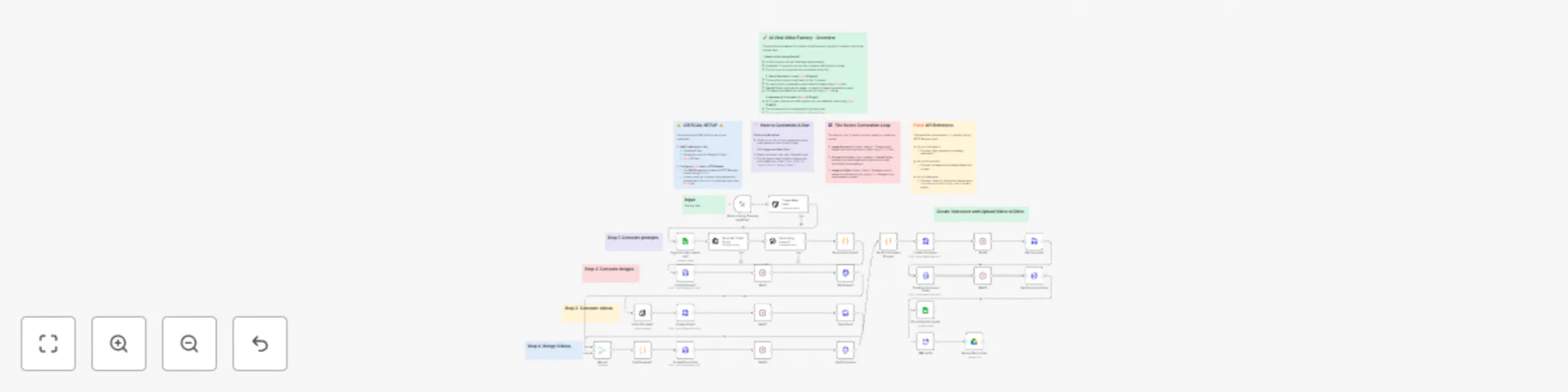
## AI-Powered Viral Video Factory 🚀 This workflow automates the entire process of creating short, cinematic, fact-based videos ready for social media. It takes a single concept, generates a script and visuals, creates video clips, adds a voiceover, and assembles a final video, which is then uploaded directly to your Google Drive. It's perfect for **content creators and marketing agencies** looking to scale video production with minimal manual effort. --- ## How It Works 🎬 1. **Generate a Viral Idea** 💡: The workflow begins with the **`Create New Idea1`** (OpenAI) node, which generates a viral-ready video concept, including a punchy title, hashtags, and a brief description based on a core theme (e.g., space, black holes). This idea is then logged in a Google Sheet. 2. **Create a Cinematic Script & Voiceover** 📜: * An **OpenAI node** (**`Generating scenes1`**) creates a detailed 12-scene script, outlining the visuals for a 60-second video. * The script text for all scenes is combined and prepared for voiceover generation by another **OpenAI node** (**`Generate Voiceover`**). 3. **Generate Scene-by-Scene Visuals** ✨: The workflow loops through each of the 12 scenes to create an animated clip: * **Image Generation**: An **HTTP Request node** sends the scene's prompt to the **`fal-ai/flux`** model to create a photorealistic still image. * **Animation Prompting**: The **`Video Prompts1`** (OpenAI Vision) node analyzes the generated image and creates a new, specific prompt to animate it cinematically. * **Image-to-Video**: Another **HTTP Request node** uses the **`fal-ai/kling-video`** model to turn the still image into a 5-second animated video clip based on the new animation prompt. 4. **Assemble the Final Video** 🎞️: * **Stitch Clips**: Once all 12 clips are generated, the **`Merge Clips`** node uses the **`fal-ai/ffmpeg-api`** to concatenate them into a single, seamless 60-second video. * **Add Audio**: The **`Combine Voice and Video`** node then layers the AI-generated voiceover onto the stitched video. 5. **Deliver to Google Drive** 📂: Finally, the completed video is converted from a URL to a file and automatically uploaded to your specified Google Drive folder for easy access and publishing. --- ## Key Technologies Used * **n8n**: For orchestrating the entire automated workflow. * **OpenAI (GPT-4.1 & GPT-4o)**: For idea generation, scriptwriting, voiceover, and vision analysis. * **Fal.ai**: For high-performance, API-based image generation (`Flux`), video animation (`Kling`), and video processing (`FFMPEG API`). * **Google Drive & Sheets**: For logging ideas and storing the final video output. --- ## Setup Instructions 1. **Add Credentials**: * In n8n, add your **OpenAI API key**. * Connect your **Google account** for Google Sheets and Google Drive access. * You will need a **Fal.ai API Key**. 2. **Configure Fal.ai API Key**: * **Crucially**, you must replace the placeholder API key in all **HTTP Request** nodes that call the `fal.run` URL. * Find the `Authorization` header in each of these nodes and replace the existing key with your own `Key YOUR_FAL_AI_KEY_HERE`. * Nodes to update: `Create Images1`, `Get Images1`, `Create Video1`, `Get Video1`, `Merge Clips`, `Get Final video`, `Combine Voice and Video`. 3. **Configure OpenAI Nodes**: * Select each OpenAI node (e.g., **`Create New Idea1`**, **`Generating scenes1`**) and choose your OpenAI credential. * You can customize the main prompt in the **`Create New Idea1`** node to change the theme of the videos you want to generate. 4. **Configure Google Sheets & Drive**: * In the **`Organise idea, caption etc1`** node, select your Google Sheets credential and specify the Spreadsheet and Sheet ID you want to use for logging ideas. * In the **`Upload file to drive`** node, select your Google Drive credential and choose the destination folder for your final videos.
Personalized lead nurturing with GPT-4.1 based on commitment scoring via Google Sheets
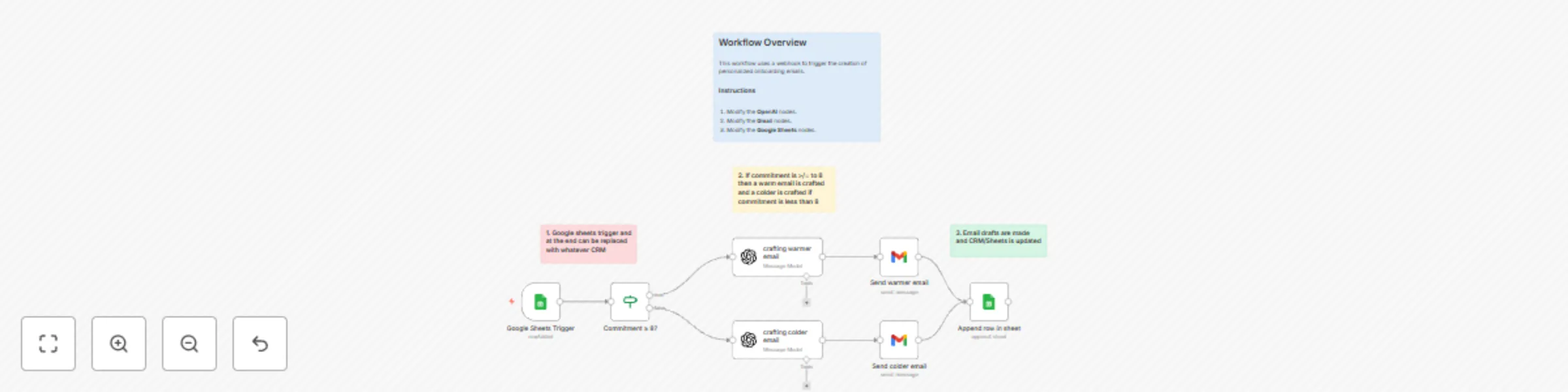
## AI-Powered Personalized Email Nurturing This workflow automates sending tailored onboarding and follow-up emails based on lead commitment levels. It's designed for **coaches, consultants, and service-based businesses** who want to personalize their outreach and nurture prospects more effectively. --- ## How It Works 1. **Triggered by New Data**: The workflow automatically starts whenever a new row is added to your specified Google Sheet. 2. **Assess Commitment**: An **If node** checks the "Commitment" score from your Google Sheet data. * If the commitment score is **8 or higher**, the lead is considered "warm" and receives a detailed onboarding email. * If the commitment score is **below 8**, the lead is considered "colder" and receives a gentle nudge email. 3. **Craft Warm Email (for high commitment)**: For "warm" leads, an **OpenAI node** generates an aspirational and confident first-touch email. This email highlights their goals, introduces your flagship offers, and invites them to a 30-minute discovery call. 4. **Craft Colder Email (for lower commitment)**: For "colder" leads, a different **OpenAI node** generates an encouraging, non-pushy follow-up email. This email thanks them for sharing their goals, reinspires them with the ROI of personal branding, asks a reflective question, and offers a no-pressure Q&A session. 5. **Send Emails**: The appropriate **Gmail node** sends the personalized email to the lead. 6. **Record Activity**: Finally, the **Google Sheets node** appends the lead's information and details of the sent email to a separate "Contacts" sheet, keeping a clear record of all interactions. --- ## Google Sheet Structure Your primary Google Sheet (the one triggering the workflow) must have the following exact column headers: * **Email** * **First name** * **Last name** * **Phone number** * **Industry** * **Title** * **Three goals you wish to achieve this year** * **1-10 how commited are you to your goals** Your secondary Google Sheet (for appending contacts) must have these exact column headers: * **name** * **email** * **phone** * **industry** * **title** * **three goals** * **commitment** --- ## Setup Instructions 1. **Add Credentials**: * In n8n, add your **OpenAI API key** via the **Credentials** menu. * Connect your **Google account** via the **Credentials** menu for Google Sheets and Gmail access. 2. **Configure Google Sheets Trigger**: * Select the **`Google Sheets Trigger`** node. * Choose your **Google Sheets credential**, select your **spreadsheet**, and the **specific sheet name** that contains your incoming lead data. 3. **Configure Commitment Logic**: * Select the **`Commitment ≥ 8?`** If node. * The condition is set to `={{ $json['1-10 how commited are you to your goals'] }} >= 8`. Ensure your Google Sheet column name for commitment matches exactly, including spacing and capitalization. 4. **Configure OpenAI Nodes**: * Select both **`crafting warmer email`** and **`crafting colder email`** nodes. * Choose your **OpenAI credential** from the dropdown. * **Crucially**: In both nodes' **Messages** section, replace placeholder information with your actual **company name**, **founder name**, and any specific details about your **flagship offers** and **booking links** (`https://calendly.com/brandied/discovery`). 5. **Configure Gmail Nodes**: * Select both **`Send warmer email`** and **`Send colder email`** nodes. * Choose your **Gmail credential**. 6. **Configure Append Row in Sheet**: * Select the **`Append row in sheet`** node. * Choose your **Google Sheets credential**, select the **spreadsheet** and **sheet name** where you want to log sent emails (your "Contacts" sheet). * Verify that the column mappings correctly align with the "Google Sheet Structure" for your secondary sheet. --- ## Customization Options 💡 * **Commitment Threshold**: Adjust the number in the **`Commitment ≥ 8?`** If node to change what constitutes a "warm" lead (e.g., `gte 7` for a commitment score of 7 or higher). * **Email Content & Tone**: Modify the prompts in the **`crafting warmer email`** and **`crafting colder email`** OpenAI nodes to fine-tune the email tone, length, specific calls to action, or any other elements to better suit your brand voice and strategy. * **Follow-Up Cadence**: Instead of immediate sending, you could introduce a **Wait node** after the email crafting to space out follow-ups or integrate with an email sequence tool. * **CRM Integration**: Replace the final **Google Sheets node** with an integration to your CRM (e.g., HubSpot, Salesforce) to automatically log these interactions and enrich lead profiles directly within your CRM.
Generate personalized cold outreach emails with Apify, OpenAI, and Google Sheets
# Automated Cold Email Personalization This workflow automates the creation of highly personalized cold outreach emails by extracting lead data, scraping company websites, and leveraging AI to craft unique email components. This is ideal for **sales teams, marketers, and business development professionals** looking to scale their outreach efforts while maintaining a high degree of personalization. --- ## How It Works 1. **Generate Batches**: The workflow starts by generating a sequence of numbers, defining how many leads to process in batches. 2. **Scrape Lead Data**: It uses an external API (Apify) to pull comprehensive lead information, including contact details, company data, and social media links. 3. **Fetch Client Data**: The workflow then retrieves relevant client details from your Google Sheet based on the scraped data. 4. **Scrape Company Website**: The lead's company website is automatically scraped to gather content for personalization. 5. **Summarize Prospect Data**: An OpenAI model analyzes both the scraped website content and the individual's profile data to create concise summaries and identify unique angles for outreach. 6. **Craft Personalized Email**: A more advanced OpenAI model uses these summaries and specific instructions to generate the "icebreaker," "intro," and "value proposition" components of a personalized cold email. 7. **Update Google Sheet**: Finally, these generated email components are saved back into your Google Sheet, enriching your lead records for future outreach. --- ## Google Sheet Structure Your Google Sheet must have the following exact column headers to ensure proper data flow: * **Email** (unique identifier for each lead) * **Full Name** * **Headline** * **LinkdIn** * **cityName** * **stateName** * **company/cityName** * **Country** * **Company Name** * **Website** * **company/businessIndustry** * **Keywords** * **icebreaker** (will be populated by the workflow) * **intro** (will be populated by the workflow) * **value\_prop** (will be populated by the workflow) --- ## Setup Instructions 1. **Add Credentials**: * In n8n, add your **OpenAI API key** via the Credentials menu. * Connect your **Google account** via the Credentials menu for Google Sheets access. * You will also need an **Apify API key** for the `Scraper` node. 2. **Configure Google Sheets Nodes**: * Select the **`Client data`** and **`Add email data to sheet`** nodes. * For each, choose your **Google Sheets credential**, select your **spreadsheet**, and the **specific sheet name**. * Ensure all column mappings are correct according to the "Google Sheet Structure" section above. 3. **Configure Apify Scraper Node**: * Select the **`Scraper`** node. * Update the `Authorization` header with your **Apify API token** (`Bearer KEY`). * In the `JSON Body`, set the `searchUrl` to your **Apollo link** (or equivalent source URL for lead data). 4. **Configure OpenAI Nodes**: * Select both **`Summarising prospect data`** and **`Creating detailed email`** nodes. * Choose your **OpenAI credential** from the dropdown. * In the `Creating detailed email` node's prompt, replace `PUT YOUR COMPANY INFO HERE` with your **company's context** and verify the target sector for the email generation. 5. **Verify Update Node**: * On the final **`Add email data to sheet`** node, ensure the **Operation** is set to `Append Or Update` and the **Matching Columns** field is set to `Email`. --- ## Customization Options 💡 * **Trigger**: Change the `When clicking 'Execute workflow'` node to an automatic trigger, such as a **Cron node** for daily runs, or a **Google Sheets trigger** when new rows are added. * **Lead Generation**: Modify the **`Code`** node to change the number of leads processed per run (currently set to 50). * **Scraping Logic**: Adjust the `Scraper` node's parameters (e.g., `count`) or replace the Apify integration with another data source if needed. * **AI Prompting**: Experiment with the prompts in the **`Summarising prospect data`** and **`Creating detailed email`** OpenAI nodes to refine the tone, style, length, or content focus of the generated summaries and emails. * **AI Models**: Test different OpenAI models (e.g., `gpt-3.5-turbo`, `gpt-4o`) in the OpenAI nodes to find the optimal balance between cost, speed, and output quality. * **Data Source/CRM**: Replace the Google Sheets nodes with integrations for your preferred CRM (e.g., HubSpot, Salesforce) or a database (e.g., PostgreSQL, Airtable) to manage your leads.
Generate personalized cold outreach icebreakers with GPT-4 and Google Sheets
## Automated Personalized Email Icebreakers This workflow automates creating personalized email icebreakers. It reads leads from a Google Sheet, scrapes their company website, uses OpenAI to analyze the data and craft a unique opening line, and then saves that icebreaker back into the original sheet. ## How It Works * **Fetch Lead**: The workflow starts, loops through your leads, and pulls one from your Google Sheet. * **Scrape & Summarize**: It scrapes the lead's company website and uses a fast OpenAI model to summarize the key points about the company and the person. * **Generate Icebreaker**: This summary is then sent to a more powerful OpenAI model, which follows specific instructions to write a short, personalized icebreaker. * **Update Sheet**: The new icebreaker is saved back into the correct lead's row in your Google Sheet, using their email to match the record. --- ## Requirements * An n8n instance. * An OpenAI API key with available credits. * A Google account with a Sheet for your leads. * The Google Sheet must have columns for lead data (e.g., `Email`, `Website`, `Company Name`) and an empty column named `icebreaker`. * The `Email` column must be unique for each lead. --- ## Setup Instructions 1. **Add Credentials**: In n8n, add your OpenAI API key and connect your Google account via the **Credentials** menu. 2. **Configure Google Sheets Nodes**: Select each of the two Google Sheets nodes (`Client data` and `Add icebreaker to sheet`). In each, choose your credential, select your spreadsheet and the specific sheet name, and ensure the column mapping is correct. 3. **Configure OpenAI Nodes**: Select both OpenAI nodes (`Summarising prospect data` and `Creating icebreaker`) and choose your OpenAI credential from the dropdown. 4. **Verify Update Node**: On the final `Add icebreaker to sheet` node, ensure the **Operation** is set to `Append Or Update` and the **Matching Columns** field is set to `Email`. --- ## Customization Options 💡 * **Trigger**: Change the manual start to an automatic trigger, like when a new row is added to the sheet or on a daily schedule (Cron). * **AI Prompt**: Modify the prompt in the "Creating icebreaker" node to change the tone, style, or length of the output. * **AI Model**: Experiment with different OpenAI models (like `gpt-4o`) for a different balance of cost, speed, and quality. * **Data Source**: Replace Google Sheets with a CRM like HubSpot or a database like Postgres.