Block 1 - Route by Category
- Type / Role
- n8n-nodes-base.switch - switch
- Config choices
- Version 3.3


 Early Deal
This workflow is provided as-is. Please review and test before using in production.
Overview This workflow automatically reads school related emails from Gmail, uses AI to understand what each email is about, and then organizes everything into Google Drive and Google Calendar. It ...
n8n-nodes-base.switch, n8n-nodes-base.set, n8n-nodes-base.googlecalendar, n8n-nodes-base.gmail, n8n-nodes-base.filter, n8n-nodes-base.googledrive, n8n-nodes-base.scheduletrigger, n8n-nodes-base.gmailtrigger
This workflow is cataloged by N8N Workflows and links back to its original n8n.io source page by SOLOVIEVA ANNA.
Original n8n.io sourceOverview
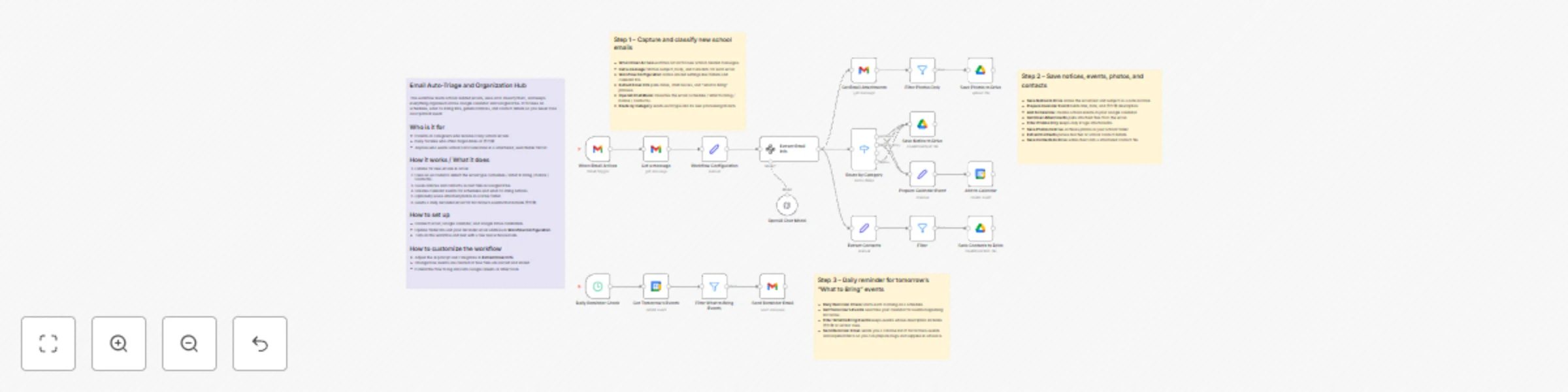
This workflow automatically reads school-related emails from Gmail, uses AI to understand what each email is about, and then organizes everything into Google Drive and Google Calendar. It classifies messages into schedules, “what to bring” lists, general notices, and contact information, creates calendar events when needed, saves text files in Drive, and sends you a daily reminder email about tomorrow’s important events.
Email Auto-Triage and Organizat…
Email Auto-Triage and Organization Hub
Who this is for
Parents or caregivers who get lots of school emails and want everything organized automatically
Busy families who often forget dates, deadlines, or 持ち物 (things to bring)
Anyone who wants school communication stored in a structured, searchable way in Drive and Calendar
How it works
Trigger: Gmail watch for new emails A Gmail Trigger node watches your inbox and starts the workflow whenever a new email arrives. It then loads the full message content (subject, body, metadata).
Email Auto-Triage and Organizat…
AI classification and extraction The email text is sent to an AI model, which returns a structured JSON object with:
category: “Schedule”, “What to Bring”, “Notice”, or “Contacts”
eventTitle, eventDescription, eventDate (ISO format)
itemsToBring, contacts, subject, id, and hasAttachments This turns messy school emails into clean structured data.
Email Auto-Triage and Organizat…
Routing by category A Switch node routes each email based on its category and whether it has attachments:
Schedule / What to Bring → create a calendar event and also save a notice file
Notice → save a notice file only
Any email with attachments → send to the attachment branch for optional photo storage
Email Auto-Triage and Organizat…
Save notices to Google Drive For all categorized emails, the workflow creates a text file in Google Drive containing:
Title, date, category, items to bring, and a short description of the event or notice.
Email Auto-Triage and Organizat…
Create calendar events For “Schedule” and “What to Bring” emails, the workflow builds a summary and description (including 持ち物) and creates a Google Calendar event. If no end time is given, it defaults to one hour after the start.
Email Auto-Triage and Organizat…
Save photo attachments (optional) If the email has image attachments, the workflow:
Downloads the attachments from Gmail
Filters to only image files
Saves the photos in a specified Google Drive folder, using the original file name
Email Auto-Triage and Organizat…
Extract and archive contact information The workflow also pulls out the sender’s contact info (From), links it to the email subject and timestamp, and saves it as a separate contact text file in Google Drive for easy reference.
Email Auto-Triage and Organizat…
Daily reminder for tomorrow’s events Every morning at a set time, a Schedule Trigger runs:
It fetches all events from Google Calendar for “tomorrow”
Filters down to events whose description includes “持ち物”
Sends you an email summarizing tomorrow’s events and what you need to bring, so you can prepare in advance.
Email Auto-Triage and Organizat…
How to set up
Connect your Gmail, Google Calendar, and Google Drive credentials in the respective nodes.
In the Workflow Configuration node, set:
photosFolderId – Drive folder for saved photos
noticesFolderId – Drive folder for notice text files
contactsFolderId – Drive folder for contact text files
reminderEmail – email address that will receive the daily reminder
Make sure the Gmail Trigger is pointing to the correct mailbox and is set to poll as often as you like.
Confirm that the Google Calendar node uses the calendar where you want school events to appear.
Turn the workflow on and test it with a few real school emails (schedules, what to bring, general notices).
Email Auto-Triage and Organizat…
Customization ideas
Adjust the AI prompt in Extract Email Info to better match your school’s typical email style or to add more categories.
Change the logic for calendar events (all-day events, different default times, or additional fields like location).
Modify file naming patterns or folder structure in Google Drive (e.g., separate folders per child, per school year, or per class).
Add logging to Google Sheets for a timeline view of all school communication.
Forward or mirror important events/notices to other tools such as Slack, Notion, or a family LINE group.
This catalog entry is organized from the workflow JSON. The node-level section below shows the executable blocks available for review before importing the template.
| Workflow | Organize school emails with AI, Google Calendar and Drive auto-triage system |
|---|---|
| Complexity | advanced |
| Nodes | 23 |
| Categories | Ticket Management, AI Summarization |
| Author | SOLOVIEVA ANNA |
| Published | 05 Dec 2025 |
Use the JSON export at /data/workflows/11529/11529.json as the source template for this automation.
Open n8n, import the downloaded JSON, and review each node before activating the workflow.
Replace placeholder credentials, API keys, webhook URLs, account IDs, and environment-specific values with your own settings.
Run the workflow manually or in a staging workspace, inspect node output, and confirm downstream systems receive the expected data.
Enable the workflow only after testing, then monitor executions, errors, and rate limits during the first production runs.
Review imported nodes carefully before activation. This catalog entry is intended to help you inspect the workflow structure, understand required services, and find related templates faster.
Node names, credentials, schedules, webhook paths, and external service limits may need adjustment for your workspace.
Overview This workflow automatically reads school related emails from Gmail, uses AI to understand what each email is about, and then organizes everything into Google Drive and Google Calendar. It ...
Review the workflow JSON, configure any required credentials in n8n, and test the automation in a safe workspace before using it in production.
Yes. Use the block-by-block analysis and the downloadable JSON to inspect each node, then adjust credentials, prompts, schedules, filters, or destinations for your Ticket Management, AI Summarization use case.