S

SOLOVIEVA ANNA

5
Workflows

Workflows by SOLOVIEVA ANNA

Workflow preview: Convert audio emails to Japanese transcripts with OpenAI GPT-4o & Google Suite
Free advanced

Convert audio emails to Japanese transcripts with OpenAI GPT-4o & Google Suite

**Overview** This workflow turns audio attachments you receive by Gmail into Japanese transcripts and structured AI summaries, then saves everything to Google Drive and Google Sheets while notifying you via Gmail and Slack. Every time an email with a voice recording arrives, the audio is stored in a dated folder, fully transcribed in Japanese, summarized into clear meeting-style points, and logged so you can quickly review and search later. Audio Email to Japanese Transcr… Audio Email to Japanese Transcript with AI Summary & Multi-Channel Notification **Who this is for** People who get voice memos or meeting recordings as email attachments Teams that want clear Japanese transcripts plus action-item summaries from calls Anyone who wants audio notes automatically archived and searchable in Drive/Sheets **How it works** Trigger: New Gmail with audio attachment A Gmail Trigger watches your inbox, downloads attachments for each new email, and passes them into the workflow. Split & filter attachments A Code node splits the email into one item per attachment and normalizes the binary data to binary.data. A Filter node keeps only audio files (mp3, wav, m4a, ogg) and discards everything else. Create date-based Drive folder & upload audio A Code node builds a YYYY/MM folder path from the current date. A Google Drive node creates that folder (if it doesn’t exist) under your chosen parent folder. A Merge node combines folder info with file info, and the audio file is uploaded into that folder so all recordings are organized by year/month. Transcribe audio to Japanese text An HTTP Request node calls the OpenAI Audio Transcriptions API (gpt-4o-transcribe) with the audio file. The prompt tells the model to produce a verbatim Japanese transcript (no summarization, no guessing), returned as plain text. Generate structured AI summary The transcript is sent to an OpenAI Chat node (gpt-4o), which outputs JSON with: title: short Japanese title for the recording points: key discussion points (array) decisions: decisions made (array) actionItems: action items with owner/deadline (array) A Set node then formats this JSON into a Markdown summary (summaryContent) with sections for 要点 / 決定事項 / アクションアイテム. Save transcript & summary files to Drive The transcript text is converted into a .txt file and uploaded to the same YYYY/MM folder. The Markdown summary is converted into a .md file (e.g. xxx_summary.md) and uploaded as well. Each file is then shared in Drive so you have accessible web links to both transcript and summary. Log to Google Sheets A Code node collects the email subject, file name, full transcript, formatted summary, and Drive links into one JSON object. A Google Sheets node appends a new row with timestamp, subject, summary, transcript, and link so you get a running log of all processed audios. Notify via Gmail & Slack Finally, the workflow: Sends a Gmail message back to the original sender with the meeting summary and links Posts a Slack notification in your chosen channel, including subject, file name, summary text, and Drive link **How to set up** Connect your Gmail, Google Drive, Google Sheets, Slack, and OpenAI credentials in the respective nodes. In the Gmail Trigger, narrow the scope if needed (e.g. specific label, sender, or inbox). In the Drive nodes, set the parent folder where you want the YYYY/MM subfolders to be created. In the Google Sheets node, point to your own spreadsheet and sheet name. In the Slack node, select the channel where reminders should be posted. Make sure your OpenAI credentials have access to both audio transcription and chat endpoints. **Customization ideas** Filter by sender, subject keyword, or label so only certain emails are processed. Change the folder structure (e.g. ProjectName/YYYY/MM or YYYY/MM/DD) in the folder-path Code node. Adjust the transcription prompt (e.g. allow light punctuation clean-up, use another language). Modify the summary format or add extra fields (e.g. meeting participants, project name) in the AI prompt and Markdown template. Send notifications to other tools: add branches for Notion, LINE, Teams, or additional Slack channels.

S
SOLOVIEVA ANNA
Document Extraction
17 Dec 2025
23
0

Workflow preview: Organize school emails with AI, Google Calendar and Drive auto-triage system
Free advanced

Organize school emails with AI, Google Calendar and Drive auto-triage system

**Overview** This workflow automatically reads school-related emails from Gmail, uses AI to understand what each email is about, and then organizes everything into Google Drive and Google Calendar. It classifies messages into schedules, “what to bring” lists, general notices, and contact information, creates calendar events when needed, saves text files in Drive, and sends you a daily reminder email about tomorrow’s important events. Email Auto-Triage and Organizat… Email Auto-Triage and Organization Hub **Who this is for** Parents or caregivers who get lots of school emails and want everything organized automatically Busy families who often forget dates, deadlines, or 持ち物 (things to bring) Anyone who wants school communication stored in a structured, searchable way in Drive and Calendar **How it works** Trigger: Gmail watch for new emails A Gmail Trigger node watches your inbox and starts the workflow whenever a new email arrives. It then loads the full message content (subject, body, metadata). Email Auto-Triage and Organizat… AI classification and extraction The email text is sent to an AI model, which returns a structured JSON object with: category: “Schedule”, “What to Bring”, “Notice”, or “Contacts” eventTitle, eventDescription, eventDate (ISO format) itemsToBring, contacts, subject, id, and hasAttachments This turns messy school emails into clean structured data. Email Auto-Triage and Organizat… Routing by category A Switch node routes each email based on its category and whether it has attachments: Schedule / What to Bring → create a calendar event and also save a notice file Notice → save a notice file only Any email with attachments → send to the attachment branch for optional photo storage Email Auto-Triage and Organizat… Save notices to Google Drive For all categorized emails, the workflow creates a text file in Google Drive containing: Title, date, category, items to bring, and a short description of the event or notice. Email Auto-Triage and Organizat… Create calendar events For “Schedule” and “What to Bring” emails, the workflow builds a summary and description (including 持ち物) and creates a Google Calendar event. If no end time is given, it defaults to one hour after the start. Email Auto-Triage and Organizat… Save photo attachments (optional) If the email has image attachments, the workflow: Downloads the attachments from Gmail Filters to only image files Saves the photos in a specified Google Drive folder, using the original file name Email Auto-Triage and Organizat… Extract and archive contact information The workflow also pulls out the sender’s contact info (From), links it to the email subject and timestamp, and saves it as a separate contact text file in Google Drive for easy reference. Email Auto-Triage and Organizat… Daily reminder for tomorrow’s events Every morning at a set time, a Schedule Trigger runs: It fetches all events from Google Calendar for “tomorrow” Filters down to events whose description includes “持ち物” Sends you an email summarizing tomorrow’s events and what you need to bring, so you can prepare in advance. Email Auto-Triage and Organizat… **How to set up** Connect your Gmail, Google Calendar, and Google Drive credentials in the respective nodes. In the Workflow Configuration node, set: photosFolderId – Drive folder for saved photos noticesFolderId – Drive folder for notice text files contactsFolderId – Drive folder for contact text files reminderEmail – email address that will receive the daily reminder Make sure the Gmail Trigger is pointing to the correct mailbox and is set to poll as often as you like. Confirm that the Google Calendar node uses the calendar where you want school events to appear. Turn the workflow on and test it with a few real school emails (schedules, what to bring, general notices). Email Auto-Triage and Organizat… **Customization ideas** Adjust the AI prompt in Extract Email Info to better match your school’s typical email style or to add more categories. Change the logic for calendar events (all-day events, different default times, or additional fields like location). Modify file naming patterns or folder structure in Google Drive (e.g., separate folders per child, per school year, or per class). Add logging to Google Sheets for a timeline view of all school communication. Forward or mirror important events/notices to other tools such as Slack, Notion, or a family LINE group.

S
SOLOVIEVA ANNA
Ticket Management
5 Dec 2025
80
0

Workflow preview: Create AI diary entries from LINE photos with OpenAI Vision and Google Drive
Free advanced

Create AI diary entries from LINE photos with OpenAI Vision and Google Drive

**Overview** This workflow turns photos sent to a LINE bot into tiny AI-generated diary entries and saves everything neatly in Google Drive. Each time a user sends an image, the workflow creates a timestamped photo file and a matching text file with a short diary sentence, stored inside a year/month folder structure (KidsDiary/YYYY/MM). It’s a simple way to keep a lightweight visual diary for kids or daily life without manual typing. LINE Photo to AI Diary with Goo… **Who this is for** Parents who want to archive kids’ photos with a short daily comment People who often send photos to LINE and want them auto-organized in Drive Anyone who prefers a low-friction, “take a photo and forget” style diary **How it works** Trigger: A LINE Webhook receives an image message from the user. Extract metadata: The workflow extracts the messageId and replyToken. Download image: It calls the LINE content API to fetch the image as binary. AI diary text: OpenAI Vision generates a one-sentence, diary-style caption (about 50 Japanese characters). Folder structure: A KidsDiary/YYYY/MM folder is created (or reused) in Google Drive. Save files: The photo is saved as YYYY-MM-DD_HHmmss.jpg and the diary text as YYYY-MM-DD_HHmmss_diary.txt in the same folder. Confirm on LINE: The bot replies to the user that the photo and diary have been saved. **How to set up** Connect your LINE Messaging API credentials in the HTTP Request nodes. Connect your Google Drive credential in the Google Drive nodes and choose a root folder. Make sure the webhook URL is correctly registered in the LINE Developers console. **Customization ideas** Change the AI prompt to adjust tone (e.g., more playful, more sentimental). Localize the diary language or add an English translation. Add a second branch to post the saved diary entry to Slack, Notion, or email. Organize Google Drive folders by child’s name instead of only by date.

S
SOLOVIEVA ANNA
Personal Productivity
3 Dec 2025
23
0
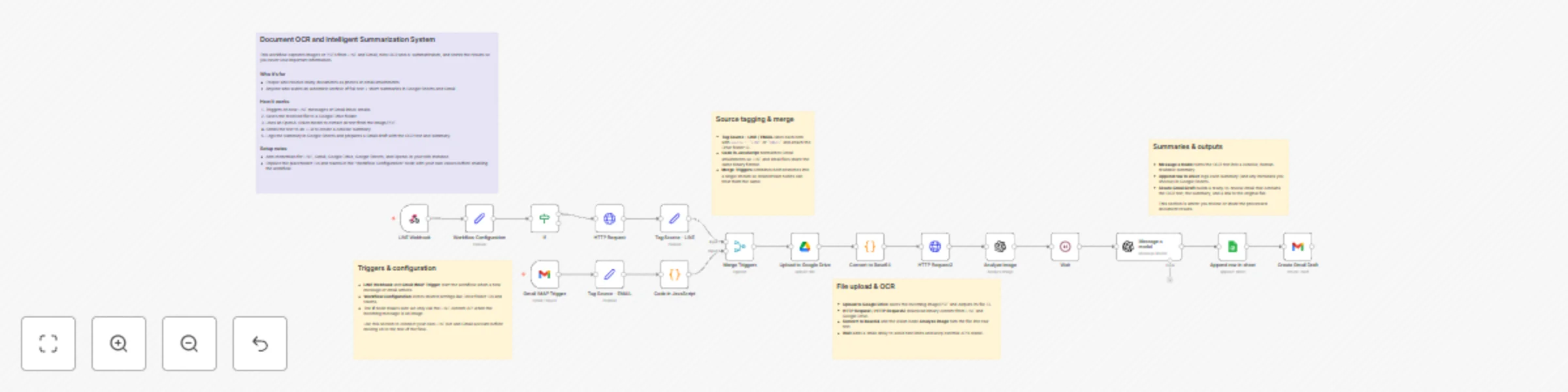
Workflow preview: OCR document processing from LINE/Gmail using GPT-4o to Google Workspace
Free advanced

OCR document processing from LINE/Gmail using GPT-4o to Google Workspace

**Who this is for** Users who frequently receive images or documents via LINE or email Teams needing automatic OCR + AI summarization Anyone who wants hands-free document processing and structured storage **How it works** Triggers: LINE Webhook and Gmail IMAP Trigger capture incoming messages or emails. Source Tagging: Inputs are tagged as LINE or EMAIL for later branching. File Handling: Files are uploaded to Google Drive and converted for analysis. OCR: An AI vision model extracts all readable text from the document image. AI Summarization: A text model produces a concise summary. Logging: The summary is appended to Google Sheets for record-keeping. Email Drafting: A Gmail Draft is generated containing the OCR text and summary. **How to set up** Connect your LINE, Gmail, OpenAI, and Google Drive/Sheets credentials. Update folder IDs, sheet names, and authentication fields as needed. Optional: customize summarization instructions. **Customization ideas** Add translation or classification steps Modify output format for Slack/Notion Store files in date-based Drive folders

S
SOLOVIEVA ANNA
Document Extraction
2 Dec 2025
40
0

Workflow preview: Create daily trivia icebreakers in Slack with OpenTDB & Google Sheets log
Free advanced

Create daily trivia icebreakers in Slack with OpenTDB & Google Sheets log

**Who this workflow is for** This template is for teams who want a lightweight “daily icebreaker” in Slack and creators who’d like to build a reusable trivia database over time. It works well for remote teams, communities, and any workspace that enjoys a quick brain teaser each day. **What this workflow does** The workflow fetches a random multiple-choice question from the Open Trivia Database (OpenTDB), posts a nicely formatted trivia message to a Slack channel, and logs the full question and answers into a Google Sheets spreadsheet. Over time, this creates a searchable “trivia archive” you can reuse for quizzes, content, or community events. **How it works** A Schedule Trigger runs once per day at a time you define. A Set node randomly chooses a difficulty level (easy, medium, or hard). A Switch node routes to the matching OpenTDB HTTP request. Each branch normalizes the API response into common fields (timestamp, date, difficulty, category, question, correct, incorrect, messageTitle, messageBody). A Merge node combines the three branches into a single stream. Slack posts the trivia message. Google Sheets appends the same data as a new row. **How to set up** Connect your Slack OAuth2 credentials and choose a target channel. Connect your Google Sheets credentials and select the spreadsheet and sheet. Adjust the schedule (time and frequency) to match your use case. **How to customize** Change the Slack message format (for example, add emojis or hints). Filter categories or difficulty levels instead of picking them fully at random. Add additional logging (e.g., user reactions, answer stats) in Sheets or another datastore.

S
SOLOVIEVA ANNA
Miscellaneous
27 Nov 2025
30
0