Block 1 - google form trigger
- Type / Role
- n8n-nodes-base.googleSheetsTrigger - googleSheetsTrigger
- Config choices
- Version 1


 Early Deal
This workflow is provided as-is. Please review and test before using in production.
Description This workflow turns scattered user feedback into a structured product backlog pipeline. It collects feedback from three channels (Telegram bot, Google Form/Sheets, and Gmail), normalize...
n8n-nodes-base.googlesheetstrigger, n8n-nodes-base.gmailtrigger, n8n-nodes-base.code, n8n-nodes-base.telegram, n8n-nodes-base.jira, n8n-nodes-base.googlesheets, n8n-nodes-base.gmail, n8n-nodes-base.notion
This workflow is cataloged by N8N Workflows and links back to its original n8n.io source page by Yassin Zehar.
Original n8n.io sourceThis workflow turns scattered user feedback into a structured product backlog pipeline.
It collects feedback from three channels (Telegram bot, Google Form/Sheets, and Gmail), normalizes it, and sends it to an AI model that:
Classifies the feedback (bug, feature request, question, etc.)
Extracts sentiment and pain level
Estimates business impact and implementation effort
Generates a short summary
Then a custom RICE-style priority score is computed, a Jira ticket is created automatically, a Notion page is generated for documentation, and a monthly product report is sent by email to stakeholders.
It helps product & support teams move from “random feedback in multiple tools” to a repeatable, data-driven product intake process with zero manual triage.
In most teams, feedback is:
spread across emails, forms, and chat messages
manually copy–pasted into Jira (when someone remembers)
hard to prioritize objectively
nearly impossible to review at the end of the month
This workflow solves that by:
Centralizing feedback from Telegram, Google Forms/Sheets, and Gmail
Automatically normalizing all inputs into the same JSON structure
Using AI to categorize, tag, summarize, and score each request
Calculating a RICE-based priority adapted to your tiers (free / pro / enterprise)
Creating a Jira issue with all the context and acceptance criteria
Generating a Notion page for each feedback+ticket pair
Sending a monthly “Product Intelligence Report” by email with insights & recommendations
The result: less manual work, better prioritization, and a clear story of what users are asking for.
This template is designed for:
Product Managers and Product Owners
SaaS teams with multiple feedback channels
Support / CS teams that need a structured escalation path
Project Managers who want objective, data-driven prioritization
Any team that wants “feedback → backlog” automation without building a custom platform
You’ll need:
Google Sheets credential
Gmail credential
Telegram Bot + Chat ID
Google Form connected to a Google Sheet
Jira credential (Jira Cloud)
Notion credential
OpenAI/ Anthropic credential for the AI analysis node
An existing Jira project where tickets will be created
A Notion database or parent page where feedback pages will be stored
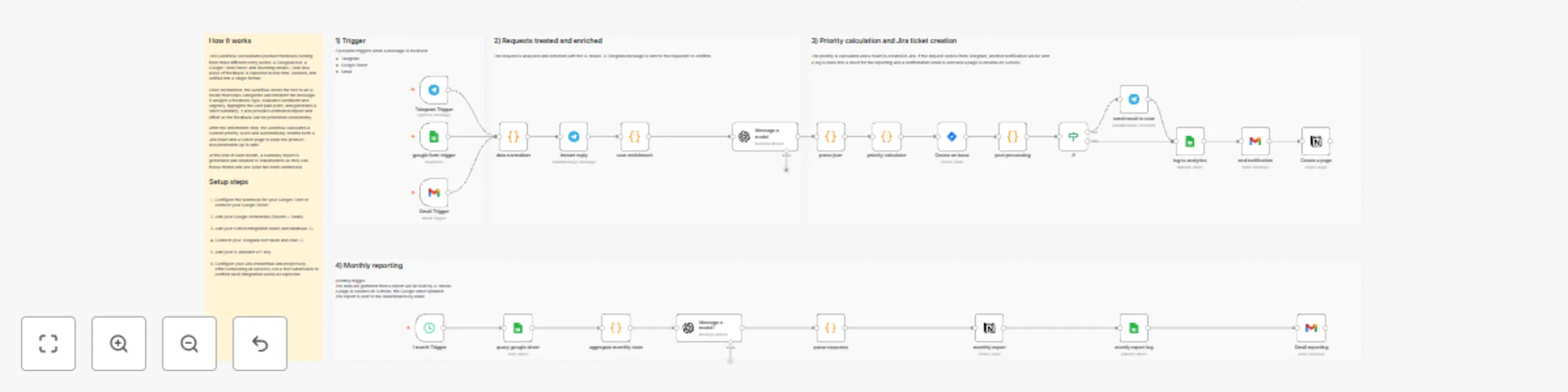
The workflow is organized into four main sections:
Telegram Trigger – Listens for new messages sent to your bot
Google Form / Sheet Trigger – Listens for new form responses / rows
Gmail Trigger – Listens for new emails matching your filter (e.g. [Feedback] in subject)
All three paths send their payloads into a “Data Normalizer” node that outputs a unified structure:
Instant Reply (Telegram only) – Sends a quick “Thanks, we’re analysing your feedback” message
User Enrichment – Enriches user tier based on mapping
Message a Model (AI)
classifies the feedback
extracts tags
scores sentiment, pain, business impact, effort
generates a short summary & acceptance criteria
JSON Parse / Merge – Merges AI output back into the original feedback object
Priority Calculator applies a RICE-style formula using:
pain level
business impact
implementation effort
user tier weight
assigns internal priority: P0 / P1 / P2 / P3
maps to Jira priority: Highest / High / Medium / Low
Create Jira Issue – Creates a ticket with:
summary from AI
description including raw feedback, AI analysis, and RICE breakdown
labels based on tags
priority based on the calculator
Post-processing – Prepares a clean payload for notifications & logging
IF (Source = Telegram) – Sends a rich Telegram message back to the user with:
Jira key + URL
category, priority, RICE score, tags, and estimated handling time
Append to Google Sheet (Analytics Log) – Logs each feedback with:
source, user, category, sentiment, RICE score, priority, Jira key, Jira URL
Create Notion Page – Creates a documentation page linking:
the feedback
the Jira ticket
AI analysis
acceptance criteria
Monthly Trigger – Runs once a month
Query Google Sheet – Fetches all feedback logs for the previous month
Aggregate Monthly Stats – Computes:
feedback volume
breakdown by category / sentiment / source / tier / priority
average RICE, pain, and impact
top P0/P1 issues and top feature requests
Message a Model (AI) – Generates a written “Product Intelligence Report” with:
executive summary
key insights & trends
top pain points
strategic recommendations
Parse Response: Extracts structured insights + short summary
Create Notion Report Page with:
metrics, charts-ready tables, insights, and recommendations
Append Monthly Log to Google Sheet – Stores high-level stats for historical tracking
Send Email with a formatted HTML report to stakeholders with:
key metrics
top issues
recommendations
link to the full Notion report
Multi-channel intake: Telegram + Google Forms/Sheets + Gmail
AI-powered triage: automatic category, sentiment, tags, and summary
RICE-style priority scoring with tier weighting
Automatic Jira ticket creation with full context
Notion documentation for each feedback and for monthly reports
Google Sheets analytics log for exploration and dashboards
Monthly “Product Intelligence Report” sent automatically by email
Designed to be adaptable: you can plug in your own labels, tiers, and scoring rules
When the workflow is running, you can expect:
A Jira issue created automatically for each relevant feedback
A confirmation email
A Telegram confirmation message when the feedback comes from Telegram
A Google Sheet filled with normalized feedback and scoring data
A Notion page per feedback/ticket with AI analysis and acceptance criteria Every month:
a Notion “Monthly Product Intelligence Report” page
a summary email with key metrics and insights for your stakeholders
Trigger – Listens to Telegram / Google Forms / Gmail
Normalize – Converts all inputs to a unified feedback format
Enrich with AI – Category, sentiment, pain, impact, effort, tags, summary
Score – Computes RICE-style priority and maps to Jira priority
Create Ticket – Opens a Jira issue + Notion page + logs to Google Sheets
Notify – Sends Telegram confirmation (if source is Telegram)
Report – Once a month, aggregates everything and sends a Product Intelligence Report
Tutorial video: Watch the Youtube Tutorial video
I’m Yassin a Project & Product Manager Scaling tech products with data-driven project management. 📬 Feel free to connect with me on Linkedin
This catalog entry is organized from the workflow JSON. The node-level section below shows the executable blocks available for review before importing the template.
Showing the first 24 of 29 workflow blocks. Download the JSON for the full node graph.
| Workflow | Multi-channel feedback to Jira pipeline with AI analysis & Notion reporting |
|---|---|
| Complexity | advanced |
| Nodes | 29 |
| Categories | Project Management, AI Summarization |
| Author | Yassin Zehar |
| Published | 17 Nov 2025 |
Use the JSON export at /data/workflows/10896/10896.json as the source template for this automation.
Open n8n, import the downloaded JSON, and review each node before activating the workflow.
Replace placeholder credentials, API keys, webhook URLs, account IDs, and environment-specific values with your own settings.
Run the workflow manually or in a staging workspace, inspect node output, and confirm downstream systems receive the expected data.
Enable the workflow only after testing, then monitor executions, errors, and rate limits during the first production runs.
Review imported nodes carefully before activation. This catalog entry is intended to help you inspect the workflow structure, understand required services, and find related templates faster.
Node names, credentials, schedules, webhook paths, and external service limits may need adjustment for your workspace.
Description This workflow turns scattered user feedback into a structured product backlog pipeline. It collects feedback from three channels (Telegram bot, Google Form/Sheets, and Gmail), normalize...
Review the workflow JSON, configure any required credentials in n8n, and test the automation in a safe workspace before using it in production.
Yes. Use the block-by-block analysis and the downloadable JSON to inspect each node, then adjust credentials, prompts, schedules, filters, or destinations for your Project Management, AI Summarization use case.