Y

Yassin Zehar

16
Workflows

Workflows by Yassin Zehar

Workflow preview: Triage product UAT feedback with OpenAI, Notion, Slack and Gmail
Free advanced

Triage product UAT feedback with OpenAI, Notion, Slack and Gmail

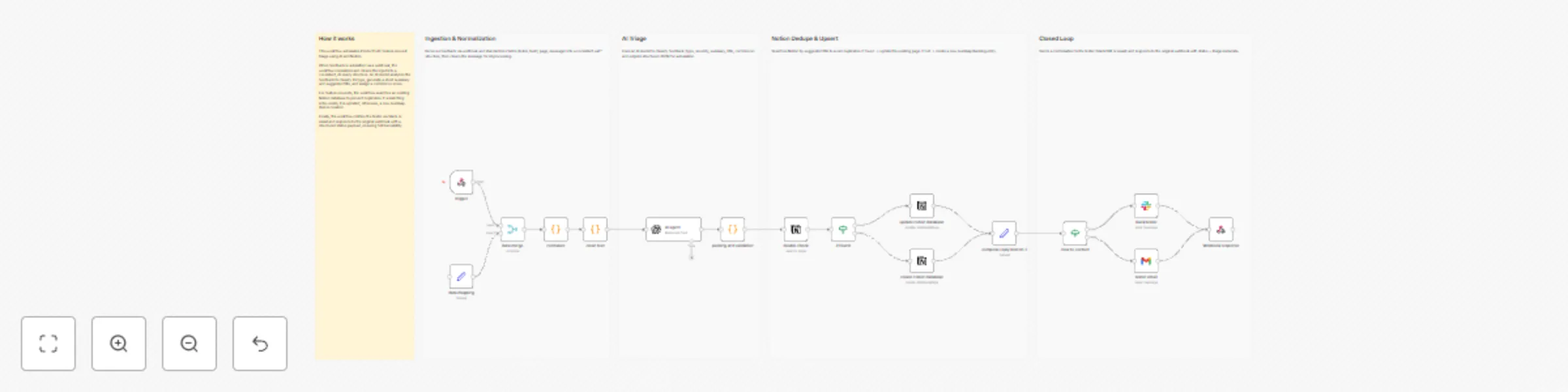
## Description Automatically triage Product UAT feedback with AI, deduplicate it against your existing Notion backlog, create/update the right Notion item, and close the loop with the tester (Slack or email). This workflow standardizes incoming UAT feedback, runs AI classification (type, severity, summary, suggested title, confidence), searches Notion to prevent duplicates, and upserts the roadmap entry for product review. It then confirms receipt to the tester and returns a structured webhook response. ## Context Feature requests often arrive unstructured and get lost across channels. Product teams waste time re-triaging the same ideas, creating duplicates, and manually confirming receipt. This workflow ensures: - Faster feature request triage - Fewer duplicates in your roadmap/backlog - Consistent structure for every feedback item - Automatic tester acknowledgement - Full traceability via webhook response ## Who is this for? - Product Managers running UAT or beta programs - Product Ops teams managing a roadmap backlog - Teams collecting feature requests via forms, Slack, or internal tools - Anyone who wants AI speed with clean backlog hygiene ## Requirements - Webhook trigger (form / Slack / internal tool) - OpenAI account (AI triage) - Notion account (roadmap/backlog database) - Slack and/or Gmail (tester notification) ## How it works ![image.png](fileId:3835) - Trigger: feedback received via webhook - Normalize & Clean: standardizes fields and cleans message - AI Triage: returns structured JSON (type, severity, title, confidence…) - Notion Dedupe & Upsert: search by suggested title → update if found, else create - Closed Loop: notify tester (Slack or email) + webhook response payload ## What you get - One workflow to capture and structure feature requests - Clean Notion backlog without duplicates - Automatic tester confirmation - Structured output for downstream automation ## About me : I’m Yassin a Product Manager Scaling tech products with a data-driven mindset. 📬 Feel free to connect with me on [Linkedin](https://www.linkedin.com/in/yassin-zehar)

Y
Yassin Zehar
Project Management
27 Dec 2025
13
0
Workflow preview: Escalate product UAT critical bugs with OpenAI, Jira and Slack
Free advanced

Escalate product UAT critical bugs with OpenAI, Jira and Slack

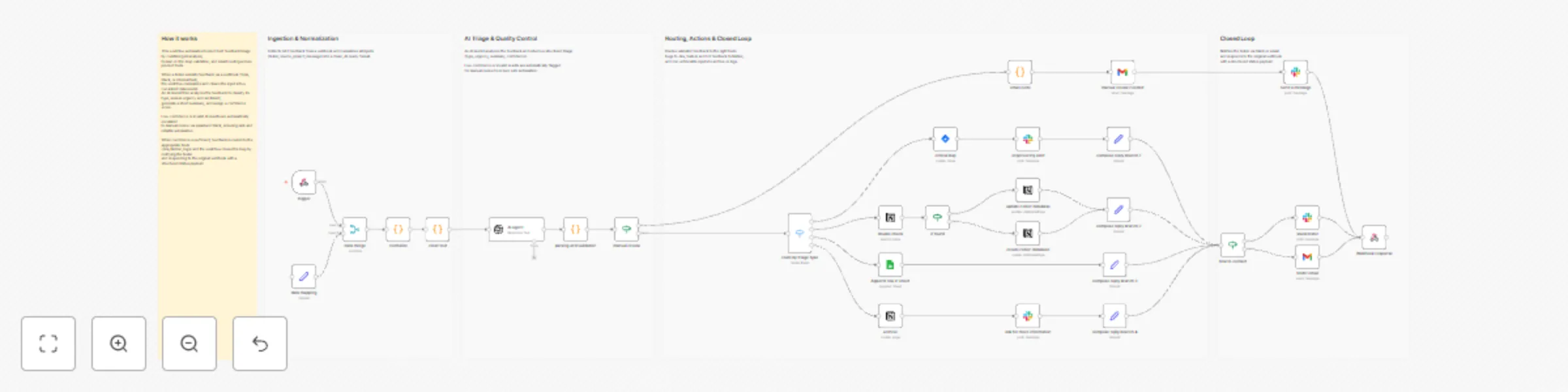
## Description Automatically detect and escalate Product UAT critical bugs using AI, create Jira issues, notify engineering teams, and close the feedback loop with testers. This workflow analyzes raw UAT feedback submitted via a webhook, classifies it with an AI model, validates severity, and automatically escalates confirmed critical bugs to Jira and Slack. Testers are notified, and the original webhook receives a structured response for full traceability. It is designed for teams that want fast, reliable critical bug handling during UAT without manual triage. ## Context During Product UAT and beta testing, critical bugs are often buried in unstructured feedback coming from forms, Slack, or internal tools. Missing or delaying these issues can block releases and create friction between Product and Engineering. This workflow ensures: - Faster detection of critical bugs - Immediate escalation to engineering - Clear ownership and visibility - Consistent communication with testers It combines AI-based classification with deterministic routing to keep UAT feedback actionable and production-ready. ## Who is this for? - Product Managers running UAT or beta programs - Project Managers coordinating QA and release readiness - Engineering teams who need fast, clean bug escalation - Product Ops teams standardizing feedback workflows - Any team handling high-volume UAT feedback - Perfect for teams that want speed, clarity, and traceability during UAT. ## Requirements - Webhook trigger (form, Slack integration, internal tool, etc.) - OpenAI account (for AI triage) - Jira (critical bug tracking) - Slack (engineering alerts) - Gmail or Slack (tester notifications) ## How it works ![image.png](fileId:3834) - Trigger The workflow starts when UAT feedback is submitted via a webhook. - Normalize & Clean Incoming data is normalized (tester, build, page, message) and cleaned to ensure a consistent, AI-ready structure. - AI Triage & Validation An AI model analyzes the feedback and returns a structured triage result (type, severity, summary, confidence), which is parsed and validated. - Critical Bug Escalation Validated critical bugs automatically: - create a Jira issue with full context - trigger an engineering Slack alert - Closed Loop The tester is notified via Slack or email, and the workflow responds to the original webhook with a structured status payload. ## What you get - Automated critical bug detection during UAT - Instant Jira ticket creation - Real-time engineering alerts in Slack - Automatic tester communication - Full traceability via structured webhook responses ## About me : I’m Yassin a Product Manager Scaling tech products with a data-driven mindset. 📬 Feel free to connect with me on [Linkedin](https://www.linkedin.com/in/yassin-zehar)

Y
Yassin Zehar
Engineering
27 Dec 2025
20
0
Workflow preview: Triage product UAT feedback with OpenAI, Jira, Slack, Notion and Google Sheets
Free advanced

Triage product UAT feedback with OpenAI, Jira, Slack, Notion and Google Sheets

## Description Automatically triage Product UAT feedback using AI, route it to the right tools and teams, and close the feedback loop with testers, all in one workflow. This workflow analyzes raw UAT feedback, classifies it (critical bug, feature request, UX improvement, or noise), validates AI confidence, escalates when human review is needed, and synchronizes everything across Jira, Slack, Notion, Google Sheets, and email. ## Context Product teams often receive unstructured UAT feedback from multiple sources (forms, Slack, internal tools), making triage slow, inconsistent, and error-prone. This workflow ensures: - Faster bug detection - Consistent categorization - Zero feedback lost - Clear accountability between Product, Engineering, and Design - It combines AI automation with human-in-the-loop control, making it safe for real production environments. ## Who is this for? - Product Managers running UAT or beta programs - Project Managers coordinating QA and release validation - Product Ops / PMO teams - Engineering teams who want faster, cleaner bug escalation - Any team managing high-volume UAT feedback - Perfect for teams that want speed without sacrificing control. ## Requirements - Webhook trigger (form, internal tool, Slack integration, etc.) - OpenAI account (for AI triage) - Jira (bug tracking) - Slack (team notifications) - Notion (product roadmap / UX backlog) - Google Sheets (UAT feedback log) - Gmail (tester & manual review notifications) ## How it works ![image.png](fileId:3821) - Trigger The workflow starts when UAT feedback is submitted via a webhook (form, Slack, or internal tool). - Normalize & Clean Incoming data is normalized into a consistent structure (tester, build, page, message) and cleaned to be AI-ready. - AI Triage An AI model analyzes the feedback and returns: - Type (Critical Bug, Feature Request, UX Improvement, Noise) - Severity & sentiment - Summary and suggested title - Confidence score - Quality Control If the AI output is unreliable (low confidence or parsing error), the feedback is automatically routed to manual review via email and Slack. - Routing & Actions - If confidence is sufficient: - Critical Bugs → Jira issue + Engineering Slack alert - Feature Requests → Notion roadmap - UX Improvements → Design / UX tracking - Noise → Archived but traceable - Closed Loop The tester is notified via Slack or email, and the workflow responds to the original webhook with a structured status payload. ## What you get - One unified UAT triage system - Faster bug escalation - Clean product and UX backlogs - Full traceability of every feedback - Automatic tester communication - Safe AI usage with human fallback ## About me : I’m Yassin a Product Manager Scaling tech products with a data-driven mindset. 📬 Feel free to connect with me on [Linkedin](https://www.linkedin.com/in/yassin-zehar)

Y
Yassin Zehar
Ticket Management
25 Dec 2025
10
0
Workflow preview: Automate B2B SaaS renewal risk management with CRM, support & usage data
Free advanced

Automate B2B SaaS renewal risk management with CRM, support & usage data

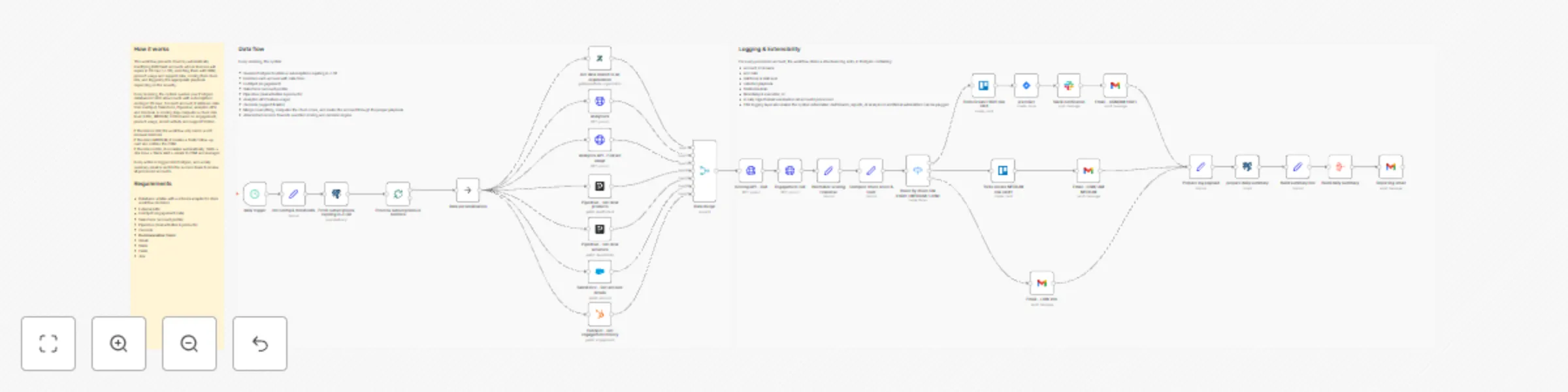
## Description This workflow is designed for B2B/SaaS teams who want to **secure renewals before it’s too late**. It runs every day, identifies all accounts whose licenses are up for renewal in **J–30**, enriches them with CRM, product usage and support data, computes an internal churn risk level, and then triggers the appropriate playbook: - **HIGH risk** → full escalation (tasks, alerts, emails) - **MEDIUM risk** → proactive follow-up by Customer Success - **LOW risk** → light renewal touchpoint / monitoring Everything is logged into a database table so that you can build dashboards, run analysis, or plug additional automations on top. --- ## How it works ![image.png](fileId:3555) 1. **Daily detection (J–30 renewals)** A scheduled trigger runs every morning and queries your database (Postgres / Supabase) to fetch all active subscriptions expiring in 30 days. Each row includes the account identifier, name, renewal date and basic commercial data. 2. **Data enrichment across tools** For each account, the workflow calls several business systems to collect context: - HubSpot → engagement history - Salesforce → account profile and segment - Pipedrive → deal activities and associated products - Analytics API → product feature usage and activity trends - Zendesk → recent support tickets and potential friction signals All of this is merged into a single, unified item. 3. **Churn scoring & routing** An internal scoring step evaluates the risk for each account based on multiple signals (engagement, usage, support, timing). The workflow then categorizes each account into one of three risk levels: - **HIGH** – strong churn signals → needs immediate attention - **MEDIUM** – some warning signs → needs proactive follow-up - **LOW** – looks healthy → light renewal reminder A `Switch` node routes each account to the relevant playbook. 4. **Automated playbooks** - 🔴 **HIGH risk** - Create a Trello card on a dedicated “High-Risk Renewals” board/list - Create a Jira ticket for the CS / AM team - Send a Slack alert in a designated channel - Send a detailed email to the CSM and/or account manager - 🟠 **MEDIUM risk** - Create a Trello card in a “Renewals – Follow-up” list - Send a contextual email to the CSM to recommend a proactive check-in - 🟢 **LOW risk** - Send a soft renewal email / internal note to keep the account on the radar 5. **Logging & daily reporting** For every processed account, the workflow prepares a structured log record (account, renewal date, risk level, basic context). A Postgres node is used to insert the data into a `churn_logs` table. At the end of each run, all processed accounts are aggregated and a **daily summary email** is sent (for example to the Customer Success leadership team), listing the renewals and their risk levels. --- ## Requirements 1. **Database** - A table named `churn_logs` (or equivalent) to store workflow decisions and history. Example fields: `account_id`, `account_name`, `end_date`, `riskScore`, `riskLevel`, `playbook`, `trello_link`, `jira_link`, `timestamp`. 2. **External APIs** - HubSpot (engagement data) - Salesforce (account profile) - Pipedrive (deals & products) - Zendesk (support tickets) - Optional: product analytics API for usage metrics 3. **Communication & task tools** - Gmail (emails to CSM / AM / summary recipients) - Slack (alert channel for high-risk cases) - Trello (task creation for CS follow-up) - Jira (escalation tickets for high-risk renewals) 4. **Configuration variables** - Thresholds are configured in the `Init config & thresholds` node: - `days_before_renewal` - `churn_threshold_high` - `churn_threshold_medium` - These parameters let you adapt the detection window and risk sensitivity to your own business rules. --- ## Typical use cases - Customer Success teams who want a **daily churn watchlist** without exporting spreadsheets. - RevOps teams looking to **standardize renewal playbooks** across tools. - SaaS companies who need to **prioritize renewals** based on real risk signals rather than gut feeling. - Product-led organizations that want to combine **usage data + CRM + support** into one automated process. ## Tutorial video [Watch the Youtube Tutorial video](https://www.youtube.com/watch?v=hAxxSKRwz98) ## About me : I’m Yassin a Project & Product Manager Scaling tech products with data-driven project management. 📬 Feel free to connect with me on [Linkedin](https://www.linkedin.com/in/yassin-zehar)

Y
Yassin Zehar
CRM
4 Dec 2025
176
0
Workflow preview: Monitor data quality with Notion rules, SQL checks & AI-powered alerts
Free advanced

Monitor data quality with Notion rules, SQL checks & AI-powered alerts

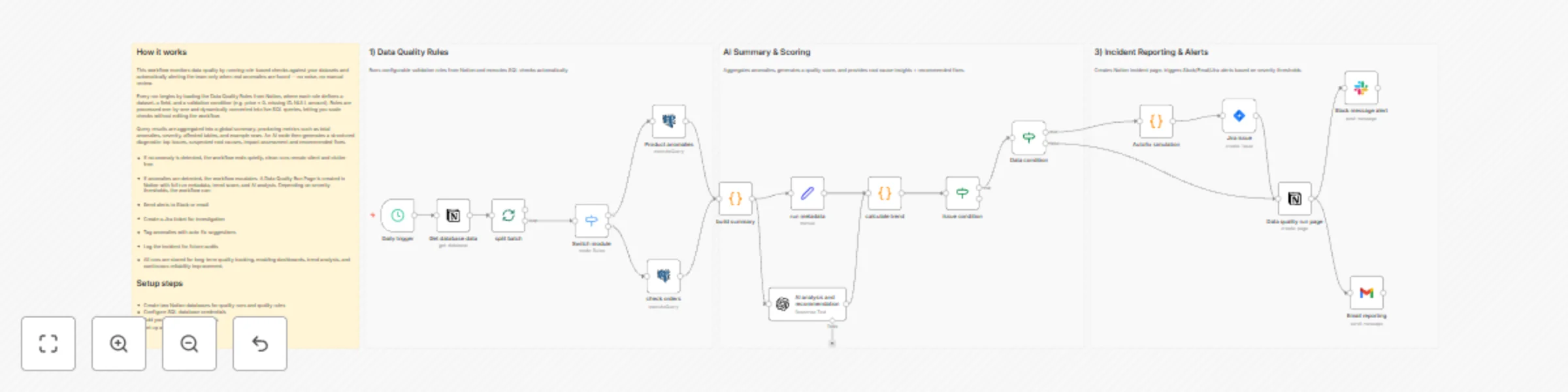
## Description This workflow continuously validates data quality using rules stored in Notion, runs anomaly checks against your SQL database, generates AI-powered diagnostics, and alerts your team only when real issues occur. Notion holds all data quality rules (source, field, condition, severity). n8n reads them on schedule, converts them into live SQL queries, and aggregates anomalies into a global run summary. The workflow then scores data health, creates a Notion run record, optionally opens a Jira issue, and sends a Slack/email alert including AI-generated root cause & recommended fixes. ## Target users Perfect for: - DataOps - Analytics - Product Data - BI - Compliance - ETL/ELT pipelines - Platform reliability teams. ## Workflow steps ![image.png](fileId:3462) ## How it works 1) Notion → Rules Database Each entry defines a check (table, field, condition, severity). 2) n8n → Dynamic Query Execution Rules are converted into SQL and checked automatically. 3) Summary Engine Aggregates anomalies, computes data quality score. 4) AI Diagnostic Layer Root cause analysis + recommended fix plan. 5) Incident Handling Notion Run Page + optional Slack/Email/Jira escalation. Silent exit when no anomaly = zero noise. ## Setup Instructions - Create two Notion databases: - Data Quality Rules → source / field / rule / severity / owner ![image.png](fileId:3460) - Data Quality Runs → run_id / timestamp / score / anomalies / trend / AI summary/recommendation ![image.png](fileId:3461) - Connect SQL database (Postgres / Supabase / Redshift etc.) - Add OpenAI credentials for AI analysis - Connect Slack + Gmail + Jira for incident alerts - Set your execution schedule (daily/weekly) ## Expected outcomes - Fully automated, rule-based data quality monitoring with minimal maintenance and zero manual checking. - When everything is healthy, runs remain silent. - When data breaks, the team is notified instantly: with context, root cause insight, and a structured remediation output. ## Tutorial video [Watch the Youtube Tutorial video](https://www.youtube.com/watch?v=3FKUET16dVk) ## About me : I’m Yassin a Project & Product Manager Scaling tech products with data-driven project management. 📬 Feel free to connect with me on [Linkedin](https://www.linkedin.com/in/yassin-zehar)

Y
Yassin Zehar
Document Extraction
27 Nov 2025
89
0
Workflow preview: Automated product health monitor with anomaly detection & AI root cause analysis
Free advanced

Automated product health monitor with anomaly detection & AI root cause analysis

## Description This workflow transforms raw SaaS metrics into a fully automated Product Health Monitoring & Incident Management system. It checks key revenue and usage metrics every day (such as churn MRR and feature adoption), detects anomalies using a statistical baseline, and automatically creates structured incidents when something unusual happens. When an anomaly is found, the workflow logs it into a central incident database, alerts the product team on Slack and by email, enriches the incident with context and AI-generated root-cause analysis, and produces a daily health report for leadership. It helps teams move from passive dashboard monitoring to a proactive, automated system that surfaces real issues with clear explanations and recommended next steps. ## Context Most SaaS teams struggle with consistent product health monitoring: - Metrics live in dashboards that people rarely check proactively - Spikes in churn or drops in usage are noticed days later - There is no unified system to track, investigate, and report on incidents - Post-mortems rely on memory rather than structured data - Leadership often receives anecdotal updates instead of reliable daily reporting This workflow solves that by: - Tracking core health metrics daily (revenue and usage) - Detecting anomalies based on recent baselines, not arbitrary thresholds - Logging all incidents in a consistent format - Notifying teams only when action is needed - Generating automated root-cause insights using AI + underlying database context - Producing a daily “Product Health Report” for decision-makers The result: Faster detection, clearer understanding, and better communication across product, growth, and leadership teams. ## Target Users This template is ideal for: - Product Managers & Product Owners - SaaS founders and early-stage teams - Growth, Analytics, and Revenue Ops teams - PMO / Operations teams managing product performance Any organization wanting a lightweight incident monitoring system without building internal tooling ## Technical Requirements You will need: - A Postgres / Supabase database containing your product metrics - Slack credentials for alerts - Gmail credentials for email notifications - (Optional) Notion credentials for incident documentation and daily reports - An OpenAI / Anthropic API key for AI-based root cause analysis ## Workflow Steps ![image.png](fileId:3414) The workflow is structured into four main sections: 1) Daily Revenue Health Runs once per day, retrieves recent revenue metrics, identifies unusual spikes in churn MRR, and creates incidents when needed. If an anomaly is detected, a Slack alert and email notification are sent immediately. 2) Daily Usage Health Monitors feature usage metrics to detect sudden drops in adoption or engagement. Incidents are logged with severity, context, and alerts to the product team. 3) Root Cause & Summary For every open incident, the workflow: Collects additional context from the database (e.g., churn by country or plan) Uses AI to generate a clear root cause hypothesis and suggested next steps Sends a summarized report to Slack and email Updates the incident status accordingly 4) Daily Product Health Report Every morning, the workflow compiles all incidents from the previous day into: - A daily summary email for leadership - A Notion page for documentation and historical tracking - This ensures stakeholders have clear visibility into product performance trends. ## Key Features - Automated anomaly detection across revenue and usage metrics - Centralized incident logging with metadata and raw context - Severity scoring based on deviation from historical baselines - Slack and email alerts for fast response - AI-generated root cause analysis with recommended actions - Daily product health reporting for leadership and PM teams - Optional Notion integration for incident documentation - System logging for observability and auditability - Fully modular: you can add more metrics, alert channels, or analysis steps easily ## Expected Output - When running, the workflow will generate: - Structured incident records in your database - Slack alerts for revenue or usage anomalies - Email notifications with severity, baseline vs actual, and context - AI-generated root cause summaries - A daily health report summarizing all incidents - (Optional) Notion pages for both incidents and daily reports - System logs recording successful executions ## Tutorial video: [Watch the Youtube Tutorial video](https://www.youtube.com/watch?v=JWHOyftEetA) ## About me I’m Yassin a Project & Product Manager Scaling tech products with data-driven project management. 📬 Feel free to connect with me on [Linkedin](https://www.linkedin.com/in/yassin-zehar)

Y
Yassin Zehar
Market Research
22 Nov 2025
57
0
Workflow preview: Multi-channel feedback to Jira pipeline with AI analysis & Notion reporting
Free advanced

Multi-channel feedback to Jira pipeline with AI analysis & Notion reporting

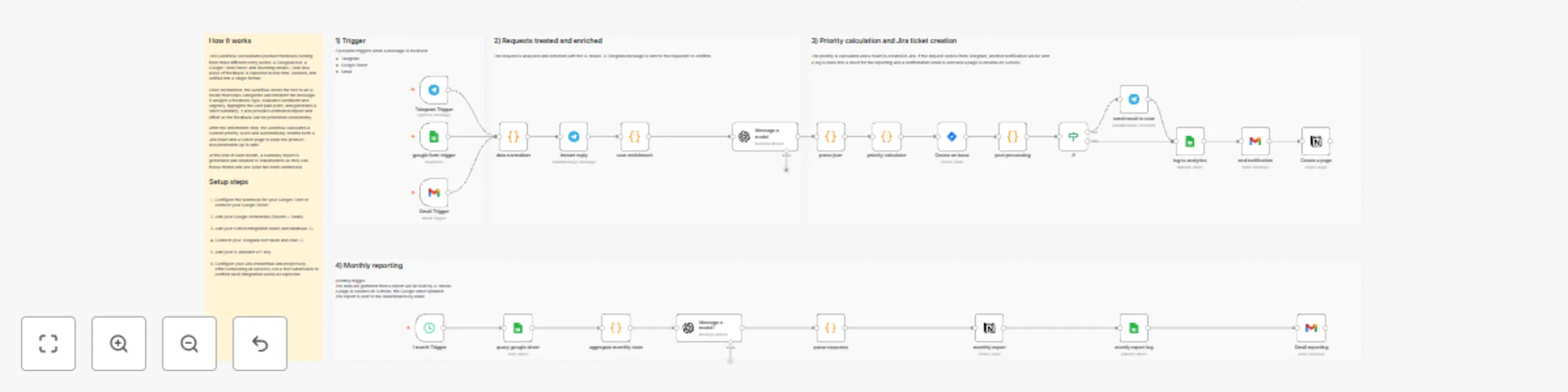
## Description This workflow turns scattered user feedback into a structured product backlog pipeline. - It collects feedback from three channels (Telegram bot, Google Form/Sheets, and Gmail), normalizes it, and sends it to an AI model that: - Classifies the feedback (bug, feature request, question, etc.) - Extracts sentiment and pain level - Estimates business impact and implementation effort - Generates a short summary - Then a custom RICE-style priority score is computed, a Jira ticket is created automatically, a Notion page is generated for documentation, and a monthly product report is sent by email to stakeholders. It helps product & support teams move from “random feedback in multiple tools” to a repeatable, data-driven product intake process with zero manual triage. ## Context In most teams, feedback is: - spread across emails, forms, and chat messages - manually copy–pasted into Jira (when someone remembers) - hard to prioritize objectively - nearly impossible to review at the end of the month This workflow solves that by: - Centralizing feedback from Telegram, Google Forms/Sheets, and Gmail - Automatically normalizing all inputs into the same JSON structure - Using AI to categorize, tag, summarize, and score each request - Calculating a RICE-based priority adapted to your tiers (free / pro / enterprise) - Creating a Jira issue with all the context and acceptance criteria - Generating a Notion page for each feedback+ticket pair - Sending a monthly “Product Intelligence Report” by email with insights & recommendations The result: less manual work, better prioritization, and a clear story of what users are asking for. ## Target Users This template is designed for: - Product Managers and Product Owners - SaaS teams with multiple feedback channels - Support / CS teams that need a structured escalation path - Project Managers who want objective, data-driven prioritization - Any team that wants “feedback → backlog” automation without building a custom platform ## Technical Requirements You’ll need: - Google Sheets credential - Gmail credential - Telegram Bot + Chat ID - Google Form connected to a Google Sheet ![image.png](fileId:3320) ![image.png](fileId:3319) - Jira credential (Jira Cloud) - Notion credential - OpenAI/ Anthropic credential for the AI analysis node - An existing Jira project where tickets will be created - A Notion database or parent page where feedback pages will be stored ## Workflow Steps The workflow is organized into four main sections: ![image.png](fileId:3339) 1) Triggers (Multi-channel Intake) - Telegram Trigger – Listens for new messages sent to your bot - Google Form / Sheet Trigger – Listens for new form responses / rows - Gmail Trigger – Listens for new emails matching your filter (e.g. [Feedback] in subject) - All three paths send their payloads into a “Data Normalizer” node that outputs a unified structure: 2) Request Treated and Enriched (AI Analysis) - Instant Reply (Telegram only) – Sends a quick “Thanks, we’re analysing your feedback” message - User Enrichment – Enriches user tier based on mapping - Message a Model (AI) - classifies the feedback - extracts tags - scores sentiment, pain, business impact, effort - generates a short summary & acceptance criteria - JSON Parse / Merge – Merges AI output back into the original feedback object 3) Priority Calculation & Jira Ticket Creation - Priority Calculator applies a RICE-style formula using: - pain level - business impact - implementation effort - user tier weight - assigns internal priority: P0 / P1 / P2 / P3 - maps to Jira priority: Highest / High / Medium / Low - Create Jira Issue – Creates a ticket with: - summary from AI - description including raw feedback, AI analysis, and RICE breakdown - labels based on tags - priority based on the calculator - Post-processing – Prepares a clean payload for notifications & logging - IF (Source = Telegram) – Sends a rich Telegram message back to the user with: - Jira key + URL - category, priority, RICE score, tags, and estimated handling time - Append to Google Sheet (Analytics Log) – Logs each feedback with: - source, user, category, sentiment, RICE score, priority, Jira key, Jira URL - Create Notion Page – Creates a documentation page linking: - the feedback - the Jira ticket - AI analysis - acceptance criteria 4) Monthly Reporting (Product Intelligence Report) - Monthly Trigger – Runs once a month - Query Google Sheet – Fetches all feedback logs for the previous month - Aggregate Monthly Stats – Computes: - feedback volume - breakdown by category / sentiment / source / tier / priority - average RICE, pain, and impact - top P0/P1 issues and top feature requests - Message a Model (AI) – Generates a written “Product Intelligence Report” with: - executive summary - key insights & trends - top pain points - strategic recommendations - Parse Response: Extracts structured insights + short summary - Create Notion Report Page with: - metrics, charts-ready tables, insights, and recommendations - Append Monthly Log to Google Sheet – Stores high-level stats for historical tracking - Send Email with a formatted HTML report to stakeholders with: - key metrics - top issues - recommendations - link to the full Notion report ## Key Features - Multi-channel intake: Telegram + Google Forms/Sheets + Gmail - AI-powered triage: automatic category, sentiment, tags, and summary - RICE-style priority scoring with tier weighting - Automatic Jira ticket creation with full context - Notion documentation for each feedback and for monthly reports - Google Sheets analytics log for exploration and dashboards - Monthly “Product Intelligence Report” sent automatically by email - Designed to be adaptable: you can plug in your own labels, tiers, and scoring rules ## Expected Output When the workflow is running, you can expect: - A Jira issue created automatically for each relevant feedback ![image.png](fileId:3323) - A confirmation email ![image.png](fileId:3314) - A Telegram confirmation message when the feedback comes from Telegram ![image.png](fileId:3316) ![image.png](fileId:3317) - A Google Sheet filled with normalized feedback and scoring data ![image.png](fileId:3315) - A Notion page per feedback/ticket with AI analysis and acceptance criteria ![image.png](fileId:3325) Every month: - a Notion “Monthly Product Intelligence Report” page ![image.png](fileId:3324) ![image.png](fileId:3322) - a summary email with key metrics and insights for your stakeholders ![image.png](fileId:3318) ## How it works - Trigger – Listens to Telegram / Google Forms / Gmail - Normalize – Converts all inputs to a unified feedback format - Enrich with AI – Category, sentiment, pain, impact, effort, tags, summary - Score – Computes RICE-style priority and maps to Jira priority - Create Ticket – Opens a Jira issue + Notion page + logs to Google Sheets - Notify – Sends Telegram confirmation (if source is Telegram) - Report – Once a month, aggregates everything and sends a Product Intelligence Report ## Tutorial Video Tutorial video: [Watch the Youtube Tutorial video](https://www.youtube.com/watch?v=q0Is11oU18Y) ## About me I’m Yassin a Project & Product Manager Scaling tech products with data-driven project management. 📬 Feel free to connect with me on [Linkedin](https://www.linkedin.com/in/yassin-zehar)

Y
Yassin Zehar
Project Management
17 Nov 2025
65
0
Workflow preview: Task escalation system with Google Sheets, Gmail, Telegram & Jira automation
Free intermediate

Task escalation system with Google Sheets, Gmail, Telegram & Jira automation

## Description This workflow sends an instant email alert when a task in a Google Sheet is marked as Urgent, and then sends a Telegram reminder notification after 2 hours if the task still hasn’t been updated. Then a Jira ticket is created so the task enters in the formal workflow and another Telegram message is sent with the details of the issue created. It helps teams avoid missed deadlines and ensures urgent tasks get attention — without requiring anyone to refresh or monitor the sheet manually. ## Context In shared task lists, urgent items can be overlooked if team members aren't actively checking the spreadsheet. This workflow solves that by: - Sending an email as soon as a task becomes Urgent - Waiting 2 hours - Checking if the task is still open - Sending a Telegram reminder only if action has not been taken - Creating a Jira issue - Sending a Telegram message with the details of the issue created - This prevents both silence and spam, creating a smart and reliable alert system. ## Target Users - Project Managers using Google Sheets - Team leads managing shared task boards - Remote teams needing lightweight coordination - Anyone who wants escalation notifications without complex systems ## Technical Requirements - Google Sheets credential - Gmail credential - Telegram Bot + Chat ID - Google Sheet with a column named Priority - Jira credential ## Workflow Steps ![image.png](fileId:3300) - Trigger: Google Sheets Trigger (on update in the “Priority” column) - IF Node – Checks if Priority = Urgent - Send Email – Sends alert email with task name, owner, status, deadline - Mark Notified = Yes in the sheet - Wait 2 hours - IF Status is still not resolved - Send Telegram reminder - create an Issue on Jira based on the information provided - Send Telegram message with the details of the ticket ## Key Features - Real-time alerts on critical tasks - Simple logic (no code required) - Custom email body with dynamic fields - Works on any Google Sheet with a “Priority” column - Telegram notification ensures the task doesn’t get forgotten ## Expected Output ![image.png](fileId:3173) ![image.png](fileId:3171) ![image.png](fileId:3246) - Personalized email alert when a task is marked as "Urgent" - Email includes task info: title, owner, deadline, status, next step - Telegram message after 2 hours if the task is still open - Automatic creation of a Jira issue with the higgest priority - Telegram message to notify about the new Jira ticket ## How it works Trigger: Watches for “Priority” updates 🔍 Check: If Priority = Urgent AND Notified is empty 📧 Email: Sends a personalized alert ✏️ Sheet Update: Marks the task as already notified ⏳ Wait: 2-hour delay 🤖 Check Again: If Status hasn’t changed → send Telegram reminder, create Jira ticket and send the details. ## Tutorial video: [Watch the Youtube Tutorial video](https://www.youtube.com/watch?v=2iFMqQSjq7U) ## About me : I’m Yassin a Project & Product Manager Scaling tech products with data-driven project management. 📬 Feel free to connect with me on [Linkedin](https://www.linkedin.com/in/yassin-zehar)

Y
Yassin Zehar
Project Management
5 Nov 2025
144
0
Workflow preview: Send one-time email alerts for urgent tasks with Google Sheets and Gmail
Free intermediate

Send one-time email alerts for urgent tasks with Google Sheets and Gmail

## Description This workflow sends a personalized email when a task in a Google Sheet is marked as Urgent, but only once per task. It prevents duplicate notifications by updating the sheet after the email is sent. Ideal for collaborative task tracking where multiple people edit the same spreadsheet. ## Context When working with shared task lists in Google Sheets, it’s easy to miss critical updates — or worse, trigger multiple alerts for the same task. This workflow ensures that each "Urgent" task only sends one email notification, and then marks it as “Notified” to avoid duplicates. ## Target Users - Project Managers using Google Sheets - Operations or support teams managing collaborative task boards - Anyone who needs alert automation with built-in anti-spam logic ## Technical Requirements - Google Sheets account with edit access - Gmail account for sending notifications - Google Sheet with columns: - Priority - Notified - Task - Owner - Deadline - Status - Next Step ## Workflow Steps ![image.png](fileId:2774) - Trigger: Watches for changes in Google Sheets (e.g., edits to the "Priority" column) - IF Node – Checks that: - Priority = Urgent - Notified is empty - row exists (required for update) - Send Email: Sends a personalized message with task details - Update Row: Writes “Yes” in the Notified column to avoid duplicate alerts ## Setup Instructions To set up this workflow: - Connect your Google Sheets and Gmail credentials in n8n. - Copy the spreadsheet structure or use your own - Import the workflow, select your Sheet (and the column to check if you use a different Google Sheets template), and test by marking a task as “Urgent”. - Check that an email is sent and the “Notified” column updates to “Yes”.- ## Key Features ✅ One email per urgent task — prevents duplicates 📧 Dynamic email content with task info 🧠 Built-in anti-spam logic 📋 Simple to configure and reuse 💬 Customizable for any team’s needs ## Expected Output - An email alert is sent only once per task marked as Urgent ![image.png](fileId:2773) - The Notified field is updated in the Google Sheet ![image.png](fileId:2775) - A clean and scalable alert system with no duplicates ## Tutorial video: [Watch the Youtube Tutorial video](https://www.youtube.com/watch?v=9e7ZCCtS5a4) ## About me : I’m Yassin a Project & Product Manager Scaling tech products with data-driven project management. 📬 Feel free to connect with me on [Linkedin](https://www.linkedin.com/in/yassin-zehar)

Y
Yassin Zehar
Project Management
7 Oct 2025
76
0
Workflow preview: Automated sprint reports from Jira to stakeholders via Gmail
Free intermediate

Automated sprint reports from Jira to stakeholders via Gmail

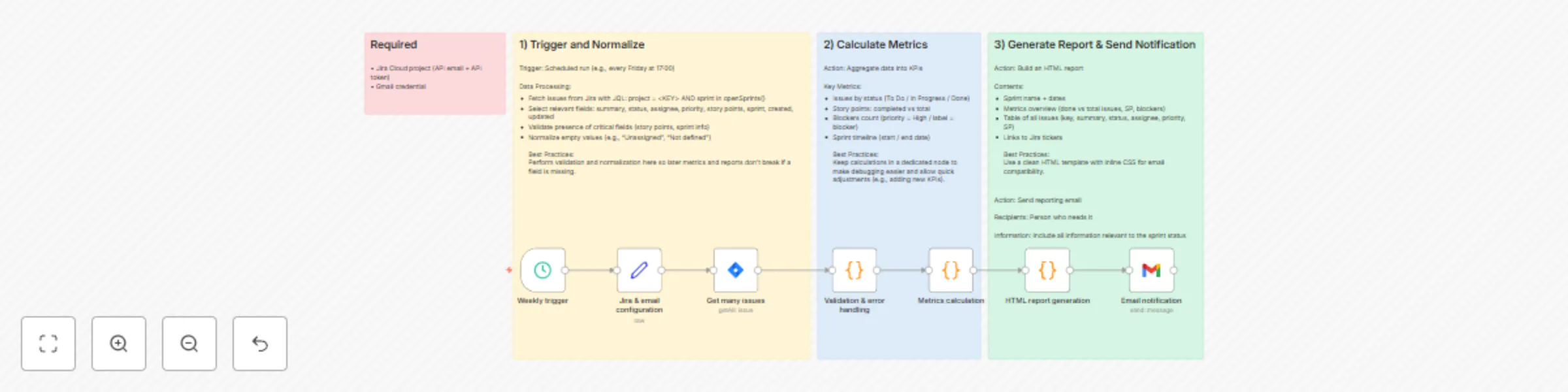
## Description Automated workflow that generates a Sprint Report from Jira and delivers it by Gmail. The flow fetches sprint issues from Jira, validates and normalizes the data, calculates metrics (tickets, story points, blockers, completion rate), generates an HTML report, and sends it by email. ## Context This template helps teams keep stakeholders updated automatically of the current sprint. Instead of manually compiling Jira data, the report is generated and sent on schedule (e.g., every Friday at 17:00). It’s production-friendly, reusable, and works across Jira projects. ## Target Users - Scrum Masters and Agile Coaches who need sprint reports for retrospectives. - Product Owners who want a weekly overview of sprint progress. - Project Managers tracking Jira delivery KPIs. - Engineering teams wanting automated status reporting without extra overhead. ## Technical Requirements - Jira Cloud project + API email + API token + permission to read issues. - Gmail credential for notifications. ## Workflow Steps ![image.png](fileId:2688) - Trigger – Schedule (e.g., Friday at 17:00). - Edit Fields – Configure Jira base URL, project key, email recipients. - Get Many Issues – Fetch sprint issues with JQL (project = <KEY> AND sprint in openSprints()). - Validation & Normalization – Clean/validate fields (status, assignee, priority, story points, sprint info). - Metrics Calculation – Aggregate KPIs (done, in progress, blockers, story points, completion %). - HTML Report Generation – Build a styled email-friendly HTML summary + detailed table. - Send Gmail – Deliver report to stakeholders. ## Key Features - Automated Sprint Reports: No manual copy-paste. - Metrics overview: Tickets done vs total, blockers, story points. - Detailed table: Issue key, summary, status, assignee, priority, SP. - Email delivery: HTML report with Jira links sent to stakeholders. - Fully customizable: Adjust fields, KPIs, and recipients easily. ## Expected Output 📊 HTML Sprint Report with KPIs and issue table. ✅ Email delivered to stakeholders via Gmail. 🔗 Jira links embedded for easy navigation. ![image.png](fileId:2687) ## How it works ⏰ Trigger – Runs on schedule (e.g., every Friday at 17:00). 🧾 Fetch Issues – JQL filters sprint tickets. 📊 Metrics – Done vs total, SP progress, blockers. 💻 Generate HTML – Clean, styled table and summary. ✉️ Notify – Send Gmail with full sprint report to stakeholders. ## Tutorial video: [Watch the Youtube Tutorial video](https://www.youtube.com/watch?v=izRNZZcZ5xU) ## About me : I’m Yassin a Project & Product Manager Scaling tech products with data-driven project management. 📬 Feel free to connect with me on [Linkedin](https://www.linkedin.com/in/yassin-zehar)

Y
Yassin Zehar
Project Management
26 Sep 2025
483
0
Workflow preview: Jira ticket creation from Google Forms with sheet updates and email notifications
Free intermediate

Jira ticket creation from Google Forms with sheet updates and email notifications

## Description Automated workflow that creates Jira issues directly from Google Forms. The flow validates and normalizes the data, creates the Jira issue, writes the key back to the Google Sheet, and sends a Gmail notification. ## Context This template bridges lightweight Google Forms with enterprise Jira. It enables instant ticket creation while keeping Jira the single source of truth. The flow is idempotent (no duplicates) and production-friendly, with clean field normalization and safe mappings. ## Target Users - Product / Ops teams running request portals on Google Forms - Engineering managers who need quick Jira integration without custom UI - Project managers who track intake in Google Sheets but want Jira as the system of record - Orgs that want controlled ticket creation without exposing Jira directly ## Technical Requirements - Jira Cloud project + API email + API token + “Create issues” permission - Google Form + response Sheet - Gmail credential for notifications ## Workflow Steps ![image.png](fileId:2347) - Trigger when a row is added - Normalize Fields – Trim/clean text - Create Jira Issue – POST to Jira REST; safe mappings - Update Google Sheet – Match by Horodateur or rowNumber; write jira_key, issue_url, status, updated_at. - Send Gmail – HTML email with key, title, link, priority, requester. ## Key Features - Real-time (no polling): Forms → trigger→ n8n - Idempotent updates using the Form timestamp (“Horodateur”) - Clean normalization: summary/description/labels all standardized once - Safe Jira mappings: priority via ID - Notification: branded HTML email with all key fields ## Expected Output - Google Form to create the issue ![image.png](fileId:2343) - Sheet updated with jira_key, issue_url, status, updated_at ![image.png](fileId:2346) - A valid Jira issue in the configured project ![image.png](fileId:2344) - Email sent to stakeholders / requester ![image.png](fileId:2345) ## How it works ⏰ Trigger – As soon as a row is added, the workflow is triggered 🧱 Normalize – Clean summary/description/labels; pick reporter_email 🧾 Create – POST to /rest/api/3/issue, capture { id, key, self } 📗 Update – Write jira_key, issue_url, status, updated_at back to the Sheet ✉️ Notify – Send Gmail HTML confirmation to stakeholders/requester ## Tutorial video: [Watch the Youtube Tutorial video](https://www.youtube.com/watch?v=SP_GAyBfv0Q) ## About me : I'm Yassin, IT Project Manager, Agile & Data specialist. Scaling tech products with data-driven project management. 📬 Feel free to connect with me on [Linkedin](https://www.linkedin.com/in/yassin-zehar)

Y
Yassin Zehar
Project Management
10 Sep 2025
412
0
Workflow preview: Create Jira tickets from Streamlit forms with webhook & REST API
Free advanced

Create Jira tickets from Streamlit forms with webhook & REST API

## Description Automated workflow that creates Jira issues directly from Streamlit form submissions. Receives webhook data, validates and transforms it to Jira's API schema, creates the issue, and returns the ticket details to the frontend application. ## Context Bridges the gap between lightweight Streamlit prototypes and enterprise Jira workflows. Enables rapid ticket creation while maintaining Jira as the authoritative source of truth. Includes safety mechanisms to prevent duplicate submissions and malformed requests. ## Target Users - Product Managers building internal request portals. - Engineering Managers creating demo applications. Teams requiring instant Jira integration without complex UI development. - Project Manager using Jira pour mangement and reporting. - Organizations wanting controlled ticket creation without exposing Jira directly. ## Technical Requirements - n8n instance (cloud or self-hosted) with webhook capabilities - Jira Cloud project with API token and issue creation permissions - Streamlit application configured to POST to n8n webhook endpoint - Optional: Custom field IDs for Story Points (typically customfield_10016) ## Workflow Steps ![image.png](fileId:2303) - Webhook Trigger - Receives POST from Streamlit with ticket payload. - Deduplication Guard - Filters out ping requests and rapid duplicate submissions. - Data Validation - Ensures required fields are present and properly formatted. - Schema Transformation - Maps Streamlit fields to Jira API structure. - Jira API Call - Creates issue via REST API with error handling. - Response Formation - Returns success status with issue key and URL. ## Key Features - Duplicate submission prevention. - Rich text description formatting for Jira. - Configurable priority and issue type mapping. - Story points integration for agile workflows. - Comprehensive error handling and logging. - Clean JSON response for frontend feedback. ## Validation Testing - Ping/test requests are ignored without creating issues. - First submission creates Jira ticket with proper formatting. - Rapid resubmission is blocked to prevent duplicates. - All field types (priority, labels, due dates, story points) map correctly. - Error responses are handled gracefully. ## Expected Output - Valid Jira issue created in specified project - JSON response: {ok: true, jiraKey: "PROJ-123", url: "https://domain.atlassian.net/browse/PROJ-123"} - No orphaned or duplicate tickets. - Audit trail in n8n execution logs. ## Implementation Notes - Jira Cloud requires accountId for assignee (not username). - Date format must be YYYY-MM-DD for due dates. - Story Points field ID varies by Jira configuration. - Enable response output in HTTP node for debugging. - Consider rate limiting for high-volume scenarios. ![image.png](fileId:2301) ![image.png](fileId:2302) ## Tutorial video: [Watch the Youtube Tutorial video](https://www.youtube.com/watch?v=Apb-pMqycrU) ## How it works ⏰ Trigger: Webhook fires when the app submits. 🧹 Guard: Ignore pings/invalid, deduplicate rapid repeats. 🧱 Prepare: Normalize to Jira’s field model (incl. Atlassian doc description). 🧾 Create: POST to /rest/api/3/issue and capture the key. 🔁 Respond: Send { ok, jiraKey, url } back to Streamlit for instant UI feedback. ## About me : I’m Yassin a Project & Product Manager Scaling tech products with data-driven project management. 📬 Feel free to connect with me on [Linkedin](https://www.linkedin.com/in/yassin-zehar)

Y
Yassin Zehar
Project Management
2 Sep 2025
244
0
Workflow preview: Instant Gmail notifications for Google Form submissions
Free intermediate

Instant Gmail notifications for Google Form submissions

## Description Get a single Gmail notification immediately whenever someone submits your Google Forms. The workflow watches the Form-linked Google Sheets for new rows and sends a clean, readable email within about a minute—perfect for time-sensitive workflows. ## Context Stay responsive to urgent requests without inbox overload. Get notified immediately when new submissions arrive, with all key details in one clean email. ## Who is this for? - Teams collecting support requests, project inputs, or approvals. - Anyone who needs to respond quickly to new form submissions. - Perfect for time-sensitive workflows. ## Requirements - Google account - A Google Forms linked to a Google Sheets (Responses → “Link to Sheet”) - Gmail account connected to n8n (OAuth) ## Steps ![image.png](fileId:2116) 🗒️ Use the sticky notes in the n8n canvas to: - Create a Google Forms and link it to a Google Sheets. - **Credentials**: Add/verify Google (Sheets) and Gmail credentials in n8n. - Add Google Sheets Trigger node. - Spreadsheet: your Form-linked sheet. - **Polling interval**: every 1 minute (or adjust as needed). - **Send Gmail**: Add Gmail node and set up recipient team inbox or on-call email. - **Test & Activate**: Submit a sample form, wait 1 minute, confirm the email. - **Make sure the workflow is always activated** You’ll get this: ![image.png](fileId:2115) A Gmail message with key details (requester, summary, priority, link to the sheet), easy to scan and act on. ## Tutorial video [Watch the Youtube Tutorial video](https://www.youtube.com/watch?v=kO7GdPOJMus) ## How it works ⏰ Trigger: workflow runs every time you get a request from the form (trigger checks every minute) 📝 Prepare: Format the submission into a concise message. 📨 Notify: Sends one Gmail email per submission ## About me : I’m Yassin a Project & Product Manager Scaling tech products with data-driven project management. 📬 Feel free to connect with me on [Linkedin](https://www.linkedin.com/in/yassin-zehar)

Y
Yassin Zehar
Ticket Management
15 Aug 2025
657
0
Workflow preview: Consolidate daily Google Form submissions into one Gmail recap
Free intermediate

Consolidate daily Google Form submissions into one Gmail recap

## Description Receive one clean Gmail recap each day with all Google Forms submissions. The workflow reads your Form-linked Google Sheets, compiles every request submitted today, and sends a single, structured email at your chosen time—keeping your inbox tidy. ## Context Instead of receiving dozens of individual notifications, consolidate all daily form submissions into one organized email recap. ## Who is this for? - Teams managing multiple incoming requests per day. - Managers who want a daily summary instead of real-time alerts. - Anyone who prefers to avoid notification spam. ## Requirements - Google account with Forms & Sheets access - Google Forms linked to Google Sheets - Gmail account with n8n OAuth configured ## Steps ![image.png](fileId:2114) 🗒️ Use the sticky notes in the n8n canvas to: - Credentials : Add/verify Google (Sheets) and Gmail credentials in n8n. - Schedule : Add a Cron/Schedule Trigger (default: 17:00/ 5PM, your local time). - Add Google Sheets node → Read mode. - Spreadsheet: select your Form-linked sheet. - Build the Recap Body - Use a Code (Function) node to assemble a simple HTML list or table from the filtered rows. - Send Gmail : Add Gmail node and setup your team inbox / distribution list. For the body, paste the HTML body from step 5 and enable HTML. - Test & Activate : Submit a few sample responses, run once, confirm the email looks right. - Turn the workflow ON. You’ll get this: ![image.png](fileId:2113) A structured Gmail message listing all daily submissions with: submitter name, timestamp, request details, and any custom fields from your form. ## Tutorial video [Watch the Youtube Tutorial video](https://www.youtube.com/watch?v=iK-BgbcrteQ) ## How it works ⏰ Trigger: workflow runs once a day at your chosen time (default 5 PM). 📑 Collects all requests from that day in the Google Sheet. 📝 Compile: Generates a recap list/table. 📝 Generates a recap list with all submissions. 📨 Sends one Gmail email summarizing all requests of the day. ## About me : I’m Yassin a Project & Product Manager Scaling tech products with data-driven project management. 📬 Feel free to connect with me on [Linkedin](https://www.linkedin.com/in/yassin-zehar)

Y
Yassin Zehar
Personal Productivity
15 Aug 2025
277
0
Workflow preview: Automate meeting minutes distribution with Google Sheets and Gmail
Free intermediate

Automate meeting minutes distribution with Google Sheets and Gmail

## Description This workflow sends a summary of your meeting minutes via Gmail, directly from the notes stored in your Google Sheet. ## Context Taking notes during meetings is important, but sharing them with the team can be time-consuming. This workflow makes it simple: just write down your meeting minutes in a Google Sheets, and n8n will automatically send them by email after each meeting. ## Who is this for? Perfect for anyone who: - Uses Google Sheets to keep track of meeting notes. - Wants to automatically share minutes with teammates or stakeholders. - Values speed, productivity, and automation. ## Requirements - Google account. - Google Sheets (with your meeting minutes). You will need to setup the required columns first : Topic, Status, Owner, Next Step. - Gmail. ## How it works ⏰ Trigger starts after a new row is added in your Google Sheet. 📑 The meeting minutes are retrieved from the sheet. 📨 Gmail automatically sends the minutes to the configured recipients. ## Steps 🗒️ Use the sticky notes in the n8n canvas to: ![image.png](fileId:2137) - Add your Google credentials (Sheets + Gmail). - Define your sheet and recipient email addresses. - Test the workflow to check if the minutes are sent. - You’ll get this: An email containing your full meeting minutes, straight from your notes. ![image.png](fileId:2111) ## Tutorial video [Watch the Youtube Tutorial video](https://www.youtube.com/watch?v=AbnZSf19UHw) ## About me : I’m Yassin a Project & Product Manager Scaling tech products with data-driven project management. 📬 Feel free to connect with me on [Linkedin](https://www.linkedin.com/in/yassin-zehar)

Y
Yassin Zehar
Personal Productivity
15 Aug 2025
525
0
Workflow preview: Daily calendar summary notifications via Telegram from Google Calendar
Free intermediate

Daily calendar summary notifications via Telegram from Google Calendar

## Context: This workflow automatically sends you a daily message on Telegram summarizing all your meetings and events for the day, straight from your Google Calendar. ## For who ? Perfect for anyone who: - Uses Google Calendar to manage their schedule. - Wants Telegram reminders for daily events. - Loves automation and productivity tools. ## Requirements: - Telegram. - Google account. - Google Calendar. ## Steps: ![image.png](fileId:1936) 🗒️ Use the sticky notes in the n8n canvas to: - Add your Telegram and Google credentials. - Execute and test the workflow. - Check if you receive your daily summary on Telegram. You'll get this: ![capure workflow message.png](fileId:1935) ![capture workflow 2 message.png](fileId:1934) ## Tutorial video: [Watch the Youtube Tutorial video](https://www.youtube.com/watch?v=eIELi1iWCl4) ## How does it work? - ⏰ The trigger runs every day at 7AM. - 📅 Your Google Calendar is checked. - 🔢 If there are events or meetings, a number > 0 is returned. Otherwise, it's 0. - 📝 A text message is generated with a summary of all your events, including all relevant details. - ❌ If no events are found, a "no event" message is sent. ## About me : I’m Yassin a Project & Product Manager Scaling tech products with data-driven project management. 📬 Feel free to connect with me on [Linkedin](https://www.linkedin.com/in/yassin-zehar)

Y
Yassin Zehar
Personal Productivity
4 Aug 2025
1296
0