Log failed WooCommerce orders to Airtable and send OpenAI-powered Slack alerts
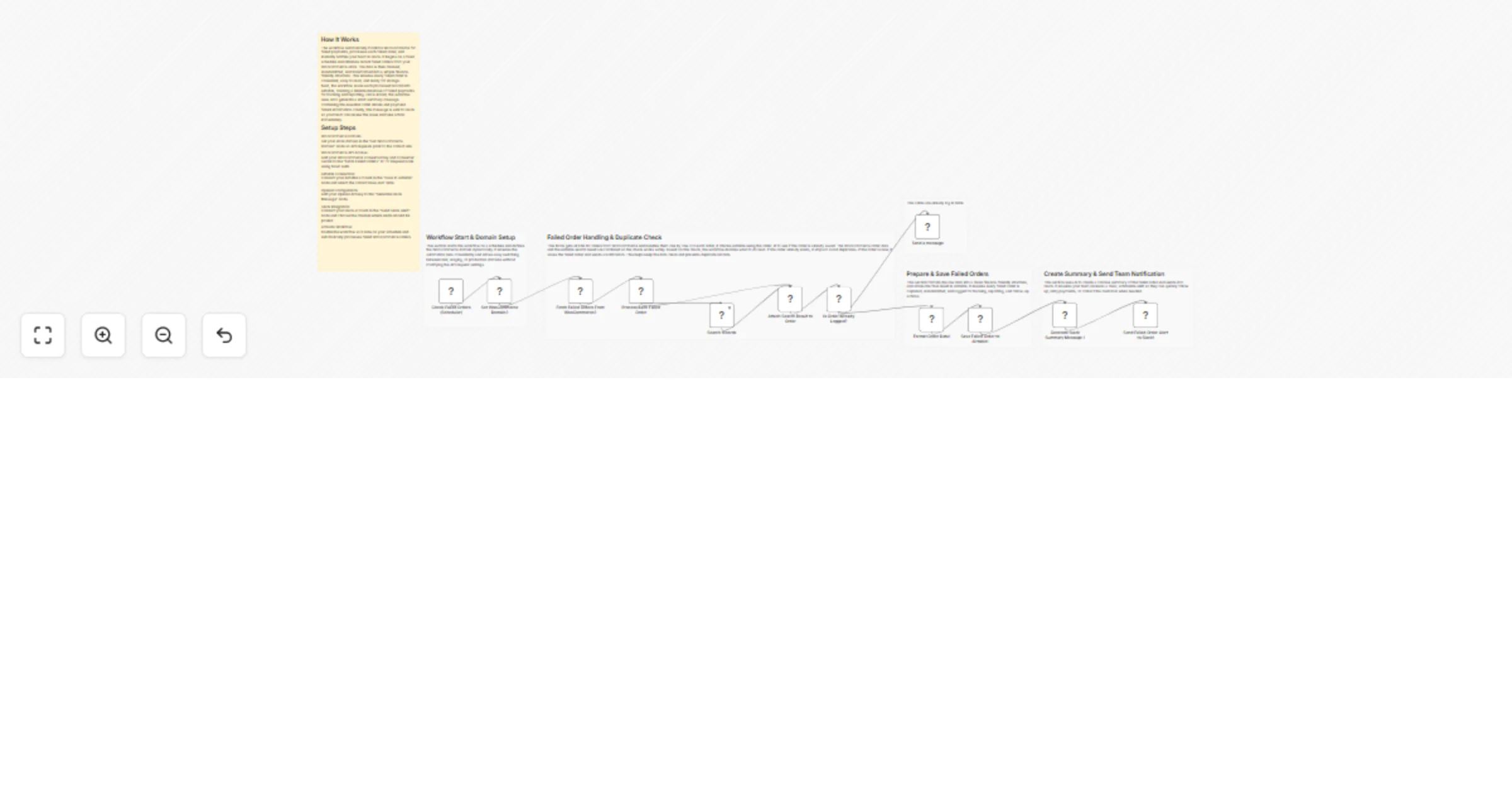
Workflow preview


 Early Deal
DISCOUNT 20%

Overview
WooCommerce Failed Order Fetch, Airtable Logging & Slack Alerts
This workflow automatically checks WooCommerce for failed orders on a schedule, processes each order individually, prevents duplicate entries using Airtable, stores new failed orders centrally, and sends clear AI-generated Slack alerts. It ensures clean data, avoids duplicate records and helps teams act quickly on failed payments.
Quick Implementation Steps
- Set your WooCommerce domain in the Set WooCommerce Domain node.
- Add WooCommerce API Key + Secret in the Fetch Failed Orders From WooCommerce node.
- Connect your Airtable Base/Table in the Search Records and Save Failed Order to Airtable nodes.
- Add your OpenAI API key to the AI node.
- Connect your Slack account + target channel.
- Enable the workflow and let it run automatically.
What It Does
This workflow continuously monitors your WooCommerce store for failed orders without relying on webhooks. On every scheduled run, it fetches all orders marked as failed, processes them one by one, and checks Airtable using the order_id to see whether the order has already been logged.
If the order already exists, the workflow safely stops processing for that order and optionally sends an informational Slack message. If the order is new, the workflow formats the data, saves it into Airtable, generates a clean AI-written summary, and sends a Slack alert to the team. This approach ensures data accuracy and prevents duplicate records.
Who’s It For
- WooCommerce store owners needing reliable failed-payment tracking
- Finance teams monitoring recovery opportunities
- Support teams requiring instant alerts
- Developers building reusable, idempotent workflows
- Agencies managing multiple WooCommerce stores
- Ops teams using Airtable for reporting and audits
Requirements to Use This Workflow
- Active n8n instance (cloud or self-hosted)
- WooCommerce store with REST API access
- Airtable account with Base and Table
- Slack workspace with API access
- OpenAI API key (for AI-generated messages)
- Permission to write data to Airtable and Slack
How It Works & How To Set Up
Step 1: Configure the Scheduler
Set how often the workflow runs in Check Failed Orders (Scheduler) (e.g., every 5 minutes, 15 minutes, or hourly).
Step 2: Set Your WooCommerce Domain
In Set WooCommerce Domain, enter your store domain:
Plain textANTLR4BashCC#CSSCoffeeScriptCMakeDartDjangoDockerEJSErlangGitGoGraphQLGroovyHTMLJavaJavaScriptJSONJSXKotlinLaTeXLessLuaMakefileMarkdownMATLABMarkupObjective-CPerlPHPPowerShell.propertiesProtocol BuffersPythonRRubySass (Sass)Sass (Scss)SchemeSQLShellSwiftSVGTSXTypeScriptWebAssemblyYAMLXMLyourstore.com
This value is reused across the workflow.
Step 3: Fetch Failed Orders
In Fetch Failed Orders From WooCommerce, configure Basic Authentication using:
- Consumer Key
- Consumer Secret
The workflow fetches:
Plain textANTLR4BashCC#CSSCoffeeScriptCMakeDartDjangoDockerEJSErlangGitGoGraphQLGroovyHTMLJavaJavaScriptJSONJSXKotlinLaTeXLessLuaMakefileMarkdownMATLABMarkupObjective-CPerlPHPPowerShell.propertiesProtocol BuffersPythonRRubySass (Sass)Sass (Scss)SchemeSQLShellSwiftSVGTSXTypeScriptWebAssemblyYAMLXMLhttps://{{wc_domain}}/wp-json/wc/v3/orders?status=failed
Step 4: Loop & Duplicate Check
Each failed order is processed individually using Loop Over Items. The workflow searches Airtable using Search Records to check whether the order_id already exists. A Merge node ensures safe data handling, and the IF node decides whether the order is a duplicate or a new entry.
Step 5: Format New Order Data
The Format Order Data node normalizes WooCommerce data, maps failure reasons, builds admin and retry URLs, and prepares the data for storage.
Step 6: Save to Airtable
New failed orders are saved in Airtable using Save Failed Order to Airtable. Duplicate orders are skipped to prevent data duplication.
Step 7: Generate & Send Slack Alerts
For new failed orders, the workflow generates a concise AI-based summary and sends it to Slack. Duplicate orders can optionally trigger an informational Slack message.
How To Customize
- Polling Frequency: Change scheduler interval
- Duplicate Logic: Modify Airtable search or IF condition
- Stored Fields: Adjust Airtable field mappings
- Formatting Rules: Edit JavaScript in Format Order Data
- Slack Message Style: Update AI prompt
Optional Enhancements
- Retry-payment tracking with attempts count
- Customer notification via email or SMS
- Jira/Trello ticket creation
- Google Sheets or BI dashboard sync
- Multi-store WooCommerce support
Example Use Cases
- Centralized failed-payment tracking in Airtable
- Instant Slack alerts for support and finance teams
- Clean reporting without duplicate records
- Faster issue resolution with AI summaries
- Scalable foundation for recovery automation
Troubleshooting Guide
| Issue | Possible Cause | Solution |
|---|---|---|
| No orders fetched | Wrong WooCommerce domain or API URL | Check Set WooCommerce Domain and HTTP Request URL |
| 401 Unauthorized | Invalid API key/secret | Regenerate keys from WooCommerce → REST API |
| Airtable record not created | Field mismatch | Confirm column names and types in Airtable |
| Slack message empty | AI node prompt or path mismatch | Confirm output path: $json.output[0].content[0].text |
| Workflow not running | Scheduler disabled | Ensure workflow is Active |
| API timeout | Store too slow or blocked | Whitelist server IP or increase timeout in HTTP node |
Need Help?
If you need assistance customizing this workflow, adding new features or integrating more systems, feel free to reach out. The n8n automation team at WeblineIndia can help with:
- Advanced WooCommerce automations
- Multi-store workflows
- Airtable/Slack/OpenAI integrations
- Custom logic, validations and data pipelines
- And many such advanced automation solutions.
We’re here to support you in scaling your automation journey.