Block 1 - Sticky Note3
- Type / Role
- n8n-nodes-base.stickyNote - stickyNote
- Config choices
- Version 1


 Early Deal
WooCommerce Failed Order Fetch, Airtable Logging & Slack Alerts This workflow automatically checks WooCommerce for failed orders on a schedule, processes each order individually, prevents duplicate...
n8n-nodes-base.stickynote, n8n-nodes-base.code, n8n-nodes-base.airtable, @n8n/n8n-nodes-langchain.openai, n8n-nodes-base.slack, n8n-nodes-base.scheduletrigger, n8n-nodes-base.set, n8n-nodes-base.httprequest
This workflow is cataloged by N8N Workflows and links back to its original n8n.io source page by WeblineIndia.
Original n8n.io sourceThis workflow automatically checks WooCommerce for failed orders on a schedule, processes each order individually, prevents duplicate entries using Airtable, stores new failed orders centrally, and sends clear AI-generated Slack alerts. It ensures clean data, avoids duplicate records and helps teams act quickly on failed payments.
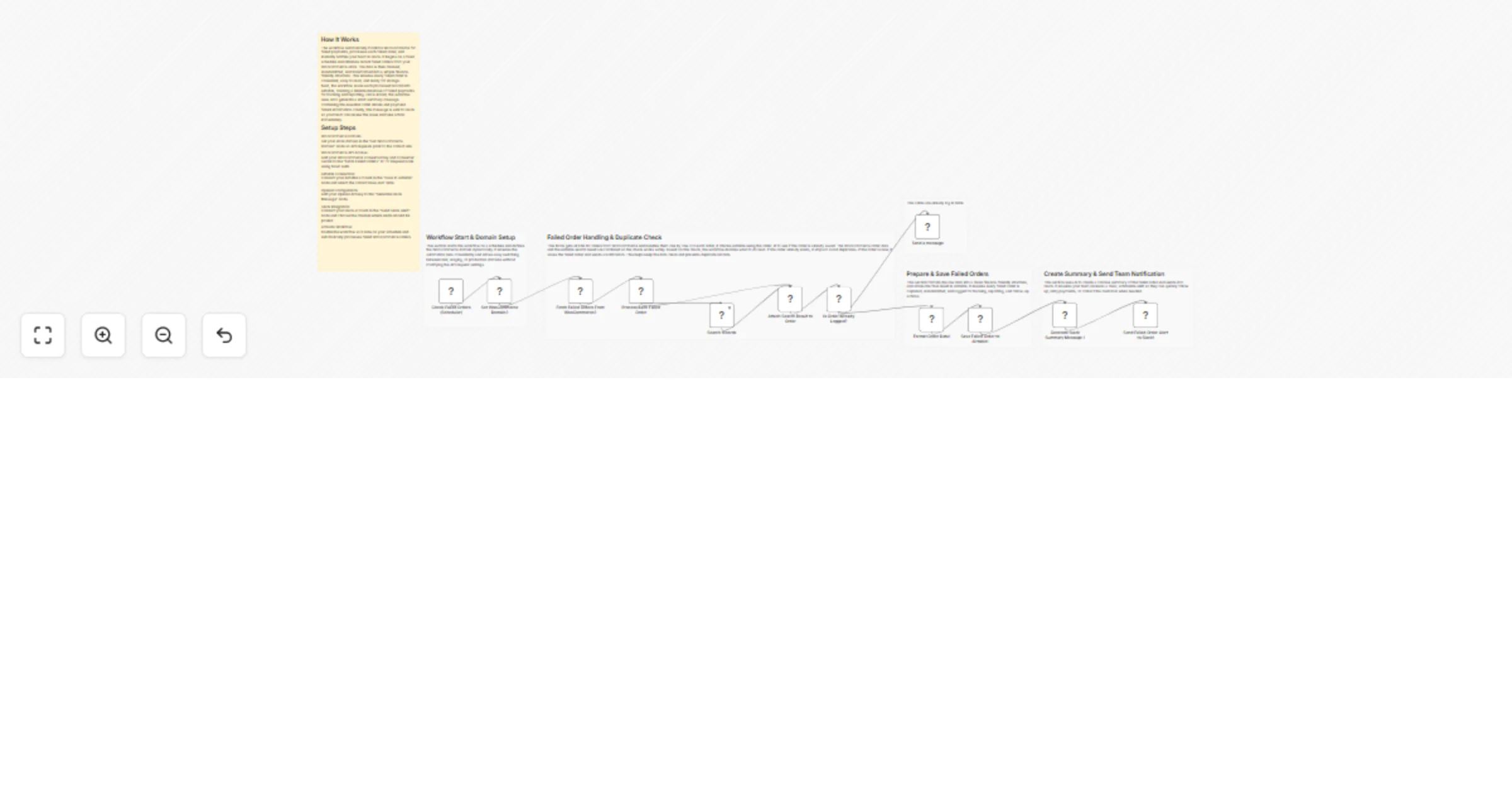
This workflow continuously monitors your WooCommerce store for failed orders without relying on webhooks. On every scheduled run, it fetches all orders marked as failed, processes them one by one, and checks Airtable using the order_id to see whether the order has already been logged.
If the order already exists, the workflow safely stops processing for that order and optionally sends an informational Slack message. If the order is new, the workflow formats the data, saves it into Airtable, generates a clean AI-written summary, and sends a Slack alert to the team. This approach ensures data accuracy and prevents duplicate records.
Set how often the workflow runs in Check Failed Orders (Scheduler) (e.g., every 5 minutes, 15 minutes, or hourly).
In Set WooCommerce Domain, enter your store domain:
Plain textANTLR4BashCC#CSSCoffeeScriptCMakeDartDjangoDockerEJSErlangGitGoGraphQLGroovyHTMLJavaJavaScriptJSONJSXKotlinLaTeXLessLuaMakefileMarkdownMATLABMarkupObjective-CPerlPHPPowerShell.propertiesProtocol BuffersPythonRRubySass (Sass)Sass (Scss)SchemeSQLShellSwiftSVGTSXTypeScriptWebAssemblyYAMLXMLyourstore.com
This value is reused across the workflow.
In Fetch Failed Orders From WooCommerce, configure Basic Authentication using:
The workflow fetches:
Plain textANTLR4BashCC#CSSCoffeeScriptCMakeDartDjangoDockerEJSErlangGitGoGraphQLGroovyHTMLJavaJavaScriptJSONJSXKotlinLaTeXLessLuaMakefileMarkdownMATLABMarkupObjective-CPerlPHPPowerShell.propertiesProtocol BuffersPythonRRubySass (Sass)Sass (Scss)SchemeSQLShellSwiftSVGTSXTypeScriptWebAssemblyYAMLXMLhttps://{{wc_domain}}/wp-json/wc/v3/orders?status=failed
Each failed order is processed individually using Loop Over Items. The workflow searches Airtable using Search Records to check whether the order_id already exists. A Merge node ensures safe data handling, and the IF node decides whether the order is a duplicate or a new entry.
The Format Order Data node normalizes WooCommerce data, maps failure reasons, builds admin and retry URLs, and prepares the data for storage.
New failed orders are saved in Airtable using Save Failed Order to Airtable. Duplicate orders are skipped to prevent data duplication.
For new failed orders, the workflow generates a concise AI-based summary and sends it to Slack. Duplicate orders can optionally trigger an informational Slack message.
| Issue | Possible Cause | Solution |
|---|---|---|
| No orders fetched | Wrong WooCommerce domain or API URL | Check Set WooCommerce Domain and HTTP Request URL |
| 401 Unauthorized | Invalid API key/secret | Regenerate keys from WooCommerce → REST API |
| Airtable record not created | Field mismatch | Confirm column names and types in Airtable |
| Slack message empty | AI node prompt or path mismatch | Confirm output path: $json.output[0].content[0].text |
| Workflow not running | Scheduler disabled | Ensure workflow is Active |
| API timeout | Store too slow or blocked | Whitelist server IP or increase timeout in HTTP node |
If you need assistance customizing this workflow, adding new features or integrating more systems, feel free to reach out. The n8n automation team at WeblineIndia can help with:
We’re here to support you in scaling your automation journey.
This catalog entry is organized from the workflow JSON. The node-level section below shows the executable blocks available for review before importing the template.
| Workflow | Log failed WooCommerce orders to Airtable and send OpenAI-powered Slack alerts |
|---|---|
| Complexity | advanced |
| Nodes | 18 |
| Categories | Document Extraction, AI Summarization |
| Author | WeblineIndia |
| Published | 01 Jan 2026 |
Use the JSON export at /data/workflows/12376/12376.json as the source template for this automation.
Open n8n, import the downloaded JSON, and review each node before activating the workflow.
Replace placeholder credentials, API keys, webhook URLs, account IDs, and environment-specific values with your own settings.
Run the workflow manually or in a staging workspace, inspect node output, and confirm downstream systems receive the expected data.
Enable the workflow only after testing, then monitor executions, errors, and rate limits during the first production runs.
Review imported nodes carefully before activation. This catalog entry is intended to help you inspect the workflow structure, understand required services, and find related templates faster.
Node names, credentials, schedules, webhook paths, and external service limits may need adjustment for your workspace.
WooCommerce Failed Order Fetch, Airtable Logging & Slack Alerts This workflow automatically checks WooCommerce for failed orders on a schedule, processes each order individually, prevents duplicate...
Review the workflow JSON, configure any required credentials in n8n, and test the automation in a safe workspace before using it in production.
Yes. Use the block-by-block analysis and the downloadable JSON to inspect each node, then adjust credentials, prompts, schedules, filters, or destinations for your Document Extraction, AI Summarization use case.