🎓 Learn evaluate tool. Tutorial for beginners with Gemini and Google Sheets
Workflow preview

$20/month : Unlimited workflows
2500 executions/month

THE #1 IN WEB SCRAPING
Scrape any website without limits
HOSTINGER  Early Deal
DISCOUNT 20% Try free
Early DealDISCOUNT 20%
Self-hosted n8n
Unlimited workflows - from $4.99/mo

#1 hub for scraping, AI & automation
6000+ actors - $5 credits/mo
Important notice
This workflow is provided as-is. Please review and test before using in production.
Overview
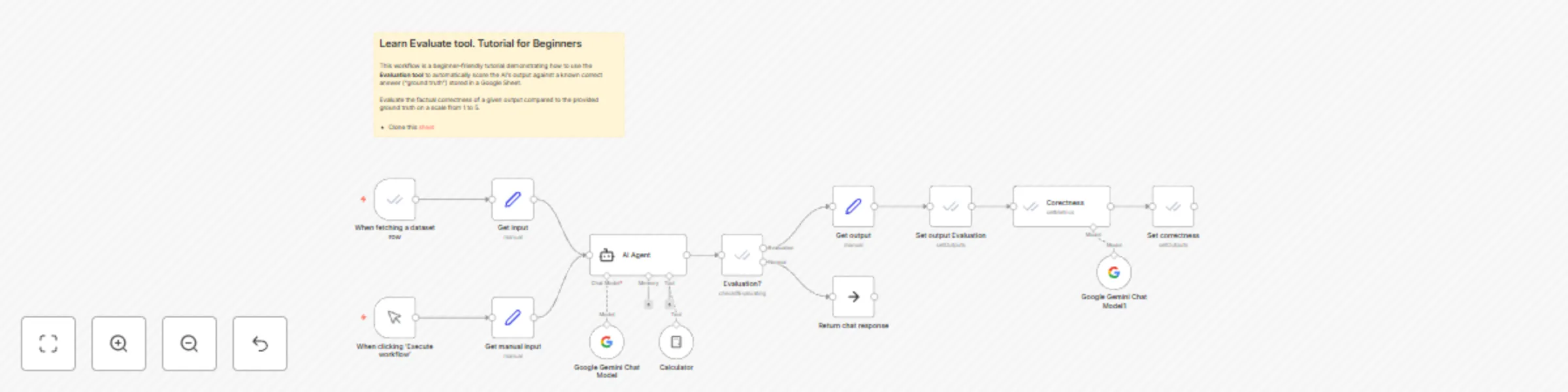
This workflow is a beginner-friendly tutorial demonstrating how to use the Evaluation tool to automatically score the AI’s output against a known correct answer (“ground truth”) stored in a Google Sheet.
Advantages
- ✅ Beginner-friendly – Provides a simple and clear structure to understand AI evaluation.
- ✅ Flexible input sources – Works with both Google Sheets datasets and manual test entries.
- ✅ Integrated with Google Gemini – Leverages a powerful AI model for text-based tasks.
- ✅ Tool usage – Demonstrates how an AI agent can call external tools (e.g., calculator) for accurate answers.
- ✅ Automated evaluation – Outputs are automatically compared against ground truth data for factual correctness.
- ✅ Scalable testing – Can handle multiple dataset rows, making it useful for structured AI model evaluation.
- ✅ Result tracking – Saves both answers and correctness scores back to Google Sheets for easy monitoring.
How it Works
The workflow operates in two distinct modes, determined by the trigger:
- Manual Test Mode: Triggered by "When clicking 'Execute workflow'". It sends a fixed question ("How much is 8 * 3?") to the AI agent and returns the answer to the user. This mode is for quick, ad-hoc testing.
- Evaluation Mode: Triggered by "When fetching a dataset row". This mode reads rows of data from a linked Google Sheet. Each row contains an
input(a question) and anexpected_output(the correct answer). It processes each row as follows:- The
inputquestion is sent to the AI Agent node. - The AI Agent, powered by a Google Gemini model and equipped with a Calculator tool, processes the question and generates an answer (
output). - The workflow then checks if it's in evaluation mode.
- Instead of just returning the answer, it passes the AI's
actual_outputand the sheet'sexpected_outputto another Evaluation node. - This node uses a second Google Gemini model as a "judge" to evaluate the factual correctness of the AI's answer compared to the expected one, generating a
Correctnessscore on a scale from 1 to 5. - Finally, both the AI's
actual_outputand the automatedcorrectnessscore are written back to a new column in the same row of the Google Sheet.
- The
Set up Steps
To use this workflow, you need to complete the following setup steps:
Credentials Configuration:
- Set up the Google Sheets OAuth2 API credentials (named "Google Sheets account"). This allows n8n to read from and write to your Google Sheet.
- Set up the Google Gemini (PaLM) API credentials (named "Google Gemini(PaLM) (Eure)"). This provides the AI language model capabilities for both the agent and the evaluator.
Prepare Your Google Sheet:
- The workflow is pre-configured to use a specific Google Sheet. You must clone the provided template sheet (the URL is in the Sticky Note) to your own Google Drive.
- In your cloned sheet, ensure you have at least two columns: one for the input/question (e.g.,
input) and one for the expected correct answer (e.g.,expected_output). You may need to update the node parameters that reference$json.inputand$json.expected_outputto match your column names exactly.
Update Document IDs:
- After cloning the sheet, get its new Document ID from its URL and update the
documentIdfield in all three Evaluation nodes ("When fetching a dataset row", "Set output Evaluation", and "Set correctness") to point to your new sheet instead of the original template.
- After cloning the sheet, get its new Document ID from its URL and update the
Activate the Workflow:
- Once the credentials and sheet are configured, toggle the workflow to Active. You can then trigger a manual test run or set the "When fetching a dataset row" node to poll your sheet automatically to evaluate all rows.
Need help customizing?
Contact me for consulting and support or add me on Linkedin.