Generate Lookio RAG-backed Gmail drafts from incoming emails with GPT-4.1

Workflow preview

Workflow preview
100%
Generate Lookio RAG-backed Gmail drafts from incoming emails with GPT-4.1 preview
Open on n8n.io

1. Workflow Overview

This n8n template automatically generates knowledge backed draft email replies when a new message arrives in a connected Gmail account. The workflow extracts a clean question from the incoming emai...

Best for

  • Ticket Management automation workflows
  • AI RAG automation workflows
  • intermediate n8n builders looking for reusable templates

Tools used

n8n-nodes-base.httprequest, @n8n/n8n-nodes-langchain.lmchatopenai, @n8n/n8n-nodes-langchain.chainllm, n8n-nodes-base.gmailtrigger, @n8n/n8n-nodes-langchain.outputparserstructured, n8n-nodes-base.gmail, n8n-nodes-base.stickynote

Source and attribution

This workflow is cataloged by N8N Workflows and links back to its original n8n.io source page by Guillaume Duvernay.

Original n8n.io source

1.1 Workflow description

Title
Generate Lookio RAG-backed Gmail drafts from incoming emails with GPT-4.1
Workflow name
Generate Lookio RAG-backed Gmail drafts from incoming emails with GPT-4.1

This n8n template automatically generates knowledge-backed draft email replies when a new message arrives in a connected Gmail account. The workflow extracts a clean question from the incoming email using an LLM, queries a Lookio assistant (your RAG knowledge base) for verified context, then writes a subject and body draft with an AI writer and saves it as a Gmail draft so a human agent can review and send.

Watch the full tutorial here: https://www.youtube.com/watch?v=VLz3pCXDGd4&t=1s

Who is this for?

  • Customer support teams: Produce fast, fact-based draft replies for support tickets referencing internal docs.
  • Sales teams: Auto-generate informed responses to product or pricing questions using your product docs.
  • Ops & onboarding teams: Create consistent, accurate answers to frequent procedural questions.
  • No-code automators: Quickly add RAG-backed email automation without building your own retrieval stack.

What it does / What problem does this solve?

  • Saves time: Reduces manual drafting by producing a polished draft a human can review and send.
  • Ensures factual answers: Uses your Lookio assistant so replies are grounded in your uploaded documents and resources.
  • Maintains human oversight: Messages are created as Gmail drafts (not sent) so agents can edit tone and details.
  • Flexible filtering: You can restrict which emails trigger the template (labels, senders, or patterns) to avoid unnecessary drafts.

How it works

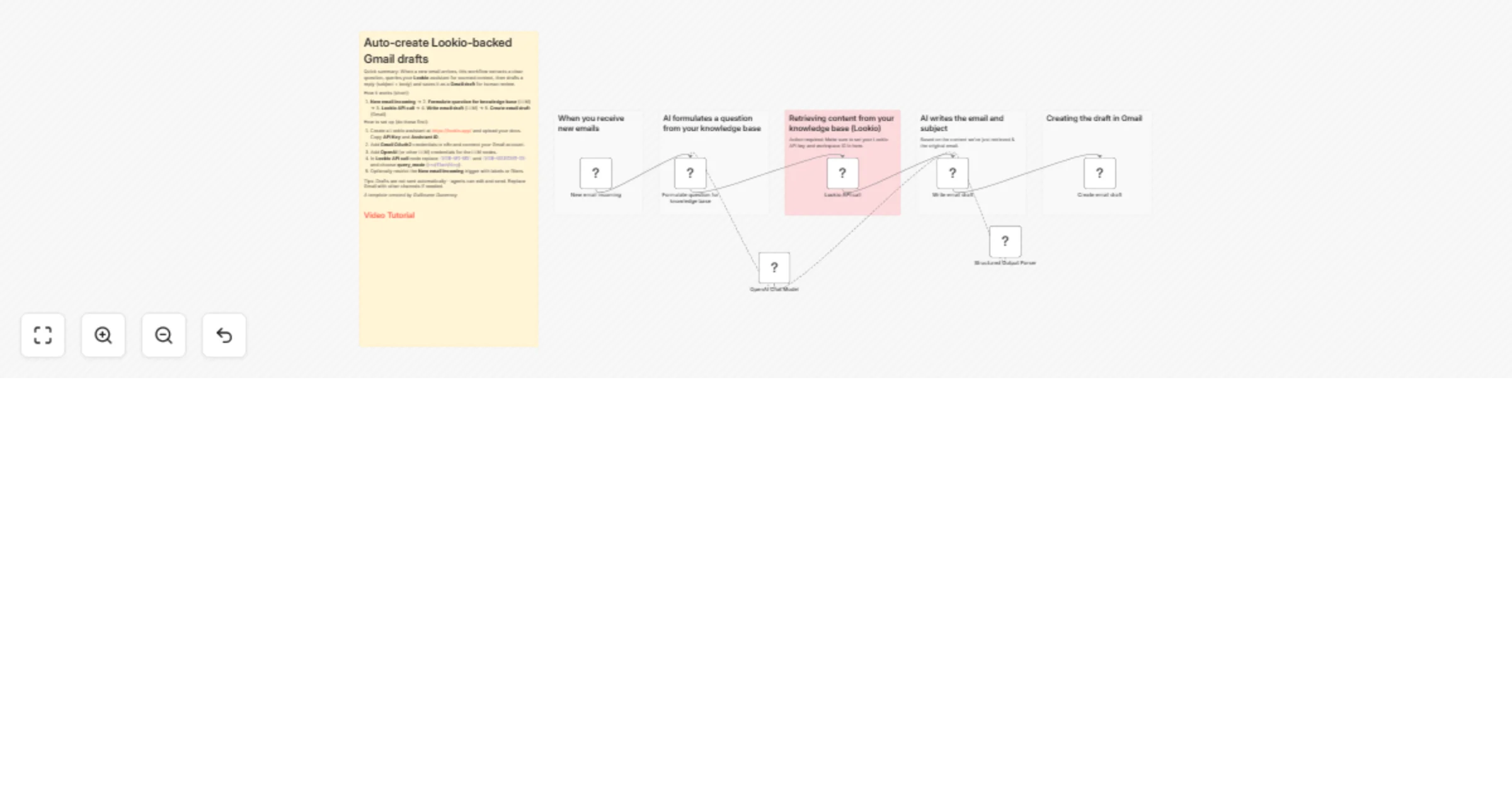
  1. Trigger: New email incoming (Gmail Trigger) detects a new message.
  2. Clean question: OpenAI Chat Model formats the email into a concise question for lookup.
  3. RAG lookup: Lookio API call posts the question to your Lookio Assistant and returns research-backed output.
  4. Draft generation: Write email draft LLM composes an email subject and body based on the Lookio output.
  5. Save draft: Create email draft (Gmail node) saves the message as a draft in the original thread.

How to set up

  1. Create a Lookio assistant: Sign up at https://lookio.app/ and upload your documents (PDFs, DOCX, CSV, text, URLs). Create an assistant and copy its Assistant ID and your workspace API Key.
  2. n8n credentials: Add Gmail OAuth2 credentials in n8n for the Gmail trigger and Gmail node, and add your OpenAI (or other LLM) credentials for the LLM nodes.
  3. Configure the nodes:
  4. In New email incoming (Gmail Trigger) pick poll method or label filters if needed.
  5. In Formulate question for knowledge base (LLM) adjust the prompt if you want different question extraction rules.
  6. In Lookio API call (HTTP Request) replace <YOUR-API-KEY> and <YOUR-ASSISTANT-ID> placeholders and set desired query_mode (eco, flash, or deep).
  7. In Write email draft (LLM) confirm the output parser and desired style/tone.
  8. In Create email draft (Gmail) confirm threadId mapping and recipient extraction; the node saves as draft by default.
  9. Activate workflow: Enable the workflow in n8n and test by sending a sample email to the connected Gmail account.

Requirements

  • An n8n instance with access to the workflow editor
  • A Gmail account connected via Gmail OAuth2 credentials
  • A Lookio account with an assistant, plus API Key and Assistant ID
  • An AI provider account (OpenAI or equivalent) for the LLM nodes

What is Lookio and how it provides answers

Lookio is an API-first RAG platform that converts uploaded documents into assistants your workflows can query. Upload PDFs, DOCX, CSVs, or paste text, then create an assistant with instructions and resource access. Use the Lookio API (POST https://api.lookio.app/webhook/query) with assistant_id, query, and query_mode (eco, flash, deep) to retrieve sourced, context-aware answers. Lookio offers a free trial with credits—visit https://lookio.app/ to sign up and get started.

How to take it further

  • Selective triggers: Only trigger on specific labels, senders, or keywords to limit drafts to high-value emails.
  • Auto-categorization: Add an LLM classification step to detect whether an email requires RAG or a short reply.
  • Alternate channels: Replace the Gmail trigger with Slack, Intercom, or a webhook to draft responses for other channels.
  • Audit & logging: Add an Airtable or Google Sheets node to log queries, Lookio outputs, draft versions and agent actions.
  • Custom tone & templates: Add a step that maps customer segments to different reply styles or templates before creating the draft.

1.2 Logical Blocks

This catalog entry is organized from the workflow JSON. The node-level section below shows the executable blocks available for review before importing the template.

2. Block-by-Block Analysis

Block 1 - Lookio API call

Type / Role
n8n-nodes-base.httpRequest - httpRequest
Config choices
Version 4.2

Block 2 - OpenAI Chat Model

Type / Role
@n8n/n8n-nodes-langchain.lmChatOpenAi - lmChatOpenAi
Config choices
Version 1.3

Block 3 - Formulate question for knowledge base

Type / Role
@n8n/n8n-nodes-langchain.chainLlm - chainLlm
Config choices
Version 1.8

Block 4 - New email incoming

Type / Role
n8n-nodes-base.gmailTrigger - gmailTrigger
Config choices
Version 1.3

Block 5 - Structured Output Parser

Type / Role
@n8n/n8n-nodes-langchain.outputParserStructured - outputParserStructured
Config choices
Version 1.3

Block 6 - Write email draft

Type / Role
@n8n/n8n-nodes-langchain.chainLlm - chainLlm
Config choices
Version 1.8

Block 7 - Create email draft

Type / Role
n8n-nodes-base.gmail - gmail
Config choices
Version 2.2

Block 8 - Sticky Note1

Type / Role
n8n-nodes-base.stickyNote - stickyNote
Config choices
Version 1

Block 9 - Sticky Note

Type / Role
n8n-nodes-base.stickyNote - stickyNote
Config choices
Version 1

Block 10 - Sticky Note2

Type / Role
n8n-nodes-base.stickyNote - stickyNote
Config choices
Version 1

Block 11 - Sticky Note3

Type / Role
n8n-nodes-base.stickyNote - stickyNote
Config choices
Version 1

Block 12 - Sticky Note4

Type / Role
n8n-nodes-base.stickyNote - stickyNote
Config choices
Version 1

Block 13 - Sticky Note5

Type / Role
n8n-nodes-base.stickyNote - stickyNote
Config choices
Version 1

3. Summary Table

Workflow Generate Lookio RAG-backed Gmail drafts from incoming emails with GPT-4.1
Complexity intermediate
Nodes 13
Categories Ticket Management, AI RAG
Author Guillaume Duvernay
Published 03 Jan 2026

4. Reproducing the Workflow from Scratch

  1. 1. Download the workflow JSON

    Use the JSON export at /data/workflows/12440/12440.json as the source template for this automation.

  2. 2. Import the template into n8n

    Open n8n, import the downloaded JSON, and review each node before activating the workflow.

  3. 3. Configure credentials and variables

    Replace placeholder credentials, API keys, webhook URLs, account IDs, and environment-specific values with your own settings.

  4. 4. Test with sample data

    Run the workflow manually or in a staging workspace, inspect node output, and confirm downstream systems receive the expected data.

  5. 5. Activate and monitor

    Enable the workflow only after testing, then monitor executions, errors, and rate limits during the first production runs.

5. General Notes & Resources

Review imported nodes carefully before activation. This catalog entry is intended to help you inspect the workflow structure, understand required services, and find related templates faster.

Node names, credentials, schedules, webhook paths, and external service limits may need adjustment for your workspace.

Frequently asked questions

What does Generate Lookio RAG-backed Gmail drafts from incoming emails with GPT-4.1 do?

This n8n template automatically generates knowledge backed draft email replies when a new message arrives in a connected Gmail account. The workflow extracts a clean question from the incoming emai...

What do I need before importing this workflow?

Review the workflow JSON, configure any required credentials in n8n, and test the automation in a safe workspace before using it in production.

Can I customize this workflow?

Yes. Use the block-by-block analysis and the downloadable JSON to inspect each node, then adjust credentials, prompts, schedules, filters, or destinations for your Ticket Management, AI RAG use case.