G

Guillaume Duvernay

21
Workflows

Workflows by Guillaume Duvernay

Workflow preview: Create a Lookio RAG assistant from a CSV text corpus
Free intermediate

Create a Lookio RAG assistant from a CSV text corpus

This advanced template automates the creation of a **[Lookio](https://www.lookio.app)** Assistant populated with a specific corpus of text. Instead of uploading files one by one, you can simply upload a CSV containing multiple text resources. The workflow iterates through the rows, converts them to text files, uploads them to Lookio, and finally creates a new Assistant with strict access limited to these specific resources. ## Who is this for? * **Knowledge Managers** who want to spin up specific "Topic Bots" (e.g., an "RFP Bot" or "HR Policy Bot") based on a spreadsheet of Q&As or articles. * **Product Teams** looking to bulk-import release notes or documentation to test RAG (Retrieval-Augmented Generation) responses. * **Automation Builders** who need a reference implementation for looping through CSV rows, converting text strings to binary files, and aggregating IDs for a final API call. ## What is the RAG platform Lookio for knowledge retrieval? **Lookio** is an API-first platform that solves the complexity of building **RAG (Retrieval-Augmented Generation)** systems. While tools like NotebookLM are great for individuals, Lookio is built for business automation. It handles the difficult backend work—file parsing, chunking, vector storage, and semantic retrieval—so you can focus on the workflow. * **API-First:** Unlike consumer AI tools, Lookio allows you to integrate your knowledge base directly into n8n, Slack, or internal apps. * **No "DIY" Headache:** You don't need to manage a vector database or write chunking algorithms. * **Free to Start:** You can sign up without a credit card and get 100 free credits to test this workflow immediately. ## What problem does this workflow solve? * **Bulk Ingestion:** Converts a CSV export (with columns for Title and Content) into individual text resources in Lookio. * **Automated Provisioning:** Eliminates the manual work of creating an Assistant and selecting resources one by one. * **Dynamic Configuration:** Allows the user to define the Assistant's specific name, context (system prompt), and output guidelines directly via the upload form. ## How it works 1. **Form Trigger:** The user uploads a CSV and specifies the Assistant details (Name, Context, Guidelines) and maps the CSV column names. 2. **Parsing:** The workflow converts the CSV to JSON and uses the **Convert to File** node to transform the raw text content of each row into a binary `.txt` file. 3. **Loop & Upload:** It loops through the items, uploading them via the Lookio **Add Resource** API (`/webhook/add-resource`), and collects the returned `Resource ID`s. 4. **Creation:** Once all files are processed, it aggregates the IDs and calls the **Create Assistant** API (`/webhook/create-assistant`), setting the `resources_access_type` to "Limited selection" so the bot relies only on the uploaded data. 5. **Completion:** Returns the new Assistant ID and a success message to the user. ## CSV File Requirements Your CSV file should look like this (headers can be named anything, as you will map them in the form): | Title | Content | | --- | --- | | How to reset password | Go to settings, click security, and press reset... | | Vacation Policy | Employees are entitled to 20 days of PTO... | ## How to set up 1. **Lookio Credentials:** Get your **API Key** and **Workspace ID** from your [Lookio API Settings](https://www.lookio.app) (Free to sign up). 2. **Configure HTTP Nodes:** * Open the **Import resource to Lookio** node: Update headers (`api_key`) and body (`workspace_id`). * Open the **Create Lookio assistant** node: Update headers (`api_key`) and body (`workspace_id`). 3. **Form Configuration (Optional):** The form is pre-configured to ask for column mapping, but you can hardcode these in the "Convert to txt" node if you always use the same CSV structure. 4. **Activate & Share:** Activate the workflow and use the **Production URL** from the Form Trigger to let your team bulk-create assistants.

G
Guillaume Duvernay
AI RAG
17 Dec 2025
0
0
Workflow preview: Run bulk RAG queries from CSV with Lookio
Free intermediate

Run bulk RAG queries from CSV with Lookio

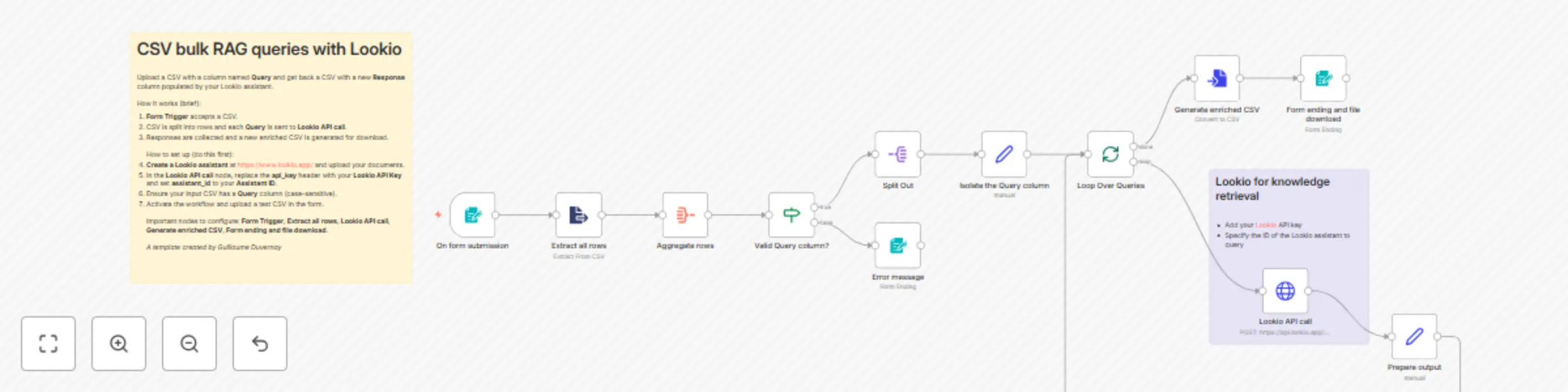
This template processes a CSV of questions and returns an enriched CSV with RAG-based answers produced by your **Lookio** assistant. Upload a CSV that contains a column named **Query**, and the workflow will loop through every row, call the **Lookio API**, and append a **Response** column containing the assistant's answer. It's ideal for batch tasks like drafting RFP responses, pre-filling support replies, generating knowledge-checked summaries, or validating large lists of product/customer questions against your internal documentation. ## Who is this for? * **Knowledge managers & technical writers:** Produce draft answers to large question sets using your company docs. * **Sales & proposal teams:** Auto-generate RFP answer drafts informed by internal docs. * **Support & operations teams:** Bulk-enrich FAQs or support ticket templates with authoritative responses. * **Automation builders:** Integrate Lookio-powered retrieval into bulk data pipelines. ## What it does / What problem does this solve? * **Automates bulk queries:** Eliminates the manual process of running many individual lookups. * **Ensures answers are grounded:** Responses come from your uploaded documents via **Lookio**, reducing hallucinations. * **Produces ready-to-use output:** Delivers an enriched CSV with a new **Response** column for downstream use. * **Simple UX:** Users only need to upload a CSV with a **Query** column and download the resulting file. ## How it works 1. **Form submission:** User uploads a CSV via the **Form Trigger**. 2. **Extract & validate:** **Extract all rows** reads the CSV and **Aggregate rows** checks for a **Query** column. 3. **Per-row loop:** **Split Out** and **Loop Over Queries** iterate rows; **Isolate the Query column** normalizes data. 4. **Call Lookio:** **Lookio API call** posts each query to your assistant and returns the answer. 5. **Build output:** **Prepare output** appends **Response** values and **Generate enriched CSV** creates the downloadable file delivered by **Form ending and file download**. ## Why use Lookio for high quality RAG? While building a native **RAG pipeline** in n8n offers granular control, achieving consistently **high-quality and reliable results** requires significant effort in data processing, chunking strategy, and retrieval logic optimization. **Lookio** is designed to address these challenges by providing a managed RAG service accessible via a simple API. It handles the entire **backend pipeline**—from processing various document formats to employing advanced retrieval techniques—allowing you to integrate a production-ready knowledge source into your workflows. This approach lets you **focus on building your automation in n8n**, rather than managing the complexities of a RAG infrastructure. ## How to set up 1. **Create a Lookio assistant:** Sign up at https://www.lookio.app/, upload documents, and create an assistant. 2. **Get credentials:** Copy your **Lookio API Key** and **Assistant ID**. 3. **Configure the workflow nodes:** * In the **Lookio API call** **HTTP Request** node, replace the **api_key** header value with your **Lookio API Key** and update **assistant_id** with your **Assistant ID** (replace placeholders like `<your-lookio-api-key>` and `<your-assistant-id>`). * Ensure the **Form Trigger** is enabled and accepts a **.csv** file. 4. **CSV format:** Ensure the input CSV has a column named **Query** (case-sensitive as configured). 5. **Activate the workflow:** Run a test upload and download the enriched CSV. ## Requirements * An n8n instance with the ability to host Forms and run workflows * A **Lookio** account (API Key) and an **Assistant ID** ## How to take it further * **Add rate limiting / retries:** Insert error handling and delay nodes to respect API limits for large batches. * **Improve the speed**: You could drastically reduce the processing time by parallelizing the queries instead of doing them one after the other in the loop. For that, you could use HTTP request nodes that would trigger your sort of sub-workflow. * **Store results:** Add an **Airtable** or **Google Sheets** node to archive questions and responses for audit and reuse. * **Post-process answers:** Add an LLM node to summarize or standardize responses, or to add confidence flags. * **Trigger variations:** Replace the **Form Trigger** with a **Google Drive** or **Airtable** trigger to process CSVs automatically from a folder or table.

G
Guillaume Duvernay
Document Extraction
20 Oct 2025
284
0
Workflow preview: Build a Telegram Q&A bot with Linkup web search, GPT-4.1 & Mistral voice
Free advanced

Build a Telegram Q&A bot with Linkup web search, GPT-4.1 & Mistral voice

Create a Telegram bot that answers questions using AI-powered web search from **Linkup** and an LLM agent (GPT-4.1). This template handles both **text** and **voice** messages (voice transcribed via a Mistral model by default), routes queries through an agent that can call a Linkup tool to fetch up-to-date information from the web, and returns concise, Telegram-friendly replies. A security switch lets you restrict use to a single Telegram username for private testing, or remove the filter to make the bot public. ## Who is this for? * **Anyone needing quick answers:** Build a personal assistant that can look up current events, facts, and general knowledge on the web. * **Support & ops teams:** Provide quick, web-sourced answers to user questions without leaving Telegram. * **Developers & automation engineers:** Use this as a reference for integrating agents, transcription, and web search tools inside n8n. * **No-code builders:** Quickly deploy a chat interface that uses Linkup for accurate, source-backed answers from the web. ## What it does / What problem does this solve? * **Provides accurate, source-backed answers:** Routes queries to **Linkup** so replies are grounded in up-to-date web search results instead of the LLM's static knowledge. * **Handles voice & text transparently:** Accepts Telegram voice messages, transcribes them (via the **Mistral** API node by default), and treats transcripts the same as typed text. * **Simple agent + tool architecture:** Uses a **LangChain AI Agent** with a **Web search** tool to separate reasoning from information retrieval. * **Privacy control:** Includes a **Myself?** filter to restrict access to a specific Telegram username for safe testing. ## How it works 1. **Trigger:** **Telegram Trigger** receives incoming messages (text or voice). 2. **Route:** **Message Router** detects voice vs text. Voice files are fetched with **Get Audio File**. 3. **Transcribe:** **Mistral transcribe** receives the audio file and returns a transcript; the transcript or text is normalized into **preset_user_message** and consolidated in **Consolidate user message**. 4. **Agent:** **AI Agent** (GPT-4.1-mini configured) runs with a system prompt that instructs it to call the **Web search** tool when up-to-date knowledge is required. 5. **Respond:** The agent output is sent back to the user via **Telegram answer**. ## How to set up 1. **Create a Linkup account:** Sign up at [https://linkup.so](https://linkup.so) to get your API key. They offer a free tier with monthly credits. 2. **Add credentials in n8n:** Configure **Telegram API**, **OpenAI** (or your LLM provider), and **Mistral Cloud** credentials in n8n. 3. **Configure Linkup tool:** In the **Web search** node, find the "Headers" section. In the `Authorization` header, replace `Bearer <your-linkup-api-key>` with your actual Linkup API Key. 4. **Set Telegram privacy (optional):** Edit the **Myself?** **If** node and replace `<Replace with your Telegram username>` with your username to restrict access. Remove the node to allow public use. 5. **Adjust transcription (optional):** Swap the **Mistral transcribe** HTTP node for another provider (OpenAI, Whisper, etc.). 6. **Connect LLM:** In **OpenAI Chat Model** node, add your OpenAI API key (or configure another LLM node) and ensure the **AI Agent** node references this model. 7. **Activate workflow:** Activate the workflow and test by messaging your bot in Telegram. ## Requirements * An n8n instance (cloud or self-hosted) * A **Telegram Bot** token added in n8n credentials * A **Linkup** account and **API Key** * An LLM provider account (OpenAI or equivalent) for the **OpenAI Chat Model** node * A **Mistral** API key (or other transcription provider) for voice transcription ## How to take it further * **Add provenance & sources:** Parse Linkup responses and include short citations or source links in the agent replies. * **Rich replies:** Use Telegram media (images, files) or inline keyboards to create follow-up actions (open web pages, request feedback, escalate to humans). * **Multi-user access control:** Replace the single-username filter with a list or role-based access system (Airtable or Google Sheets lookup) to allow multiple trusted users. * **Logging & analytics:** Save queries and agent responses to **Airtable** or **Google Sheets** for monitoring, quality checks, and prompt improvement.

G
Guillaume Duvernay
Support Chatbot
19 Oct 2025
221
0
Workflow preview: Create a voice & text Telegram assistant with Lookio RAG and GPT-4.1
Free advanced

Create a voice & text Telegram assistant with Lookio RAG and GPT-4.1

Create a Telegram bot that answers questions using Retrieval-Augmented Generation (RAG) powered by **Lookio** and an LLM agent (GPT-4.1). This template handles both **text** and **voice** messages (voice transcribed via a Mistral model by default), routes queries through an agent that can call a Lookio tool to fetch knowledge from your uploaded documents, and returns concise, Telegram-friendly replies. A security switch lets you restrict use to a single Telegram username for private testing, or remove the filter to make the bot public. ## Who is this for? * **Internal teams & knowledge workers**: Turn your internal docs into an interactive Telegram assistant for quick knowledge lookups. * **Support & ops**: Provide on-demand answers from your internal knowledge base without exposing full documentation. * **Developers & automation engineers**: Use this as a reference for integrating agents, transcription, and RAG inside n8n. * **No-code builders**: Quickly deploy a chat interface that uses Lookio for accurate, source-backed answers. ## What it does / What problem does this solve? * **Provides accurate, source-backed answers**: Routes queries to **Lookio** so replies are grounded in your documents instead of generic web knowledge. * **Handles voice & text transparently**: Accepts Telegram voice messages, transcribes them (via the **Mistral** API node by default), and treats transcripts the same as typed text. * **Simple agent + tool architecture**: Uses a **LangChain AI Agent** with a **Query knowledge base** tool to separate reasoning from retrieval. * **Privacy control**: Includes a **Myself?** filter to restrict access to a specific Telegram username for safe testing. ## How it works 1. **Trigger**: **Telegram Trigger** receives incoming messages (text or voice). 2. **Route**: **Message Router** detects voice vs text. Voice files are fetched with **Get Audio File**. 3. **Transcribe**: **Mistral transcribe** receives the audio file and returns a transcript; the transcript or text is normalized into **preset\_user\_message** and consolidated in **Consolidate user message**. 4. **Agent**: **AI Agent** (GPT-4.1-mini configured) runs with a system prompt that instructs it to call the **Query knowledge base** tool when domain knowledge is required. 5. **Respond**: The agent output is sent back to the user via **Telegram answer**. ## How to set up 1. **Create a Lookio assistant**: Sign up at [https://www.lookio.app/](https://www.lookio.app/), upload documents, and create an assistant. 2. **Add credentials in n8n**: Configure **Telegram API**, **OpenAI** (or your LLM provider), and **Mistral Cloud** credentials in n8n. 3. **Configure Lookio tool**: In the **Query knowledge base** node, replace `<your-lookio-api-key>` and `<your-assistant-id>` placeholders with your Lookio API Key and Assistant ID. 4. **Set Telegram privacy (optional)**: Edit the **Myself?** **If** node and replace `<Replace with your Telegram username>` with your username to restrict access. Remove the node to allow public use. 5. **Adjust transcription (optional)**: Swap the **Mistral transcribe** HTTP node for another provider (OpenAI, Whisper, etc.) and update its prompt to include your jargon list. 6. **Connect LLM**: In **OpenAI Chat Model** node, add your OpenAI API key (or configure another LLM node) and ensure the **AI Agent** node references this model. 7. **Activate workflow**: Activate the workflow and test by messaging your bot in Telegram. ## Requirements * An n8n instance (cloud or self-hosted) * A **Telegram Bot** token added in n8n credentials * A **Lookio** account, **API Key**, and **Assistant ID** * An LLM provider account (OpenAI or equivalent) for the **OpenAI Chat Model** node * A **Mistral** API key (or other transcription provider) for voice transcription ## How to take it further * **Add provenance & sources**: Parse Lookio responses and include short citations or source links in the agent replies. * **Rich replies**: Use Telegram media (images, files) or inline keyboards to create follow-up actions (open docs, request feedback, escalate to humans). * **Multi-user access control**: Replace the single-username filter with a list or role-based access system (Airtable or Google Sheets lookup) to allow multiple trusted users. * **Logging & analytics**: Save queries and agent responses to **Airtable** or **Google Sheets** for monitoring, quality checks, and prompt improvement.

G
Guillaume Duvernay
Support Chatbot
19 Oct 2025
219
0
Workflow preview: Create dual-source expert articles with internal knowledge and web research using Lookio, Linkup, and GPT-5
Free advanced

Create dual-source expert articles with internal knowledge and web research using Lookio, Linkup, and GPT-5

Create truly authoritative articles that blend your unique, internal expertise with the latest, most relevant information from the web. This template orchestrates an advanced "hybrid research" content process that delivers unparalleled depth and credibility. Instead of a simple prompt, this workflow first uses an AI planner to deconstruct your topic into key questions. Then, for each question, it performs a **dual-source query**: it searches your trusted **Lookio** knowledge base for internal facts and simultaneously uses **Linkup** to pull fresh insights and sources from the live web. This comprehensive "super-brief" is then handed to a powerful AI writer to compose a high-quality article, complete with citations from both your own documents and external web pages. ### **👥 Who is this for?** * **Content Marketers & SEO Specialists:** Scale the creation of authoritative content that is both grounded in your brand's facts and enriched with timely, external sources for maximum credibility. * **Technical Writers & Subject Matter Experts:** Transform complex internal documentation into rich, public-facing articles by supplementing your core knowledge with external context and recent data. * **Marketing Agencies:** Deliver exceptional, well-researched articles for clients by connecting the workflow to their internal materials (via Lookio) and the broader web (via Linkup) in one automated process. --- ### **💡 What problem does this solve?** * **The Best of Both Worlds:** Combines the factual reliability of your own knowledge base with the timeliness and breadth of a web search, resulting in articles with unmatched depth. * **Minimizes AI "Hallucinations":** Grounds the AI writer in two distinct sets of factual, source-based information—your internal documents and credible web pages—dramatically reducing the risk of invented facts. * **Maximizes Credibility:** Automates the inclusion of source links from **both** your internal knowledge base and external websites, boosting reader trust and demonstrating thorough research. * **Ensures Comprehensive Coverage:** The AI-powered "topic breakdown" ensures a logical structure, while the dual-source research for each point guarantees no stone is left unturned. * **Fully Automates an Expert Workflow:** Mimics the entire process of an expert research team (outline, internal review, external research, consolidation, writing) in a single, scalable workflow. --- ### **⚙️ How it works** This workflow orchestrates a sophisticated, multi-step "Plan, Dual-Research, Write" process: 1. **Plan (Decomposition):** You provide an article title and guidelines via the built-in form. An initial AI call acts as a "planner," breaking down the main topic into an array of logical sub-questions. 2. **Dual Research (Knowledge Base + Web Search):** The workflow loops through each sub-question and performs two research actions in parallel: * It queries your **Lookio assistant** to retrieve relevant information and source links from your uploaded documents. * It queries **Linkup** to perform a targeted web search, gathering up-to-date insights and their source URLs. 3. **Consolidate (Brief Creation):** All the retrieved information—internal and external—is compiled into a single, comprehensive research brief for each sub-question. 4. **Write (Final Generation):** The complete, source-rich brief is handed to a final, powerful AI writer (e.g., GPT-5). Its instructions are clear: write a high-quality article based *only* on the provided research and integrate all source links as hyperlinks. --- ### **🛠️ Setup** 1. **Set up your Lookio assistant:** * Sign up at [Lookio](https://www.lookio.app/), upload your documents to create a knowledge base, and create a new assistant. * In the **Query Lookio Assistant** node, paste your **Assistant ID** in the body and add your Lookio **API Key** for authentication (we recommend a Bearer Token credential). 2. **Connect your Linkup account:** * In the **Query Linkup for AI web-search** node, add your Linkup API key for authentication (we recommend a Bearer Token credential). Linkup's free plan is very generous. 3. **Connect your AI provider:** * Connect your AI provider (e.g., OpenAI) credentials to the two Language Model nodes. 4. **Activate the workflow:** * Toggle the workflow to "Active" and use the built-in form to generate your first hybrid-research article! --- ### **🚀 Taking it further** * **Automate Publishing:** Connect the final **Article result** node to a **Webflow** or **WordPress** node to automatically create draft posts in your CMS. * **Generate Content in Bulk:** Replace the **Form Trigger** with an **Airtable** or **Google Sheet** trigger to generate a batch of articles from your content calendar. * **Customize the Writing Style:** Tweak the system prompt in the final **New content - Generate the AI output** node to match your brand's tone of voice, prioritize internal vs. external sources, or add SEO keywords.

G
Guillaume Duvernay
Content Creation
13 Oct 2025
223
0
Workflow preview: AI DJ: Text-to-Spotify playlist generator with Linkup and GPT4
Free advanced

AI DJ: Text-to-Spotify playlist generator with Linkup and GPT4

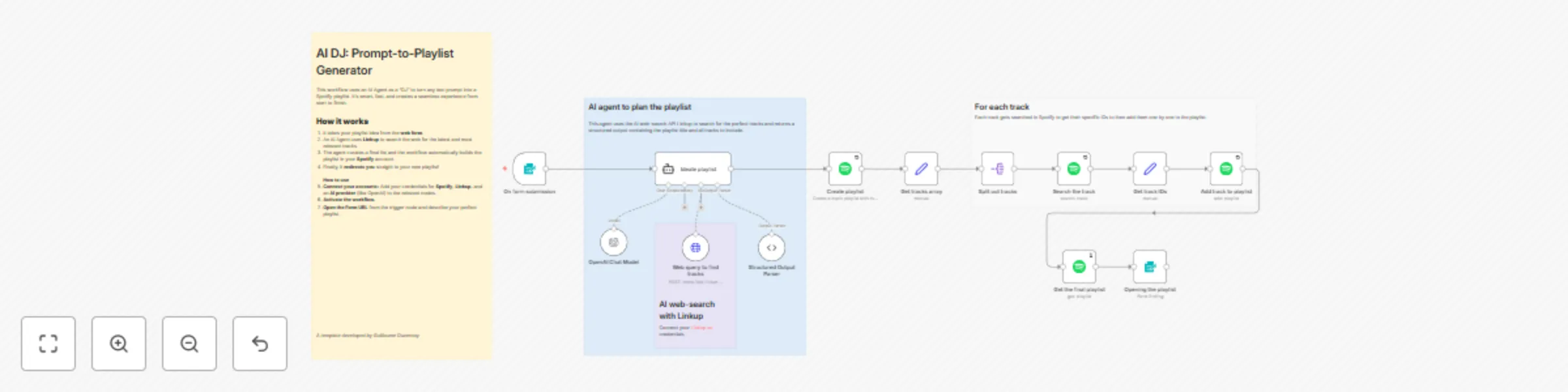
Stop manually searching for songs and let an AI DJ do the work for you. This template provides a complete, end-to-end system that transforms any text prompt into a ready-to-play Spotify playlist. It combines the creative understanding of a powerful AI Agent with the real-time web knowledge of **Linkup** to curate perfect, up-to-the-minute playlists for any occasion. The experience is seamless: simply describe the vibe you're looking for in a web form, and the workflow will automatically create the playlist in your Spotify account and redirect you straight to it. Whether you need "upbeat funk for a sunny afternoon" or "moody electronic tracks for late-night coding," your personal AI DJ is ready to deliver. ## **Who is this for?** * **Music lovers:** Create hyper-specific playlists for any mood, activity, or niche genre without the hassle of manual searching. * **DJs & event planners:** Quickly generate themed playlists for parties, weddings, or corporate events based on a simple brief. * **Content creators:** Easily create companion playlists for your podcasts, videos, or articles to share with your audience. * **n8n developers:** A powerful example of how to build an AI agent that uses an external web-search tool to accomplish a creative task. ## **What problem does this solve?** * **Creates up-to-date playlists:** A standard AI doesn't know about music released yesterday. By using Linkup's live web search, this workflow can find and include the very latest tracks. * **Automates the entire creation process:** It handles everything from understanding a vague prompt (like "songs that feel like a summer road trip") to creating a fully populated Spotify playlist. * **Saves time and effort:** It completely eliminates the tedious task of searching for individual tracks, checking for relevance, and manually adding them to a playlist one by one. * **Provides a seamless user experience:** The workflow begins with a simple form and ends by automatically opening the finished playlist in your browser. There are no intermediate steps for you to manage. ## **How it works** 1. **Submit your playlist idea:** You describe the playlist you want and the desired number of tracks in a simple, Spotify-themed web form. 2. **The AI DJ plans the search:** An **AI Agent** (acting as your personal DJ) analyzes your request. It then intelligently formulates a specific query to find the best music. 3. **Web research with Linkup:** The agent uses its **Linkup** web-search tool to find artists and tracks from across the web that perfectly match your request, returning a list of high-quality suggestions. 4. **The AI DJ curates the list:** The agent reviews the search results and finalizes the tracklist and a creative name for your playlist. 5. **Build the playlist in Spotify:** The workflow takes the agent's final list, creates a new public playlist in your Spotify account, then searches for each individual track to get its ID and adds them all. 6. **Instant redirection:** As soon as the last track is added, the workflow automatically redirects your browser to the newly created playlist on Spotify, ready to be played. ## **Setup** 1. **Connect your accounts:** You will need to add your credentials for: * **Spotify:** In the **Spotify** nodes. * **Linkup:** In the **Web query to find tracks** (HTTP Request Tool) node. Linkup's free plan is very generous! * **Your AI provider** (e.g., OpenAI): In the **OpenAI Chat Model** node. 2. **Activate the workflow:** Toggle the workflow to "Active." 3. **Use the form:** Open the URL from the **On form submission** trigger and start creating playlists! ## **Taking it further** * **Change the trigger:** Instead of a form, trigger the playlist creation from a **Telegram** message, a **Discord** bot command, or even a webhook from another application. * **Create collaborative playlists:** Set up a workflow where multiple people can submit song ideas. You could then have a final AI step consolidate all the requests into a single, cohesive prompt to generate the ultimate group playlist. * **Optimize for speed:** The **Web query to find tracks** node is set to `deep` search mode for the highest quality results. You can change this to `standard` mode for faster and cheaper (but potentially less thorough) playlist creation.

G
Guillaume Duvernay
Content Creation
21 Sep 2025
667
0
Workflow preview: Build an intelligent Q&A bot with Lookio Knowledge Base and GPT
Free intermediate

Build an intelligent Q&A bot with Lookio Knowledge Base and GPT

Build a powerful AI chatbot that provides precise answers from your own company's knowledge base. This template provides a smart AI agent that connects to **Lookio**, a platform where you can easily upload your documents (from Notion, Jira, Slack, etc.) to create a dedicated knowledge source. What makes this agent "smart" is its efficiency. It's configured to handle simple greetings and small talk on its own, only using its powerful (and paid) knowledge retrieval tool when a user asks a genuine question. This cost-saving logic makes it perfect for building production-ready internal helpdesks, customer support bots, or any application where you need accurate, source-based answers. ## **Who is this for?** * **Customer support teams:** Build internal bots that help agents find answers instantly from your support documentation and knowledge bases. * **Product & engineering teams:** Create a chatbot that can answer technical questions based on your product documentation or internal wikis. * **HR departments:** Deploy an internal assistant that can answer employee questions based on company handbooks, policies, and procedures. * **Any business with a knowledge base:** Provide an interactive, conversational way for employees or customers to access information locked away in your documents. ## **What problem does this solve?** * **Provides accurate, grounded answers:** Ensures the AI agent's responses are based on your trusted, private documents, not the open internet, which prevents factual errors and "hallucinations." * **Makes your knowledge accessible:** Transforms your static documents and knowledge bases into an interactive, 24/7 conversational resource. * **Optimizes for cost and efficiency:** The agent is intelligent enough to handle simple small talk without making unnecessary API calls to your knowledge base, saving you credits and money. * **Simplifies RAG setup:** Provides a ready-to-use template for a common RAG (Retrieval-Augmented Generation) pattern, with the complexities of document management and retrieval handled by the Lookio platform. ## **How it works** 1. **First, build your knowledge base in Lookio:** The process starts on the [Lookio](https://www.lookio.app/) platform. You upload your documents (from Notion, Jira, PDFs, etc.) and create an "assistant" which becomes your secure, queryable knowledge base. 2. **A user asks a question:** The n8n workflow begins when a user sends a message via the **Chat Trigger**. 3. **The agent makes a decision:** The **AI Knowledge Agent**, guided by its system prompt, analyzes the user's message. If it's a simple greeting like "hi," it will respond directly. If it's a substantive question that requires specific knowledge, it decides to use its "Query knowledge base" tool. 4. **Query the Lookio knowledge base:** The agent passes the user's question to the **HTTP Request Tool**. This tool securely calls the Lookio API with your specific Assistant ID and API key. 5. **Deliver the fact-based answer:** Lookio searches your documents, synthesizes a precise answer, and sends it back to the workflow. The n8n agent then presents this answer to the user in the chat interface. ## Architectural Approaches to RAG in n8n with Lookio From a workflow perspective, integrating **RAG** natively in n8n involves orchestrating multiple nodes for data handling, embedding, and vector searches. This method provides high visibility and control over each step. An alternative architectural pattern is to use an external [RAG service like Lookio](https://www.lookio.app/), which consolidates these steps into a single HTTP Request node. This simplifies the workflow's structure by abstracting the multi-stage RAG process into one API endpoint. ## **Setup** 1. **Set up your Lookio assistant (Prerequisite):** First, go to [Lookio](https://www.lookio.app/), sign up (you get 50 free credits), create an assistant with your documents, and from your settings, copy your **API Key** and **Assistant ID**. 2. **Configure the Lookio tool:** In the **Query knowledge base** (HTTP Request Tool) node: * Replace the `<your-assistant-id>` placeholder with your actual Assistant ID. * Replace the `<your-lookio-api-key>` placeholder with your actual API Key. 3. **Connect your AI model:** In the **OpenAI Chat Model** node, connect your AI provider credentials. 4. **Activate the workflow.** Your smart knowledge base agent is now live and ready to chat! ## **Taking it further** * **Adjust retrieval quality:** In the **Query knowledge base** node, you can change the `query_mode` from `flash` (fastest) to `deep` for higher quality but slightly slower answers, depending on your needs. * **Add more tools:** Enhance your agent by giving it other tools, like a web search for when the internal knowledge base doesn't have an answer, or a calculator for performing computations. * **Deploy it anywhere:** Swap the **Chat Trigger** for a **Slack** or **Discord** trigger to deploy your agent right where your team works.

G
Guillaume Duvernay
Support Chatbot
21 Sep 2025
361
0
Workflow preview: Create fact-based articles from knowledge sources with Lookio and OpenAI GPT
Free advanced

Create fact-based articles from knowledge sources with Lookio and OpenAI GPT

Move beyond generic AI-generated content and create articles that are high-quality, factually reliable, and aligned with your unique expertise. This template orchestrates a sophisticated "research-first" content creation process. Instead of simply asking an AI to write an article from scratch, it first uses an AI planner to break your topic down into logical sub-questions. It then queries a **Lookio** assistant—which you've connected to your own trusted knowledge base of **uploaded documents**—to build a comprehensive research brief. Only then is this fact-checked brief handed to a powerful AI writer to compose the final article, complete with source links. This is the ultimate workflow for scaling expert-level content creation. ## Who is this for? * **Content marketers & SEO specialists:** Scale the creation of authoritative, expert-level blog posts that are grounded in factual, source-based information. * **Technical writers & subject matter experts:** Transform your complex internal documentation into accessible public-facing articles, tutorials, and guides. * **Marketing agencies:** Quickly generate high-quality, well-researched drafts for clients by connecting the workflow to their provided brand and product materials. ## What problem does this solve? * **Reduces AI "hallucinations":** By grounding the entire writing process in your own trusted knowledge base, the AI generates content based on facts you provide, not on potentially incorrect information from its general training data. * **Ensures comprehensive topic coverage:** The initial AI-powered "topic breakdown" step acts like an expert outliner, ensuring the final article is well-structured and covers all key sub-topics. * **Automates source citation:** The workflow is designed to preserve and integrate source URLs from your knowledge base directly into the final article as hyperlinks, boosting credibility and saving you manual effort. * **Scales expert content creation:** It effectively mimics the workflow of a human expert (outline, research, consolidate, write) but in an automated, scalable, and incredibly fast way. ## **How it works** This workflow follows a sophisticated, multi-step process to ensure the highest quality output: 1. **Decomposition:** You provide an article title and guidelines via the built-in form. An initial AI call then acts as a "planner," breaking down the main topic into an array of 5-8 logical sub-questions. 2. **Fact-based research (RAG):** The workflow loops through each of these sub-questions and queries your **Lookio assistant**. This assistant, which you have pre-configured by uploading your own documents, finds the relevant information and source links for each point. 3. **Consolidation:** All the retrieved question-and-answer pairs are compiled into a single, comprehensive research brief. 4. **Final article generation:** This complete, fact-checked brief is handed to a final, powerful AI writer (e.g., GPT-4o). Its instructions are clear: write a high-quality article using *only* the provided information and integrate the source links as hyperlinks where appropriate. ## Building your own RAG pipeline VS using Lookio or alternative tools Building a **RAG system** natively within n8n offers deep customization, but it requires managing a toolchain for data processing, text chunking, and retrieval optimization. An alternative is to use a managed service like Lookio, which provides **RAG functionality through an API**. This approach abstracts the backend infrastructure for document ingestion and querying, trading the granular control of a native build for a reduction in development and maintenance tasks. ## Implementing the template ### **1. Set up your Lookio assistant (Prerequisite):** Lookio is a platform for building intelligent assistants that leverage your organization's documents as a dedicated knowledge base. * First, [sign up at Lookio](https://www.lookio.app/). You'll get 50 free credits to get started. * Upload the documents you want to use as your knowledge base. * Create a new assistant and then generate an API key. * Copy your **Assistant ID** and your **API Key** for the next step. ### **2. Configure the workflow:** * Connect your **AI provider** (e.g., OpenAI) credentials to the two Language Model nodes. * In the **Query Lookio Assistant** (HTTP Request) node, paste your **Assistant ID** in the body and add your Lookio **API Key** for authentication (we recommend using a Bearer Token credential). ### **3. Activate the workflow:** * Toggle the workflow to "Active" and use the built-in form to generate your first fact-checked article! ## **Taking it further** * **Automate publishing:** Connect the final **Article result** node to a **Webflow** or **WordPress** node to automatically create a draft post in your CMS. * **Generate content in bulk:** Replace the **Form Trigger** with an **Airtable** or **Google Sheet** trigger to automatically generate a whole batch of articles from your content calendar. * **Customize the writing style:** Tweak the system prompt in the final **New content - Generate the AI output** node to match your brand's specific tone of voice, add SEO keywords, or include specific calls-to-action.

G
Guillaume Duvernay
Content Creation
21 Sep 2025
278
0
Workflow preview: Dynamic AI web researcher: From plain text to custom CSV with GPT-4 and Linkup
Free advanced

Dynamic AI web researcher: From plain text to custom CSV with GPT-4 and Linkup

This template introduces a revolutionary approach to automated web research. Instead of a rigid workflow that can only find one type of information, this system uses a "thinker" and "doer" AI architecture. It dynamically interprets your plain-English research request, designs a custom spreadsheet (CSV) with the perfect columns for your goal, and then deploys a web-scraping AI to fill it out. It's like having an expert research assistant who not only finds the data you need but also builds the perfect container for it on the fly. Whether you're looking for sales leads, competitor data, or market trends, this workflow adapts to your request and delivers a perfectly structured, ready-to-use dataset every time. ## **Who is this for?** * **Sales & marketing teams:** Generate targeted lead lists, compile competitor analysis, or gather market intelligence with a simple text prompt. * **Researchers & analysts:** Quickly gather and structure data from the web for any topic without needing to write custom scrapers. * **Entrepreneurs & business owners:** Perform rapid market research to validate ideas, find suppliers, or identify opportunities. * **Anyone who needs structured data:** Transform unstructured, natural language requests into clean, organized spreadsheets. ## **What problem does this solve?** * **Eliminates rigid, single-purpose workflows:** This workflow isn't hardcoded to find just one thing. It dynamically adapts its entire research plan and data structure based on your request. * **Automates the entire research process:** It handles everything from understanding the goal and planning the research to executing the web search and structuring the final data. * **Bridges the gap between questions and data:** It translates your high-level goal (e.g., "I need sales leads") into a concrete, structured spreadsheet with all the necessary columns (Company Name, Website, Key Contacts, etc.). * **Optimizes for cost and efficiency:** It intelligently uses a combination of deep-dive and standard web searches from **Linkup.so** to gather high-quality initial results and then enrich them cost-effectively. ## **How it works (The "Thinker & Doer" Method)** The process is cleverly split into two main phases: 1. **The "Thinker" (AI Planner):** You submit a research request via the built-in form (e.g., "Find 50 US-based fashion companies for a sales outreach campaign"). * The first AI node acts as the "thinker." It analyzes your request and determines the optimal structure for your final spreadsheet. * It dynamically generates a **plan**, which includes a `discoveryQuery` to find the initial list, an `enrichmentQuery` to get details for each item, and the JSON schemas that define the exact columns for your CSV. 2. **The "Doer" (AI Researcher):** The rest of the workflow is the "doer," which executes the plan. * **Discovery:** It uses a powerful "deep search" with **Linkup.so** to execute the `discoveryQuery` and find the initial list of items (e.g., the 50 fashion companies). * **Enrichment:** It then loops through each item in the list. For each one, it performs a fast and cost-effective "standard search" with Linkup to execute the `enrichmentQuery`, filling in all the detailed columns defined by the "thinker." * **Final Output:** The workflow consolidates all the enriched data and converts it into a final CSV file, ready for download or further processing. ## **Setup** 1. **Connect your AI provider:** In the **OpenAI Chat Model** node, add your AI provider's credentials. 2. **Connect your Linkup account:** In the two **Linkup** (HTTP Request) nodes, add your Linkup API key (free account at [linkup.so](https://www.linkup.so/)). We recommend creating a "Generic Credential" of type "Bearer Token" for this. Linkup offers €5 of free credits monthly, which is enough for 1k standard searches or 100 deep queries. 3. **Activate the workflow:** Toggle the workflow to "Active." You can now use the form to submit your first research request! ## **Taking it further** * **Add a custom dashboard:** Replace the form trigger and final CSV output with a more polished user experience. For example, build a simple web app where users can submit requests and download their completed research files. * **Make it company-aware:** Modify the "thinker" AI's prompt to include context about your company. This will allow it to generate research plans that are automatically tailored to finding leads or data relevant to your specific products and services. * **Add an AI summary layer:** After the CSV is generated, add a final AI node to read the entire file and produce a high-level summary, such as "Here are the top 5 leads to contact first and why," turning the raw data into an instant, actionable report.

G
Guillaume Duvernay
Market Research
9 Sep 2025
307
0
Workflow preview: Create research-backed articles with AI planning, Linkup Search & GPT-5
Free advanced

Create research-backed articles with AI planning, Linkup Search & GPT-5

Go beyond basic AI-generated text and create articles that are well-researched, comprehensive, and credible. This template automates an advanced content creation process that mimics a professional writing team: it plans, researches, and then writes. Instead of just giving an AI a topic, this workflow first uses an AI "planner" to break the topic down into logical sub-questions. Then, it deploys an AI "researcher" powered by **Linkup** to search the web for relevant insights and sources for each question. Finally, this complete, sourced research brief is handed to a powerful AI "writer" to compose a high-quality article, complete with hyperlinks back to the original sources. ## **Who is this for?** * **Content marketers & SEO specialists:** Scale the production of well-researched, link-rich articles that are built for authority and performance. * **Bloggers & thought leaders:** Quickly generate high-quality first drafts on any topic, complete with a list of sources for easy fact-checking and validation. * **Marketing agencies:** Dramatically improve your content turnaround time by automating the entire research and first-draft process for clients. ## **What problem does this solve?** * **Adds credibility with sources:** Solves one of the biggest challenges of AI content by automatically finding and preparing to include hyperlinks to the web sources used in the research, just as a human writer would. * **Ensures comprehensive coverage:** The AI-powered "topic breakdown" step prevents superficial content by creating a logical structure for the article and ensuring all key aspects of a topic are researched. * **Improves content quality and accuracy:** The "research-first" approach provides the final AI writer with a rich brief of specific, up-to-date information, leading to more detailed and factually grounded articles than a simple prompt ever could. * **Automates the entire writing workflow:** This isn't just an AI writer; it's an end-to-end system that automates the planning, research, and drafting process, saving you hours of manual work. ## **How it works** This workflow orchestrates a multi-step "Plan, Research, Write" process: 1. **Plan (Decomposition):** You provide an article title and guidelines via the built-in form. An initial AI call acts as a "planner," breaking down the main topic into an array of logical sub-questions. 2. **Research (Web Search):** The workflow then loops through each of these sub-questions. For each one, it uses **Linkup** to perform a targeted web search, gathering multiple relevant insights and their source URLs. 3. **Consolidate (Brief Creation):** All the sourced insights from the research phase are compiled into a single, comprehensive research brief. 4. **Write (Final Generation):** This complete, sourced brief is handed to a final, powerful AI writer (e.g., GPT-5). Its instructions are clear: write a high-quality article based *only* on the provided research and integrate the source links as hyperlinks where appropriate. ## **Setup** 1. **Connect your Linkup account:** In the **Query Linkup for insights** (HTTP Request) node, add your Linkup API key. We recommend creating a "Generic Credential" of type "Bearer Token" for this. Linkup's free plan is very generous and includes credits for ~1000 searches per month. 2. **Connect your AI provider:** Connect your AI provider (e.g., OpenAI) credentials to the two Language Model nodes. For cost-efficiency, we recommend a smaller, faster model for **Generate research questions** and a more powerful, creative model for **Generate the AI output**. 3. **Activate the workflow:** Toggle the workflow to "Active" and use the built-in form to enter an article title and guidelines to generate your first draft! ## **Taking it further** * **Control your sources:** For more brand-aligned or niche content, you can restrict the web search to specific websites by adding `site:example.com OR site:anothersite.com` to the query in the **Query Linkup for insights** node. * **Automate publishing:** Connect the final **Article result** node to a **Webflow** or **WordPress** node to automatically create a draft post in your CMS. * **Generate content in bulk:** Replace the **Form Trigger** with an **Airtable** or **Google Sheet** trigger to automatically generate a whole batch of articles from your content calendar. * **Customize the writing style:** Tweak the system prompt in the final **Generate the AI output** node to match your brand's specific tone of voice, add SEO keywords, or include calls-to-action.

G
Guillaume Duvernay
Content Creation
7 Sep 2025
574
0
Workflow preview: Create fact-based articles from your knowledge sources with Super RAG and GPT-5
Free advanced

Create fact-based articles from your knowledge sources with Super RAG and GPT-5

Move beyond generic AI-generated content and create articles that are high-quality, factually reliable, and aligned with your unique expertise. This template orchestrates a sophisticated "research-first" content creation process. Instead of simply asking an AI to write an article from scratch, it first uses an AI planner to break your topic down into logical sub-questions. It then queries a **Super** assistant—which you've connected to your own trusted knowledge sources like **Notion, Google Drive, or PDFs**—to build a comprehensive research brief. Only then is this fact-checked brief handed to a powerful AI writer to compose the final article, complete with source links. This is the ultimate workflow for scaling expert-level content creation. ## Who is this for? * **Content marketers & SEO specialists:** Scale the creation of authoritative, expert-level blog posts that are grounded in factual, source-based information. * **Technical writers & subject matter experts:** Transform your complex internal documentation into accessible public-facing articles, tutorials, and guides. * **Marketing agencies:** Quickly generate high-quality, well-researched drafts for clients by connecting the workflow to their provided brand and product materials. ## What problem does this solve? * **Reduces AI "hallucinations":** By grounding the entire writing process in your own trusted knowledge base, the AI generates content based on facts you provide, not on potentially incorrect information from its general training data. * **Ensures comprehensive topic coverage:** The initial AI-powered "topic breakdown" step acts like an expert outliner, ensuring the final article is well-structured and covers all key sub-topics. * **Automates source citation:** The workflow is designed to preserve and integrate source URLs from your knowledge base directly into the final article as hyperlinks, boosting credibility and saving you manual effort. * **Scales expert content creation:** It effectively mimics the workflow of a human expert (outline, research, consolidate, write) but in an automated, scalable, and incredibly fast way. ## **How it works** This workflow follows a sophisticated, multi-step process to ensure the highest quality output: 1. **Decomposition:** You provide an article title and guidelines via the built-in form. An initial AI call then acts as a "planner," breaking down the main topic into an array of 5-8 logical sub-questions. 2. **Fact-based research (RAG):** The workflow loops through each of these sub-questions and queries your **Super assistant**. This assistant, which you have pre-configured and connected to your own knowledge sources (Notion pages, Google Drive folders, PDFs, etc.), finds the relevant information and source links for each point. 3. **Consolidation:** All the retrieved question-and-answer pairs are compiled into a single, comprehensive research brief. 4. **Final article generation:** This complete, fact-checked brief is handed to a final, powerful AI writer (e.g., GPT-5). Its instructions are clear: write a high-quality article using *only* the provided information and integrate the source links as hyperlinks where appropriate. ## Implementing the template 1. **Set up your Super assistant (Prerequisite):** First, go to [Super](https://super.work/), create an assistant, connect it to your knowledge sources (Notion, Drive, etc.), and copy its **Assistant ID** and your **API Token**. 2. **Configure the workflow:** * Connect your **AI provider** (e.g., OpenAI) credentials to the two Language Model nodes (`GPT 5 mini` and `GPT 5 chat`). * In the **Query Super Assistant** (HTTP Request) node, paste your **Assistant ID** in the body and add your Super **API Token** for authentication (we recommend using a Bearer Token credential). 3. **Activate the workflow:** Toggle the workflow to "Active" and use the built-in form to generate your first fact-checked article! ## **Taking it further** * **Automate publishing:** Connect the final **Article result** node to a **Webflow** or **WordPress** node to automatically create a draft post in your CMS. * **Generate content in bulk:** Replace the **Form Trigger** with an **Airtable** or **Google Sheet** trigger to automatically generate a whole batch of articles from your content calendar. * **Customize the writing style:** Tweak the system prompt in the final **New content - Generate the AI output** node to match your brand's specific tone of voice, add SEO keywords, or include specific calls-to-action.

G
Guillaume Duvernay
AI RAG
26 Aug 2025
488
0
Workflow preview: Create recurring AI-powered data digests in Slack with Super Assistant
Free intermediate

Create recurring AI-powered data digests in Slack with Super Assistant

Stop the daily grind of checking multiple apps just to stay updated. This template automates the creation of recurring digests by querying a powerful AI assistant you build on the Super platform. First, create an assistant in Super (https://super.work/) and connect it to all your key data sources like Notion, Jira, Slack, and HubSpot. Then, use this n8n workflow to ask it a specific question on a recurring schedule (e.g., "What was the progress on our key projects yesterday?"). The workflow delivers a concise, AI-generated summary directly to a Slack channel of your choice. It's the easiest way to get the information that matters most, without the manual work. ## Who is this for? * **Team leads & managers:** Get automated daily or weekly reports on project progress, sales performance, or customer support trends without having to chase down information. * **Operations teams:** Monitor key business activities by receiving automated summaries from various sources in a single, convenient message. * **Anyone overwhelmed by information:** Replace manual check-ins across multiple platforms with a single, intelligent digest tailored to your needs. ## What problem does this solve? * **Eliminates manual reporting:** Frees you from the repetitive, time-consuming task of gathering updates from different tools every day. * **Centralizes key insights:** Delivers crucial information from all your connected apps (via your Super assistant) into a single, easy-to-read Slack message. * **Saves time and improves focus:** Start your day with a concise, actionable summary instead of context-switching between numerous tabs and dashboards. * **Makes powerful, data-connected AI accessible:** Simplifies the process of querying a sophisticated AI assistant on a recurring basis to get answers from your own company's data. ## How it works 1. **First, in Super:** The process starts on the Super platform (https://super.work/), where you create a new assistant. You'll define its purpose with a prompt and connect it to your live data sources (e.g., your Jira projects, Notion databases, etc.). 2. **Scheduled trigger:** The n8n workflow runs automatically on a schedule you define (e.g., every weekday morning at 8:30 AM). 3. **Define the recurring query:** A **Set** node holds the specific question you want to ask your Super assistant each time the workflow runs. 4. **Query the Super assistant:** An **HTTP Request** node sends this query, along with your unique assistant ID, to the Super API. 5. **Deliver the digest to Slack:** Your Super assistant generates an answer based on the live data it can access. The workflow then formats this answer and posts it as a clear, concise message in your designated Slack channel. ## Setup 1. **Set up your Super assistant (Prerequisite):** First, go to [Super](https://super.work/), create an assistant, connect it to your data sources, and copy its **Assistant ID** and your **API Token**. 2. **Configure the query:** In the **Set query** node, write the question you want to ask your assistant on a recurring basis (e.g., "Summarize all new deals created in HubSpot yesterday."). 3. **Connect to the Super API:** In the **Query Super Assistant** (HTTP Request) node: * Paste your **Assistant ID** into the `assistantId` field in the body. * Add your Super **API Token** for authentication. We recommend creating a "Generic Credential" of type "Bearer Token" for this. 4. **Connect Slack:** In the **Send digest in Slack** node, select your Slack account and choose the channel where you want the digest to be posted. 5. **Set the schedule:** Adjust the **Schedule Trigger** to your desired frequency and time. 6. **Activate the workflow**, and your automated digests will start arriving as scheduled! ## Taking it further * **Change the destination:** Not a Slack user? Easily swap the **Slack** node for an **Email** node to send the digest to your inbox, or a **Google Sheets** node to log all digests over time. * **Create dynamic queries:** Use n8n's expression editor in the **Set query** node to make your questions dynamic. For example, you could automatically insert yesterday's date into the query each day. * **Build multi-step reports:** Chain multiple **HTTP Request** nodes to ask your Super assistant several different questions, then combine all the answers into a single, more comprehensive report.

G
Guillaume Duvernay
AI RAG
26 Aug 2025
104
0
Workflow preview: Auto-document and backup workflows with GPT-4 and Airtable
Free advanced

Auto-document and backup workflows with GPT-4 and Airtable

Never worry about losing your n8n workflows again. This template provides a powerful, automated backup system that gives you the peace of mind of version control without the complexity of Git. On a schedule you define, it intelligently scans your n8n instance for new workflow versions and saves them as downloadable snapshots in a clean and organized Airtable base. But it’s more than just a backup. This workflow uses AI to automatically generate a concise summary of what each workflow does and even documents the changes between versions. The result is a fully searchable, self-documenting library of all your automations, making it the perfect "single source of truth" for your team or personal projects. ## Who is this for? * **Self-hosted n8n users:** This is an essential insurance policy to protect your critical automations from server issues or data loss. * **n8n developers & freelancers:** Maintain a complete version history for client projects, allowing you to easily review changes and restore previous versions. * **Teams using n8n:** Create a central, browseable, and documented repository of all team workflows, making collaboration and handovers seamless. * **Any n8n user who values their work:** Protect your time and effort with an easy-to-use, "set it and forget it" backup solution. ## What problem does this solve? * **Prevents catastrophic data loss:** Provides a simple, automated way to back up your most critical assets—your workflows. * **Creates "no-code" version control:** Offers the benefits of version history (like Git) but in a user-friendly Airtable interface, allowing you to browse and download any previous snapshot. * **Automates documentation:** Who has time to document every change? The AI summary and changelog features mean you always have up-to-date documentation, even if you forget to write it yourself. * **Improves workflow discovery:** Your Airtable base becomes a searchable and browseable library of all your workflows and their purposes, complete with AI-generated summaries. ## How it works 1. **Scheduled check:** On a recurring schedule (e.g., daily), the workflow fetches a list of all workflows from your n8n instance. 2. **Detect new versions:** It compares the current version ID of each workflow with the snapshot IDs already saved in your Airtable base. It only proceeds with new, unsaved versions. 3. **Generate AI documentation:** For each new snapshot, the workflow performs two smart actions: * **AI Changelog:** It compares the new workflow JSON with the previously saved version and uses AI to generate a one-sentence summary of what’s changed. * **AI Summary:** It periodically re-analyzes the entire workflow to generate a fresh, high-level summary of its purpose, ensuring the main description stays up-to-date. 4. **Store in Airtable:** It saves everything neatly in the provided two-table Airtable base: * A `Workflows` table holds the main record and the AI summary. * A linked `Snapshots` table stores the version-specific details, the AI changelog, and the actual `.json` backup file as an attachment. ## Setup 1. **Duplicate the Airtable base:** Before you start, **[click here to duplicate the Airtable Base template](https://airtable.com/appPFFj6CUUhZyDPT/shrorM8k6HsUqBACB)** into your own Airtable account. 2. **Configure the workflow:** * Connect your **n8n API** credentials to the **n8n** nodes. * Connect your **Airtable** credentials and map the nodes to the base you just duplicated. * Connect your **AI provider** credentials to the **OpenAI Chat Model** nodes. * **Important:** In the **Store workflow file into Airtable** (HTTP Request) node, you must replace `<AIRTABLE-BASE-ID>` in the URL with your own base ID (it starts with `app...`). 3. **Set your schedule:** Configure the **Schedule Trigger** to your desired frequency (daily is a good start). 4. **Activate the workflow.** Your automated, AI-powered backup system is now live! ## Taking it further * **Add notifications:** Add a **Slack** or **Email** node at the end of the workflow to send a summary of which workflows were backed up during each run. * **Use different storage:** While designed for Airtable, you could adapt the logic to store the JSON files in **Google Drive** or **Dropbox** and the metadata in **Google Sheets** or **Notion**. * **Optimize AI costs:** The **Check workflow status** (Code) node is set to regenerate the main AI summary for the first few snapshots and then every 5th snapshot. You can edit the code in this node to change this frequency and manage your token consumption.

G
Guillaume Duvernay
AI Summarization
25 Aug 2025
181
0
Workflow preview: Unify multiple triggers into a single workflow
Free advanced

Unify multiple triggers into a single workflow

Stop duplicating your work! This template demonstrates a powerful design pattern to handle multiple triggers (e.g., Form, Webhook, Sub-workflow) within a single, unified workflow. By using a "normalize and consolidate" technique, your core logic becomes independent of the trigger that started it, making your automations cleaner, more scalable, and far easier to maintain. ## **Who is this for?** * **n8n developers & architects:** Build robust, enterprise-grade workflows that are easy to maintain. * **Automation specialists:** Integrate the same core process with multiple external systems without repeating yourself. * **Anyone who values clean design:** Apply the DRY (Don't Repeat Yourself) principle to your automations. ## What problem does this solve? * **Reduces duplication:** Avoids creating near-identical workflows for each trigger source. * **Simplifies maintenance:** Update your core logic in one place, not across multiple workflows. * **Improves scalability:** Easily add new triggers without altering the core processing logic. * **Enhances readability:** A clear separation of data intake from core logic makes workflows easier to understand. ## How it works (The "Normalize & Consolidate" Pattern) 1. **Trigger:** The workflow starts from one of several possible entry points, each with a unique data structure. 2. **Normalize:** Each trigger path immediately flows into a dedicated **Set** node. This node acts as an adapter, reformatting the unique data into a standardized schema with consistent key names (e.g., mapping `body.feedback` to `feedback`). 3. **Consolidate:** All "normalize" nodes connect to a single **Set** node. This node uses the generic `{{ $json.key_name }}` expression to accept the standardized data from any branch. From here, the workflow is a single, unified path. ## Setup This template is a blueprint. To adapt it: 1. **Replace the triggers** with your own. 2. **Normalize your data:** After each trigger, use a **Set** node to map its unique output to your common schema. 3. **Connect to the consolidator:** Link all your "normalize" nodes to the **Consolidate trigger data** node. 4. **Build your core logic** after the consolidation point, referencing the unified data. ## Taking it further * **Merge any branches:** Use this pattern to merge any parallel branches in a workflow, not just triggers. * **Create robust error handling:** Unify "success" and "error" paths before a final notification step to report on the outcome.

G
Guillaume Duvernay
Engineering
24 Aug 2025
1498
0
Workflow preview: Build an advanced multi-query RAG system with Supabase and GPT-5
Free advanced

Build an advanced multi-query RAG system with Supabase and GPT-5

Go beyond basic Retrieval-Augmented Generation (RAG) with this advanced template. While a simple RAG setup can answer straightforward questions, it often fails when faced with complex queries and can be polluted by irrelevant information. This workflow introduces a sophisticated architecture that empowers your AI agent to think and act like a true research assistant. By decoupling the agent from the knowledge base with a smart sub-workflow, this template enables multi-query decomposition, relevance-based filtering, and an intermediate reasoning step. The result is an AI agent that can handle complex questions, filter out noise, and synthesize high-quality, comprehensive answers based on your data in Supabase. ## **Who is this for?** * **AI and automation developers:** Anyone building sophisticated Q&A bots, internal knowledge base assistants, or complex research agents. * **n8n power users:** Users looking to push the boundaries of AI agents in n8n by implementing production-ready, robust architectural patterns. * **Anyone building a RAG system:** This provides a superior architectural pattern that overcomes the common limitations of basic RAG setups, leading to dramatically better performance. ## **What problem does this solve?** * **Handles complex questions:** A standard RAG agent sends one query and gets one set of results. This agent is designed to break down a complex question like "How does natural selection work at the molecular, organismal, and population levels?" into multiple, targeted sub-queries, ensuring all facets of the question are answered. * **Prevents low-quality answers:** A simple RAG agent can be fed irrelevant information if the semantic search returns low-quality matches. This workflow includes a crucial **relevance filtering** step, discarding any data chunks that fall below a set similarity score, ensuring the agent only reasons with high-quality context. * **Improves answer quality and coherence:** By introducing a dedicated **"Think" tool**, the agent has a private scratchpad to synthesize the information it has gathered from multiple queries. This intermediate reasoning step allows it to connect the dots and structure a more comprehensive and logical final answer. * **Gives you more control and flexibility:** By using a sub-workflow to handle data retrieval, you can add any custom logic you need (like filtering, formatting, or even calling other APIs) without complicating the main agent's design. ## **How it works** This template consists of a main agent workflow and a smart sub-workflow that handles knowledge retrieval. 1. **Multi-query decomposition:** When you ask the **AI Agent** a complex question, its system prompt instructs it to first break it down into an array of multiple, simpler sub-queries. 2. **Decoupling with a sub-workflow:** The agent doesn't have direct access to the vector store. Instead, it calls a **"Query knowledge base"** tool, which is a sub-workflow. It sends the entire array of sub-queries to this sub-workflow in a single tool call. 3. **Iterative retrieval & filtering (in the sub-workflow):** The sub-workflow loops through each sub-query. For each one, it queries your **Supabase Vector Store**. It then checks the similarity score of the returned data chunks and uses a **Filter** node to discard any that are not highly relevant (the default is a score > 0.4). 4. **Intermediate reasoning step:** The sub-workflow returns all the high-quality, filtered information to the main agent. The agent is then instructed to use its **Think** tool to review this information, synthesize the key points, and structure a plan for its final, comprehensive answer. ## **Setup** 1. **Connect your accounts:** * **Supabase:** In the **sub-workflow** ("RAG sub-workflow"), connect your Supabase account to the **Supabase Vector Store** node and select your table. * **OpenAI:** Connect your OpenAI account in two places: to the **Embeddings OpenAI** node (in the sub-workflow) and to the **OpenAI Chat Model** node (in the main workflow). 2. **Customize the agent's purpose:** In the main workflow, edit the **AI Agent's system prompt**. Change the context from a "biology course" to whatever your knowledge base is about. 3. **Adjust the relevance filter:** In the sub-workflow, you can change the `0.4` threshold in the **Filter** node to be more or less strict about the quality of the information you want the agent to use. 4. **Activate the workflow** and start asking complex questions! ## **Taking it further** * **Integrate different vector stores:** The logic is decoupled. You can easily swap the Supabase Vector Store node in the sub-workflow with a Pinecone, Weaviate, or any other vector store node without changing the main agent's logic. * **Add more tools:** Give the main agent other capabilities, like a web search a way to interact with your tech stack. The agent can then decide whether to use its internal knowledge base, search the web, or both, to answer a question. * **Better prompting:** You could further work on the Agent's system prompt to increase its capacity to provide high-quality answers by being even better at leveraging the provided chunks.

G
Guillaume Duvernay
AI RAG
24 Aug 2025
1593
0
Workflow preview: Measure AI model carbon footprint with Ecologits.ai methodology
Free intermediate

Measure AI model carbon footprint with Ecologits.ai methodology

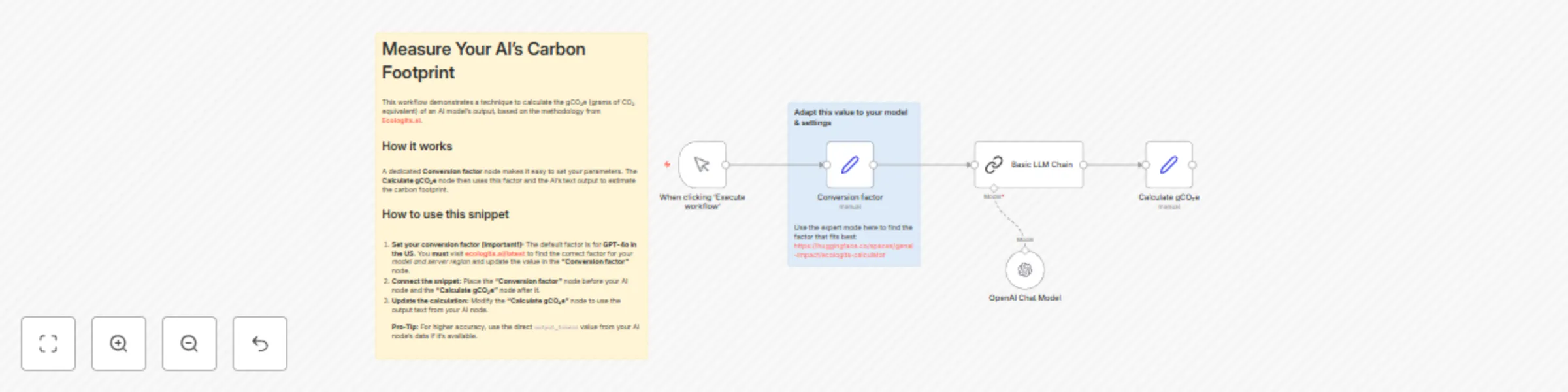
This template provides a straightforward technique to measure and raise awareness about the environmental impact of your AI automations. By adding a simple calculation step to your workflow, you can estimate the carbon footprint (in grams of CO₂ equivalent) generated by each call to a Large Language Model. Based on the open methodology from **Ecologits.ai**, this workflow empowers you to build more responsible AI applications. You can use the calculated footprint to inform your users, track your organization's impact, or simply be more mindful of the resources your workflows consume. ## Who is this for? * **Environmentally-conscious developers:** Build AI-powered applications with an awareness of their ecological impact. * **Businesses and organizations:** Track and report on the carbon footprint of your AI usage as part of your sustainability goals. * **Any n8n user using AI:** A simple and powerful snippet that can be added to almost any AI workflow to make its invisible environmental costs visible. * **Educators and advocates:** Use this as a practical tool to demonstrate and discuss the real-world impact of AI technologies. ## What problem does this solve? * **Makes the abstract tangible:** The environmental cost of a single AI call is often overlooked. This workflow translates it into a concrete, measurable number (grams of CO₂e). * **Promotes responsible AI development:** Encourages builders to consider the efficiency of their prompts and models by showing the direct impact of the generated output. * **Provides a standardized starting point:** Offers a simple, transparent, and extensible method for carbon accounting in your AI workflows, based on a credible, open-source methodology. * **Facilitates transparent communication:** Gives you the data needed to transparently communicate the impact of your AI features to stakeholders and users. ## How it works This template demonstrates a simple calculation snippet that you can adapt and add to your own workflows. 1. **Set conversion factor:** A dedicated **Conversion factor** node at the beginning of the workflow holds the gCO₂e per token value. This makes it easy to configure. 2. **AI generates output:** An AI node (in this example, a **Basic LLM Chain**) runs and produces a text output. 3. **Estimate token count:** The **Calculate gCO₂e** node takes the character length of the AI's text output and divides it by 4. This provides a reasonable estimate of the number of tokens generated. 4. **Calculate carbon footprint:** The estimated token count is then multiplied by the **conversion factor** defined in the first node. The result is the carbon footprint for that single AI call. ## Setup 1. **Set your conversion factor (Critical Step):** * The default factor (`0.0612`) is for **GPT-4o hosted in the US**. * Visit **ecologits.ai/latest** to find the specific conversion factor for *your* AI model and server region. * In the **Conversion factor** node, replace the default value with the correct factor. 2. **Integrate the snippet into your workflow:** * Copy the **Conversion factor** and **Calculate gCO₂e** nodes from this template. * Place the **Conversion factor** node near the start of your workflow (before your AI node). * Place the **Calculate gCO₂e** node *after* your AI node. 3. **Link your AI output:** * Click on the **Calculate gCO₂e** node. * In the `AI output` field, replace the expression with the output from *your* AI node (e.g., `{{ $('My OpenAI Node').item.json.choices[0].message.content }}`). The carbon calculation will now work with your data. 4. **Activate your workflow.** The carbon footprint will now be calculated with each execution. ## Taking it further * **Improve accuracy with token counts:** If your AI node (like the native **OpenAI** node) directly provides the number of output tokens (e.g., `completion_tokens`), use that number instead of estimating from the text length. This will give you a more precise calculation. * **Calculate total workflow footprint:** If you have multiple AI nodes, add a calculation step after each one. Then, add a final **Set** node at the end of your workflow to sum all the individual gCO₂e values. * **Display the impact:** Add the final `AI output gCO₂e` value to your workflow's results, whether it's a Slack message, an email, or a custom dashboard, to keep the environmental impact top-of-mind. * **A note on AI agents:** This estimation method is difficult to apply accurately to AI Agents at this time, as the token usage of their intermediary "thinking" steps is not yet exposed in the workflow data.

G
Guillaume Duvernay
AI Summarization
22 Aug 2025
74
0
Workflow preview: Create multi-step reasoning AI agents with GPT-4 and reusable thinking tools
Free intermediate

Create multi-step reasoning AI agents with GPT-4 and reusable thinking tools

Unlock a new level of sophistication for your AI agents with this template. While the native n8n **Think Tool** is great for giving an agent an internal monologue, it's limited to one instance. This workflow provides a clever solution using a sub-workflow to create **multiple, custom thinking tools**, each with its own specific purpose. This template provides the foundation for building agents that can plan, act, and then reflect on their actions before proceeding. Instead of just reacting, your agent can now follow a structured, multi-step reasoning process that you design, leading to more reliable and powerful automations. ## **Who is this for?** * **AI and automation developers:** Anyone looking to build complex, multi-tool agents that require robust logic and planning capabilities. * **LangChain enthusiasts:** Users familiar with advanced agent concepts like ReAct (Reason-Act) will find this a practical way to implement similar frameworks in n8n. * **Problem solvers:** If your current agent struggles with complex tasks, giving it distinct steps for planning and reflection can dramatically improve its performance. ## **What problem does this solve?** * **Bypasses the single "Think Tool" limit:** The core of this template is a technique that allows you to add as many distinct thinking steps to your agent as you need. * **Enables complex reasoning:** You can design a structured thought process for your agent, such as "Plan the entire process," "Execute Step 1," and "Reflect on the result," making it behave more intelligently. * **Improves agent reliability and debugging:** By forcing the agent to write down its thoughts at different stages, you can easily see its line of reasoning, making it less prone to errors and much easier to debug when things go wrong. * **Provides a blueprint for sophisticated AI:** This is not just a simple tool; it's a foundational framework for building state-of-the-art AI agents that can handle more nuanced and multi-step tasks. ## **How it works** 1. **The re-usable "Thinking Space":** The magic of this template is a simple sub-workflow that does nothing but receive text. This workflow acts as a reusable "scratchpad." 2. **Creating custom thinking tools:** In the main workflow, we use the **Tool (Workflow)** node to call this "scratchpad" sub-workflow multiple times. We give each of these tools a unique name (e.g., `Initial thoughts`, `Additional thoughts`). 3. **The power of descriptions:** The key is the **description** you give each of these tool nodes. This description tells the agent *when* and *how* it should use that specific thinking step. For example, the `Initial thoughts` tool is described as the place to create a plan at the start of a task. 4. **Orchestration via system prompt:** The main **AI Agent's** system prompt acts as the conductor, instructing the agent on the overall process and telling it about its new thinking abilities (e.g., "Always start by using the `Initial thoughts` tool to make a plan..."). 5. **A practical example:** This template includes two thinking tools to demonstrate a "Plan and Reflect" cycle, but you can add many more to fit your needs. ## **Setup** 1. **Add your own "action" tools:** This template provides the *thinking framework*. To make it useful, you need to give the agent something to do. Add your own tools to the **AI Agent**, such as a web search tool, a database lookup, or an API call. 2. **Customize the thinking tools:** Edit the **description** of the existing `Initial thoughts` and `Additional thoughts` tools. Make them relevant to the new action tools you've added. For example, "Plan which of the web search or database tools to use." 3. **Update the agent's brain:** Modify the **system prompt** in the main **AI Agent** node. Tell it about the new action tools you've added and how it should use your customized thinking tools to complete its tasks. 4. **Connect your AI model:** Select the **OpenAI Chat Model** node and add your credentials. ## **Taking it further** * **Create more granular thinking steps:** Add more thinking tools for different stages of a process, like a "Hypothesize a solution" tool, a "Verify assumptions" tool, or a "Final answer check" tool. * **Customize the thought process:** You can change *how* the agent thinks by editing the prompt inside the `fromAI('Thoughts', ...)` field within each tool. You could ask for thoughts in a specific format, like bullet points or a JSON object. * **Change the workflow trigger:** Switch the chat trigger for a Telegram trigger, email, Slack, whatever you need for your use case! * **Integrate with memory:** For even more power, combine this framework with a long-term memory solution, allowing the agent to reflect on its thoughts from past conversations.

G
Guillaume Duvernay
Engineering
7 Aug 2025
1918
0
Workflow preview: Sales prospect research & outreach preparation with Apollo, Linkup AI, and LinkedIn
Free intermediate

Sales prospect research & outreach preparation with Apollo, Linkup AI, and LinkedIn

This template transforms your sales and outreach process by automating deep, personalized research on any contact. Go beyond simple data enrichment; this workflow acts as an AI research assistant. Starting with just a name and company, it finds the person's professional profile, analyzes it through the lens of *your* specific business offering, and returns actionable insights to prepare for the perfect outreach. Stop spending hours manually researching prospects. With this template, you get a synthesized report in seconds, highlighting a contact's potential pain points and exactly how your solution can provide value, setting the stage for more meaningful and effective conversations. ## **Who is this for?** * **Sales Development & Business Development Reps (SDRs/BDRs):** Drastically cut down on research time and increase the quality and personalization of your outreach efforts. * **Account Executives:** Prepare for meetings with a deep, relevant understanding of a prospect's background and potential needs. * **Founders & Solopreneurs:** Handle your own sales and lead generation efficiently by automating the research phase. * **Marketing Teams:** Power your Account-Based Marketing (ABM) campaigns with tailored insights for key accounts. ## **What problem does this solve?** * **Eliminates time-consuming manual research:** Automates the entire process of finding a person, reading their profile, and connecting the dots back to your business. * **Prevents generic outreach:** Provides you with specific, synthesized talking points, moving you beyond "I saw your profile on LinkedIn" to a message that shows you've done your homework. * **Solves "writer's block":** Delivers a clear summary of a prospect's potential challenges and how you can help, making it much easier to start writing a compelling message. * **Creates actionable intelligence, not just data:** Instead of just returning a list of job titles and skills, it synthesizes that information into strategic summaries ready to be used. ## **How it works** 1. **Input contact details:** The workflow is triggered by a form where you enter the first name, last name, and company of the person you want to research. 2. **Find the person with Apollo:** The workflow uses the **Apollo.io API** to find the contact's professional data, including their verified LinkedIn profile URL. 3. **Define your business context:** This is the "smart" part. The workflow injects information you provide about *your* offering and the typical pain points your customers face. 4. **Analyze profile with Linkup:** Using the **Linkup API**, the workflow reads the person's public LinkedIn profile. Crucially, it analyzes the profile *through the lens of your business context*. 5. **Get synthesized insights:** Linkup's AI returns three structured summaries: a general overview of the person, their potential pain points relative to your business, and a concise explanation of how your offering could bring them value. 6. **Consolidate results:** The final node gathers all the enriched data and AI-generated summaries into a single, clean output, ready for your CRM or next action. ## **Setup** 1. **Define your business context (Critical Step):** This is the most important part. In the **Define our business context** node, fill in the two fields: * `Area for which the prospect could experience pain points`: Describe the general problems your customers face. * `My offering`: Briefly describe your product or service. This context is what makes the AI analysis relevant to you. 2. **Connect your accounts:** * **Apollo:** Add your Apollo API key to the **Enrich contact with Apollo** HTTP node. * **Linkup:** Add your Linkup API key to the **Find Linkedin profile information with Linkup** HTTP node. Their free plan offers €5 of credits, enough for ~1,000 runs. 3. **Activate the workflow:** Toggle the workflow to "Active". You can now run it by filling out the form trigger! ## **Taking it further** * **Automate CRM enrichment:** Connect the final **Consolidate results** node to a **HubSpot**, **Attio**, or **Salesforce** node to automatically save these rich insights to your contact records. * **Generate AI-powered outreach:** Add an **OpenAI** node after this workflow to take the synthesized insights and generate a first draft of a personalized outreach email or LinkedIn message. * **Process leads in bulk:** Replace the **Form Trigger** with a **Google Sheets** or **Airtable** trigger to run this enrichment process for an entire list of new leads automatically.

G
Guillaume Duvernay
Lead Generation
26 Jul 2025
1005
0
Workflow preview: AI-powered news monitoring with Linkup, Airtable, and Slack notifications
Free advanced

AI-powered news monitoring with Linkup, Airtable, and Slack notifications

This template provides a fully automated system for monitoring news on any topic you choose. It leverages Linkup's AI-powered web search to find recent, relevant articles, extracts key information like the title, date, and summary, and then neatly organizes everything in an Airtable base. Stop manually searching for updates and let this workflow deliver a curated news digest directly to your own database, complete with a Slack notification to let you know when it's done. This is the perfect solution for staying informed without the repetitive work. ## **Who is this for?** * **Marketing & PR professionals:** Keep a close eye on industry trends, competitor mentions, and brand sentiment. * **Analysts & researchers:** Effortlessly gather source material and data points on specific research topics. * **Business owners & entrepreneurs:** Stay updated on market shifts, new technologies, and potential opportunities without dedicating hours to reading. * **Anyone with a passion project:** Easily follow developments in your favorite hobby, field of study, or area of interest. ## **What problem does this solve?** * **Eliminates manual searching:** Frees you from the daily or weekly grind of searching multiple news sites for relevant articles. * **Centralizes information:** Consolidates all relevant news into a single, organized, and easily accessible Airtable database. * **Provides structured data:** Instead of just a list of links, it extracts and formats key information (title, summary, URL, date) for each article, ready for review or analysis. * **Keeps you proactively informed:** The automated Slack notification ensures you know exactly when new information is ready, closing the loop on your monitoring process. ## **How it works** 1. **Schedule:** The workflow runs automatically based on a schedule you set (the default is weekly). 2. **Define topics:** In the **Set news parameters** node, you specify the topics you want to monitor and the time frame (e.g., news from the last 7 days). 3. **AI web search:** The **Query Linkup for news** node sends your topics to Linkup's API. Linkup's AI searches the web for relevant news articles and returns a structured list containing each article's title, URL, summary, and publication date. 4. **Store in Airtable:** The workflow loops through each article found and creates a new record for it in your Airtable base. 5. **Notify on Slack:** Once all the news has been stored, a final notification is sent to a Slack channel of your choice, letting you know the process is complete and how many articles were found. ## **Setup** 1. **Configure the trigger:** Adjust the **Schedule Trigger** node to set the frequency and time you want the workflow to run. 2. **Set your topics:** In the **Set news parameters** node, replace the example topics with your own keywords and define the news freshness that you'd like to set. 3. **Connect your accounts:** * **Linkup:** Add your Linkup API key in the **Query Linkup for news** node. Linkup's free plan includes €5 of credits monthly, enough for about 1,000 runs of this workflow. * **Airtable:** In the **Store one news** node, select your Airtable account, then choose the Base and Table where you want to save the news. * **Slack:** In the **Notify in Slack** node, select your Slack account and the channel where you want to receive notifications. 4. **Activate the workflow:** Toggle the workflow to "Active", and your automated news monitoring system is live! ## **Taking it further** * **Change your database:** Don't use Airtable? Easily swap the **Airtable** node for a **Notion**, **Google Sheets**, or any other database node to store your news. * **Customize notifications:** Replace the **Slack** node with a **Discord**, **Telegram**, or **Email** node to get alerts on your preferred platform. * **Add AI analysis:** Insert an AI node after the Linkup search to perform sentiment analysis on the news summaries, categorize articles, or generate a high-level overview before saving them.

G
Guillaume Duvernay
Market Research
22 Jul 2025
738
0
Workflow preview: Create a speech-to-text API with OpenAI GPT4o-mini transcribe
Free intermediate

Create a speech-to-text API with OpenAI GPT4o-mini transcribe

## Description This template provides a simple and powerful backend for adding speech-to-text capabilities to any application. It creates a dedicated webhook that receives an audio file, transcribes it using OpenAI's `gpt-4o-mini` model, and returns the clean text. To help you get started immediately, you'll find a **complete, ready-to-use HTML code example** right inside the workflow in a sticky note. This code creates a functional recording interface you can use for testing or as a foundation for your own design. ## Who is this for? * **Developers:** Quickly add a transcription feature to your application by calling this webhook from your existing frontend or backend code. * **No-code/Low-code builders:** Embed a functional audio recorder and transcription service into your projects by using the example code found inside the workflow. * **API enthusiasts:** A lean, practical example of how to use n8n to wrap a service like OpenAI into your own secure and scalable API endpoint. ## **What problem does this solve?** * **Provides a ready-made API:** Instantly gives you a secure webhook to handle audio file uploads and transcription processing without any server setup. * **Decouples frontend from backend:** Your application only needs to know about one simple webhook URL, allowing you to change the backend logic in n8n without touching your app's code. * **Offers a clear implementation pattern:** The included example code provides a working demonstration of how to send an audio file from a browser and handle the response—a pattern you can replicate in any framework. ## How it works This solution works by defining a clear API contract between your application (the client) and the n8n workflow (the backend). 1. **The client-side technique:** * Your application's interface records or selects an audio file. * It then makes a `POST` request to the n8n webhook URL, sending the audio file as `multipart/form-data`. * It waits for the response from the webhook, parses the JSON body, and extracts the value of the `Transcript` key. You can see this exact pattern in action in the example code provided in the workflow's sticky note. 2. **The n8n workflow (backend):** * The **Webhook** node catches the incoming `POST` request and grabs the audio file. * The **HTTP Request** node sends this file to the OpenAI API. * The **Set** node isolates the transcript text from the API's response. * The **Respond to Webhook** node sends a clean JSON object (`{"Transcript": "your text here..."}`) back to your application. ## **Setup** 1. **Configure the n8n workflow:** * In the **Transcribe with OpenAI** node, add your OpenAI API credentials. * Activate the workflow to enable the endpoint. * Click the "Copy" button on the **Webhook** node to get your unique **Production Webhook URL**. 2. **Integrate with the frontend:** * Inside the workflow, find the sticky note labeled "Example Frontend Code Below". Copy the complete HTML from the note below it. * **⚠️ Important:** In the code you just copied, find the line `const WEBHOOK_URL = 'YOUR WEBHOOK URL';` and replace the placeholder with the Production Webhook URL from n8n. * Save the code as an HTML file and open it in your browser to test. ## **Taking it further** * **Save transcripts:** Add an **Airtable** or **Google Sheets** node to log every transcript that comes through the workflow. * **Error handling:** Enhance the workflow to catch potential errors from the OpenAI API and respond with a clear error message. * **Analyze the transcript:** Add a **Language Model** node after the transcription step to summarize the text, classify its sentiment, or extract key entities before sending the response.

G
Guillaume Duvernay
Document Extraction
13 Jul 2025
3804
0
Workflow preview: Create playlists and control your Spotify player with GPT-4
Free advanced

Create playlists and control your Spotify player with GPT-4

This n8n template provides a powerful AI-powered chatbot that acts as your personal Spotify DJ. Simply tell the chatbot what kind of music you're in the mood for, and it will intelligently create a custom playlist, give it a fitting name, and populate it with relevant tracks directly in your Spotify account. The workflow is built to be flexible, allowing you to easily change the underlying AI model to your preferred provider, making it a versatile starting point for any AI-driven project. ## Who is this for? * **Music lovers:** Instantly create playlists for any activity, mood, or genre without interrupting your flow. * **Developers & AI enthusiasts:** A perfect starting point to understand how to build a functional AI Agent that uses tools to interact with external services. * **Automation experts:** See a practical example of how to chain AI actions and sub-workflows for more complex, stateful automations. ## What problem does this solve? Manually creating a good playlist is time-consuming. You have to think of a name, search for individual songs, and add them one by one. This workflow solves that by: * **Automating playlist creation:** Turns a simple natural language request (e.g., "I need a playlist for my morning run") into a fully-formed Spotify playlist. * **Reducing manual effort:** Eliminates the tedious task of searching for and adding multiple tracks. * **Providing player control:** Allows you to manage your Spotify player (play, pause, next) directly from the chat interface. * **Centralizing music management:** Acts as a single point of control for both creating playlists and managing playback. ## How it works 1. **Trigger & input:** The workflow starts when you send a message in the **Chat Trigger** interface. 2. **AI agent & tool-use:** An **AI Agent**, powered by a Large Language Model (LLM), interprets your message. It has access to a set of "tools" that allow it to interact with Spotify. 3. **Playlist creation sub-workflow:** If you ask for a new playlist, the Agent calls a sub-workflow using the **Create new playlist** tool. This sub-workflow uses another AI call to brainstorm a creative playlist name and a list of suitable songs based on your request. 4. **Spotify actions:** The sub-workflow then connects to Spotify to: * Create a new, empty playlist with the generated name. * Search for each song from the AI's list to get its official Spotify Track ID. * Add each track to the new playlist. 5. **Player control:** If your request is to control the music (e.g., "pause the music"), the Agent uses the appropriate tool (**Pause player**, **Resume player**, etc.) to directly control your active Spotify player. ## Setup 1. **Accounts & API keys:** You will need active accounts and credentials for: * **Your AI provider (e.g., OpenAI, Groq, local LLMs via Ollama):** To power the AI Agent and the playlist generation. * **Spotify:** To create playlists and control the player. You'll need to register an application in the Spotify Developer Dashboard to get your credentials. 2. **Configure credentials:** * Add your AI provider's API key to the `Chat Model` nodes. The template uses OpenAI by default, but you can easily swap this out for any compatible Langchain model node. * Add your Spotify OAuth2 credentials to all **Spotify** and **Spotify Tool** nodes. 3. **Activate workflow:** Once all credentials are set and the workflow is saved, click the "Active" toggle. You can now start interacting with your Spotify AI Agent via the chat panel! ### **Taking it further** This template is a great foundation. Here are a few ideas to expand its capabilities: * **Become the party DJ:** Make the Chat Trigger's webhook public. You can then generate a QR code that links to the chat URL. Party guests can scan the code and request songs directly from their phones, which the agent can add to a collaborative playlist or the queue. * **Expand the agent's skills:** The `Spotify Tool` node has more actions available. Add a new tool for `Add to Queue` so you can ask the agent to queue up a specific song without creating a whole new playlist. * **Integrate with other platforms:** Swap the `Chat Trigger` for a `Telegram` or `Discord` trigger to build a Spotify bot for your community. You could also connect it to a `Webhook` to take requests from a custom web form.

G
Guillaume Duvernay
Personal Productivity
13 Jul 2025
3105
0