Generate B2B leads by industry & location with Google Places API and Google Sheets

Workflow preview

Workflow preview
100%
Generate B2B leads by industry & location with Google Places API and Google Sheets preview
Open on n8n.io

Important notice

This workflow is provided as-is. Please review and test before using in production.

1. Workflow Overview

How it works 1. A form trigger accepts an Industry + Location query (e.g. Accountants London). 2. Text Search Page 1 calls Google Places Text Search to return results and a next page token. 3. Cond...

Best for

  • Lead Generation automation workflows
  • advanced n8n builders looking for reusable templates

Tools used

n8n-nodes-base.httprequest, n8n-nodes-base.wait, n8n-nodes-base.if, n8n-nodes-base.merge, n8n-nodes-base.stickynote, n8n-nodes-base.formtrigger, n8n-nodes-base.splitout, n8n-nodes-base.code

Source and attribution

This workflow is cataloged by N8N Workflows and links back to its original n8n.io source page by Ayis Saliaris Fasseas.

Original n8n.io source

1.1 Workflow description

Title
Generate B2B leads by industry & location with Google Places API and Google Sheets
Workflow name
Generate B2B leads by industry & location with Google Places API and Google Sheets

How it works

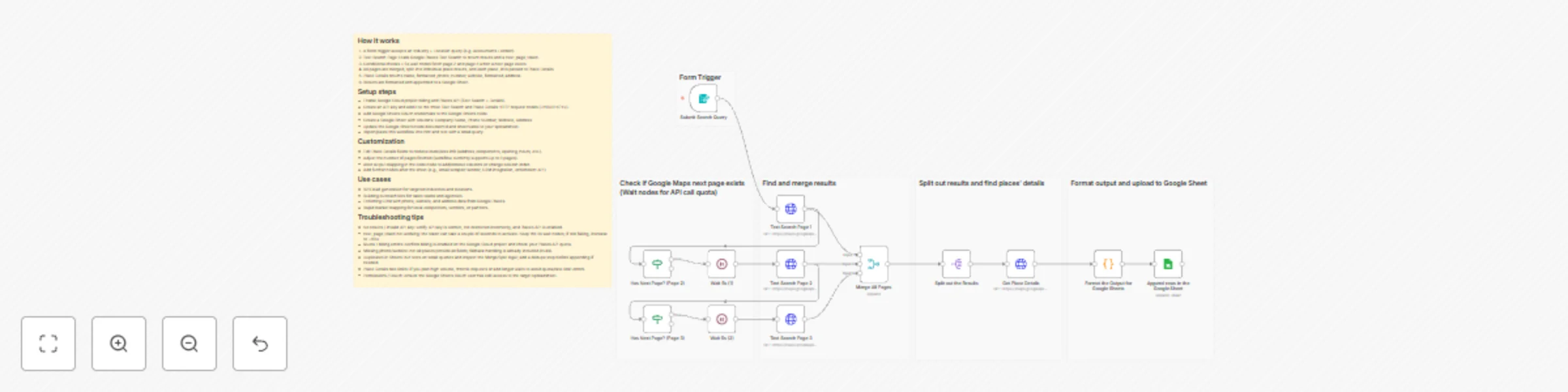
  1. A form trigger accepts an Industry + Location query (e.g. Accountants London).
  2. Text Search Page 1 calls Google Places Text Search to return results and a next_page_token.
  3. Conditional checks + 5s wait nodes fetch page 2 and page 3 when a next page exists.
  4. All pages are merged, split into individual place results, and each place_id is passed to Place Details.
  5. Place Details returns name, formatted_phone_number, website, formatted_address.
  6. Results are formatted and appended to a Google Sheet.

Setup steps

  • Enable Google Cloud project billing and Places API (Text Search + Details).
  • Create an API key and add it to the three Text Search and Place Details HTTP request nodes (<YOUR KEY>).
  • Add Google Sheets OAuth credentials to the Google Sheets node.
  • Create a Google Sheet with columns: Company Name, Phone Number, Website, Address
  • Update the Google Sheets node documentId and sheetName to your spreadsheet.
  • Import/paste this workflow into n8n and test with a small query.

Customization

  • Edit Place Details fields to retrieve more/less info (address_components, opening_hours, etc.).
  • Adjust the number of pages fetched (workflow currently supports up to 3 pages).
  • Alter output mapping in the code node to add/remove columns or change column order.
  • Add further nodes after the sheet (e.g., email scraper/ sender, CRM integration, enrichment API)

Use cases

  • B2B lead generation for targeted industries and locations.
  • Building outreach lists for sales teams and agencies.
  • Enriching CRM with phone, website, and address data from Google Places.
  • Rapid market mapping for local competitors, vendors, or partners.

Troubleshooting tips

  • No results / invalid API key: verify API key is correct, not restricted incorrectly, and Places API is enabled.
  • next_page_token not working: the token can take a couple of seconds to activate. Keep the 5s wait nodes; if still failing, increase to ~10s+
  • Quota / billing errors: confirm billing is enabled on the Google Cloud project and check your Places API quota.
  • Missing phone/website: not all places provide all fields; fallback handling is already included (nulls).
  • Duplicates in Sheets: run tests on small queries and inspect the Merge/Split logic; add a dedupe step before appending if needed.
  • Place Details rate limits: if you plan high volume, throttle requests or add longer waits to avoid quota/rate-limit errors.
  • Permissions / OAuth: ensure the Google Sheets OAuth user has edit access to the target spreadsheet.

1.2 Logical Blocks

This catalog entry is organized from the workflow JSON. The node-level section below shows the executable blocks available for review before importing the template.

2. Block-by-Block Analysis

Block 1 - Text Search Page 2

Type / Role
n8n-nodes-base.httpRequest - httpRequest
Config choices
Version 4.2

Block 2 - Text Search Page 1

Type / Role
n8n-nodes-base.httpRequest - httpRequest
Config choices
Version 4.2

Block 3 - Text Search Page 3

Type / Role
n8n-nodes-base.httpRequest - httpRequest
Config choices
Version 4.2

Block 4 - Get Place Details

Type / Role
n8n-nodes-base.httpRequest - httpRequest
Config choices
Version 4.2

Block 5 - Wait 5s (1)

Type / Role
n8n-nodes-base.wait - wait
Config choices
Version 1.1

Block 6 - Wait 5s (2)

Type / Role
n8n-nodes-base.wait - wait
Config choices
Version 1.1

Block 7 - Has Next Page? (Page 3)

Type / Role
n8n-nodes-base.if - if
Config choices
Version 2.2

Block 8 - Has Next Page? (Page 2)

Type / Role
n8n-nodes-base.if - if
Config choices
Version 2.2

Block 9 - Merge All Pages

Type / Role
n8n-nodes-base.merge - merge
Config choices
Version 3.2

Block 10 - Sticky Note

Type / Role
n8n-nodes-base.stickyNote - stickyNote
Config choices
Version 1

Block 11 - Sticky Note1

Type / Role
n8n-nodes-base.stickyNote - stickyNote
Config choices
Version 1

Block 12 - Sticky Note2

Type / Role
n8n-nodes-base.stickyNote - stickyNote
Config choices
Version 1

Block 13 - Sticky Note3

Type / Role
n8n-nodes-base.stickyNote - stickyNote
Config choices
Version 1

Block 14 - Sticky Note4

Type / Role
n8n-nodes-base.stickyNote - stickyNote
Config choices
Version 1

Block 15 - Submit Search Query

Type / Role
n8n-nodes-base.formTrigger - formTrigger
Config choices
Version 2.3

Block 16 - Split out the Results

Type / Role
n8n-nodes-base.splitOut - splitOut
Config choices
Version 1

Block 17 - Format the Output for Google Sheets

Type / Role
n8n-nodes-base.code - code
Config choices
Version 2

Block 18 - Append rows in the Google Sheet

Type / Role
n8n-nodes-base.googleSheets - googleSheets
Config choices
Version 4.7

Block 19 - Sticky Note5

Type / Role
n8n-nodes-base.stickyNote - stickyNote
Config choices
Version 1

3. Summary Table

Workflow Generate B2B leads by industry & location with Google Places API and Google Sheets
Complexity advanced
Nodes 19
Categories Lead Generation
Author Ayis Saliaris Fasseas
Published 11 Dec 2025

4. Reproducing the Workflow from Scratch

  1. 1. Download the workflow JSON

    Use the JSON export at /data/workflows/11707/11707.json as the source template for this automation.

  2. 2. Import the template into n8n

    Open n8n, import the downloaded JSON, and review each node before activating the workflow.

  3. 3. Configure credentials and variables

    Replace placeholder credentials, API keys, webhook URLs, account IDs, and environment-specific values with your own settings.

  4. 4. Test with sample data

    Run the workflow manually or in a staging workspace, inspect node output, and confirm downstream systems receive the expected data.

  5. 5. Activate and monitor

    Enable the workflow only after testing, then monitor executions, errors, and rate limits during the first production runs.

5. General Notes & Resources

Review imported nodes carefully before activation. This catalog entry is intended to help you inspect the workflow structure, understand required services, and find related templates faster.

Node names, credentials, schedules, webhook paths, and external service limits may need adjustment for your workspace.

Frequently asked questions

What does Generate B2B leads by industry & location with Google Places API and Google Sheets do?

How it works 1. A form trigger accepts an Industry + Location query (e.g. Accountants London). 2. Text Search Page 1 calls Google Places Text Search to return results and a next page token. 3. Cond...

What do I need before importing this workflow?

Review the workflow JSON, configure any required credentials in n8n, and test the automation in a safe workspace before using it in production.

Can I customize this workflow?

Yes. Use the block-by-block analysis and the downloadable JSON to inspect each node, then adjust credentials, prompts, schedules, filters, or destinations for your Lead Generation use case.