Ayis Saliaris Fasseas
Workflows by Ayis Saliaris Fasseas
Generate B2B leads by industry & location with Google Places API and Google Sheets
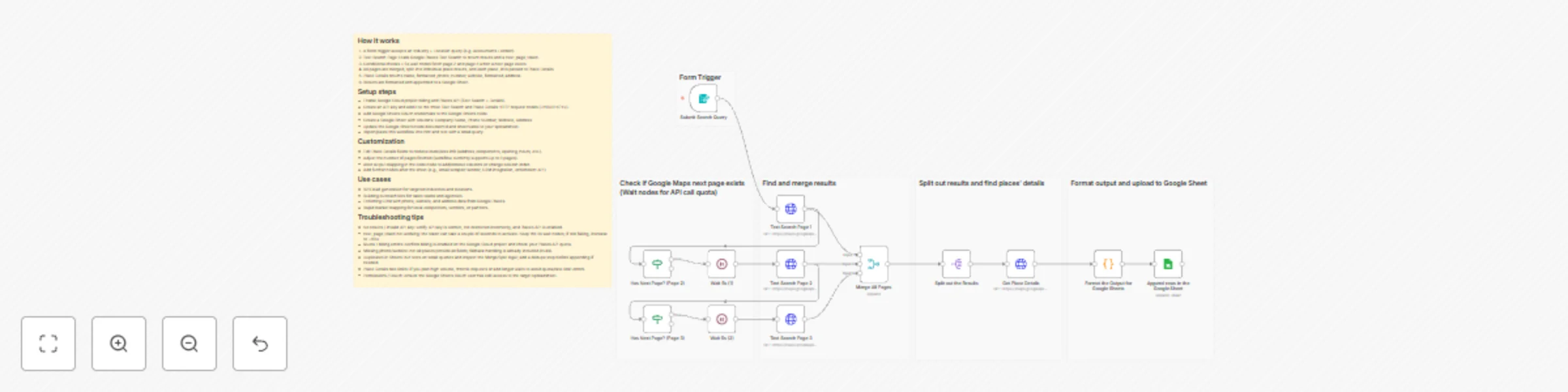
**How it works** 1. A form trigger accepts an Industry + Location query (e.g. Accountants London). 2. Text Search Page 1 calls Google Places Text Search to return results and a next_page_token. 3. Conditional checks + 5s wait nodes fetch page 2 and page 3 when a next page exists. 4. All pages are merged, split into individual place results, and each place_id is passed to Place Details. 5. Place Details returns name, formatted_phone_number, website, formatted_address. 6. Results are formatted and appended to a Google Sheet. **Setup steps** - Enable Google Cloud project billing and Places API (Text Search + Details). - Create an API key and add it to the three Text Search and Place Details HTTP request nodes (<YOUR KEY>). - Add Google Sheets OAuth credentials to the Google Sheets node. - Create a Google Sheet with columns: Company Name, Phone Number, Website, Address - Update the Google Sheets node documentId and sheetName to your spreadsheet. - Import/paste this workflow into n8n and test with a small query. **Customization** - Edit Place Details fields to retrieve more/less info (address_components, opening_hours, etc.). - Adjust the number of pages fetched (workflow currently supports up to 3 pages). - Alter output mapping in the code node to add/remove columns or change column order. - Add further nodes after the sheet (e.g., email scraper/ sender, CRM integration, enrichment API) **Use cases** - B2B lead generation for targeted industries and locations. - Building outreach lists for sales teams and agencies. - Enriching CRM with phone, website, and address data from Google Places. - Rapid market mapping for local competitors, vendors, or partners. **Troubleshooting tips** - No results / invalid API key: verify API key is correct, not restricted incorrectly, and Places API is enabled. - next_page_token not working: the token can take a couple of seconds to activate. Keep the 5s wait nodes; if still failing, increase to ~10s+ - Quota / billing errors: confirm billing is enabled on the Google Cloud project and check your Places API quota. - Missing phone/website: not all places provide all fields; fallback handling is already included (nulls). - Duplicates in Sheets: run tests on small queries and inspect the Merge/Split logic; add a dedupe step before appending if needed. - Place Details rate limits: if you plan high volume, throttle requests or add longer waits to avoid quota/rate-limit errors. - Permissions / OAuth: ensure the Google Sheets OAuth user has edit access to the target spreadsheet.
Generate cold outreach drafts from Google Sheets with GPT-4o-mini & Gmail
**How It Works** 1. Starts with a Manual Trigger 2. Reads lead list from Google Sheet 3. Filter rows where email wasn’t sent 4. Generate personalized email body (AI) 5. Generate email subject line (AI) 6. Merge AI outputs with original row data 7. Create Gmail draft 8. Update Google Sheet with email content and date 9. Wait 3 seconds between updates to avoid API limits **Setup Steps** - Connect Google Sheets, Gmail, and OpenAI credentials - Check sheet column names (business_name, email, contact_name, city, business_type, email_sent) - Run Manual Trigger to test one row - Adjust AI prompts if needed **Customization** - Add unique ID column to match rows if needed - Change AI prompts to adjust email style - Increase wait time to avoid rate limits **Use Cases** - Draft cold emails for review before sending - Automate lead outreach while keeping human oversight - Generate personalized emails and subject lines quickly **Troubleshooting Tips** - Draft not created → check Gmail credentials and scopes - Sheet not updating → check matching column exists - AI outputs empty → increase tokens or check response path
Automatic email classification with Gmail and Claude AI
**How It Works** 1.Gmail Trigger - Continuously monitors your Gmail inbox for new messages. - Captures the email’s subject, body, and metadata. - Sends the extracted content to the Email Content Classifier. 2.Email Content Classification The Email Content Classifier analyzes the email content using natural language processing. Compares the message against predefined Gmail labels: - Ads - Work - Personal - Financial - Other (fallback label) Users can add or rename categories to match their specific needs. Uses context, tone, and keywords to determine the most accurate label. 3.Applying Gmail Labels - Sends the classification result to the corresponding Gmail label node. - Automatically applies the matching Gmail label in your inbox. - If the classifier cannot confidently match the message, the Other label is used as a fallback. **Setup Steps** - Connect Gmail Accounts - Connect your Gmail account in the Gmail Trigger and in each Gmail label node. - Configure the Email Content Classifier - Map the incoming Gmail message body to inputText. - Ensure the classifier node has access to a language model credential (Anthropic or other). - Test the Workflow - Send a few sample emails to yourself to confirm that labels are correctly applied. - Tweak Categories if Needed - Adjust category names in the classifier node to match your Gmail labels exactly. **Customization** - Add or rename categories in the classifier to reflect your specific email types. - Create corresponding Gmail label nodes for each new category. - Expand or modify categories as your workflow evolves to improve organization and efficiency. **Use Cases** - Automatic inbox organization and sorting. - Separation of work, personal, financial, and promotional emails. - Improved productivity by making important emails easier to locate. - Custom categorization for specialized workflows. **Troubleshooting Tips** - Emails not being labeled → check API permissions and message ID references. - Wrong label assigned → update classifier examples or refine category descriptions. - Classifier not returning a category → confirm fallback category “Other” is configured. - Workflow not triggering → reconnect Gmail Trigger authentication and ensure the workflow is active.