Generate and track offer letters with Google Sheets, Docs, Drive and Gmail
Workflow preview


 Early Deal
DISCOUNT 20%

Overview
How it works
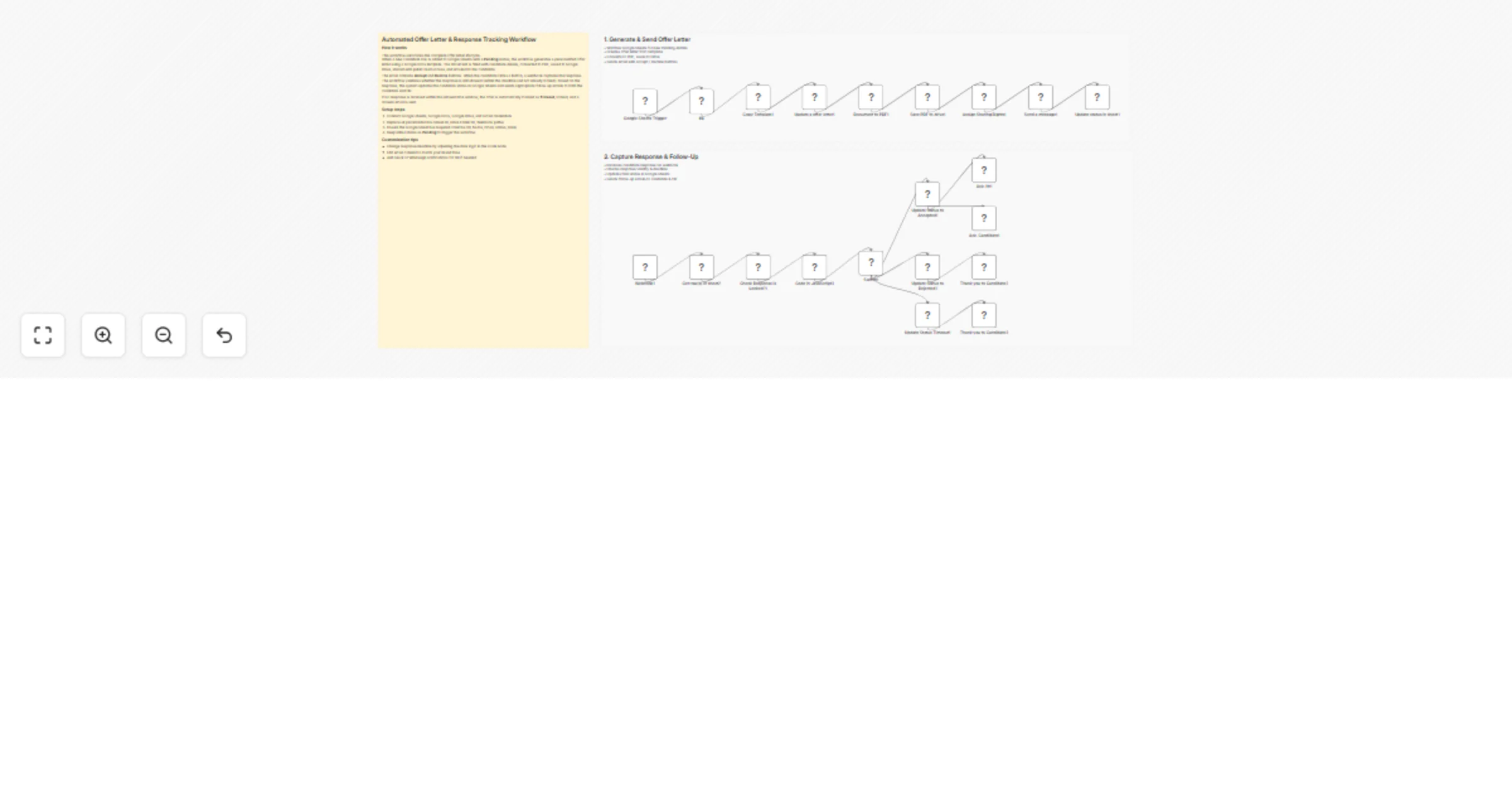
This workflow automates the full offer letter lifecycle, from generation to final candidate response tracking. When a new row with a Pending status is added to Google Sheets, it creates a personalized offer letter using a Google Docs template. The document is converted to PDF, stored in Google Drive, shared securely, and sent to the candidate via Gmail. Candidate responses are captured through webhooks, validated against deadlines, and used to update status and trigger follow-up communications.
First set: Generate and send offer letter
Monitor new candidates
Google Sheets Trigger – Watches for newly added rows in the offer sheet.
If – Ensures only rows with a Pending status are processed.
Generate offer letter
Google Drive – Copies the offer letter template for the candidate.
Google Docs – Replaces placeholders with candidate-specific data.
Google Drive – Converts the document to a PDF file.
Store and share document
Google Drive – Saves the PDF to a designated folder.
Google Drive – Assigns public read-only access to the file.
Send offer email
Gmail – Sends the offer email with Accept and Decline action links.
Google Sheets – Updates the sheet with offer link, date, and Sent status.
Second set: Capture response and finalize outcome
Capture candidate response
Webhook – Receives the candidate’s decision from email buttons.
Google Sheets – Fetches the corresponding candidate record.
If – Checks whether the response is already locked.
Code – Validates decision against the response deadline.
Finalize outcome
Switch – Routes Accepted, Rejected, or Timeout outcomes.
Google Sheets – Updates final status and locks further responses.
Gmail – Sends confirmation emails to the candidate and HR.