Find high-intent sales leads by scraping Glassdoor with Bright Data & GPT

Workflow preview

Workflow preview
100%
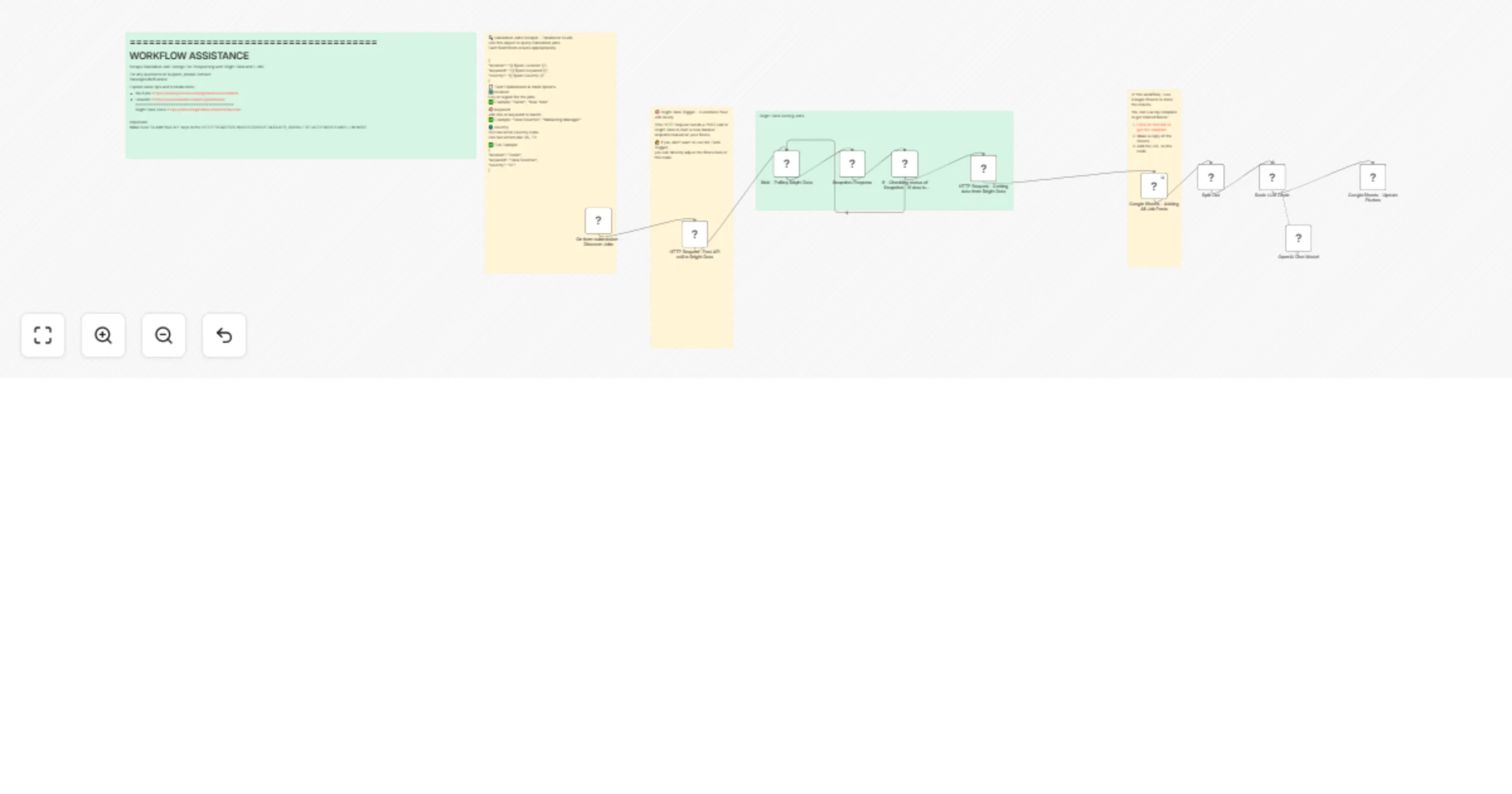
Find high-intent sales leads by scraping Glassdoor with Bright Data & GPT preview
Open on n8n.io

Important notice

This workflow is provided as-is. Please review and test before using in production.

1. Workflow Overview

Scrape Glassdoor with Bright Data Designed for sales teams, recruiters, and marketers aiming to automate job discovery and prospecting. This workflow scrapes Glassdoor job listings using Bright ...

Best for

  • Lead Generation automation workflows
  • Multimodal AI automation workflows
  • advanced n8n builders looking for reusable templates

Tools used

n8n-nodes-base.stickynote, n8n-nodes-base.httprequest, n8n-nodes-base.formtrigger, n8n-nodes-base.wait, n8n-nodes-base.if, n8n-nodes-base.googlesheets, n8n-nodes-base.splitout, @n8n/n8n-nodes-langchain.chainllm

Source and attribution

This workflow is cataloged by N8N Workflows and links back to its original n8n.io source page by Yaron Been.

Original n8n.io source

1.1 Workflow description

Title
Find high-intent sales leads by scraping Glassdoor with Bright Data & GPT
Workflow name
Find high-intent sales leads by scraping Glassdoor with Bright Data & GPT

🔍 Scrape Glassdoor with Bright Data

Designed for sales teams, recruiters, and marketers aiming to automate job discovery and prospecting.

This workflow scrapes Glassdoor job listings using Bright Data and automatically generates targeted pitches using AI, streamlining lead identification and outreach.


🧩 How It Works

This automation leverages n8n, Bright Data, Google Sheets, and OpenAI:

1. Trigger
  • Starts with a custom form input (Location, Keyword, Country).
2. Bright Data Job Scrape
  • Triggers a Bright Data dataset snapshot via HTTP Request.
  • Polls snapshot progress using a Wait node, ensuring data readiness.
  • Retrieves full job listings dataset once ready.
3. Google Sheets Integration
  • Writes detailed job data (company, role, location, overview, metrics) into a Google Sheet.
  • Uses a pre-built template for organized data storage.
4. Automated Pitch Generation (AI)
  • Splits listings into actionable parts: company name, title, and description.
  • Sends data to OpenAI (via LangChain) to generate relevant pitches or icebreakers.
  • Saves generated content back into the same sheet for easy access.

✅ Requirements

Ensure you have the following:

Google Sheets
  • Google account
  • Template Sheet with columns for job details and AI-generated pitches
Bright Data
  • Active account with Dataset API access
  • API key and dataset ID
OpenAI
  • Valid OpenAI API key for GPT models
n8n Environment
  • Nodes: HTTP Request, Wait, If, Google Sheets, Split Out, LangChain (OpenAI)
  • Credentials:
    • Google Sheets OAuth2
    • Bright Data API credentials
    • OpenAI API key

⚙️ Setup Instructions

Step 1: Prepare Google Sheets

Step 2: Import & Configure Workflow in n8n

  • Import the workflow JSON file
  • Set Google Sheets node:
    • Link to your copied sheet
    • Confirm correct tab name

Step 3: Configure Bright Data

  • Replace <YOUR_BRIGHT_DATA_API_KEY> with your real key
  • Set your dataset ID in all HTTP Request nodes

Step 4: Configure OpenAI (LangChain)

  • Connect OpenAI API key to the LangChain node
  • Customize prompt to match tone and outreach style

Step 5: Testing & Scheduling

  • Test via manual form trigger
  • Schedule runs or leave form enabled for on-demand use

🧠 Tips & Best Practices

  • Use specific keywords and locations for better results
  • Adjust polling intervals based on dataset size
  • Refine AI prompts regularly to improve pitch quality
  • Clean unused columns from your sheet to boost performance

💬 Support & Feedback

For help or customization:

📧 Email: [email protected]
📺 YouTube: @YaronBeen
🔗 LinkedIn: linkedin.com/in/yaronbeen

📚 Bright Data Docs: docs.brightdata.com/introduction

1.2 Logical Blocks

This catalog entry is organized from the workflow JSON. The node-level section below shows the executable blocks available for review before importing the template.

2. Block-by-Block Analysis

Block 1 - Sticky Note9

Type / Role
n8n-nodes-base.stickyNote - stickyNote
Config choices
Version 1

Block 2 - Snapshot Progress

Type / Role
n8n-nodes-base.httpRequest - httpRequest
Config choices
Version 4.2

Block 3 - Sticky Note10

Type / Role
n8n-nodes-base.stickyNote - stickyNote
Config choices
Version 1

Block 4 - Sticky Note1

Type / Role
n8n-nodes-base.stickyNote - stickyNote
Config choices
Version 1

Block 5 - On form submission - Discover Jobs

Type / Role
n8n-nodes-base.formTrigger - formTrigger
Config choices
Version 2.2

Block 6 - HTTP Request- Post API call to Bright Data

Type / Role
n8n-nodes-base.httpRequest - httpRequest
Config choices
Version 4.2

Block 7 - Wait - Polling Bright Data

Type / Role
n8n-nodes-base.wait - wait
Config choices
Version 1.1

Block 8 - If - Checking status of Snapshot - if data is ready or not

Type / Role
n8n-nodes-base.if - if
Config choices
Version 2.2

Block 9 - HTTP Request - Getting data from Bright Data

Type / Role
n8n-nodes-base.httpRequest - httpRequest
Config choices
Version 4.2

Block 10 - Google Sheets - Adding All Job Posts

Type / Role
n8n-nodes-base.googleSheets - googleSheets
Config choices
Version 4.3

Block 11 - Sticky Note2

Type / Role
n8n-nodes-base.stickyNote - stickyNote
Config choices
Version 1

Block 12 - Sticky Note3

Type / Role
n8n-nodes-base.stickyNote - stickyNote
Config choices
Version 1

Block 13 - Split Out

Type / Role
n8n-nodes-base.splitOut - splitOut
Config choices
Version 1

Block 14 - Basic LLM Chain

Type / Role
@n8n/n8n-nodes-langchain.chainLlm - chainLlm
Config choices
Version 1.6

Block 15 - OpenAI Chat Model

Type / Role
@n8n/n8n-nodes-langchain.lmChatOpenAi - lmChatOpenAi
Config choices
Version 1.2

Block 16 - Google Sheets - Update Pitches

Type / Role
n8n-nodes-base.googleSheets - googleSheets
Config choices
Version 4.5

3. Summary Table

Workflow Find high-intent sales leads by scraping Glassdoor with Bright Data & GPT
Complexity advanced
Nodes 16
Categories Lead Generation, Multimodal AI
Author Yaron Been
Published 19 Apr 2025

4. Reproducing the Workflow from Scratch

  1. 1. Download the workflow JSON

    Use the JSON export at /data/workflows/3607/3607.json as the source template for this automation.

  2. 2. Import the template into n8n

    Open n8n, import the downloaded JSON, and review each node before activating the workflow.

  3. 3. Configure credentials and variables

    Replace placeholder credentials, API keys, webhook URLs, account IDs, and environment-specific values with your own settings.

  4. 4. Test with sample data

    Run the workflow manually or in a staging workspace, inspect node output, and confirm downstream systems receive the expected data.

  5. 5. Activate and monitor

    Enable the workflow only after testing, then monitor executions, errors, and rate limits during the first production runs.

5. General Notes & Resources

Review imported nodes carefully before activation. This catalog entry is intended to help you inspect the workflow structure, understand required services, and find related templates faster.

Node names, credentials, schedules, webhook paths, and external service limits may need adjustment for your workspace.

Frequently asked questions

What does Find high-intent sales leads by scraping Glassdoor with Bright Data & GPT do?

Scrape Glassdoor with Bright Data Designed for sales teams, recruiters, and marketers aiming to automate job discovery and prospecting. This workflow scrapes Glassdoor job listings using Bright ...

What do I need before importing this workflow?

Review the workflow JSON, configure any required credentials in n8n, and test the automation in a safe workspace before using it in production.

Can I customize this workflow?

Yes. Use the block-by-block analysis and the downloadable JSON to inspect each node, then adjust credentials, prompts, schedules, filters, or destinations for your Lead Generation, Multimodal AI use case.