Extract data from Gmail attachments to Google Sheets using DocuPipe
Workflow preview

$20/month : Unlimited workflows
2500 executions/month

THE #1 IN WEB SCRAPING
Scrape any website without limits
HOSTINGER  Early Deal
DISCOUNT 20% Try free
Early DealDISCOUNT 20%
Self-hosted n8n
Unlimited workflows - from $4.99/mo

#1 hub for scraping, AI & automation
6000+ actors - $5 credits/mo
Overview
Who is this for?
Teams that receive documents via email (invoices, receipts, contracts) and want structured data automatically extracted and added to a spreadsheet - without manual data entry.
What it does
This template contains two connected flows:
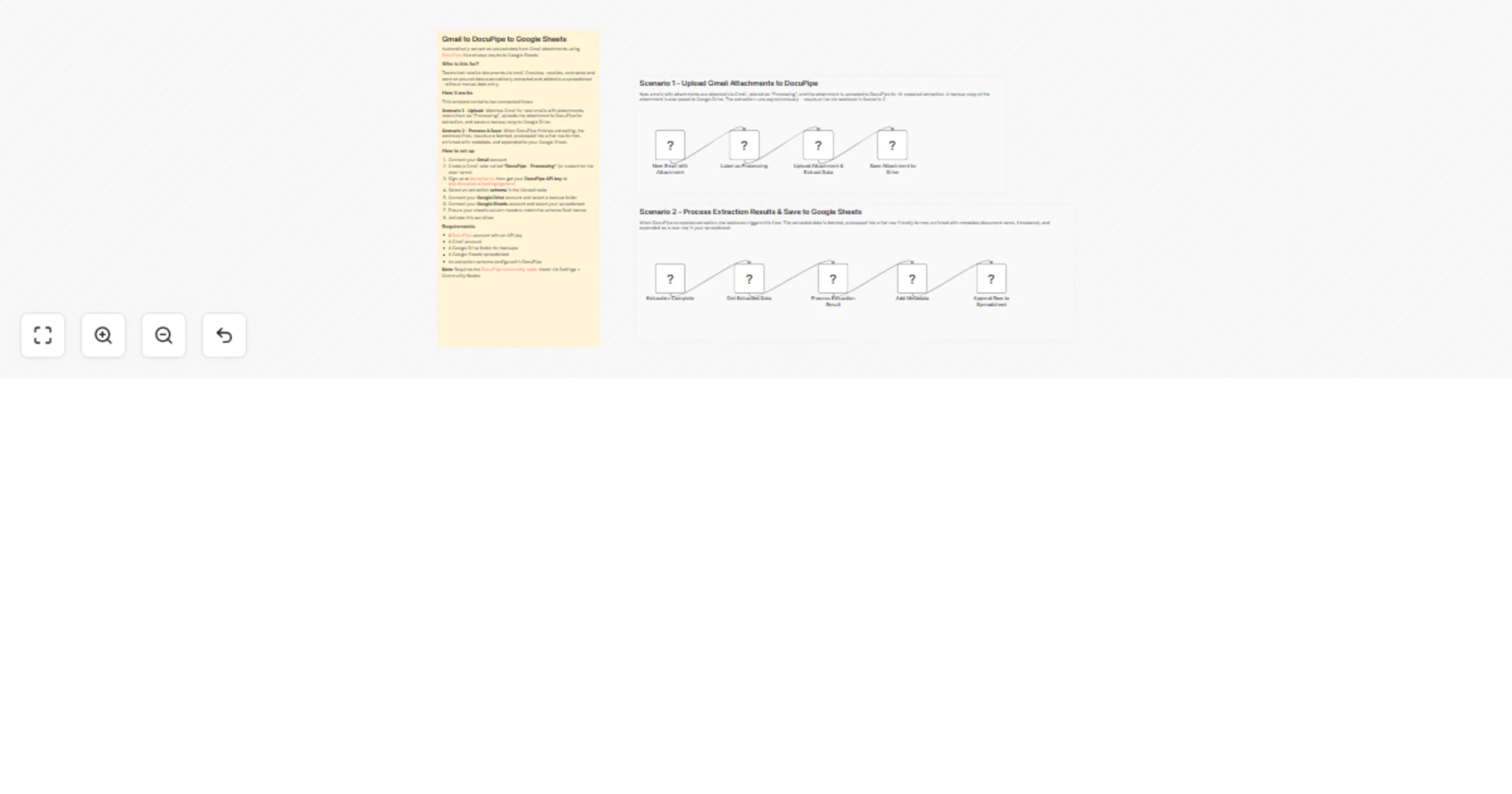
- Scenario 1 - Upload: Watches Gmail for new emails with attachments, labels them as "Processing", uploads the attachment to DocuPipe for AI-powered extraction, and saves a backup copy to Google Drive.
- Scenario 2 - Process & Save: When DocuPipe finishes extracting, the webhook fires, results are fetched, processed into a flat row format, enriched with metadata (document name, timestamp), and appended as a new row in your Google Sheet.
How to set up
- Install the DocuPipe community node via Settings > Community Nodes
- Connect your Gmail account
- Create a Gmail label called "DocuPipe - Processing" (or customize the label name)
- Sign up at docupipe.ai, then get your DocuPipe API key at app.docupipe.ai/settings/general
- Select an extraction schema in the Upload node
- Connect your Google Drive account and select a backup folder
- Connect your Google Sheets account and select your spreadsheet
- Ensure your sheet's column headers match the schema field names
- Activate the workflow
Requirements
- A DocuPipe account with an API key
- A Gmail account
- A Google Drive folder for backups
- A Google Sheets spreadsheet
- Self-hosted n8n (required for community nodes)
Note: Requires the DocuPipe community node. Install via Settings > Community Nodes.
Categories: Productivity, Data & Storag