Extract data from Gmail attachments to Google Sheets using DocuPipe

Workflow preview

Workflow preview
100%
Extract data from Gmail attachments to Google Sheets using DocuPipe preview
Open on n8n.io

1. Workflow Overview

Who is this for? Teams that receive documents via email (invoices, receipts, contracts) and want structured data automatically extracted and added to a spreadsheet ...

Best for

  • Document Extraction automation workflows
  • AI Summarization automation workflows
  • intermediate n8n builders looking for reusable templates

Tools used

n8n-nodes-base.stickynote, n8n-nodes-base.gmailtrigger, n8n-nodes-base.gmail, n8n-nodes-docupipe.docupipe, n8n-nodes-base.googledrive, n8n-nodes-docupipe.docupipetrigger, n8n-nodes-base.code, n8n-nodes-base.set

Source and attribution

This workflow is cataloged by N8N Workflows and links back to its original n8n.io source page by Uri.

Original n8n.io source

1.1 Workflow description

Title
Extract data from Gmail attachments to Google Sheets using DocuPipe
Workflow name
Extract data from Gmail attachments to Google Sheets using DocuPipe

Who is this for?

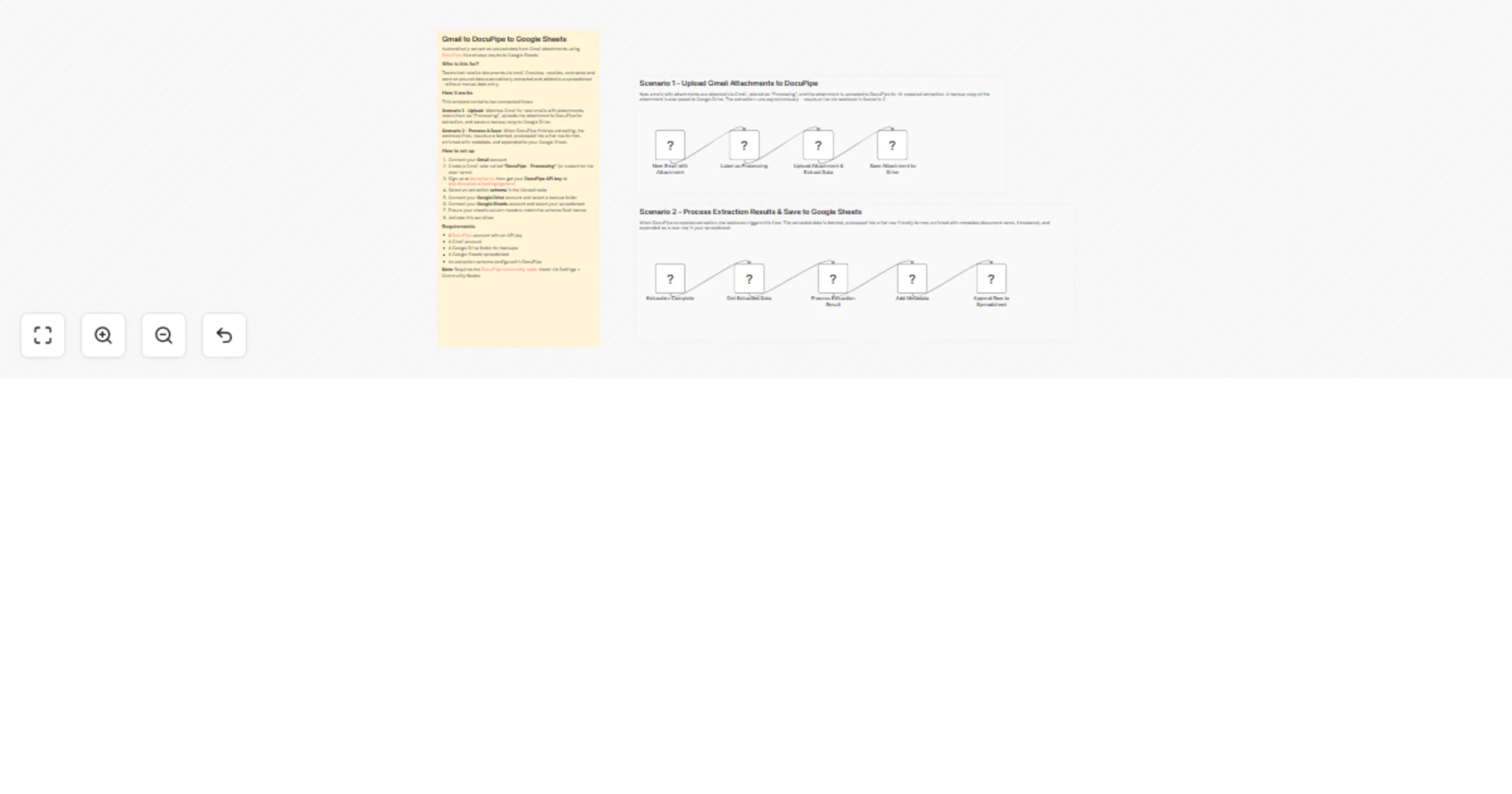
Teams that receive documents via email (invoices, receipts, contracts) and want structured data automatically extracted and added to a spreadsheet - without manual data entry.

What it does

This template contains two connected flows:

  • Scenario 1 - Upload: Watches Gmail for new emails with attachments, labels them as "Processing", uploads the attachment to DocuPipe for AI-powered extraction, and saves a backup copy to Google Drive.
  • Scenario 2 - Process & Save: When DocuPipe finishes extracting, the webhook fires, results are fetched, processed into a flat row format, enriched with metadata (document name, timestamp), and appended as a new row in your Google Sheet.

How to set up

  1. Install the DocuPipe community node via Settings > Community Nodes
  2. Connect your Gmail account
  3. Create a Gmail label called "DocuPipe - Processing" (or customize the label name)
  4. Sign up at docupipe.ai, then get your DocuPipe API key at app.docupipe.ai/settings/general
  5. Select an extraction schema in the Upload node
  6. Connect your Google Drive account and select a backup folder
  7. Connect your Google Sheets account and select your spreadsheet
  8. Ensure your sheet's column headers match the schema field names
  9. Activate the workflow

Requirements

  • A DocuPipe account with an API key
  • A Gmail account
  • A Google Drive folder for backups
  • A Google Sheets spreadsheet
  • Self-hosted n8n (required for community nodes)

Note: Requires the DocuPipe community node. Install via Settings > Community Nodes.

Categories: Productivity, Data & Storag

1.2 Logical Blocks

This catalog entry is organized from the workflow JSON. The node-level section below shows the executable blocks available for review before importing the template.

2. Block-by-Block Analysis

Block 1 - Sticky Note

Type / Role
n8n-nodes-base.stickyNote - stickyNote
Config choices
Version 1

Block 2 - Sticky Note1

Type / Role
n8n-nodes-base.stickyNote - stickyNote
Config choices
Version 1

Block 3 - Sticky Note2

Type / Role
n8n-nodes-base.stickyNote - stickyNote
Config choices
Version 1

Block 4 - New Email with Attachment

Type / Role
n8n-nodes-base.gmailTrigger - gmailTrigger
Config choices
Version 1

Block 5 - Label as Processing

Type / Role
n8n-nodes-base.gmail - gmail
Config choices
Version 2.1

Block 6 - Upload Attachment & Extract Data

Type / Role
n8n-nodes-docupipe.docuPipe - docuPipe
Config choices
Version 1

Block 7 - Save Attachment to Drive

Type / Role
n8n-nodes-base.googleDrive - googleDrive
Config choices
Version 3

Block 8 - Extraction Complete

Type / Role
n8n-nodes-docupipe.docuPipeTrigger - docuPipeTrigger
Config choices
Version 1

Block 9 - Get Extracted Data

Type / Role
n8n-nodes-docupipe.docuPipe - docuPipe
Config choices
Version 1

Block 10 - Process Extraction Result

Type / Role
n8n-nodes-base.code - code
Config choices
Version 2

Block 11 - Add Metadata

Type / Role
n8n-nodes-base.set - set
Config choices
Version 3.4

Block 12 - Append Row to Spreadsheet

Type / Role
n8n-nodes-base.googleSheets - googleSheets
Config choices
Version 4.5

3. Summary Table

Workflow Extract data from Gmail attachments to Google Sheets using DocuPipe
Complexity intermediate
Nodes 12
Categories Document Extraction, AI Summarization
Author Uri
Published 25 Mar 2026

4. Reproducing the Workflow from Scratch

  1. 1. Download the workflow JSON

    Use the JSON export at /data/workflows/14329/14329.json as the source template for this automation.

  2. 2. Import the template into n8n

    Open n8n, import the downloaded JSON, and review each node before activating the workflow.

  3. 3. Configure credentials and variables

    Replace placeholder credentials, API keys, webhook URLs, account IDs, and environment-specific values with your own settings.

  4. 4. Test with sample data

    Run the workflow manually or in a staging workspace, inspect node output, and confirm downstream systems receive the expected data.

  5. 5. Activate and monitor

    Enable the workflow only after testing, then monitor executions, errors, and rate limits during the first production runs.

5. General Notes & Resources

Review imported nodes carefully before activation. This catalog entry is intended to help you inspect the workflow structure, understand required services, and find related templates faster.

Node names, credentials, schedules, webhook paths, and external service limits may need adjustment for your workspace.

Frequently asked questions

What does Extract data from Gmail attachments to Google Sheets using DocuPipe do?

Who is this for? Teams that receive documents via email (invoices, receipts, contracts) and want structured data automatically extracted and added to a spreadsheet ...

What do I need before importing this workflow?

Review the workflow JSON, configure any required credentials in n8n, and test the automation in a safe workspace before using it in production.

Can I customize this workflow?

Yes. Use the block-by-block analysis and the downloadable JSON to inspect each node, then adjust credentials, prompts, schedules, filters, or destinations for your Document Extraction, AI Summarization use case.