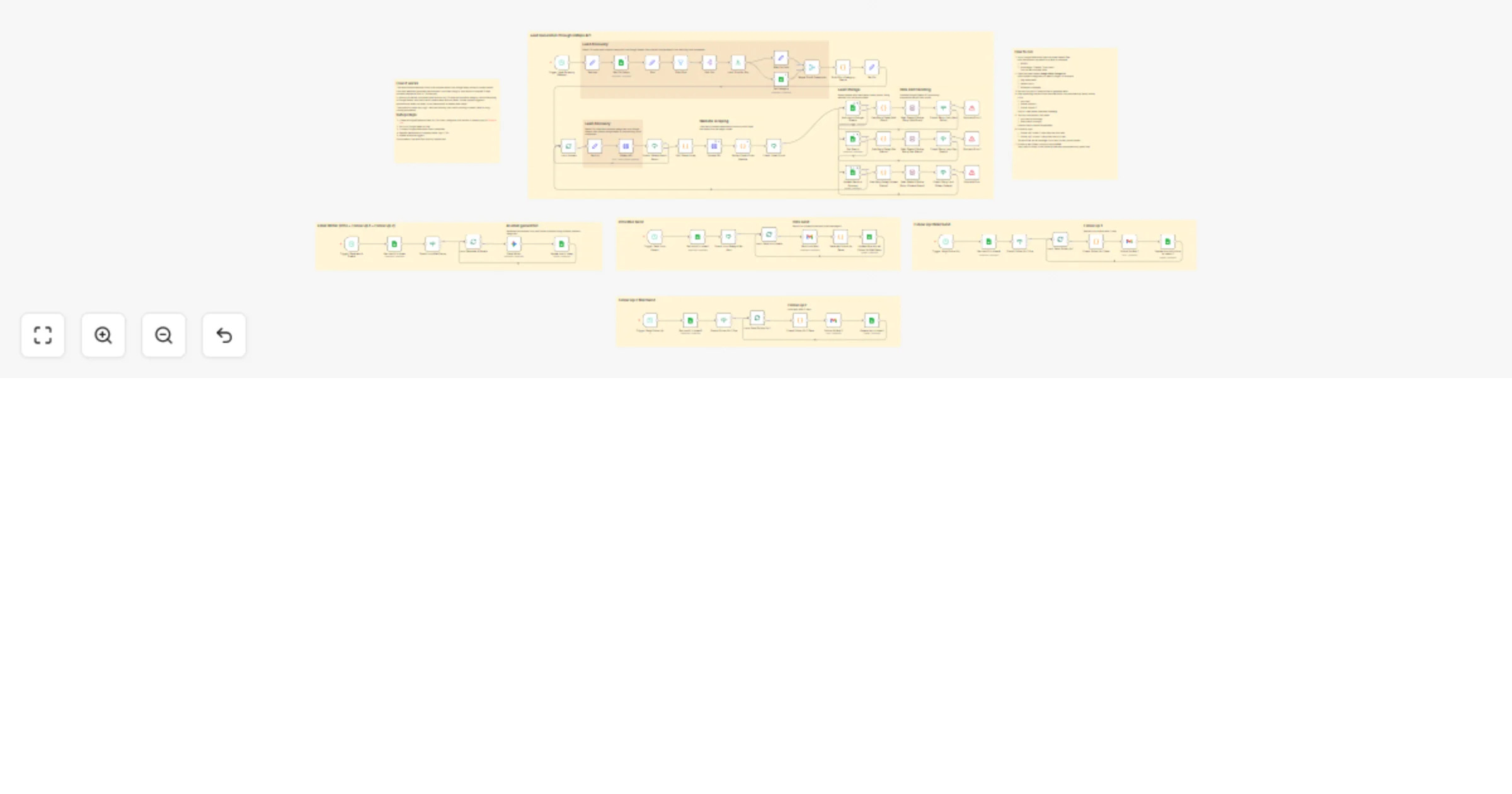
Discover local business leads and run AI-powered cold email sequences with Google Maps and Gmail

Workflow preview

Workflow preview
100%
Discover local business leads and run AI-powered cold email sequences with Google Maps and Gmail preview
Open on n8n.io

1. Workflow Overview

Discover local business leads and run automated cold email sequences with Google Maps and Gmail This workflow is a complete outbound automation system that discovers local businesses, extracts cont...

Best for

  • Lead Generation automation workflows
  • Multimodal AI automation workflows
  • advanced n8n builders looking for reusable templates

Tools used

n8n-nodes-base.stopanderror, n8n-nodes-base.googlesheets, n8n-nodes-base.stickynote, n8n-nodes-base.set, n8n-nodes-base.filter, n8n-nodes-base.splitout, n8n-nodes-base.splitinbatches, n8n-nodes-base.httprequest

Source and attribution

This workflow is cataloged by N8N Workflows and links back to its original n8n.io source page by Dinakar Selvakumar.

Original n8n.io source

1.1 Workflow description

Title
Discover local business leads and run AI-powered cold email sequences with Google Maps and Gmail
Workflow name
Discover local business leads and run AI-powered cold email sequences with Google Maps and Gmail

Discover local business leads and run automated cold email sequences with Google Maps and Gmail

This workflow is a complete outbound automation system that discovers local businesses, extracts contact emails, generates personalized cold emails using AI, and runs a multi-step follow-up sequence — fully automated.

It is designed for founders, agencies, and consultants who want to generate leads at scale without manual scraping or repetitive email work.


Use cases

  • Local service lead generation (marketing agencies, SaaS, consultants)
  • B2B prospecting by location and category
  • Automated cold outreach campaigns
  • Market research and business discovery
  • Sales pipeline bootstrapping

How it works

  1. Reads ZIP codes and business categories from Google Sheets
  2. Queries Google Maps API for matching businesses
  3. Visits each website and extracts public emails
  4. Stores leads in Google Sheets
  5. Uses AI to generate intro + 2 follow-up emails
  6. Sends emails via Gmail
  7. Automatically schedules follow-ups
  8. Tracks status and prevents duplicates

Everything runs on schedules and updates itself.


How to use

  1. Create a Google Sheet with:
  • Zips tab (ZIP codes)
  • Google Maps Categories tab
  • Results tab
  1. Add:
  • Google Maps API key
  • Gmail account
  • Google Sheets credentials
  1. Replace placeholders:
  • Company name
  • Logo URL
  • CTA text
  1. Enable schedule triggers.

That’s it. The system runs continuously.


Requirements

  • Google Maps API key
  • Google account (Sheets + Gmail)
  • Gemini / OpenAI API key
  • Public company logo URL

No paid scraping tools required.


Good to know

  • Uses exponential backoff to handle API limits safely
  • Prevents duplicate leads using place_id
  • Tracks email status and send dates
  • Follow-ups only send if intro was delivered
  • All data stays in your Google Sheets

Customising this workflow

You can easily:

  • Change email copy style in the AI prompt
  • Adjust follow-up delays
  • Add more follow-up steps
  • Replace Gmail with Outlook or SMTP
  • Push leads into CRM instead of Sheets

This workflow is modular and extensible.


What this n8n template demonstrates

  • Real-world lead generation automation
  • Web scraping with fallback logic
  • AI-powered copy generation
  • Stateful workflow design
  • Multi-trigger scheduling
  • Error handling and retries
  • Production-grade outbound system

This is not a demo — it’s a deployable business workflow.


Need a custom setup?

If you want a similar system built for your business (custom data sources, CRM integration, WhatsApp bots, booking systems, dashboards, or private deployments), feel free to reach out at [email protected]

1.2 Logical Blocks

This catalog entry is organized from the workflow JSON. The node-level section below shows the executable blocks available for review before importing the template.

2. Block-by-Block Analysis

Block 1 - Stop and Error1

Type / Role
n8n-nodes-base.stopAndError - stopAndError
Config choices
Version 1

Block 2 - Update Status to Success

Type / Role
n8n-nodes-base.googleSheets - googleSheets
Config choices
Version 4.2

Block 3 - Stop and Error

Type / Role
n8n-nodes-base.stopAndError - stopAndError
Config choices
Version 1

Block 4 - Stop and Error2

Type / Role
n8n-nodes-base.stopAndError - stopAndError
Config choices
Version 1

Block 5 - Get Status

Type / Role
n8n-nodes-base.googleSheets - googleSheets
Config choices
Version 4.2

Block 6 - Get row(s) in sheet

Type / Role
n8n-nodes-base.googleSheets - googleSheets
Config choices
Version 4.7

Block 7 - Update row in sheet

Type / Role
n8n-nodes-base.googleSheets - googleSheets
Config choices
Version 4.7

Block 8 - Get row(s) in sheet1

Type / Role
n8n-nodes-base.googleSheets - googleSheets
Config choices
Version 4.7

Block 9 - Sticky Note

Type / Role
n8n-nodes-base.stickyNote - stickyNote
Config choices
Version 1

Block 10 - Get row(s) in sheet4

Type / Role
n8n-nodes-base.googleSheets - googleSheets
Config choices
Version 4.7

Block 11 - Get row(s) in sheet5

Type / Role
n8n-nodes-base.googleSheets - googleSheets
Config choices
Version 4.7

Block 12 - Update row in sheet3

Type / Role
n8n-nodes-base.googleSheets - googleSheets
Config choices
Version 4.7

Block 13 - Sticky Note1

Type / Role
n8n-nodes-base.stickyNote - stickyNote
Config choices
Version 1

Block 14 - Sticky Note2

Type / Role
n8n-nodes-base.stickyNote - stickyNote
Config choices
Version 1

Block 15 - Sticky Note3

Type / Role
n8n-nodes-base.stickyNote - stickyNote
Config choices
Version 1

Block 16 - Settings

Type / Role
n8n-nodes-base.set - set
Config choices
Version 3.4

Block 17 - Get Zip Codes

Type / Role
n8n-nodes-base.googleSheets - googleSheets
Config choices
Version 4.2

Block 18 - Zips

Type / Role
n8n-nodes-base.set - set
Config choices
Version 3.4

Block 19 - Filter Zips

Type / Role
n8n-nodes-base.filter - filter
Config choices
Version 2.2

Block 20 - Split Out

Type / Role
n8n-nodes-base.splitOut - splitOut
Config choices
Version 1

Block 21 - Get Category

Type / Role
n8n-nodes-base.googleSheets - googleSheets
Config choices
Version 4.2

Block 22 - Set Zip

Type / Role
n8n-nodes-base.set - set
Config choices
Version 3.4

Block 23 - Loop Subcats

Type / Role
n8n-nodes-base.splitInBatches - splitInBatches
Config choices
Version 3

Block 24 - Set Zip1

Type / Role
n8n-nodes-base.set - set
Config choices
Version 3.4

Showing the first 24 of 78 workflow blocks. Download the JSON for the full node graph.

3. Summary Table

Workflow Discover local business leads and run AI-powered cold email sequences with Google Maps and Gmail
Complexity advanced
Nodes 78
Categories Lead Generation, Multimodal AI
Author Dinakar Selvakumar
Published 25 Jan 2026

4. Reproducing the Workflow from Scratch

  1. 1. Download the workflow JSON

    Use the JSON export at /data/workflows/12984/12984.json as the source template for this automation.

  2. 2. Import the template into n8n

    Open n8n, import the downloaded JSON, and review each node before activating the workflow.

  3. 3. Configure credentials and variables

    Replace placeholder credentials, API keys, webhook URLs, account IDs, and environment-specific values with your own settings.

  4. 4. Test with sample data

    Run the workflow manually or in a staging workspace, inspect node output, and confirm downstream systems receive the expected data.

  5. 5. Activate and monitor

    Enable the workflow only after testing, then monitor executions, errors, and rate limits during the first production runs.

5. General Notes & Resources

Review imported nodes carefully before activation. This catalog entry is intended to help you inspect the workflow structure, understand required services, and find related templates faster.

Node names, credentials, schedules, webhook paths, and external service limits may need adjustment for your workspace.

Frequently asked questions

What does Discover local business leads and run AI-powered cold email sequences with Google Maps and Gmail do?

Discover local business leads and run automated cold email sequences with Google Maps and Gmail This workflow is a complete outbound automation system that discovers local businesses, extracts cont...

What do I need before importing this workflow?

Review the workflow JSON, configure any required credentials in n8n, and test the automation in a safe workspace before using it in production.

Can I customize this workflow?

Yes. Use the block-by-block analysis and the downloadable JSON to inspect each node, then adjust credentials, prompts, schedules, filters, or destinations for your Lead Generation, Multimodal AI use case.