D

Dinakar Selvakumar

6
Workflows

Workflows by Dinakar Selvakumar

Workflow preview: Extract website intelligence & classify ecommerce URLs with Gemini & Firecrawl to Google Sheets
Free advanced

Extract website intelligence & classify ecommerce URLs with Gemini & Firecrawl to Google Sheets

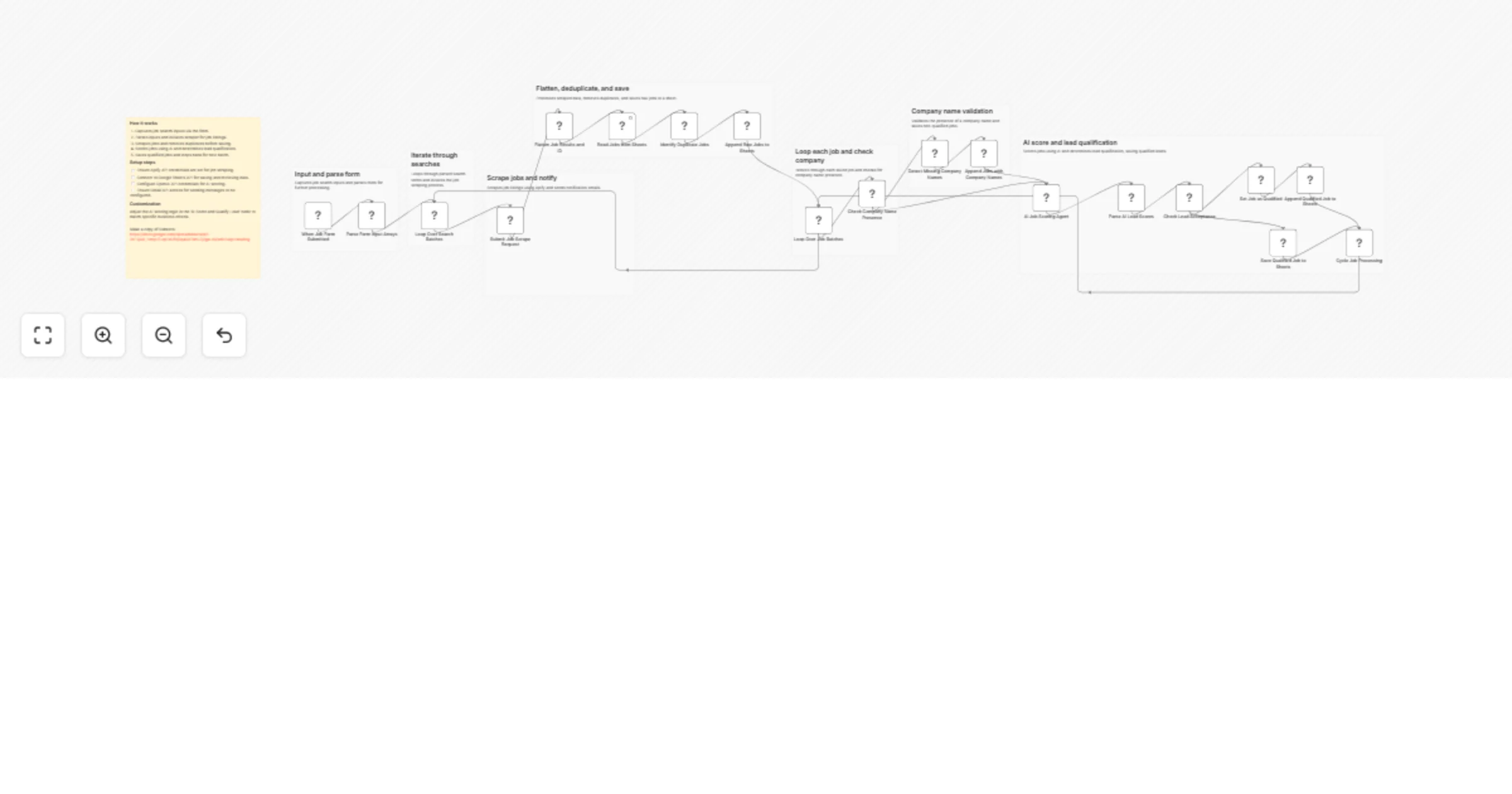
## Description This n8n template automates website analysis and ecommerce URL classification using AI. It scrapes a website, extracts business intelligence, maps all internal pages, and categorises them into products, categories, or non-commerce pages. All outputs are saved in Google Sheets for easy access. --- ## Use cases - Lead enrichment for sales and marketing teams - Ecommerce product & category discovery - Competitor website analysis - Website audits and content mapping - Market and industry research --- ## How it works 1. A user submits a website URL via an n8n form. 2. The homepage is scraped and cleaned. 3. AI extracts company insights (value proposition, industry, audience, B2B/B2C). 4. Firecrawl maps all internal URLs. 5. URLs are enriched with metadata. 6. AI classifies each URL as product, category, or other. 7. Results are written into structured Google Sheets tabs. --- ## How to use 1. Import the workflow into n8n. 2. Connect Google Sheets, Firecrawl, and AI credentials. 3. Update the Google Sheets document links. 4. Open the form URL and submit a website. 5. Let the workflow run and review the results in Sheets. --- ## Requirements - n8n (self-hosted or cloud) - Firecrawl API key - Google Gemini or compatible LLM credentials - Google Sheets account --- ## Customising this workflow - Change AI prompts to match your niche (SaaS, ecommerce, services). - Add filters to exclude unwanted URLs (blogs, legal pages, etc.). - Extend Sheets with scoring, tagging, or lead qualification logic. - Replace the LLM with another supported model if needed. --- ## What this template demonstrates - End-to-end website intelligence extraction - Safe, rule-based AI classification (no hallucinations) - Scalable URL processing with batching - Clean data pipelines into Google Sheets - Practical AI usage for real business workflows This template is designed to work out-of-the-box for website intelligence, ecommerce mapping, and lead research. Feel free to reach out for custom implementation or enhancements: 📧 **Email:** @[email protected]

D
Dinakar Selvakumar
Market Research
25 Dec 2025
19
0
Workflow preview: Generate beauty brand hashtags with Gemini AI, website analysis and SerpAPI
Free advanced

Generate beauty brand hashtags with Gemini AI, website analysis and SerpAPI

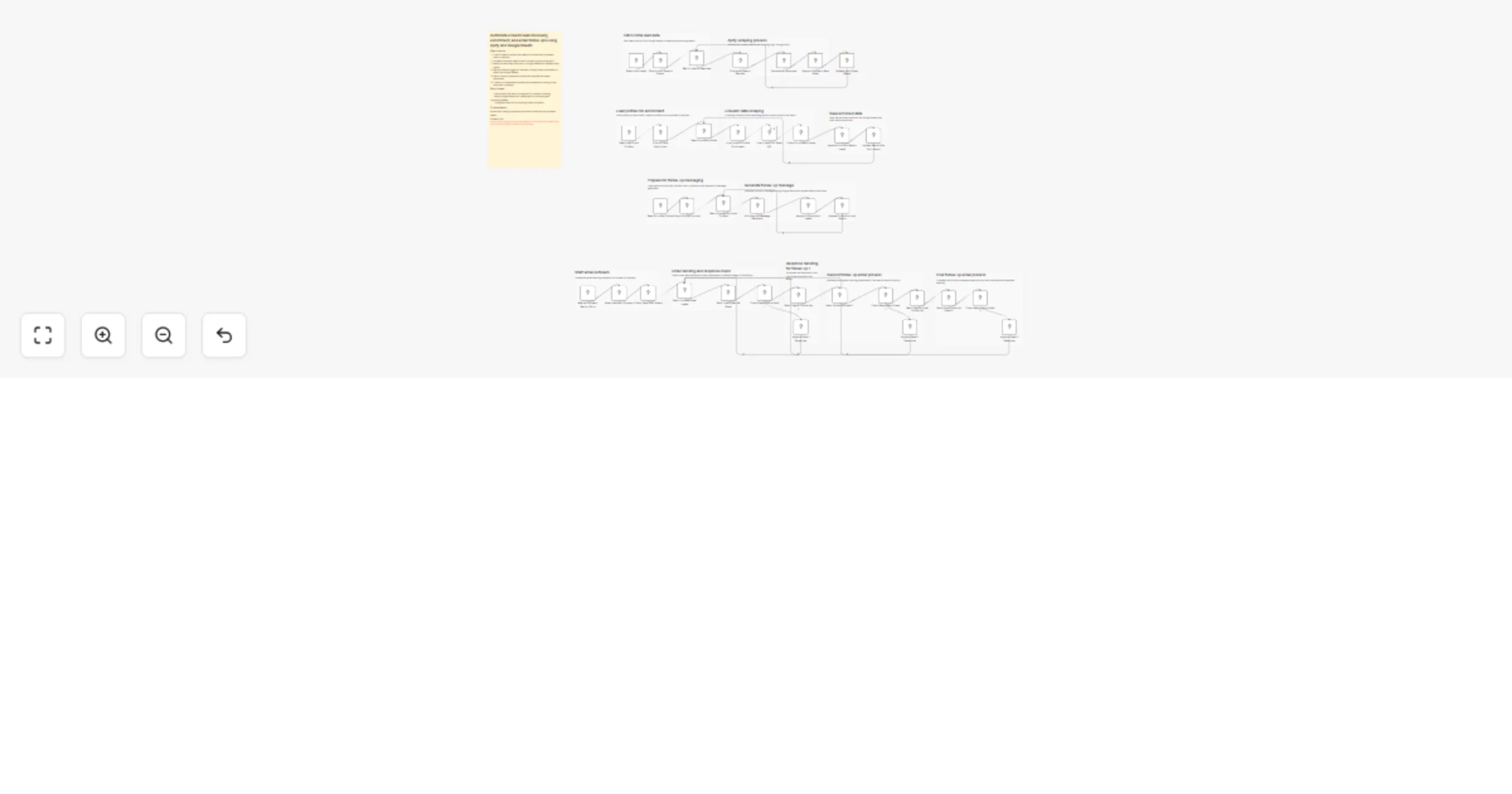
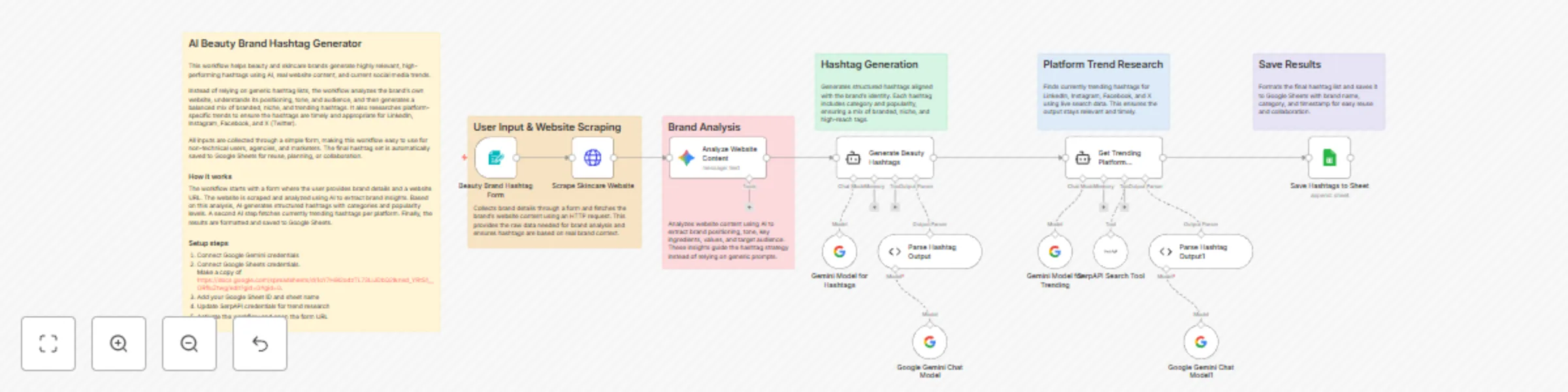
## Description This n8n template generates high-quality, platform-ready hashtags for beauty and skincare brands by combining AI, live website analysis, and current social media trends. It is designed for marketers, agencies, and founders who want smarter hashtag strategies without manual research. ## Use cases - Beauty & skincare brands building social media reach - Agencies managing multiple client accounts - Content teams creating Instagram, LinkedIn, or Facebook posts - Founders validating brand positioning through hashtags ## What this template demonstrates - Form-based user input in n8n - Website scraping with HTTP Request - AI-driven brand analysis using Gemini - Structured AI outputs with output parsers - Live trend research using search tools - Automated storage in Google Sheets ## How it works Users submit brand details through a form. The workflow scrapes the brand’s website, analyzes it with AI, generates tailored hashtags, enriches them with platform-specific trends, and stores the final result in Google Sheets. ## How to use 1. Activate the workflow 2. Open the form URL 3. Enter brand details and website URL 4. Submit the form 5. View generated hashtags in Google Sheets ## Requirements - Google Gemini API credentials - Google Sheets account - SerpAPI account for trend research ## Good to know - Website scraping is best suited for public, text-rich sites - Hashtags are generated dynamically based on brand tone and audience - You can reuse the Google Sheet as a hashtag library ## Customising this workflow - Change the number of hashtags generated - Modify the AI prompt for different industries - Add filters for banned or restricted hashtags - Extend the workflow to auto-post to social platforms

D
Dinakar Selvakumar
Social Media
23 Dec 2025
29
0
Workflow preview: Automate job search & resume matching with LinkedIn, Gemini AI & Google Sheets
Free advanced

Automate job search & resume matching with LinkedIn, Gemini AI & Google Sheets

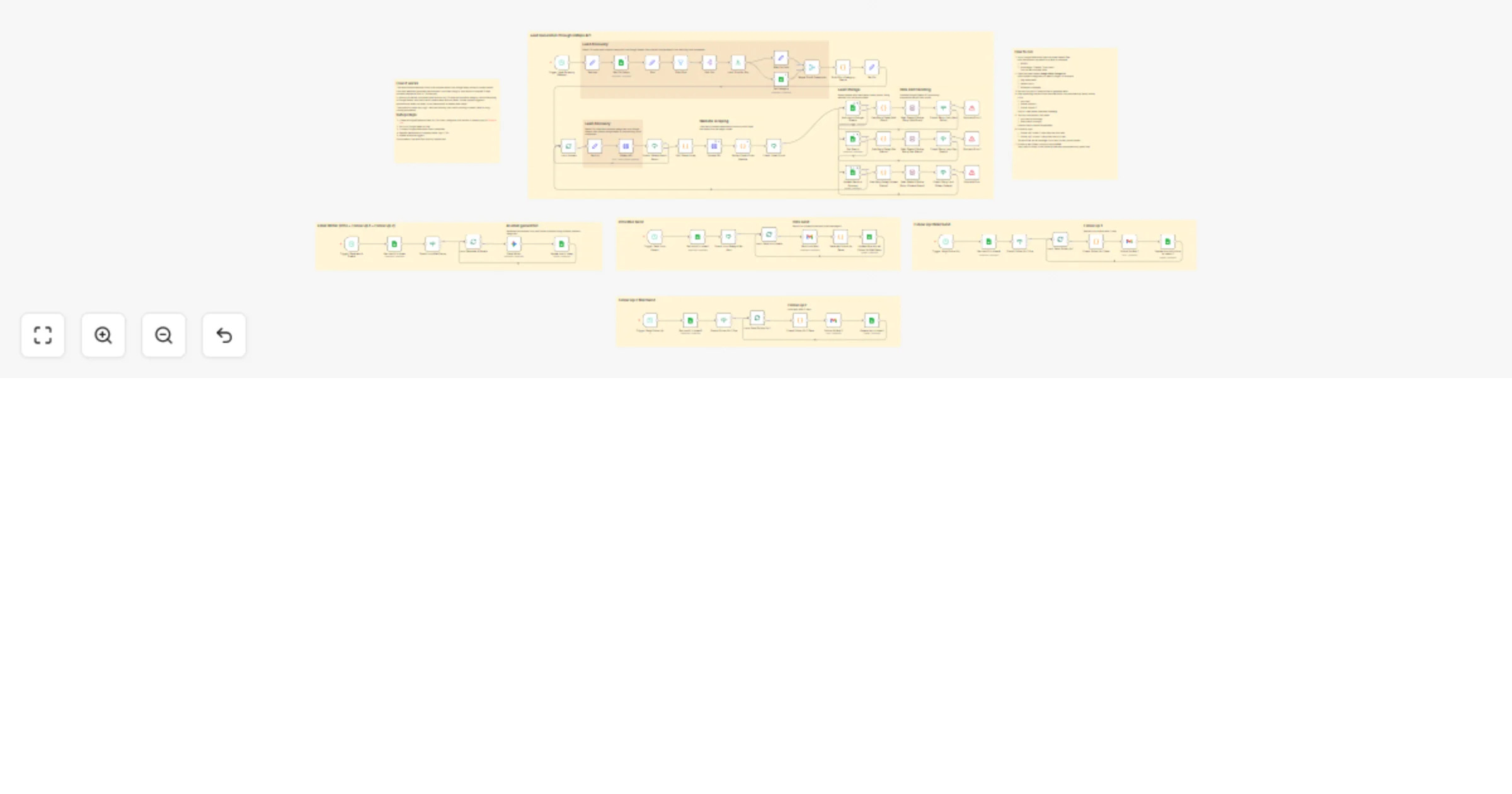
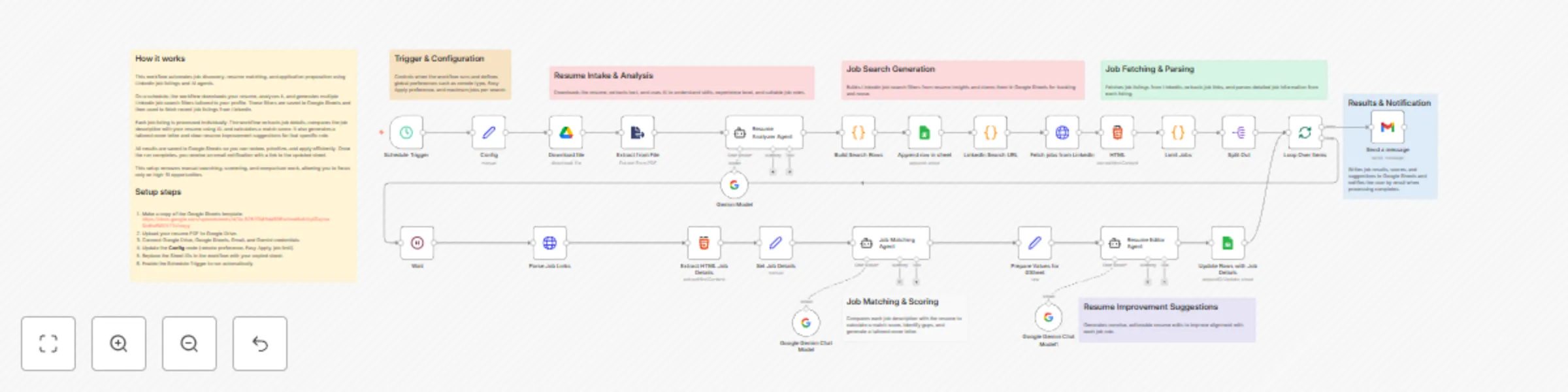
## Description This workflow helps you find and evaluate job opportunities automatically, without spending hours searching and comparing roles. It uses your resume to look for relevant jobs on LinkedIn, checks how well each role matches your profile, and organises everything neatly in Google Sheets so you can focus on applying to the best opportunities. ## How it works On a schedule, the workflow downloads your resume from Google Drive and analyses it to understand your skills and experience. Based on this, it creates LinkedIn job searches and pulls in recent job listings. Each job is then reviewed using AI to compare the job description with your resume, produce a match score, suggest resume improvements, and generate a tailored cover letter. All results are saved to Google Sheets, and you’re notified by email when the run finishes. ## How to use 1. Make a copy of the Google Sheets template and keep it for your own job tracking. 2. Upload your resume (PDF) to Google Drive. 3. Connect your Google Drive, Google Sheets, Gmail, and AI credentials in n8n. 4. Update the **Config** node with your preferences (remote work, Easy Apply, job limit). 5. Paste your copied Google Sheet IDs into the workflow. 6. Turn on the Schedule Trigger and activate the workflow. ## Requirements - Google Drive account for storing your resume - Google Sheets account for tracking results - Gmail account for notifications - AI model access (Google Gemini or similar) - n8n (cloud or self-hosted) ## Customising this workflow You can easily adapt this workflow to suit your goals. Change the job limits, locations, or remote preferences in the **Config** node. Update the AI prompts to target different roles or industries, or extend the workflow to send results to tools like Notion, a CRM, or your own application tracker. ## Good to know This workflow is designed to help you screen and prepare for jobs, not to apply automatically. Match scores are a guide, not a guarantee, so it’s always worth reviewing roles manually. Also, since LinkedIn pages can change over time, you may occasionally need to update HTML selectors to keep things running smoothly.

D
Dinakar Selvakumar
HR
22 Dec 2025
564
0
Workflow preview: Social media auto-posting to Instagram, Facebook & LinkedIn from Google Sheets
Free advanced

Social media auto-posting to Instagram, Facebook & LinkedIn from Google Sheets

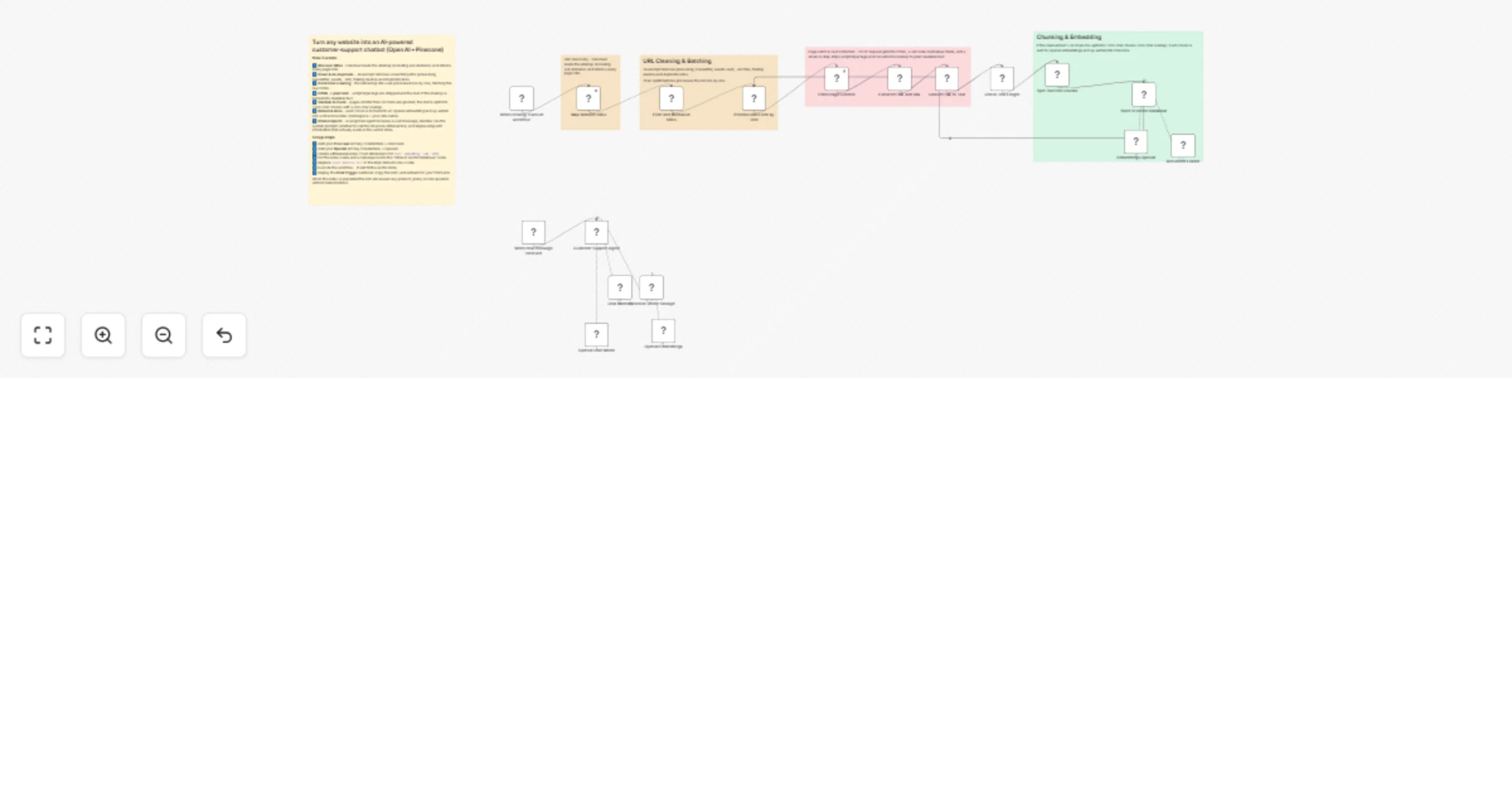
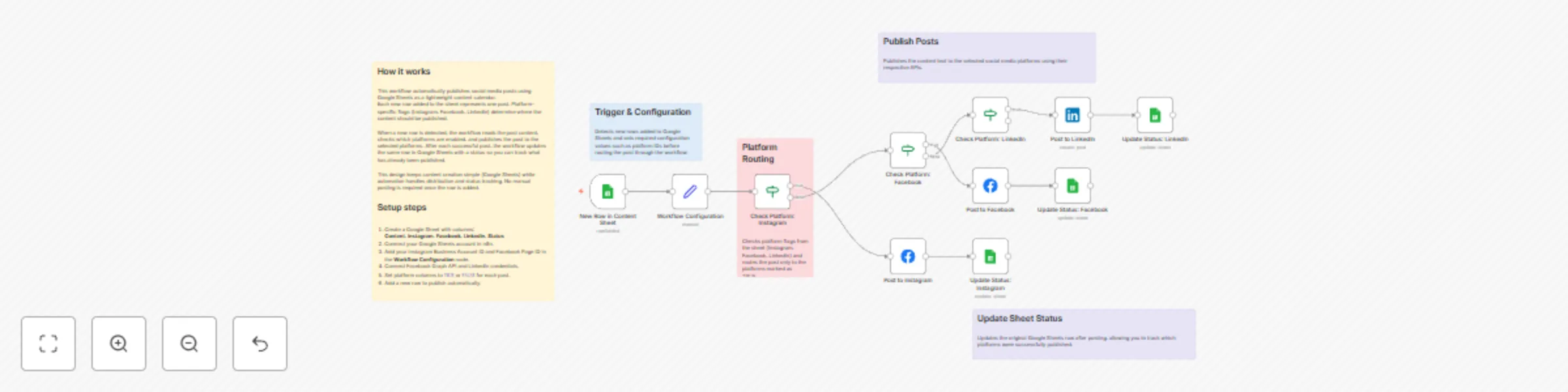
## 📌 Workflow Overview This workflow enables **multi-platform social media posting** using **Google Sheets as the control center**. Whenever a new row is added to the sheet, the workflow automatically posts the content to **Instagram, Facebook, and/or LinkedIn** based on platform flags, then updates the post status to prevent duplicates. ### Supported Platforms - Instagram (Business) - Facebook Pages - LinkedIn Pages --- ## 🧠 Key Concept *Google Sheets acts as a lightweight CMS and automation trigger.* Each row represents **one post**, and simple TRUE/FALSE columns decide where that post should be published. --- ## 📄 Required Google Sheets Columns The content sheet must include the following columns: - **Content** – Text to publish - **Instagram** – TRUE / FALSE - **Facebook** – TRUE / FALSE - **LinkedIn** – TRUE / FALSE - **Status** – Updated after posting - **Row Number** – Used for precise updates --- ## ⚙️ How This Workflow Works ### 1️⃣ Trigger: New Content Added - The workflow starts when a **new row is added** to Google Sheets. - This allows near real-time publishing without manual execution. --- ### 2️⃣ Configuration Setup - Platform-specific values like: - Instagram Business Account ID - Facebook Page ID - Are defined once in a **configuration node** for easy reuse and maintenance. --- ### 3️⃣ Platform Routing Logic - IF nodes check each platform column: - Instagram = TRUE → post to Instagram - Facebook = TRUE → post to Facebook - LinkedIn = TRUE → post to LinkedIn - One row can trigger posting to **multiple platforms**. --- ### 4️⃣ Platform Posting - Posts are published using: - Facebook Graph API (Instagram + Facebook) - LinkedIn API (LinkedIn Pages) - The **Content** column is used directly as the post body. --- ### 5️⃣ Status Update (Per Platform) - After posting: - The workflow updates the same row using **Row Number** - Marks the post as completed for that platform - This prevents duplicate or accidental re-posts. --- ## 🔄 Current Capabilities - Multi-platform posting from one sheet - Platform-specific routing logic - Real-time execution on new content - Safe status updates using row matching --- ## 🚀 Designed for Easy Expansion This workflow is intentionally modular and can be extended with: - Scheduled posting (date/time columns) - Image & media handling - AI-generated captions - Hashtag optimization - Engagement analytics - Retry & error handling logic --- ## ✅ Best Practices - Use **TRUE / FALSE** consistently in platform columns - Keep Google Sheets as the single source of truth - Add validation or approval columns if used by teams --- ## 📦 Ideal Use Cases - Social media managers - Marketing teams - Founders & creators - Agencies handling multiple platforms --- *This workflow provides a scalable foundation for social media automation while remaining simple, transparent, and easy to maintain.*

D
Dinakar Selvakumar
Social Media
21 Dec 2025
350
0
Workflow preview: Schedule and auto-post images to Instagram with Google Sheets, Drive and AI captions
Free advanced

Schedule and auto-post images to Instagram with Google Sheets, Drive and AI captions

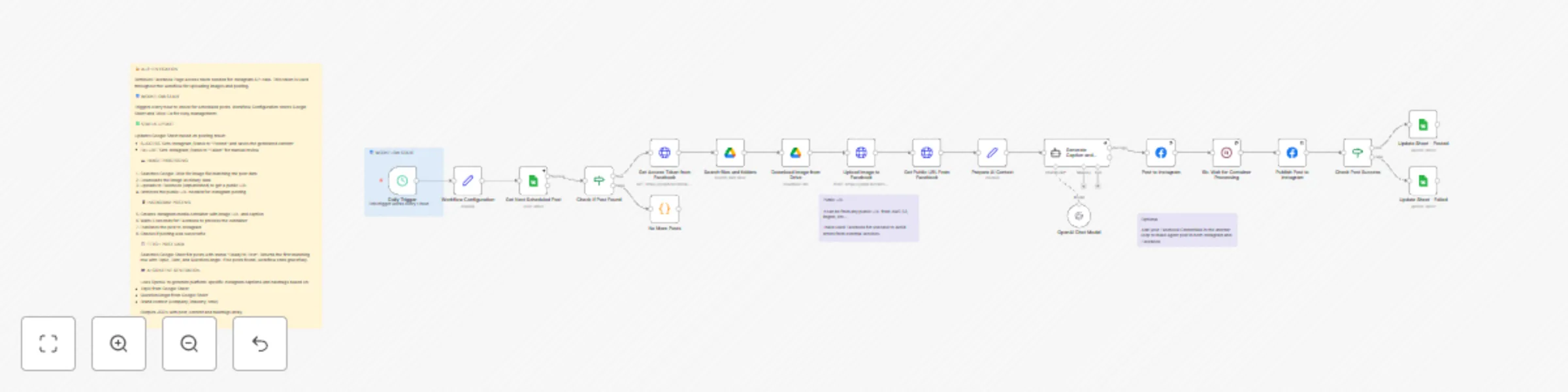
## **Description** This n8n workflow automatically publishes posts to Instagram Business accounts and Facebook Pages using Google Sheets as your content calendar. You schedule posts in the sheet, and n8n processes them, uploads media (if any), posts via Meta’s Graph API, and updates the sheet with success/failure. n8n ### **How it Works** Google Sheets rows marked “Pending” and due for publishing are picked up by a scheduled trigger. Posts are then routed to the proper social platforms and published via Meta’s Graph API. Finally, n8n writes back the publish status and timestamp to the sheet. n8n ### **🧠 Step-by-Step** **1️⃣ Scheduled Trigger** The workflow automatically checks Google Sheets at fixed intervals (e.g., every 15 min) for posts that are ready (status = Pending, publish time reached). **2️⃣ Config & Credentials** Store reusable settings including: - Google Sheets ID & Sheet name - Meta App credentials (App ID, App Secret) - Access token for Meta Graph API - Instagram Business Account ID - Facebook Page ID These configs make the workflow modular and secure. **3️⃣ Setup: Create a Meta (Facebook) App** To post via the Graph API, you must first set up a Meta developer app: 🔗 Create App (Meta for Developers): Go here to start: https://developers.facebook.com/docs/development/create-an-app/ Steps: - Log in at Meta for Developers. - Click Create App and choose Business as the app type. - Facebook Developers - Add a name and contact email. - In the app dashboard, Add Product → choose Instagram Graph API and Facebook Login. 📌 After creation, your app will have an App ID and App Secret in Settings → Basic — save both for n8n. **4️⃣ Link Accounts & Get IDs** Before publishing you need: - Instagram Business account (not a personal account) - Facebook Page linked to that Instagram account Link them in Facebook Page settings → Linked Accounts. Then, generate an access token with permissions (instagram_basic, pages_show_list, etc.) using the Graph API Explorer and your new Meta app. From the token response or via Graph API calls, extract: - Facebook Page ID - Instagram Business Account ID These go into your n8n nodes for publishing. **5️⃣ Fetch & Filter Posts** Read rows from Google Sheets and filter those ready to publish (status = Pending, scheduled time reached). **6️⃣ Image Handling** If an image link is present, download or retrieve it (Google Drive or external URL). If not, continue with a text-only post. **7️⃣ Platform Routing** Route the post to: - Instagram publishing branch - Facebook publishing branch (or both depending on the sheet’s platform column) **8️⃣ Posting via Meta Graph API** **Instagram** - Use Graph API endpoints to create and publish media containers and then make the publish call. **Facebook** - Use Graph API to post to the Facebook Page feed (via /feed or /photos endpoint). **9️⃣ Update Sheet Status** After each attempt, update Google Sheets with: - Status (Success/Fail) - Published timestamp

D
Dinakar Selvakumar
Social Media
20 Dec 2025
209
0
Workflow preview: Auto-schedule Instagram & Facebook posts from Google Sheets
Free advanced

Auto-schedule Instagram & Facebook posts from Google Sheets

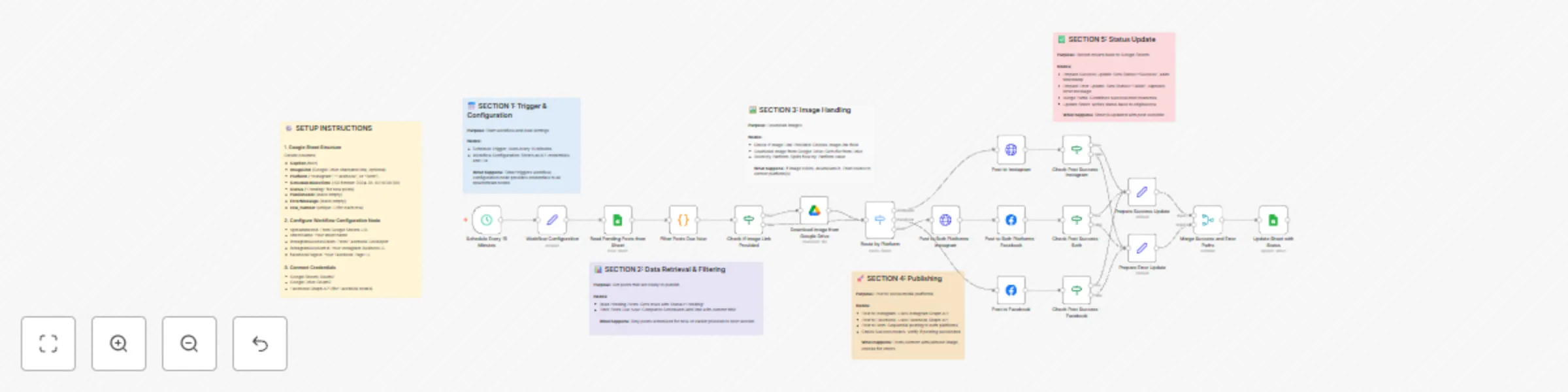
**How it works** This workflow automatically publishes Instagram and Facebook posts using Google Sheets as a content calendar. Users add post details to a sheet, and the workflow handles scheduling, image processing, posting, and status updates without manual intervention. **Step-by-step** **Scheduled Trigger** The workflow runs automatically at a fixed interval (for example, every 15 minutes) to check for posts that are ready to be published. **Configuration & Credentials** A configuration step stores reusable values such as spreadsheet ID, sheet name, and platform settings, keeping the workflow easy to customize and secure. **Data Retrieval & Filtering** Posts are read from Google Sheets and filtered to include only rows marked as “Pending” and scheduled for the current time or earlier. **Image Handling** If an image link is provided, the workflow downloads the image from Google Drive. If no image is present, the post continues as text-only. **Platform Routing** Based on the selected platform (Instagram, Facebook, or both), the workflow routes the post to the appropriate publishing path. **Social Media Publishing** The post is published to Instagram and/or Facebook using the connected business account credentials. **Status Update** After publishing, the workflow updates the original Google Sheet with the post status (Success or Failed), published timestamp, and error message if applicable.

D
Dinakar Selvakumar
Social Media
19 Dec 2025
213
0