Discover, enrich, and email LinkedIn leads with Apify, Gmail, Gemini, and Sheets

Workflow preview

Workflow preview
100%
Discover, enrich, and email LinkedIn leads with Apify, Gmail, Gemini, and Sheets preview
Open on n8n.io

1. Workflow Overview

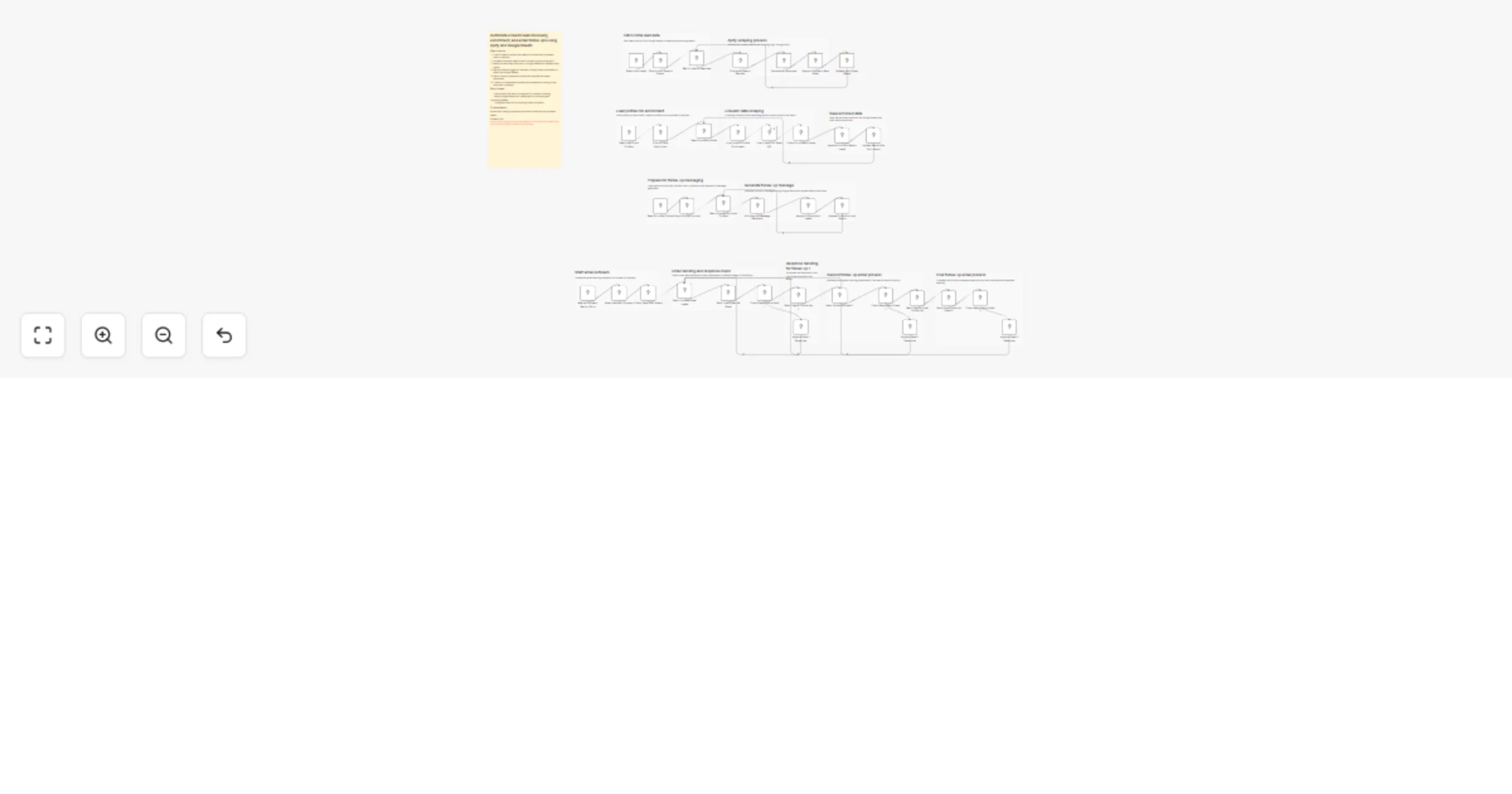
Automate LinkedIn lead discovery, enrichment, and email follow ups using Apify and Google Sheets What this template demonstrates End to end lead pipeline (discovery → enrichment → outreach) Google ...

Best for

  • Lead Generation automation workflows
  • Multimodal AI automation workflows
  • advanced n8n builders looking for reusable templates

Tools used

n8n-nodes-base.stickynote, n8n-nodes-base.httprequest, n8n-nodes-base.code, n8n-nodes-base.googlesheets, n8n-nodes-base.splitinbatches, n8n-nodes-base.if, @n8n/n8n-nodes-langchain.googlegemini, n8n-nodes-base.manualtrigger

Source and attribution

This workflow is cataloged by N8N Workflows and links back to its original n8n.io source page by Dinakar Selvakumar.

Original n8n.io source

1.1 Workflow description

Title
Discover, enrich, and email LinkedIn leads with Apify, Gmail, Gemini, and Sheets
Workflow name
Discover, enrich, and email LinkedIn leads with Apify, Gmail, Gemini, and Sheets

Automate LinkedIn lead discovery, enrichment, and email follow-ups using Apify and Google Sheets


What this template demonstrates

  • End-to-end lead pipeline (discovery → enrichment → outreach)
  • Google Search–based LinkedIn discovery (safe approach)
  • Batch processing with controlled loops
  • AI-generated cold emails and follow-ups
  • Google Sheets as a structured lead database

Use cases

  • B2B outbound lead generation
  • Recruitment sourcing workflows
  • Founder-led sales outreach
  • Building verified prospect lists
  • Automated follow-up systems

How it works

  • Reads role + location inputs from Google Sheets
  • Uses Apify to find LinkedIn profiles via Google Search
  • Stores raw leads and filters valid profiles
  • Enriches profiles with additional data
  • Generates personalized email sequences using AI
  • Sends emails and tracks responses
  • Updates lead status to prevent duplicates

How to use

  • Add {{APIFY_API_TOKEN}}
  • Connect Google Sheets and Gmail
  • Prepare input sheet (Keyword, Location)
  • Run workflow in test mode
  • Verify outputs in Google Sheets
  • Activate workflow

Requirements

  • n8n (cloud or self-hosted)
  • Apify account
  • Google Sheets
  • Gemini / LLM API key

Good to know

  • No direct LinkedIn automation (safe and compliant)
  • Email follow-ups include response tracking
  • Uses batching to handle large datasets
  • Google Sheets acts as the system state

Customising this workflow

  • Change target roles and locations
  • Improve AI prompts for personalization
  • Add email verification tools
  • Replace Sheets with a database
  • Add retry logic and rate limits

What this template demonstrates

  • Multi-step automation architecture
  • API orchestration using HTTP nodes
  • AI integration in workflows
  • Conditional logic and batching
  • Scalable lead processing design

1.2 Logical Blocks

This catalog entry is organized from the workflow JSON. The node-level section below shows the executable blocks available for review before importing the template.

2. Block-by-Block Analysis

Block 1 - Sticky Note

Type / Role
n8n-nodes-base.stickyNote - stickyNote
Config choices
Version 1

Block 2 - Sticky Note1

Type / Role
n8n-nodes-base.stickyNote - stickyNote
Config choices
Version 1

Block 3 - Sticky Note2

Type / Role
n8n-nodes-base.stickyNote - stickyNote
Config choices
Version 1

Block 4 - Sticky Note3

Type / Role
n8n-nodes-base.stickyNote - stickyNote
Config choices
Version 1

Block 5 - Sticky Note4

Type / Role
n8n-nodes-base.stickyNote - stickyNote
Config choices
Version 1

Block 6 - Sticky Note5

Type / Role
n8n-nodes-base.stickyNote - stickyNote
Config choices
Version 1

Block 7 - Sticky Note6

Type / Role
n8n-nodes-base.stickyNote - stickyNote
Config choices
Version 1

Block 8 - Sticky Note7

Type / Role
n8n-nodes-base.stickyNote - stickyNote
Config choices
Version 1

Block 9 - Sticky Note8

Type / Role
n8n-nodes-base.stickyNote - stickyNote
Config choices
Version 1

Block 10 - Sticky Note9

Type / Role
n8n-nodes-base.stickyNote - stickyNote
Config choices
Version 1

Block 11 - Sticky Note10

Type / Role
n8n-nodes-base.stickyNote - stickyNote
Config choices
Version 1

Block 12 - Sticky Note11

Type / Role
n8n-nodes-base.stickyNote - stickyNote
Config choices
Version 1

Block 13 - Sticky Note12

Type / Role
n8n-nodes-base.stickyNote - stickyNote
Config choices
Version 1

Block 14 - Post Apify Search Request

Type / Role
n8n-nodes-base.httpRequest - httpRequest
Config choices
Version 4.2

Block 15 - Parse Apify Response

Type / Role
n8n-nodes-base.code - code
Config choices
Version 2

Block 16 - Append Profiles to Raw Sheet

Type / Role
n8n-nodes-base.googleSheets - googleSheets
Config choices
Version 4.5

Block 17 - Batch LinkedIn Searches

Type / Role
n8n-nodes-base.splitInBatches - splitInBatches
Config choices
Version 3

Block 18 - Read Unenriched Profiles

Type / Role
n8n-nodes-base.googleSheets - googleSheets
Config choices
Version 4.5

Block 19 - Batch Process Profiles

Type / Role
n8n-nodes-base.splitInBatches - splitInBatches
Config choices
Version 3

Block 20 - Post LinkedIn Profile Enrichment

Type / Role
n8n-nodes-base.httpRequest - httpRequest
Config choices
Version 4.2

Block 21 - Append Enriched Data to Leads

Type / Role
n8n-nodes-base.googleSheets - googleSheets
Config choices
Version 4.5

Block 22 - Read Input Leads

Type / Role
n8n-nodes-base.googleSheets - googleSheets
Config choices
Version 4.7

Block 23 - Check Input Sheet is Empty

Type / Role
n8n-nodes-base.if - if
Config choices
Version 2.3

Block 24 - Update Input Sheet Status

Type / Role
n8n-nodes-base.googleSheets - googleSheets
Config choices
Version 4.7

Showing the first 24 of 49 workflow blocks. Download the JSON for the full node graph.

3. Summary Table

Workflow Discover, enrich, and email LinkedIn leads with Apify, Gmail, Gemini, and Sheets
Complexity advanced
Nodes 49
Categories Lead Generation, Multimodal AI
Author Dinakar Selvakumar
Published 07 Apr 2026

4. Reproducing the Workflow from Scratch

  1. 1. Download the workflow JSON

    Use the JSON export at /data/workflows/14846/14846.json as the source template for this automation.

  2. 2. Import the template into n8n

    Open n8n, import the downloaded JSON, and review each node before activating the workflow.

  3. 3. Configure credentials and variables

    Replace placeholder credentials, API keys, webhook URLs, account IDs, and environment-specific values with your own settings.

  4. 4. Test with sample data

    Run the workflow manually or in a staging workspace, inspect node output, and confirm downstream systems receive the expected data.

  5. 5. Activate and monitor

    Enable the workflow only after testing, then monitor executions, errors, and rate limits during the first production runs.

5. General Notes & Resources

Review imported nodes carefully before activation. This catalog entry is intended to help you inspect the workflow structure, understand required services, and find related templates faster.

Node names, credentials, schedules, webhook paths, and external service limits may need adjustment for your workspace.

Frequently asked questions

What does Discover, enrich, and email LinkedIn leads with Apify, Gmail, Gemini, and Sheets do?

Automate LinkedIn lead discovery, enrichment, and email follow ups using Apify and Google Sheets What this template demonstrates End to end lead pipeline (discovery → enrichment → outreach) Google ...

What do I need before importing this workflow?

Review the workflow JSON, configure any required credentials in n8n, and test the automation in a safe workspace before using it in production.

Can I customize this workflow?

Yes. Use the block-by-block analysis and the downloadable JSON to inspect each node, then adjust credentials, prompts, schedules, filters, or destinations for your Lead Generation, Multimodal AI use case.