Create Google Drive folders by path

Workflow preview

Workflow preview
100%
Create Google Drive folders by path preview
Open on n8n.io

Important notice

This workflow is provided as-is. Please review and test before using in production.

1. Workflow Overview

This workflow creates nested Google Drive folders from a path string (like ). It automatically handles the necessary folder lookups and creation steps required by Google Drive, then outputs the fin...

Best for

  • File Management automation workflows
  • advanced n8n builders looking for reusable templates

Tools used

n8n-nodes-base.manualtrigger, n8n-nodes-base.code, n8n-nodes-base.executeworkflowtrigger, n8n-nodes-base.set, n8n-nodes-base.googledrive, n8n-nodes-base.if, n8n-nodes-base.stickynote

Source and attribution

This workflow is cataloged by N8N Workflows and links back to its original n8n.io source page by Xavier.

Original n8n.io source

1.1 Workflow description

Title
Create Google Drive folders by path
Workflow name
Create Google Drive folders by path

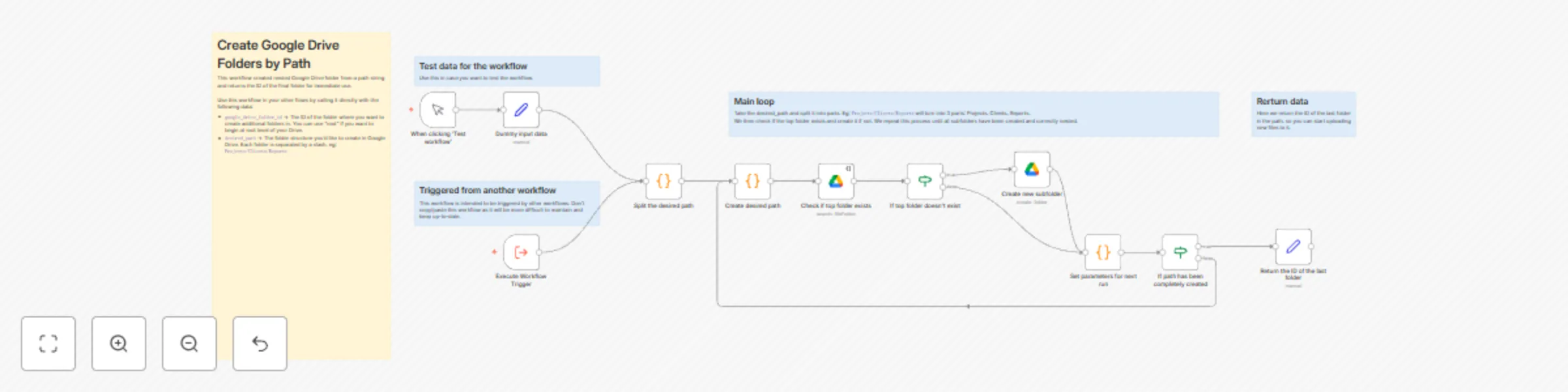
This workflow creates nested Google Drive folders from a path string (like Projects/Clients/Reports). It automatically handles the necessary folder lookups and creation steps required by Google Drive, then outputs the final folder's ID for immediate use.

How it works

This workflow streamlines the creation of nested folders in Google Drive:

  1. Input: Provide a root_folder_id and a path (e.g., Projects/Clients/Reports) as input.
  2. Path Parsing: The workflow splits the path into individual folder names (based on the / separator)
  3. Iterative Check & Create: Loops through each part of your path:
    • Searches within the current parent folder (starting with the root_folder_id) for a subfolder matching the name.
    • If found: Retrieves the existing folder's ID to use as the parent for the next iteration.
    • If not found: Creates a new folder with that name inside the current parent folder and uses the new folder's ID as the parent for the next iteration.
  4. Output: Returns the Google Drive Folder ID of the very last folder in the specified path (e.g., the ID for Reports in the example above). This ID can then be directly used in subsequent n8n nodes to upload files, create documents, or perform other actions within that specific folder.

Set up steps

Setting up this workflow requires configuring the connection to Google Drive and knowing where to start creating folders:

  1. Connect Google Drive Account: Ensure you have a Google Drive credential configured in your n8n instance. Then link your credentials in the workflow: there are 2 Google Drive nodes that will need to be updated.
  2. Identify Starting Folder ID: Determine the Google Drive Folder ID where your nested structure should begin. You can either use the root of your Google Drive or a specific folder:
    • To use the root of Google Drive, simply set root_folder_id to root (also called "My Drive" in the UI)
    • To use a specific folder, open the folder in a webbrowser and look at the URL. The folder ID will be in the last part of the URL: https://drive.google.com/drive/folders/THIS_IS_THE_FOLDER_ID.
  3. Prepare Inputs for Execution: When running the workflow (or triggering it), you will need to provide:
    • google_drive_folder_id -> this is the root folder ID you identified in step 2.
    • desired_path -> This is the path you want to create (e.g., Projects/Clients/Reports).

Here's an example of how you can call this workflow in your other workflows:

1.2 Logical Blocks

This catalog entry is organized from the workflow JSON. The node-level section below shows the executable blocks available for review before importing the template.

2. Block-by-Block Analysis

Block 1 - When clicking ‘Test workflow’

Type / Role
n8n-nodes-base.manualTrigger - manualTrigger
Config choices
Version 1

Block 2 - Set parameters for next run

Type / Role
n8n-nodes-base.code - code
Config choices
Version 2

Block 3 - Execute Workflow Trigger

Type / Role
n8n-nodes-base.executeWorkflowTrigger - executeWorkflowTrigger
Config choices
Version 1

Block 4 - Dummy input data

Type / Role
n8n-nodes-base.set - set
Config choices
Version 3.4

Block 5 - Split the desired path

Type / Role
n8n-nodes-base.code - code
Config choices
Version 2

Block 6 - Create desired path

Type / Role
n8n-nodes-base.code - code
Config choices
Version 2

Block 7 - Check if top folder exists

Type / Role
n8n-nodes-base.googleDrive - googleDrive
Config choices
Version 3

Block 8 - If top folder doesn't exist

Type / Role
n8n-nodes-base.if - if
Config choices
Version 2.2

Block 9 - Create new subfolder

Type / Role
n8n-nodes-base.googleDrive - googleDrive
Config choices
Version 3

Block 10 - If path has been completely created

Type / Role
n8n-nodes-base.if - if
Config choices
Version 2.2

Block 11 - Return the ID of the last folder

Type / Role
n8n-nodes-base.set - set
Config choices
Version 3.4

Block 12 - Sticky Note

Type / Role
n8n-nodes-base.stickyNote - stickyNote
Config choices
Version 1

Block 13 - Sticky Note1

Type / Role
n8n-nodes-base.stickyNote - stickyNote
Config choices
Version 1

Block 14 - Sticky Note2

Type / Role
n8n-nodes-base.stickyNote - stickyNote
Config choices
Version 1

Block 15 - Sticky Note3

Type / Role
n8n-nodes-base.stickyNote - stickyNote
Config choices
Version 1

Block 16 - Sticky Note4

Type / Role
n8n-nodes-base.stickyNote - stickyNote
Config choices
Version 1

3. Summary Table

Workflow Create Google Drive folders by path
Complexity advanced
Nodes 16
Categories File Management
Author Xavier
Published 25 Apr 2025

4. Reproducing the Workflow from Scratch

  1. 1. Download the workflow JSON

    Use the JSON export at /data/workflows/3709/3709.json as the source template for this automation.

  2. 2. Import the template into n8n

    Open n8n, import the downloaded JSON, and review each node before activating the workflow.

  3. 3. Configure credentials and variables

    Replace placeholder credentials, API keys, webhook URLs, account IDs, and environment-specific values with your own settings.

  4. 4. Test with sample data

    Run the workflow manually or in a staging workspace, inspect node output, and confirm downstream systems receive the expected data.

  5. 5. Activate and monitor

    Enable the workflow only after testing, then monitor executions, errors, and rate limits during the first production runs.

5. General Notes & Resources

Review imported nodes carefully before activation. This catalog entry is intended to help you inspect the workflow structure, understand required services, and find related templates faster.

Node names, credentials, schedules, webhook paths, and external service limits may need adjustment for your workspace.

Frequently asked questions

What does Create Google Drive folders by path do?

This workflow creates nested Google Drive folders from a path string (like ). It automatically handles the necessary folder lookups and creation steps required by Google Drive, then outputs the fin...

What do I need before importing this workflow?

Review the workflow JSON, configure any required credentials in n8n, and test the automation in a safe workspace before using it in production.

Can I customize this workflow?

Yes. Use the block-by-block analysis and the downloadable JSON to inspect each node, then adjust credentials, prompts, schedules, filters, or destinations for your File Management use case.