Create Google Drive folders by path
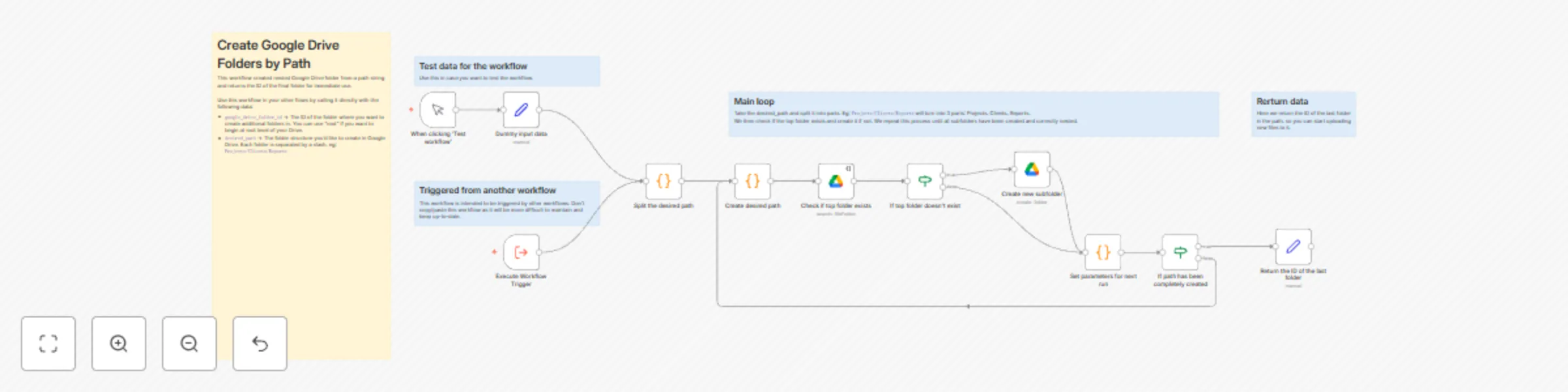
This workflow creates nested Google Drive folders from a path string (like `Projects/Clients/Reports`). It automatically handles the necessary folder lookups and creation steps required by Google Drive, then outputs the final folder's ID for immediate use.
### How it works
This workflow streamlines the creation of nested folders in Google Drive:
1. **Input:** Provide a `root_folder_id` and a path (e.g., `Projects/Clients/Reports`) as input.
2. **Path Parsing:** The workflow splits the path into individual folder names (based on the `/` separator)
3. **Iterative Check & Create:** Loops through each part of your path:
- Searches within the _current_ parent folder (starting with the `root_folder_id`) for a subfolder matching the name.
- **If found:** Retrieves the existing folder's ID to use as the parent for the next iteration.
- **If not found:** Creates a new folder with that name inside the current parent folder and uses the _new_ folder's ID as the parent for the next iteration.
4. **Output:** Returns the Google Drive Folder ID of the very last folder in the specified path (e.g., the ID for `Reports` in the example above). This ID can then be directly used in subsequent n8n nodes to upload files, create documents, or perform other actions within that specific folder.
### Set up steps
Setting up this workflow requires configuring the connection to Google Drive and knowing where to start creating folders:
1. **Connect Google Drive Account:** Ensure you have a Google Drive credential configured in your n8n instance. Then link your credentials in the workflow: there are 2 Google Drive nodes that will need to be updated.
2. **Identify Starting Folder ID:** Determine the Google Drive Folder ID where your nested structure should begin. You can either use the root of your Google Drive or a specific folder:
- To use the root of Google Drive, simply set `root_folder_id` to `root` (also called "My Drive" in the UI)
- To use a specific folder, open the folder in a webbrowser and look at the URL. The folder ID will be in the last part of the URL: `https://drive.google.com/drive/folders/THIS_IS_THE_FOLDER_ID`.
3. **Prepare Inputs for Execution:** When running the workflow (or triggering it), you will need to provide:
- `google_drive_folder_id` -> this is the root folder ID you identified in step 2.
- `desired_path` -> This is the path you want to create (e.g., `Projects/Clients/Reports`).
Here's an example of how you can call this workflow in your other workflows: