Block 1 - Sticky Note
- Type / Role
- n8n-nodes-base.stickyNote - stickyNote
- Config choices
- Version 1


 Early Deal
This workflow is provided as-is. Please review and test before using in production.
Encode JSON to Base64 String in n8n This example workflow demonstrates how to convert a JSON object into a base64 encoded string using n8n’s built in file processing capabilities. This is a common ...
n8n-nodes-base.stickynote, n8n-nodes-base.set, n8n-nodes-base.manualtrigger, n8n-nodes-base.extractfromfile, n8n-nodes-base.converttofile
This workflow is cataloged by N8N Workflows and links back to its original n8n.io source page by Wyeth.
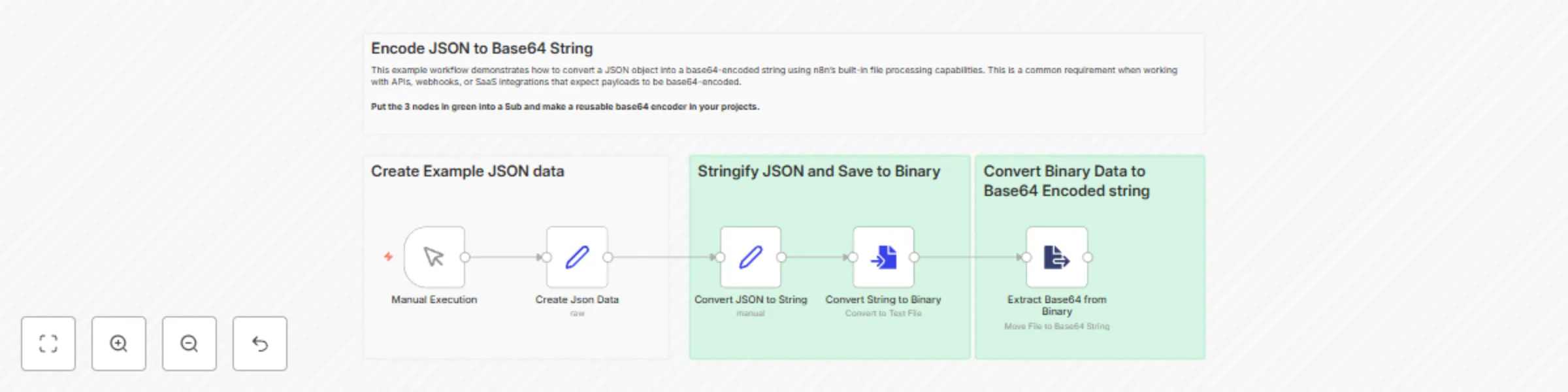
Original n8n.io sourceThis example workflow demonstrates how to convert a JSON object into a base64-encoded string using n8n’s built-in file processing capabilities. This is a common requirement when working with APIs, webhooks, or SaaS integrations that expect payloads to be base64-encoded.
> Tip: The three green-highlighted nodes (Stringify → Convert to File → Extract from File) can be wrapped in a Subworkflow to create a reusable Base64 encoder in your own projects.
Manual Trigger
Start the workflow using the Manual Execution node. This is useful for testing and development.
Create JSON Data
The Create Json Data node uses raw mode to construct a sample object with all major JSON types: strings, numbers, booleans, nulls, arrays, nested objects, etc.
Convert to String
The Convert to String node uses the expression ={{ JSON.stringify($json) }} to flatten the object into a single string field named json_text.
Convert to File
The Convert to File node takes the json_text value and saves it to a UTF-8 encoded binary file in the property encoded_text.
Extract from File
This node takes the binary file and extracts its contents as a base64-encoded string. The result is saved in the base64_text field.
Create Json Data node with your own payload structure.base64_text output field to post to APIs, store in databases, or include in webhook responses.This catalog entry is organized from the workflow JSON. The node-level section below shows the executable blocks available for review before importing the template.
| Workflow | Convert JSON objects to base64 strings with file processing |
|---|---|
| Complexity | intermediate |
| Nodes | 9 |
| Categories | File Management |
| Author | Wyeth |
| Published | 14 Jul 2025 |
Use the JSON export at /data/workflows/6008/6008.json as the source template for this automation.
Open n8n, import the downloaded JSON, and review each node before activating the workflow.
Replace placeholder credentials, API keys, webhook URLs, account IDs, and environment-specific values with your own settings.
Run the workflow manually or in a staging workspace, inspect node output, and confirm downstream systems receive the expected data.
Enable the workflow only after testing, then monitor executions, errors, and rate limits during the first production runs.
Review imported nodes carefully before activation. This catalog entry is intended to help you inspect the workflow structure, understand required services, and find related templates faster.
Node names, credentials, schedules, webhook paths, and external service limits may need adjustment for your workspace.
Encode JSON to Base64 String in n8n This example workflow demonstrates how to convert a JSON object into a base64 encoded string using n8n’s built in file processing capabilities. This is a common ...
Review the workflow JSON, configure any required credentials in n8n, and test the automation in a safe workspace before using it in production.
Yes. Use the block-by-block analysis and the downloadable JSON to inspect each node, then adjust credentials, prompts, schedules, filters, or destinations for your File Management use case.