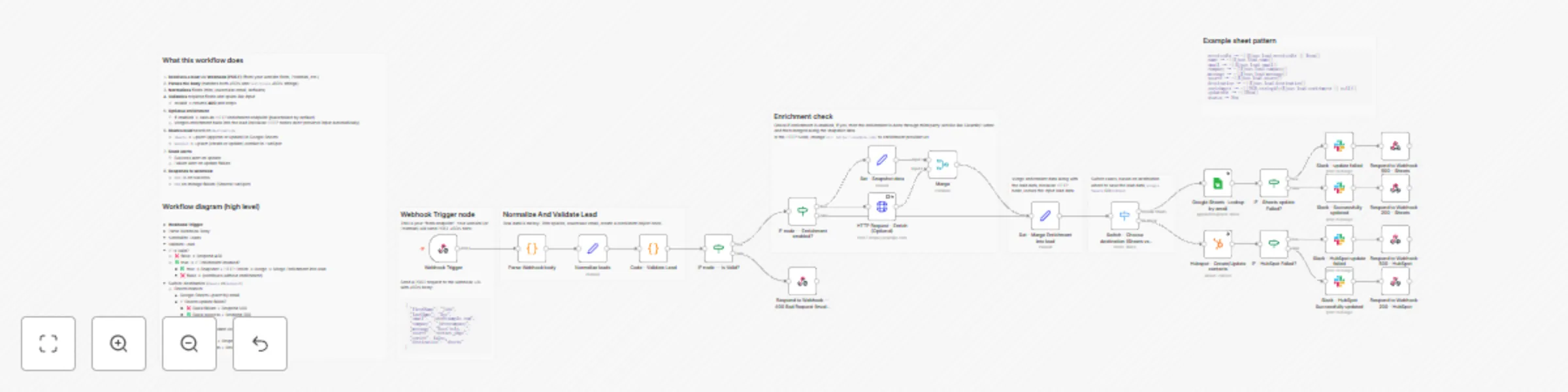
Capture website leads to HubSpot or Google Sheets with Slack follow-up

Workflow preview

Workflow preview
100%
Capture website leads to HubSpot or Google Sheets with Slack follow-up preview
Open on n8n.io

Important notice

This workflow is provided as-is. Please review and test before using in production.

1. Workflow Overview

This n8n template demonstrates how to capture website leads via a webhook, validate the data, optionally enrich it, store it in your CRM (HubSpot) or a simple Google Sheet, and instantly notify you...

Best for

  • Lead Generation automation workflows
  • advanced n8n builders looking for reusable templates

Tools used

n8n-nodes-base.webhook, n8n-nodes-base.stickynote, n8n-nodes-base.set, n8n-nodes-base.code, n8n-nodes-base.if, n8n-nodes-base.respondtowebhook, n8n-nodes-base.httprequest, n8n-nodes-base.switch

Source and attribution

This workflow is cataloged by N8N Workflows and links back to its original n8n.io source page by Mohammad Abubakar.

Original n8n.io source

1.1 Workflow description

Title
Capture website leads to HubSpot or Google Sheets with Slack follow-up
Workflow name
Capture website leads to HubSpot or Google Sheets with Slack follow-up
This n8n template demonstrates how to capture website leads via a webhook, validate the data, optionally enrich it, store it in your CRM (HubSpot) or a simple Google Sheet, and instantly notify your team via email and Slack.

This is ideal for agencies, freelancers, SaaS founders, and small sales teams who want every lead recorded and followed up automatically within seconds.

Good to know
  • The workflow supports two storage options: HubSpot or Google Sheets (choose one branch).
  • Enrichment (Clearbit/Hunter) is optional and can be disabled with a single toggle/IF branch.
  • Consider adding anti-spam (honeypot/captcha) if your form gets abused.
How it works
  1. Webhook receives the lead Your website form sends a POST request to the Webhook URL with lead fields (name, email, message, etc.).
  2. Validation & normalization The workflow trims and normalizes fields (like lowercasing email) and checks required fields. If invalid, it returns a 400 response code immediately.
  3. Optional enrichment (Clearbit/Hunter) If enrichment is enabled, the workflow calls an enrichment API and merges results into the lead object (industry, company size, domain, etc.). If enrichment fails, the workflow continues (doesn’t block lead capture).
  4. Save lead to CRM (Choose one)
  • HubSpot branch: find contact by email → create or update the contact record
  • Google Sheets branch: lookup row by email → update if found → otherwise append a new row
  1. Instant notifications Posts a Slack message to a channel, optionally including a CRM/Sheet link
  2. Success response to the website Returns a 200 response { ok: true } so your website can show a “Thanks!” message.

How to use?
  1. Import the workflow into n8n.
  2. Configure the Webhook node and copy the production URL into your website form submit action.
  3. Choose your storage path:
  • Enable HubSpot nodes OR
  • Enable Google Sheets nodes
  1. Add credentials:
  • Slack credential
  • (Optional) HubSpot / Google Sheets
  • (Optional) Clearbit/Hunter keys in the HTTP Request node
  1. Send a test lead from your website and confirm:
  • Lead saved correctly
  • Email received
  • Slack notification posted
  • Website receives a 200 response

Requirements
  1. An n8n instance (cloud or self-hosted)
  2. One of:
  • HubSpot account (for CRM storage), or
  • Google account + Google Sheets (for spreadsheet storage)
  1. Slack workspace + Slack credentials
  2. Optional: Clearbit/Hunter account for enrichment

1.2 Logical Blocks

This catalog entry is organized from the workflow JSON. The node-level section below shows the executable blocks available for review before importing the template.

2. Block-by-Block Analysis

Block 1 - Webhook Trigger

Type / Role
n8n-nodes-base.webhook - webhook
Config choices
Version 2.1

Block 2 - Sticky Note

Type / Role
n8n-nodes-base.stickyNote - stickyNote
Config choices
Version 1

Block 3 - Normalize leads

Type / Role
n8n-nodes-base.set - set
Config choices
Version 3.4

Block 4 - Sticky Note1

Type / Role
n8n-nodes-base.stickyNote - stickyNote
Config choices
Version 1

Block 5 - Code - Validate Lead

Type / Role
n8n-nodes-base.code - code
Config choices
Version 2

Block 6 - IF node — Is Valid?

Type / Role
n8n-nodes-base.if - if
Config choices
Version 2.3

Block 7 - Respond to Webhook — 400 Bad Request (invalid path)

Type / Role
n8n-nodes-base.respondToWebhook - respondToWebhook
Config choices
Version 1.5

Block 8 - IF node — Enrichment enabled?

Type / Role
n8n-nodes-base.if - if
Config choices
Version 2.3

Block 9 - HTTP Request - Enrich (Optional)

Type / Role
n8n-nodes-base.httpRequest - httpRequest
Config choices
Version 4.3

Block 10 - Set - Merge Enrichment into lead

Type / Role
n8n-nodes-base.set - set
Config choices
Version 3.4

Block 11 - Switch - Choose destination (Sheets vs HubSpot)

Type / Role
n8n-nodes-base.switch - switch
Config choices
Version 3.4

Block 12 - Google Sheets- Lookup by email

Type / Role
n8n-nodes-base.googleSheets - googleSheets
Config choices
Version 4.7

Block 13 - Sticky Note2

Type / Role
n8n-nodes-base.stickyNote - stickyNote
Config choices
Version 1

Block 14 - Set - Snapshot data

Type / Role
n8n-nodes-base.set - set
Config choices
Version 3.4

Block 15 - Merge

Type / Role
n8n-nodes-base.merge - merge
Config choices
Version 3.2

Block 16 - IF - Sheets update Failed?

Type / Role
n8n-nodes-base.if - if
Config choices
Version 2.3

Block 17 - Slack - update failed

Type / Role
n8n-nodes-base.slack - slack
Config choices
Version 2.4

Block 18 - Slack - Successfully updated

Type / Role
n8n-nodes-base.slack - slack
Config choices
Version 2.4

Block 19 - Hubspot - Create/Update contacts

Type / Role
n8n-nodes-base.hubspot - hubspot
Config choices
Version 2.2

Block 20 - IF - HubSpot Failed?

Type / Role
n8n-nodes-base.if - if
Config choices
Version 2.3

Block 21 - Slack - HubSpot Successfully updated

Type / Role
n8n-nodes-base.slack - slack
Config choices
Version 2.4

Block 22 - Slack - HubSpot update failed

Type / Role
n8n-nodes-base.slack - slack
Config choices
Version 2.4

Block 23 - Respond to Webhook - 500 - Sheets

Type / Role
n8n-nodes-base.respondToWebhook - respondToWebhook
Config choices
Version 1.5

Block 24 - Respond to Webhook - 500 - HubSpot

Type / Role
n8n-nodes-base.respondToWebhook - respondToWebhook
Config choices
Version 1.5

Showing the first 24 of 31 workflow blocks. Download the JSON for the full node graph.

3. Summary Table

Workflow Capture website leads to HubSpot or Google Sheets with Slack follow-up
Complexity advanced
Nodes 31
Categories Lead Generation
Author Mohammad Abubakar
Published 01 Jan 2026

4. Reproducing the Workflow from Scratch

  1. 1. Download the workflow JSON

    Use the JSON export at /data/workflows/12374/12374.json as the source template for this automation.

  2. 2. Import the template into n8n

    Open n8n, import the downloaded JSON, and review each node before activating the workflow.

  3. 3. Configure credentials and variables

    Replace placeholder credentials, API keys, webhook URLs, account IDs, and environment-specific values with your own settings.

  4. 4. Test with sample data

    Run the workflow manually or in a staging workspace, inspect node output, and confirm downstream systems receive the expected data.

  5. 5. Activate and monitor

    Enable the workflow only after testing, then monitor executions, errors, and rate limits during the first production runs.

5. General Notes & Resources

Review imported nodes carefully before activation. This catalog entry is intended to help you inspect the workflow structure, understand required services, and find related templates faster.

Node names, credentials, schedules, webhook paths, and external service limits may need adjustment for your workspace.

Frequently asked questions

What does Capture website leads to HubSpot or Google Sheets with Slack follow-up do?

This n8n template demonstrates how to capture website leads via a webhook, validate the data, optionally enrich it, store it in your CRM (HubSpot) or a simple Google Sheet, and instantly notify you...

What do I need before importing this workflow?

Review the workflow JSON, configure any required credentials in n8n, and test the automation in a safe workspace before using it in production.

Can I customize this workflow?

Yes. Use the block-by-block analysis and the downloadable JSON to inspect each node, then adjust credentials, prompts, schedules, filters, or destinations for your Lead Generation use case.