Mohammad Abubakar
Workflows by Mohammad Abubakar
Capture website leads to HubSpot or Google Sheets with Slack follow-up
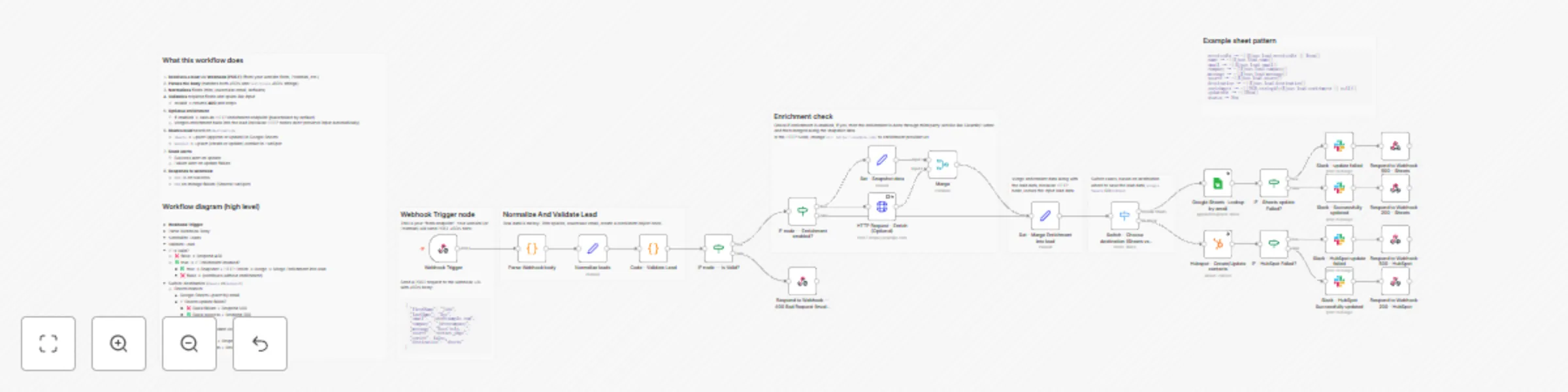
#### This n8n template demonstrates how to capture website leads via a webhook, validate the data, optionally enrich it, store it in your CRM (HubSpot) or a simple Google Sheet, and instantly notify your team via email and Slack. This is ideal for agencies, freelancers, SaaS founders, and small sales teams who want every lead recorded and followed up automatically within seconds. #### Good to know - The workflow supports two storage options: HubSpot or Google Sheets (choose one branch). - Enrichment (Clearbit/Hunter) is optional and can be disabled with a single toggle/IF branch. - Consider adding anti-spam (honeypot/captcha) if your form gets abused. #### How it works 1. **Webhook receives the lead** Your website form sends a POST request to the Webhook URL with lead fields (name, email, message, etc.). 2. **Validation & normalization** The workflow trims and normalizes fields (like lowercasing email) and checks required fields. If invalid, it returns a ```400 response code``` immediately. 3. **Optional enrichment (Clearbit/Hunter)** If enrichment is enabled, the workflow calls an enrichment API and merges results into the lead object (industry, company size, domain, etc.). If enrichment fails, the workflow continues (doesn’t block lead capture). 4. **Save lead to CRM (Choose one)** - **HubSpot branch**: find contact by email → create or update the contact record - **Google Sheets branch**: lookup row by email → update if found → otherwise append a new row 5. **Instant notifications** Posts a Slack message to a channel, optionally including a CRM/Sheet link 6. **Success response to the website** Returns a ```200 response``` ```{ ok: true }``` so your website can show a “Thanks!” message. --- #### How to use? 1. Import the workflow into n8n. 2. Configure the Webhook node and copy the production URL into your website form submit action. 3. Choose your storage path: - Enable HubSpot nodes OR - Enable Google Sheets nodes 4. Add credentials: - Slack credential - (Optional) HubSpot / Google Sheets - (Optional) Clearbit/Hunter keys in the HTTP Request node 5. Send a test lead from your website and confirm: - Lead saved correctly - Email received - Slack notification posted - Website receives a 200 response --- #### Requirements 1. An n8n instance (cloud or self-hosted) 2. One of: - HubSpot account (for CRM storage), or - Google account + Google Sheets (for spreadsheet storage) 3. Slack workspace + Slack credentials 4. Optional: Clearbit/Hunter account for enrichment
Aggregate crypto and stock market news feed from multiple sources
## This n8n template helps in making informed decisions for Crypto and Stocks Trading by helping you keep track of breaking changes in the market. ## How it works - Collects crypto and/or stock market headlines from multiple sources: CoinDesk, CoinTelegraph, Google News, and X (via an RSS proxy). - Normalizes all items into a consistent structure with fields like `source`, `kind`, `title`, `url`, `publishedAt`, `matchedKeywords`, `media[]`, and `topic`. - Uses topic-specific keyword lists to keep relevant items and a small spam blacklist to drop giveaways / airdrops / obvious noise. - Deduplicates items across runs by tracking previously seen links. - Bundles everything into a compact `{ topic, items[] }` JSON payload and sends it to your own backend or UI via HTTP. ## Set up steps - Import the template JSON into a new n8n workflow. - In the **Init RunConfig** code node, choose a default `topic` (`crypto` or `stocks`), which platforms to use (CoinDesk / CoinTelegraph / Google News / X), and optionally adjust tickers and keywords. - Open the final **HTTP Request - Send to your backend** node and: - Replace the example URL with your own API endpoint. - Either set a `x-webhook-secret` header that your backend validates, or remove this header entirely if you don’t use it. - Create any required credentials (for the webhook header auth and for HTTP requests, if needed) – the template does **not** contain real API keys. - Enable either the **Schedule Trigger** for periodic runs or the **Webhook** trigger for on-demand runs from your app. - Expect roughly 10–20 minutes to import, configure, and test the first run; detailed per-node notes are available as sticky notes inside the workflow canvas.