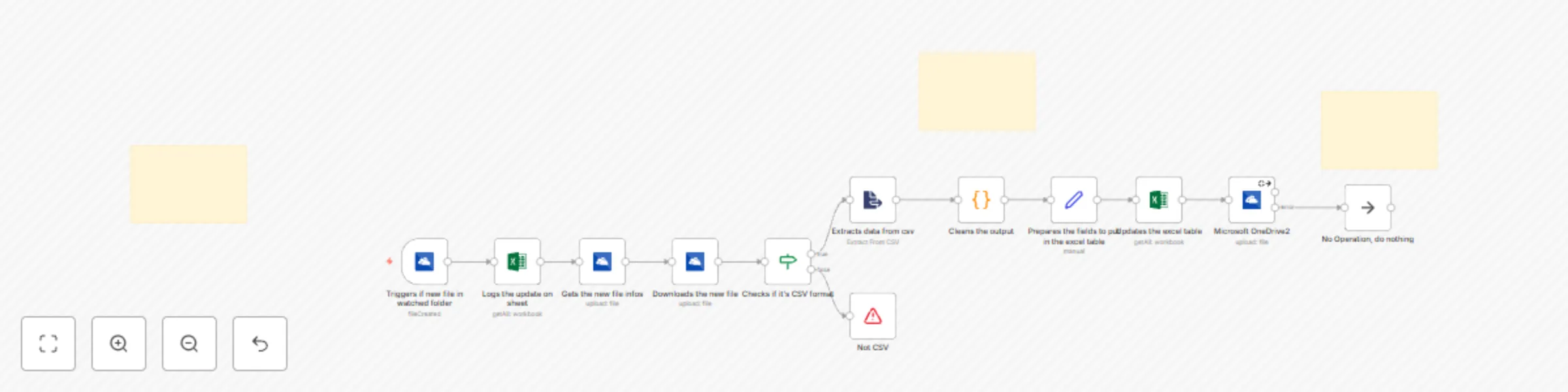
๐Ÿ“‚ Automatically update stock portfolio from OneDrive to Excel

Workflow preview

Workflow preview
100%
๐Ÿ“‚ Automatically update stock portfolio from OneDrive to Excel preview
Open on n8n.io

Important notice

This workflow is provided as-is. Please review and test before using in production.

1. Workflow Overview

Seamlessly Sync and Update Data from a csv in OneDrive to Excel with n8n This workflow is perfect for users who need a reliable, automated way to transfer and organize data from OneDrive into Excel...

Best for

  • File Management automation workflows
  • advanced n8n builders looking for reusable templates

Tools used

n8n-nodes-base.microsoftonedrivetrigger, n8n-nodes-base.stopanderror, n8n-nodes-base.extractfromfile, n8n-nodes-base.microsoftonedrive, n8n-nodes-base.stickynote, n8n-nodes-base.code, n8n-nodes-base.noop, n8n-nodes-base.microsoftexcel

Source and attribution

This workflow is cataloged by N8N Workflows and links back to its original n8n.io source page by Louis.

Original n8n.io source

1.1 Workflow description

Title
๐Ÿ“‚ Automatically update stock portfolio from OneDrive to Excel
Workflow name
๐Ÿ“‚ Automatically update stock portfolio from OneDrive to Excel

Seamlessly Sync and Update Data from a csv in OneDrive to Excel with n8n

This workflow is perfect for users who need a reliable, automated way to transfer and organize data from OneDrive into Excelโ€”especially for tasks like portfolio tracking, inventory management, and record-keeping. By monitoring your OneDrive folder for new CSV files, it performs data cleaning, transformation, and real-time updates in an Excel sheet, ensuring only new or changed records are added.


How it Works

  1. Automated Monitoring: Every minute, the workflow scans a designated OneDrive folder for new files.
  2. File Verification: It checks if the detected file is in CSV format; if not, the process stops with an error message.
  3. Data Extraction and Cleaning: CSV data is loaded, and irrelevant headers are removed before mapping to specified columns in Excel.
  4. Excel Update: The workflow maps data to your Excel sheet, updating only new or modified entries based on a unique identifier ("Ticker/ISIN").
  5. Cleanup: To keep your OneDrive organized, processed files are deleted after updating Excel.

Setup Steps

  1. Connect OneDrive and Excel Accounts: Link your Microsoft OneDrive and Excel accounts in n8n.
  2. Designate Folder and Worksheet: Specify the OneDrive folder for monitoring and the Excel sheet for data updates.
  3. Configure Sync Frequency and CSV Validation: Set the monitoring frequency to every minute and ensure the workflow identifies CSV files accurately.

Once configured, this workflow offers a hands-free, efficient solution to keep your OneDrive and Excel data synchronized effortlessly.

1.2 Logical Blocks

This catalog entry is organized from the workflow JSON. The node-level section below shows the executable blocks available for review before importing the template.

2. Block-by-Block Analysis

Block 1 - Triggers if new file in watched folder

Type / Role
n8n-nodes-base.microsoftOneDriveTrigger - microsoftOneDriveTrigger
Config choices
Version 1

Block 2 - Not CSV

Type / Role
n8n-nodes-base.stopAndError - stopAndError
Config choices
Version 1

Block 3 - Extracts data from csv

Type / Role
n8n-nodes-base.extractFromFile - extractFromFile
Config choices
Version 1

Block 4 - Microsoft OneDrive2

Type / Role
n8n-nodes-base.microsoftOneDrive - microsoftOneDrive
Config choices
Version 1

Block 5 - Sticky Note

Type / Role
n8n-nodes-base.stickyNote - stickyNote
Config choices
Version 1

Block 6 - Cleans the output

Type / Role
n8n-nodes-base.code - code
Config choices
Version 2

Block 7 - Sticky Note1

Type / Role
n8n-nodes-base.stickyNote - stickyNote
Config choices
Version 1

Block 8 - No Operation, do nothing

Type / Role
n8n-nodes-base.noOp - noOp
Config choices
Version 1

Block 9 - Sticky Note2

Type / Role
n8n-nodes-base.stickyNote - stickyNote
Config choices
Version 1

Block 10 - Logs the update on sheet

Type / Role
n8n-nodes-base.microsoftExcel - microsoftExcel
Config choices
Version 2.1

Block 11 - Gets the new file infos

Type / Role
n8n-nodes-base.microsoftOneDrive - microsoftOneDrive
Config choices
Version 1

Block 12 - Downloads the new file

Type / Role
n8n-nodes-base.microsoftOneDrive - microsoftOneDrive
Config choices
Version 1

Block 13 - Checks if it's CSV format

Type / Role
n8n-nodes-base.if - if
Config choices
Version 2.2

Block 14 - Prepares the fields to put in the excel table

Type / Role
n8n-nodes-base.set - set
Config choices
Version 3.4

Block 15 - Updates the excel table

Type / Role
n8n-nodes-base.microsoftExcel - microsoftExcel
Config choices
Version 2.1

3. Summary Table

Workflow ๐Ÿ“‚ Automatically update stock portfolio from OneDrive to Excel
Complexity advanced
Nodes 15
Categories File Management
Author Louis
Published 29 Oct 2024

4. Reproducing the Workflow from Scratch

  1. 1. Download the workflow JSON

    Use the JSON export at /data/workflows/2507/2507.json as the source template for this automation.

  2. 2. Import the template into n8n

    Open n8n, import the downloaded JSON, and review each node before activating the workflow.

  3. 3. Configure credentials and variables

    Replace placeholder credentials, API keys, webhook URLs, account IDs, and environment-specific values with your own settings.

  4. 4. Test with sample data

    Run the workflow manually or in a staging workspace, inspect node output, and confirm downstream systems receive the expected data.

  5. 5. Activate and monitor

    Enable the workflow only after testing, then monitor executions, errors, and rate limits during the first production runs.

5. General Notes & Resources

Review imported nodes carefully before activation. This catalog entry is intended to help you inspect the workflow structure, understand required services, and find related templates faster.

Node names, credentials, schedules, webhook paths, and external service limits may need adjustment for your workspace.

Frequently asked questions

What does ๐Ÿ“‚ Automatically update stock portfolio from OneDrive to Excel do?

Seamlessly Sync and Update Data from a csv in OneDrive to Excel with n8n This workflow is perfect for users who need a reliable, automated way to transfer and organize data from OneDrive into Excel...

What do I need before importing this workflow?

Review the workflow JSON, configure any required credentials in n8n, and test the automation in a safe workspace before using it in production.

Can I customize this workflow?

Yes. Use the block-by-block analysis and the downloadable JSON to inspect each node, then adjust credentials, prompts, schedules, filters, or destinations for your File Management use case.