Automatic email classification with Gmail and Claude AI

Workflow preview

Workflow preview
100%
Automatic email classification with Gmail and Claude AI preview
Open on n8n.io

Important notice

This workflow is provided as-is. Please review and test before using in production.

1. Workflow Overview

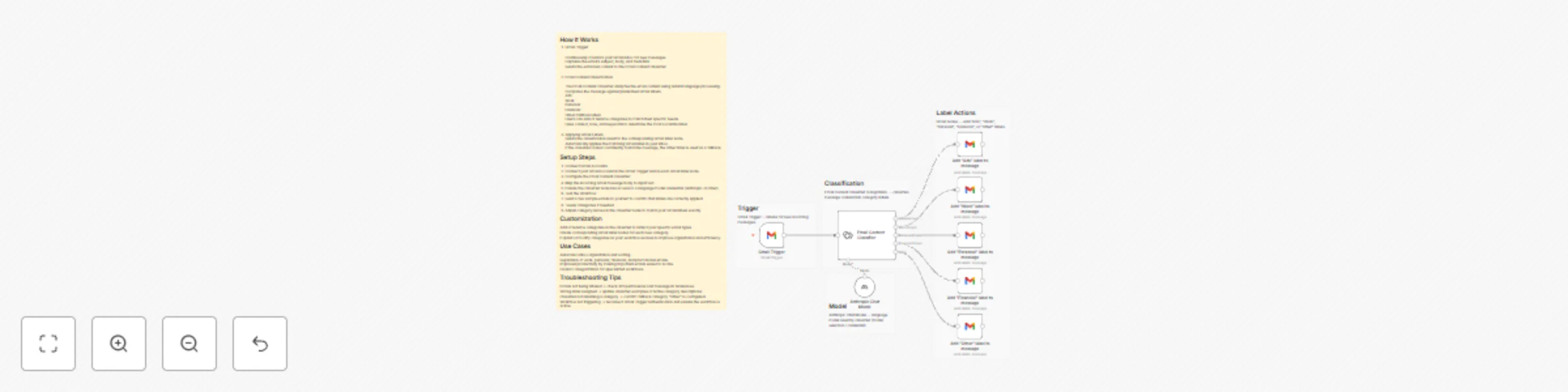
How It Works 1.Gmail Trigger Continuously monitors your Gmail inbox for new messages. Captures the email’s subject, body, and metadata. Sends the extracted content to the Email Content Classifier. ...

Best for

  • Ticket Management automation workflows
  • AI Summarization automation workflows
  • intermediate n8n builders looking for reusable templates

Tools used

n8n-nodes-base.stickynote, n8n-nodes-base.gmail, @n8n/n8n-nodes-langchain.lmchatanthropic, n8n-nodes-base.gmailtrigger, @n8n/n8n-nodes-langchain.textclassifier

Source and attribution

This workflow is cataloged by N8N Workflows and links back to its original n8n.io source page by Ayis Saliaris Fasseas.

Original n8n.io source

1.1 Workflow description

Title
Automatic email classification with Gmail and Claude AI
Workflow name
Automatic email classification with Gmail and Claude AI

How It Works 1.Gmail Trigger

  • Continuously monitors your Gmail inbox for new messages.
  • Captures the email’s subject, body, and metadata.
  • Sends the extracted content to the Email Content Classifier.

2.Email Content Classification

The Email Content Classifier analyzes the email content using natural language processing.

Compares the message against predefined Gmail labels:

  • Ads
  • Work
  • Personal
  • Financial
  • Other (fallback label)

Users can add or rename categories to match their specific needs.

Uses context, tone, and keywords to determine the most accurate label.

3.Applying Gmail Labels

  • Sends the classification result to the corresponding Gmail label node.
  • Automatically applies the matching Gmail label in your inbox.
  • If the classifier cannot confidently match the message, the Other label is used as a fallback.

Setup Steps

  • Connect Gmail Accounts
  • Connect your Gmail account in the Gmail Trigger and in each Gmail label node.
  • Configure the Email Content Classifier
  • Map the incoming Gmail message body to inputText.
  • Ensure the classifier node has access to a language model credential (Anthropic or other).
  • Test the Workflow
  • Send a few sample emails to yourself to confirm that labels are correctly applied.
  • Tweak Categories if Needed
  • Adjust category names in the classifier node to match your Gmail labels exactly.

Customization

  • Add or rename categories in the classifier to reflect your specific email types.
  • Create corresponding Gmail label nodes for each new category.
  • Expand or modify categories as your workflow evolves to improve organization and efficiency.

Use Cases

  • Automatic inbox organization and sorting.
  • Separation of work, personal, financial, and promotional emails.
  • Improved productivity by making important emails easier to locate.
  • Custom categorization for specialized workflows.

Troubleshooting Tips

  • Emails not being labeled → check API permissions and message ID references.
  • Wrong label assigned → update classifier examples or refine category descriptions.
  • Classifier not returning a category → confirm fallback category “Other” is configured.
  • Workflow not triggering → reconnect Gmail Trigger authentication and ensure the workflow is active.

1.2 Logical Blocks

This catalog entry is organized from the workflow JSON. The node-level section below shows the executable blocks available for review before importing the template.

2. Block-by-Block Analysis

Block 1 - Sticky Note3

Type / Role
n8n-nodes-base.stickyNote - stickyNote
Config choices
Version 1

Block 2 - Sticky Note2

Type / Role
n8n-nodes-base.stickyNote - stickyNote
Config choices
Version 1

Block 3 - Sticky Note1

Type / Role
n8n-nodes-base.stickyNote - stickyNote
Config choices
Version 1

Block 4 - Sticky Note4

Type / Role
n8n-nodes-base.stickyNote - stickyNote
Config choices
Version 1

Block 5 - Sticky Note

Type / Role
n8n-nodes-base.stickyNote - stickyNote
Config choices
Version 1

Block 6 - Add "Ads" label to message

Type / Role
n8n-nodes-base.gmail - gmail
Config choices
Version 2.1

Block 7 - Add "Work" label to message

Type / Role
n8n-nodes-base.gmail - gmail
Config choices
Version 2.1

Block 8 - Add "Personal" label to message

Type / Role
n8n-nodes-base.gmail - gmail
Config choices
Version 2.1

Block 9 - Add "Financial" label to message

Type / Role
n8n-nodes-base.gmail - gmail
Config choices
Version 2.1

Block 10 - Add "Other" label to message

Type / Role
n8n-nodes-base.gmail - gmail
Config choices
Version 2.1

Block 11 - Anthropic Chat Model

Type / Role
@n8n/n8n-nodes-langchain.lmChatAnthropic - lmChatAnthropic
Config choices
Version 1.3

Block 12 - Gmail Trigger

Type / Role
n8n-nodes-base.gmailTrigger - gmailTrigger
Config choices
Version 1.3

Block 13 - Email Content Classifier

Type / Role
@n8n/n8n-nodes-langchain.textClassifier - textClassifier
Config choices
Version 1.1

3. Summary Table

Workflow Automatic email classification with Gmail and Claude AI
Complexity intermediate
Nodes 13
Categories Ticket Management, AI Summarization
Author Ayis Saliaris Fasseas
Published 21 Nov 2025

4. Reproducing the Workflow from Scratch

  1. 1. Download the workflow JSON

    Use the JSON export at /data/workflows/11114/11114.json as the source template for this automation.

  2. 2. Import the template into n8n

    Open n8n, import the downloaded JSON, and review each node before activating the workflow.

  3. 3. Configure credentials and variables

    Replace placeholder credentials, API keys, webhook URLs, account IDs, and environment-specific values with your own settings.

  4. 4. Test with sample data

    Run the workflow manually or in a staging workspace, inspect node output, and confirm downstream systems receive the expected data.

  5. 5. Activate and monitor

    Enable the workflow only after testing, then monitor executions, errors, and rate limits during the first production runs.

5. General Notes & Resources

Review imported nodes carefully before activation. This catalog entry is intended to help you inspect the workflow structure, understand required services, and find related templates faster.

Node names, credentials, schedules, webhook paths, and external service limits may need adjustment for your workspace.

Frequently asked questions

What does Automatic email classification with Gmail and Claude AI do?

How It Works 1.Gmail Trigger Continuously monitors your Gmail inbox for new messages. Captures the email’s subject, body, and metadata. Sends the extracted content to the Email Content Classifier. ...

What do I need before importing this workflow?

Review the workflow JSON, configure any required credentials in n8n, and test the automation in a safe workspace before using it in production.

Can I customize this workflow?

Yes. Use the block-by-block analysis and the downloadable JSON to inspect each node, then adjust credentials, prompts, schedules, filters, or destinations for your Ticket Management, AI Summarization use case.