Automated meeting attendance tagging for Zoom Webinars with KlickTipp

Workflow preview

Workflow preview
100%
Automated meeting attendance tagging for Zoom Webinars with KlickTipp preview
Open on n8n.io

Important notice

This workflow is provided as-is. Please review and test before using in production.

1. Workflow Overview

Community Node Disclaimer : This workflow uses KlickTipp community nodes. Introduction This workflow listens to Zoom events, validates the webhook (HM...

Best for

  • Lead Nurturing automation workflows
  • advanced n8n builders looking for reusable templates

Tools used

n8n-nodes-base.crypto, n8n-nodes-base.set, n8n-nodes-base.respondtowebhook, n8n-nodes-base.if, n8n-nodes-base.stickynote, custom.klicktipp, n8n-nodes-klicktipp.klicktipp, n8n-nodes-base.switch

Source and attribution

This workflow is cataloged by N8N Workflows and links back to its original n8n.io source page by KlickTipp.

Original n8n.io source

1.1 Workflow description

Title
Automated meeting attendance tagging for Zoom Webinars with KlickTipp
Workflow name
Automated meeting attendance tagging for Zoom Webinars with KlickTipp

Community Node Disclaimer: This workflow uses KlickTipp community nodes.

Introduction

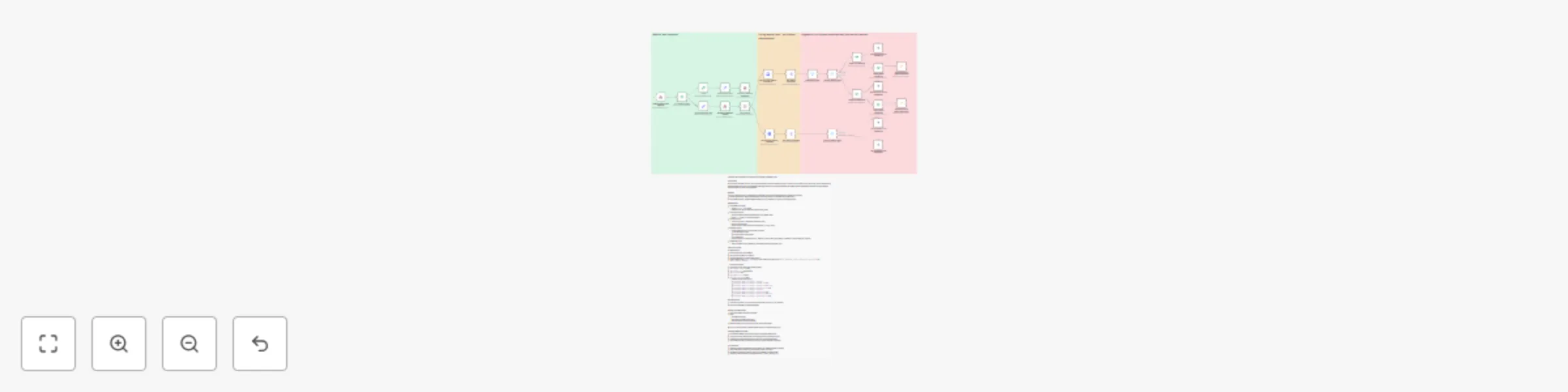
This workflow listens to Zoom webinar.ended events, validates the webhook (HMAC), fetches the past webinar details/participants, and tags each participant in KlickTipp based on attendance thresholds (e.g., ≥90%, ≥60%). It supports routing by webinar topic (Anfänger vs. Experten) so you can run differentiated follow-ups automatically.

Benefits

  • Hands-off segmentation based on real attendance
  • Accurate follow-ups (full, partial, or no attendance)
  • Scales to multiple webinars with simple rule extensions

Key Features

  • Webhook validation for Zoom URL registration (HMAC SHA256)
  • Zoom API calls to retrieve past webinar & participants by UUID
  • Routing by webinar name (Beginner/Expert)
  • Attendance thresholds via IF nodes (≥90% full, 60–89% partial)
  • KlickTipp tagging for engagement-driven campaigns

Tags (KlickTipp Setup)

  • Zoom webinar E-Mail Zustellung für Anfänger
  • Zoom webinar E-Mail Zustellung für Anfänger attended
  • Zoom webinar E-Mail Zustellung für Anfänger attended fully
  • Zoom webinar E-Mail Zustellung für Anfänger not attended
  • Zoom webinar E-Mail Zustellung für Experten
  • Zoom webinar E-Mail Zustellung für Experten attended
  • Zoom webinar E-Mail Zustellung für Experten attended fully
  • Zoom webinar E-Mail Zustellung für Experten not attended

Important Note

This workflow is based on the companion workflow “Automate Webinar Registration with Zoom & KlickTipp Form Integration”.
➡️ Both workflows must be activated together for the automations to function correctly.

In KlickTipp you should:

  • Create a landing page for webinar registration.
  • Set up an email campaign for invitations and follow-ups.
  • Manually create the necessary tags based on list above

Testing & Deployment

  1. End a Zoom webinar tied to this flow.
  2. Confirm the webhook triggers and participants are fetched.
  3. Verify the correct attendance tags appear on contacts in KlickTipp.

> 💡 Tip: Use test emails and tweak duration to simulate different attendance bands.

Customization

  • Adjust thresholds (e.g., 80% for “full”) in IF nodes.
  • Duplicate routing/tag blocks to support more webinar topics.
  • Add error handling (e.g., retries or alerts) for API edge cases.

Resources:

1.2 Logical Blocks

This catalog entry is organized from the workflow JSON. The node-level section below shows the executable blocks available for review before importing the template.

2. Block-by-Block Analysis

Block 1 - Crypto

Type / Role
n8n-nodes-base.crypto - crypto
Config choices
Version 1

Block 2 - Build Validation Body

Type / Role
n8n-nodes-base.set - set
Config choices
Version 2

Block 3 - Respond to Webhook (Validation)

Type / Role
n8n-nodes-base.respondToWebhook - respondToWebhook
Config choices
Version 1

Block 4 - Build Normal Event Body

Type / Role
n8n-nodes-base.set - set
Config choices
Version 2

Block 5 - Respond to Webhook (Events)

Type / Role
n8n-nodes-base.respondToWebhook - respondToWebhook
Config choices
Version 1

Block 6 - URL Validation check

Type / Role
n8n-nodes-base.if - if
Config choices
Version 2.2

Block 7 - Sticky Note

Type / Role
n8n-nodes-base.stickyNote - stickyNote
Config choices
Version 1

Block 8 - Sticky Note1

Type / Role
n8n-nodes-base.stickyNote - stickyNote
Config choices
Version 1

Block 9 - Sticky Note2

Type / Role
n8n-nodes-base.stickyNote - stickyNote
Config choices
Version 1

Block 10 - Tag participant with full attendance1

Type / Role
CUSTOM.klicktipp - klicktipp
Config choices
Version 2

Block 11 - Tag participant for general attendance

Type / Role
n8n-nodes-klicktipp.klicktipp - klicktipp
Config choices
Version 3

Block 12 - Tag participant for full attendance

Type / Role
CUSTOM.klicktipp - klicktipp
Config choices
Version 2

Block 13 - Tag participant for general attendance1

Type / Role
n8n-nodes-klicktipp.klicktipp - klicktipp
Config choices
Version 3

Block 14 - Check general attendance

Type / Role
n8n-nodes-base.if - if
Config choices
Version 2.2

Block 15 - Check general attendance1

Type / Role
n8n-nodes-base.if - if
Config choices
Version 2.2

Block 16 - Sticky Note3

Type / Role
n8n-nodes-base.stickyNote - stickyNote
Config choices
Version 1

Block 17 - Route by meeting name1

Type / Role
n8n-nodes-base.switch - switch
Config choices
Version 3.2

Block 18 - Listen to ending Zoom webinars

Type / Role
n8n-nodes-base.webhook - webhook
Config choices
Version 2.1

Block 19 - Get past Zoom webinar absentees

Type / Role
n8n-nodes-base.httpRequest - httpRequest
Config choices
Version 4.2

Block 20 - Get past Zoom webinar participants

Type / Role
n8n-nodes-base.httpRequest - httpRequest
Config choices
Version 4.2

Block 21 - Tag absentee for non attendance

Type / Role
CUSTOM.klicktipp - klicktipp
Config choices
Version 2

Block 22 - Tag absentee for non attendance1

Type / Role
CUSTOM.klicktipp - klicktipp
Config choices
Version 2

Block 23 - Filter internal users

Type / Role
n8n-nodes-base.filter - filter
Config choices
Version 2.2

Block 24 - Split webinar absentees

Type / Role
n8n-nodes-base.splitOut - splitOut
Config choices
Version 1

Showing the first 24 of 29 workflow blocks. Download the JSON for the full node graph.

3. Summary Table

Workflow Automated meeting attendance tagging for Zoom Webinars with KlickTipp
Complexity advanced
Nodes 29
Categories Lead Nurturing
Author KlickTipp
Published 09 Sept 2025

4. Reproducing the Workflow from Scratch

  1. 1. Download the workflow JSON

    Use the JSON export at /data/workflows/8418/8418.json as the source template for this automation.

  2. 2. Import the template into n8n

    Open n8n, import the downloaded JSON, and review each node before activating the workflow.

  3. 3. Configure credentials and variables

    Replace placeholder credentials, API keys, webhook URLs, account IDs, and environment-specific values with your own settings.

  4. 4. Test with sample data

    Run the workflow manually or in a staging workspace, inspect node output, and confirm downstream systems receive the expected data.

  5. 5. Activate and monitor

    Enable the workflow only after testing, then monitor executions, errors, and rate limits during the first production runs.

5. General Notes & Resources

Review imported nodes carefully before activation. This catalog entry is intended to help you inspect the workflow structure, understand required services, and find related templates faster.

Node names, credentials, schedules, webhook paths, and external service limits may need adjustment for your workspace.

Frequently asked questions

What does Automated meeting attendance tagging for Zoom Webinars with KlickTipp do?

Community Node Disclaimer : This workflow uses KlickTipp community nodes. Introduction This workflow listens to Zoom events, validates the webhook (HM...

What do I need before importing this workflow?

Review the workflow JSON, configure any required credentials in n8n, and test the automation in a safe workspace before using it in production.

Can I customize this workflow?

Yes. Use the block-by-block analysis and the downloadable JSON to inspect each node, then adjust credentials, prompts, schedules, filters, or destinations for your Lead Nurturing use case.