KlickTipp
Workflows by KlickTipp
KlickTipp tag manager: convert tag names to IDs
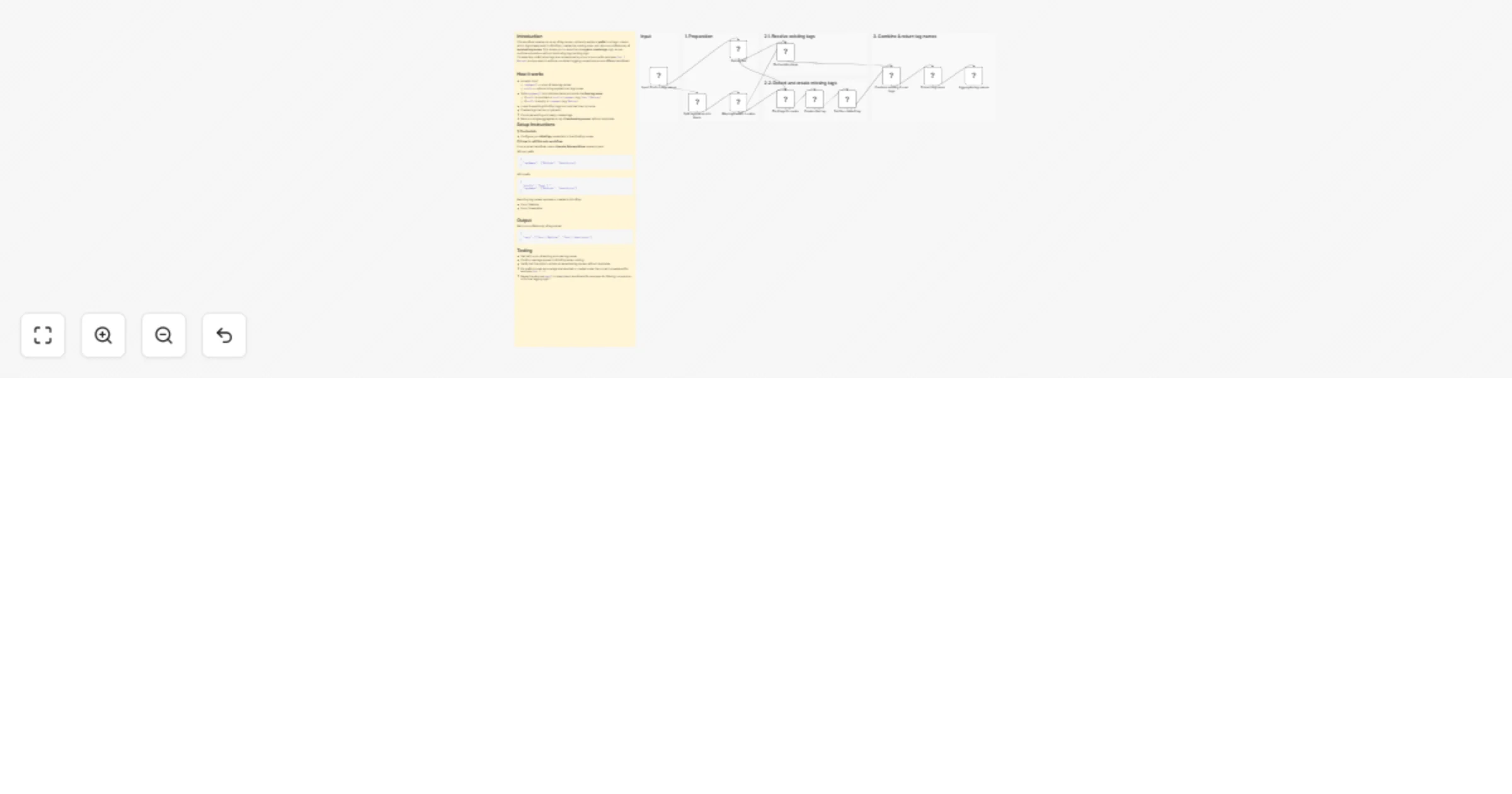
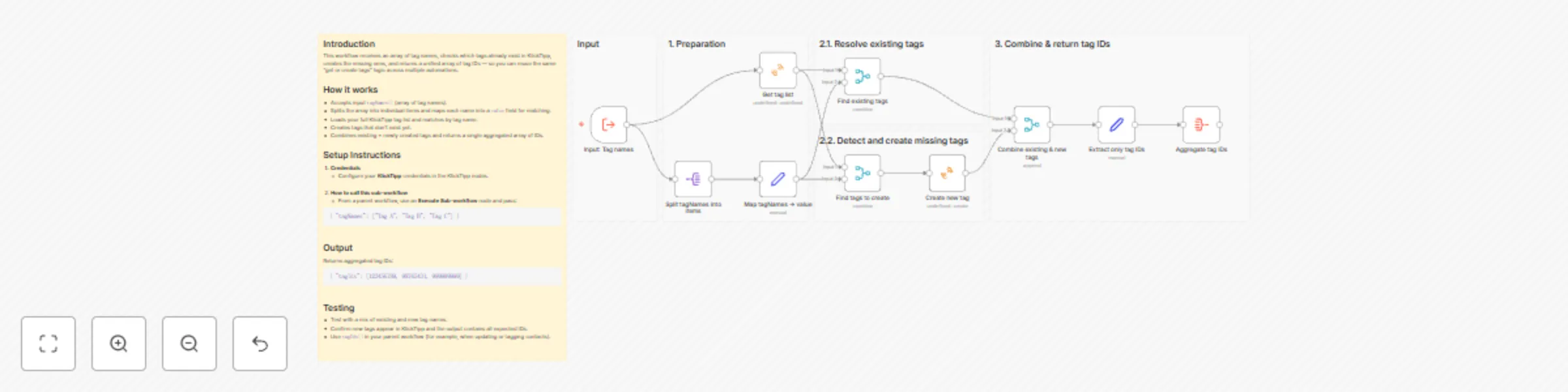
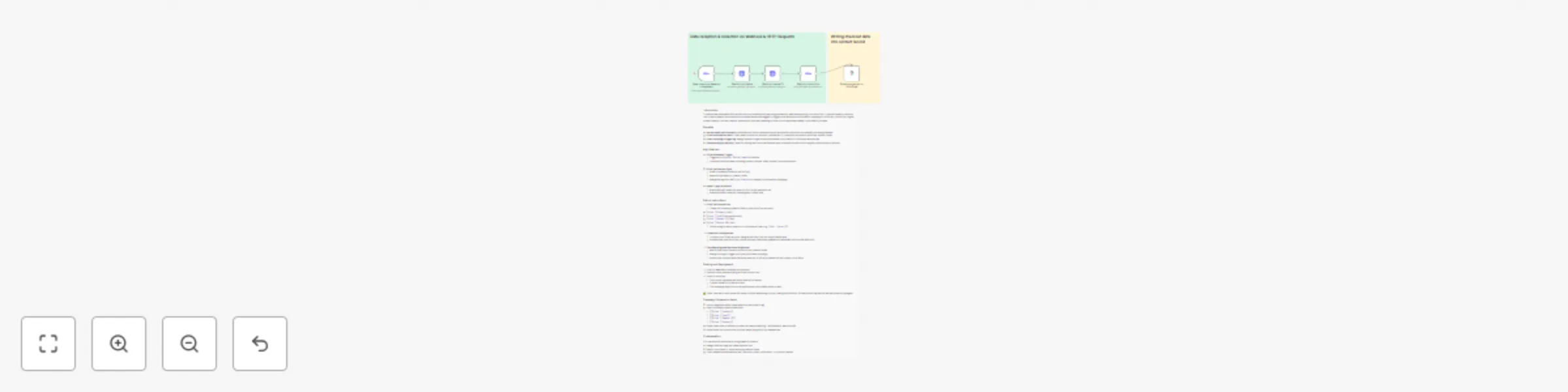
 ## **Community Node Disclaimer** This workflow uses **KlickTipp community nodes**, available for **self-hosted n8n instances only**. --- ## Introduction This workflow receives an array of tag names, checks which tags already exist in KlickTipp, creates the missing ones, and returns a unified array of tag IDs — so you can reuse the same "get or create tags" logic across multiple automations. ## How it works - Accepts input `tagNames[]` (array of tag names). - Splits the array into individual items and maps each name into a `value` field for matching. - Loads your full KlickTipp tag list and matches by tag name. - Creates tags that don’t exist yet. - Combines existing + newly created tags and returns a single aggregated array of IDs. ## Setup Instructions 1. **Credentials** - Configure your **KlickTipp** credentials in the KlickTipp nodes. 2. **How to call this sub-workflow** - From a parent workflow, use an **Execute Sub-workflow** node and pass: ``` { "tagNames": ["Tag A", "Tag B", "Tag C"] } ``` ## Output Returns aggregated tag IDs: ``` { "tagIds": [123456789, 98765431, 999999999] } ``` ## Testing - Test with a mix of existing and new tag names. - Confirm new tags appear in KlickTipp and the output contains all expected IDs. - Use `tagIds[]` in your parent workflow (for example, when updating or tagging contacts).
Synchronize events & attendees between KlickTipp and Google Calendar
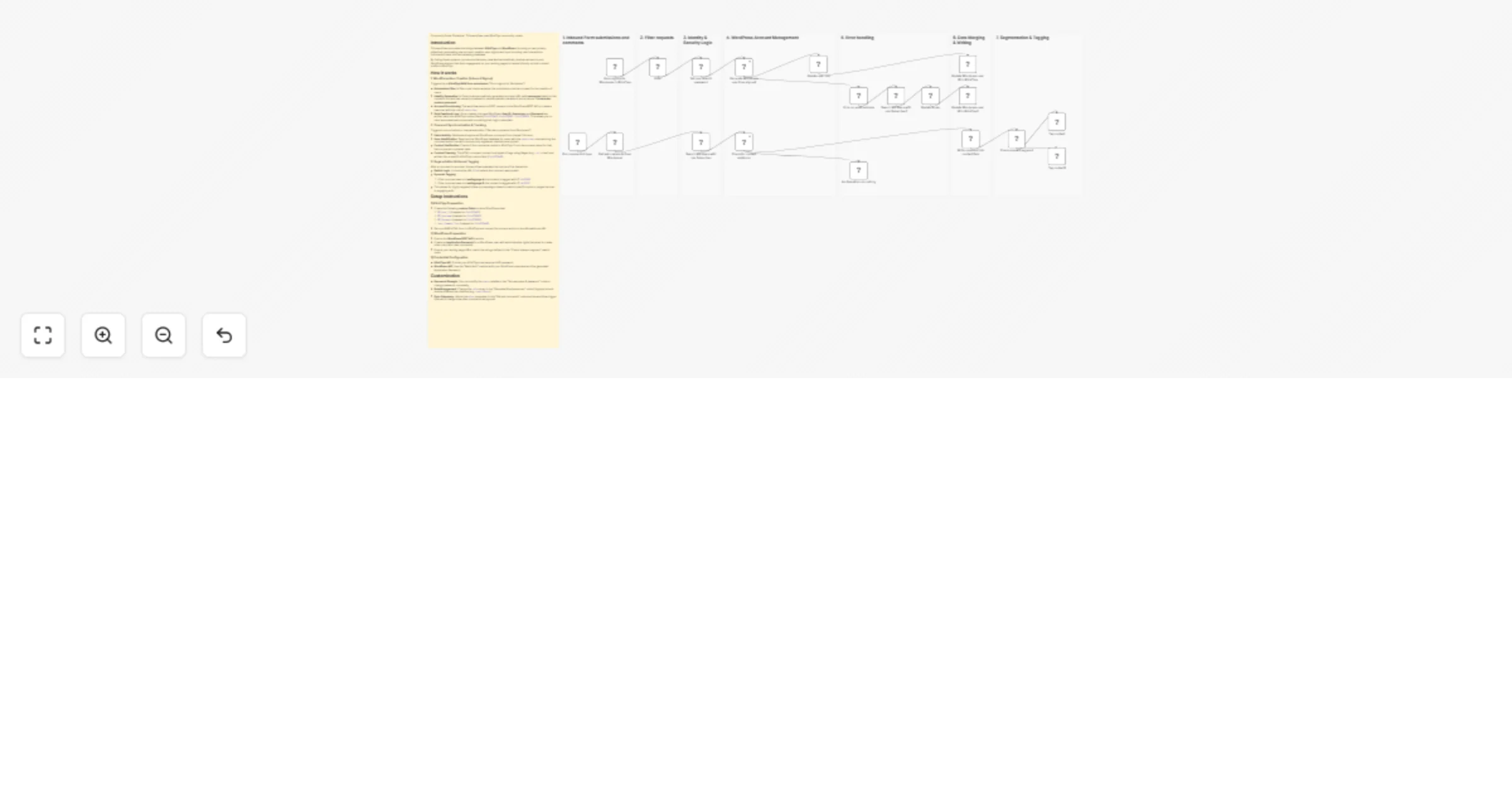
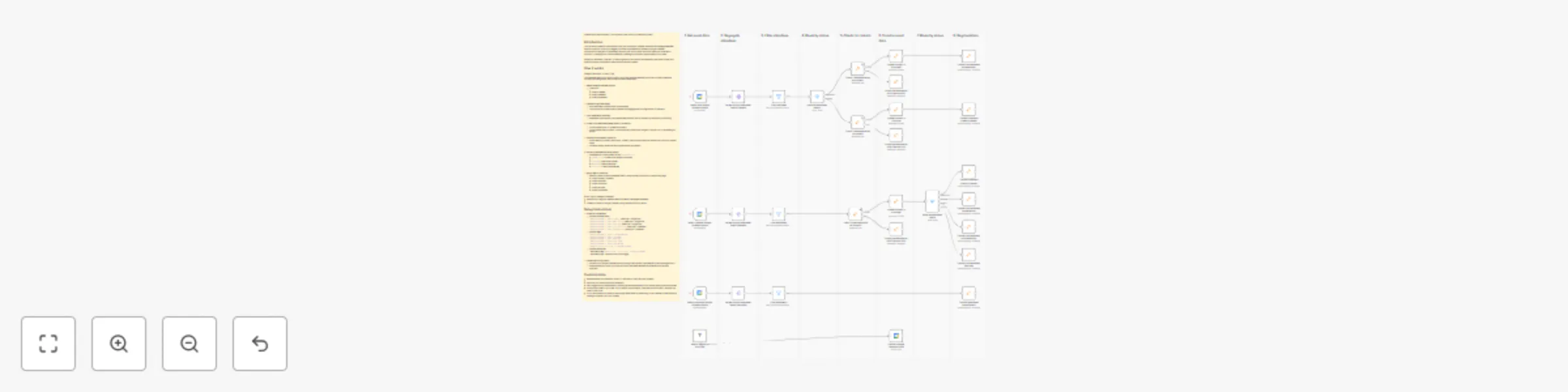
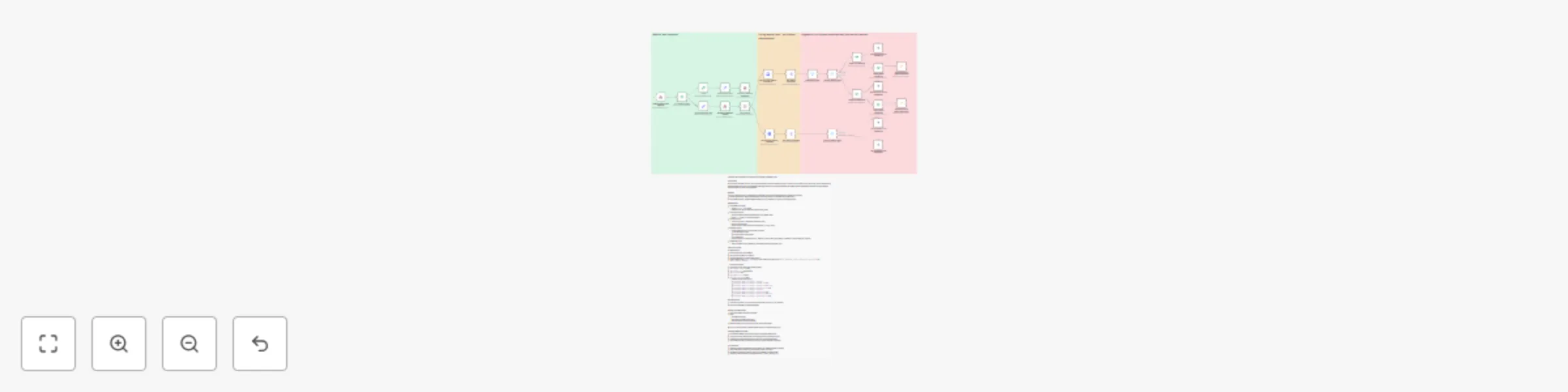
 Community Node Disclaimer: This workflow uses KlickTipp community nodes. ## Introduction This workflow creates a complete two-way synchronization between **KlickTipp** and **Google Calendar**. When a contact in KlickTipp is tagged, an event is automatically created in Google Calendar. If event status changes or if attendees respond, their RSVP status and event status are reflected in KlickTipp — keeping your contact database, campaigns, and event insights always up to date. Perfect for marketers, coaches, or event organizers who want to automatically send event invites and instantly capture participation status without manual updates. ## How it works ### Google Calendar → KlickTipp: This template keeps your KlickTipp list in sync with Google Calendar across the **full event lifecycle**. For every incoming event, the workflow follows these steps: 1. **Watch Google Calendar events** - Listens for: - **Event Created** - **Event Updated** - **Event Cancelled** 2. **Iterate through attendees** - Each attendee is handled as a separate item. - This ensures accurate contact updates and tagging even for large events or webinars. 3. **Filter attendees (optional)** - Attendees from internal or excluded email domains can be filtered out before any processing. 4. **Check if the attendee already exists in KlickTipp** - If the contact exists → update the contact. - If the contact does not exist → subscribe the contact (with Single or Double Opt-In, depending on action). 5. **Transfer event data to KlickTipp** - Event details (summary, description, location, start and end time) are written into KlickTipp custom fields. - Contacts always reflect the most recent event information. 6. **Route by attendee response status** - Attendees are routed based on their `responseStatus`: - `needsAction` → contact was added to an event - `accepted` → **event confirmed** - `declined` → **event declined** - `tentative` → **event considered** 7. **Apply tags in KlickTipp** - Based on event type and attendee status, the workflow applies the corresponding tags: - Event created / updated - Event canceled - Event confirmed - Event declined - Event considered ### KlickTipp → Google Calendar: - Watches for a tag like **“Send an event invitation via Google Calendar”**. - Creates an event in Google Calendar using mapped KlickTipp fields. ## Setup Instructions 1. **KlickTipp Preparation** - Prepare **custom fields** - `Google Calendar | event summary`, data type: "Single line" - `Google Calendar | event description`, data type: "Single line" - `Google Calendar | event location`, data type: "Single line" - `Google Calendar | event start datetime`, data type: "Datetime" - `Google Calendar | event end datetime`, data type: "Datetime" - Prepare **tags**: - `Google Calendar | event created/updated` - `Google Calendar | event canceled` - `Google Calendar | event declined` - `Google Calendar | event confirmed` - `Google Calendar | event considered` - `Send an event invitation via Google Calendar` - Prepare **outbound**: - **Activation tag:** `Send an event invitation via Google Calendar` - **Activation URL:** webhook URL from trigger 2. **Credential Configuration** - Connect your Google Calendar account using **Client ID** and **Client Secret** from the Google Cloud. - Authenticate your KlickTipp connection with **username/password** credentials (API access required). ## Customization - Recommended poll frequency: every 1–5 minutes for near real-time updates. - Adjust to your local timezone if necessary. - Each trigger works independently, allowing partial deployments if only certain event types are needed. - Ensure **End > Start** in your data. If you prefer a fixed duration, compute End from Start + minutes in a Date & Time node. - If you want a Meet link, enable “Add Google Meet video conferencing” in the Calendar node instead of pasting a Calendar URL into Location.
Automatic Eventbrite attendance tagging in KlickTipp
 > ⚠️ **Community Node Disclaimer** > This workflow uses KlickTipp community nodes and works only on **self-hosted** n8n instances. ## Introduction Automate **attendance tracking for Eventbrite events** and sync participation data to KlickTipp. Every 15 minutes, this workflow retrieves attendees, checks who attended, and applies the right segmentation tags. Perfect for event marketers who want real-time post-event segmentation—no manual exports needed. ## Who’s it for For **event organizers**, **digital marketers**, and **KlickTipp users** who already sync Eventbrite registrants and want to automatically track attendance and update CRM tags. > 💡 **Prerequisite:** Contacts must exist in KlickTipp. > Use the related workflow **“Subscribe Eventbrite orders to KlickTipp”** to import registrants first. ## How it works 1. **Schedule Trigger** runs every 15 min. 2. **Eventbrite API** fetches the latest attendees. 3. **Split Out** processes each record. 4. **Switch (Attendance Check)** evaluates `checked_in`: - ✅ **Checked in** → `Eventbrite | Participated` - ❌ **Not checked in** → `Eventbrite | Not participated` 5. **KlickTipp Nodes** apply tags automatically. 6. Segmentation in KlickTipp updates instantly. ## Requirements - Self-hosted n8n (community node support) - Eventbrite account (OAuth2) - KlickTipp account (API access) - Tags in KlickTipp: - `Eventbrite | Participated` - `Eventbrite | Not participated` ## How to set up 1. **Connect accounts:** Eventbrite (OAuth2) & KlickTipp (API). 2. **Set Event ID:** edit Eventbrite node URL → `/events/{event_id}/attendees/`. 3. **Update Tag IDs:** replace with your KlickTipp IDs. 4. **Test:** run manually or wait for trigger; verify correct tags. > ⚠️ *Important:* Eventbrite must record check-ins via the **Organizer App** or barcode scan for accurate tagging. ## How to customize - Adjust **trigger frequency** (e.g., 5 min during event). - Duplicate for **multiple events**. - Extend logic for **ticket type**, **VIP**, or **refunds**. - Combine with **Eventbrite Order Sync** for a full funnel: `Registration → Participation → Refund`. ## Campaign expansion ideas - **Refund tagging:** detect `refunded: true` and tag accordingly. - **Post-event automation:** - `Participated` → thank-you or upsell sequence. - `Not participated` → replay or follow-up invite. - **Performance insights:** use tags for segmentation analytics and ROI tracking.
Sync Eventbrite orders & refunds to KlickTipp for automated event marketing
 **Community Node Disclaimer** This workflow uses KlickTipp community nodes and works only on **self-hosted** n8n instances. ## Introduction Automate **Eventbrite order and refund processing** by syncing data directly to **KlickTipp**. Whenever a participant registers or requests a refund, their profile is updated with event details and tags—keeping your segmentation accurate and automated. ## Who’s it for Perfect for **event organizers**, **digital marketers**, and **automation specialists** using Eventbrite and KlickTipp who want to eliminate manual imports and keep contact data consistent. ## How it works 1. **Eventbrite Trigger** captures `order.placed` and `order.refunded` events. 2. **Switch Node** routes logic: - 🟢 *Order placed* → Adds contact, fetches event data, and tags buyer. - 🔴 *Refunded* → Adds refund tag and removes buyer tag. 3. **Enrichment** stores event name, page URL, and end date in KlickTipp fields. 4. **Fee check** applies extra segmentation for paid vs. free events. 5. KlickTipp updates contacts automatically—no manual steps needed. ## Requirements - Self-hosted **n8n** (community node support) - **Eventbrite** account (OAuth2) - **KlickTipp** account (API access) - KlickTipp custom fields: - `Eventbrite | Event name` - `Eventbrite | Start timestamp` - `Eventbrite | Event page URL` - KlickTipp tags: - `Eventbrite | Buyer` - `Eventbrite | Refundee` - `Eventbrite | Registrant` ## How to set up 1. **Connect accounts:** Eventbrite (OAuth2) & KlickTipp (API). 2. **Map fields:** Event name, date, and URL to KlickTipp custom fields. 3. **Update tag IDs:** Replace with your own KlickTipp IDs. 4. **Test the flow:** Place an order → verify tags → trigger a refund to test removal. > 💡 *Tip:* Enable auto tag removal in KlickTipp so `Buyer` tags are removed when `Refundee` tags are added. ## How to customize - Adapt field mappings to match your KlickTipp setup. - Adjust tag rules for different event types or ticket tiers. - Extend for multiple events or recurring campaigns. ## Campaign expansion ideas - Track **attendance vs. no-shows** using participation tags. - Add **VIP or ticket-type** segmentation. - Trigger **follow-up automations** for refundees or attendees. - Connect to other tools for reminders, surveys, or upsells.
Automated Instagram lead enrichment with AI insights & KlickTipp CRM integration
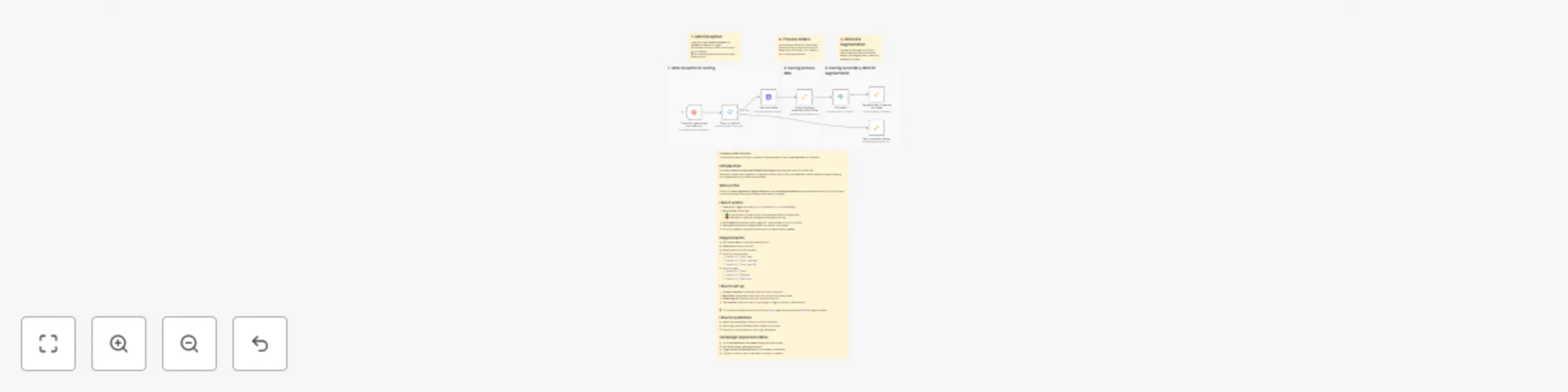
 ## **Community Node Disclaimer** This workflow uses **KlickTipp community nodes**, available for **self-hosted n8n instances only**. --- ## **Who’s it for** Digital marketers, social media managers, and coaches who engage leads through **Instagram DMs** and want to **automate personalized outreach, lead enrichment, and segmentation** in KlickTipp — without manual follow-ups or data entry. --- ## **How it works** This workflow creates a **complete Instagram-to-email enrichment loop** — starting with personalized **DM outreach**, capturing responses via **JotForm**, enriching profile data, and syncing everything with **KlickTipp**. When a workflow trigger or campaign action occurs, it: 1. Sends a **personalized Instagram DM** inviting the user to fill out a JotForm. 2. Listens for **form submissions** in real time. 3. Retrieves the lead’s **Instagram profile data** via the **Facebook Graph API**. 4. Matches the username to the **Instagram DM ID** in a **Google Sheet**. 5. Generates **AI-powered marketing insights** using **OpenAI**. 6. Subscribes or updates the lead in **KlickTipp**, mapping enriched fields and tags. The result: every DM-initiated lead is captured, analyzed, and segmented — ready for intelligent follow-ups and personalized campaigns. --- ## **How to set up** 1. Connect accounts for KlickTipp, JotForm, Google Sheets, Facebook Graph API, and OpenAI. 2. Set up a KlickTipp tag or campaign trigger to initiate the **DM sending**. 3. Create KlickTipp fields for Instagram data (e.g., Bio, Follower count, Insights). 4. Add tags: `Instagram | Outreach`, `Instagram | Enrichment`, `Instagram | Username found`. 5. Test a sample flow: send a DM → fill the JotForm → verify data enrichment in KlickTipp. 💡 *Pro Tip:* Personalize the DM message template and test both personal and business accounts to ensure optimal engagement and AI insight quality. --- ## **Requirements** - Meta (Instagram) Business Account - Facebook Graph API with `instagram_basic` and `pages_show_list` permissions - KlickTipp account with API access - OpenAI connection (`gpt-4.1-mini` model) - (Optional) Active Instagram Page connected to your Facebook App for DM messaging --- ## **How to customize** - Adjust DM content and message timing for different campaigns or audiences. - Edit tags and field mappings in KlickTipp to match your segmentation logic. - Modify the AI prompt to emphasize tone, purchase intent, or niche interests. - Add conditional logic (e.g., `followers > 1,000 → influencer tag`). - Extend the flow to LinkedIn, website tracking, or CRM syncing for multi-channel enrichment.
Convert Instagram comments to leads with KlickTipp & custom DMs
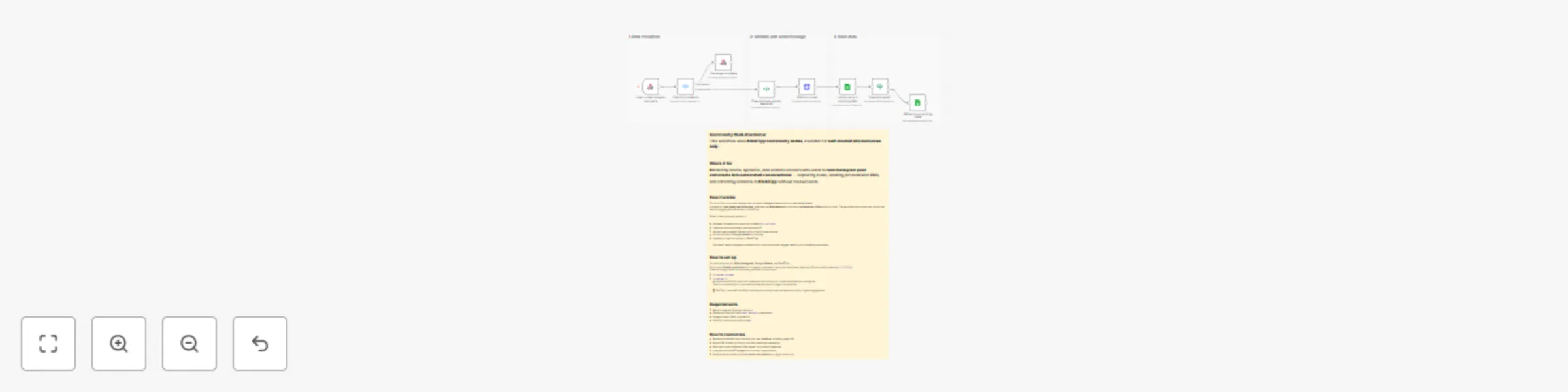
 ## **Community Node Disclaimer** This workflow uses **KlickTipp community nodes**, available for **self-hosted n8n instances only**. --- ## **Who’s it for** Marketing teams, agencies, and content creators who want to **turn Instagram post comments into automated conversations** — capturing leads, sending personalized DMs, and enriching contacts in **KlickTipp** without manual work. --- ## **How it works** This workflow automates engagement between **Instagram users** and your **marketing funnel**. It listens for **new Instagram comments**, validates the **Meta webhook**, and sends **personalized DMs** with form links. The workflow then stores and syncs user data for tagging and enrichment in KlickTipp. When a new comment appears, it: - Validates the webhook setup via the Meta `hub.challenge` - Captures the commenter’s username and ID - Sends a personalized DM with a form link for lead capture - Stores the data in **Google Sheets** for tracking - Updates or tags the contact in **KlickTipp** The result: every Instagram comment turns into a structured, tagged lead for your marketing automation. --- ## **How to set up** Connect accounts for **Meta (Instagram)**, **Google Sheets**, and **KlickTipp**. Set up your **Meta App webhook** for Instagram comments, using your workflow’s webhook URL and verify token (e.g., `KlickTipp`). Create a Google Sheet as a matching table with the columns: - `Instagram username` - `Instagram ID` Authenticate KlickTipp with API credentials and ensure your subscriber fields are configured. Test by commenting on a connected Instagram post to trigger the workflow. 💡 **Pro Tip:** Customize the DM to include your brand’s tone and lead form link for higher engagement. --- ## **Requirements** - Meta (Instagram) Business Account - Facebook Graph API with `pages_messaging` permission - Google Sheets OAuth connection - KlickTipp account with API access --- ## **How to customize** - Replace the default form link with your own **JotForm** or landing page URL. - Adjust DM content to fit your tone and campaign messaging. - Add logic to send different DMs based on comment keywords. - Integrate with **KlickTipp tags** for automatic segmentation. - Expand the workflow to handle **repeat commenters** or trigger follow-ups.
Automate Stripe customer data transfer to KlickTipp with dynamic tagging logic
 Community Node Disclaimer: This workflow uses KlickTipp community nodes. ### How It Works This workflow listens for new or updated customers and for checkout confirmations in **Stripe** and automatically creates or updates contacts in KlickTipp, enriching profiles for segmentation and automated messaging. Tags are applied dynamically: high-value orders (≥100) get a Premium Customer tag, and purchases with certain SKUs (e.g., clothing) receive product-based tags. The process keeps your database clean, accurate, and updated in real time for targeted campaigns. Perfect for digital product sellers, course creators, and service providers seeking an end-to-end automated sales confirmation process. ### Setup Instructions 1. **KlickTipp Preparation** - Prepare **custom fields** - `Products` (Text) - `Total` (Decimal Number) - `Payment ID` (Text) - `Receipt URL` (URL) - Prepare **tags**: - `Premium customer` - `Clothing buyer` 2. **Credential Configuration** - Connect your Stripe account using an API key from the Stripe Dashboard. - Authenticate your KlickTipp connection with username/password credentials (API access required). ### Customization - Launch upsell or membership campaigns using tags. - Use KlickTipp placeholders (`[[Stripe | Products]]`, `[[Stripe | Total]]`, etc.) for dynamic emails. - Route buyers to portals (e.g., Memberspot, Mentortools). - Trigger CRM, Slack notification, or invoice creation.
Sync Adobe Commerce Customer Data to KlickTipp with Value-Based Tagging
 Community Node Disclaimer: This workflow uses KlickTipp community nodes. ### Introduction This workflow monitors orders and customers in Adobe Commerce, automatically creating or updating contacts in KlickTipp, enriching profiles for segmentation and automated messaging. Tags are applied dynamically: high-value orders (≥100) receive a "Premium Customer" tag, and purchases with certain SKUs (e.g., clothing) are assigned product-based tags. Perfect for e-commerce businesses, online retailers, and digital shops that want to eliminate manual data entry and ensure every buyer and customer receives the right messages. ### Setup Instructions 1. **KlickTipp Preparation** - Prepare **custom fields** - `Payment ID` - `Total` - `Receipt URL` - `Products` - Prepare **tags**: - `Premium customer` - `Clothing buyer` 2. **Credential Configuration** - Connect your Magento account using an **Access Token/Base URL** from the Magento Admin Dashboard (System → Extensions → Integrations). - Authenticate your KlickTipp connection with **username/password** credentials (API access required). ### Customization - **Trigger options:** If your Commerce edition supports **webhooks**, you can replace polling with a **Webhook** trigger. - **Cadence & overlap:** 1–30 min are typical; a 1–2 min overlap in the filter to avoid gaps. - **Routing variants:** Change the SKU list, switch to category checks, or add more value tiers.
Automate Zoom attendee segmentation in KlickTipp based on participation
 **Community Node Disclaimer**: This workflow uses KlickTipp community nodes. ### Introduction This workflow automates the end-to-end integration between **Zoom** and **KlickTipp**. It listens to Zoom webinar events (specifically `meeting.ended`), validates incoming webhooks, retrieves participant data from Zoom, and applies segmentation in KlickTipp by subscribing and tagging participants based on their attendance duration. This enables precise, automated campaign targeting without manual effort. --- ### How It Works 1. **Zoom Webhook Listener** - Captures `meeting.ended` events from Zoom. - Validates initial webhook registration via **HMAC** before processing. 2. **Webhook Response Handling** - Distinguishes between Zoom’s URL validation requests and actual event data. - Sends appropriate responses (`plainToken` + `encryptedToken` for validation, or simple `status: ok` for regular events). 3. **Data Retrieval** - Waits briefly (1 second) to ensure meeting data is available. - Pulls the participant list from Zoom’s `past_meetings/{uuid}/participants` endpoint. 4. **Participant Processing** - Splits the list into individual participant items. - Filters out internal users (like the host). - Routes participants based on the **meeting topic** (e.g., *Anfänger* vs. *Experten* webinar). 5. **Attendance Segmentation** - Subscribes each participant to KlickTipp with mapped fields (first name, last name, email). - Uses conditions to check attendance thresholds: - **≥ 90% of total meeting duration → Full attendance** - Otherwise → General attendance - Applies corresponding KlickTipp tags per meeting type. --- ### Key Features - ✅ **Webhook Validation & Security** with HMAC (SHA256). - ✅ **Automated Attendance Calculation** using participant `duration` vs. meeting `duration`. - ✅ **Dynamic Routing** by meeting topic for multiple webinars. - ✅ **KlickTipp Integration** with: - Subscriber creation or update. - Tagging for full vs. general attendance. - ✅ **Scalable Structure** for adding more webinars by extending the Switch and tagging branches. --- ### Setup Instructions **Zoom Setup** - Enable **Zoom API access** and OAuth2 app credentials. - Configure webhook event `meeting.ended`. - Grant scopes: - `meeting:read:meeting` - `meeting:read:list_past_participants` **KlickTipp Setup** - Prepare custom fields: - `Zoom | meeting selection` (Text) - `Zoom | meeting start` (Date & Time) - `Zoom | Join URL` (URL) - `Zoom | Registration ID` (Text) - `Zoom | Duration meeting` (Text) - Create tags for each meeting variation: - `attended`, `attended fully`, `not attended` per meeting name. **n8n Setup** - Add Zoom webhook node (`Listen to ending Zoom meetings`). - Configure validation nodes (`Crypto`, `Build Validation Body`). - Set up HTTP Request node with Zoom OAuth2 credentials. - Connect KlickTipp nodes with your KlickTipp API credentials. --- ### Testing & Deployment 1. End a test Zoom meeting connected to this workflow. 2. Verify that: - The webhook triggers correctly. - Participant list is fetched. - Internal users are excluded. - Participants are subscribed and tagged in KlickTipp. 3. Check contact records in KlickTipp for tag and field updates. 💡 *Pro Tip*: Use test emails and manipulate `duration` values to confirm segmentation logic. --- ### Customization Ideas - Adjust attendance thresholds (e.g., 80% instead of 90%). - Add additional meeting topics via the Switch node. - Trigger email campaigns in KlickTipp based on attendance tags. - Expand segmentation with more granular ranges (e.g., 0–30%, 30–60%, 60–90%). - Add error handling for missing Zoom data or API failures. **Resources:** - [Use KlickTipp Community Node in n8n](https://www.klicktipp.com/support/knowledge-base/install-klicktipp-node-n8n/) - [Automate Workflows: KlickTipp Integration in n8n](https://www.klicktipp.com/support/knowledge-base/klicktipp-integration-n8n/)
Send personalized transactional emails from KlickTipp via SMTP
 **Community Node Disclaimer**: This workflow uses KlickTipp community nodes. ### How It Works **Automate transactional emails from KlickTipp via SMTP** This workflow receives contact data from a KlickTipp Outbound rule, generates a personalized HTML email, and sends it via any SMTP-compatible service (e.g., Gmail SMTP, Outlook, SendGrid, your own mail server). Key fields (e.g., first name, company, website, phone, or other custom fields) can be dynamically mapped into the body. After sending, the workflow saves the email’s HTML content and writes back an Email delivery status (“Sent” or “Failed”) to the contact in KlickTipp for clear visibility. ### Key Features **KlickTipp Outbound Trigger** - Starts when a KlickTipp Outbound rule calls the webhook (e.g., after a tag is applied). - Accepts payload with recipient email and optional custom fields (first name, company, website, phone, etc.). - Easy to adapt for confirmations, updates, welcomes, and announcements. **HTML Email Composer** - Builds a clean, brandable HTML template with safe fallbacks. - Supports per-contact personalization via mapped fields. **SMTP Delivery** - Sends emails using the n8n **Send Email** node (SMTP). - Works with Gmail, Outlook, or any SMTP-compatible service. - Supports From/Reply-To, Subject, HTML body, CC/BCC, and attachments. **Delivery Status Write-Back** - On success: updates a KlickTipp custom field (e.g., **Email delivery status = Sent**). - On error: updates the same field to **Failed** (error details available in execution logs). ### Setup Instructions **Install and Configure Nodes** - Add/enable KlickTipp community nodes and authenticate with valid API credentials. - Configure an **SMTP credential** in n8n: - Host (e.g., smtp.gmail.com) - Port (465 or 587) - Authentication (username, password, or app password) - SSL/TLS settings as required by your provider - Select this credential in the **Send Email** node. - Paste/import your HTML into the **Generate HTML template** node. - Activate the workflow. ### Workflow Logic 1. **Trigger from KlickTipp:** Outbound sends contact data to the workflow. 2. **Generate HTML:** Build personalized HTML (and optional plain-text). 3. **Send via SMTP:** Deliver the message with the **Send Email** node. 4. **On Success:** Update KlickTipp contact → **Email delivery status: Sent**. 5. **On Error:** Update KlickTipp contact → **Email delivery status: Failed** (see logs for details). ### Benefits - **Immediate, personalized communication** without manual steps. - **Consistent branding** with reusable HTML templates. - **Clear observability** by writing back delivery status to KlickTipp. - **Flexible & extensible** for many message types beyond payments. ### Testing and Deployment - Tag a test contact in KlickTipp to trigger the Outbound rule. - Verify the email arrives with correct personalization. - Confirm the **Email delivery status** field updates to **Sent** (or **Failed** for negative tests). - Review execution logs and adjust field mappings if necessary. ### Notes - **Customization:** Swap templates, add CC/BCC, attachments, or a plain-text part for deliverability. - **SMTP Provider Settings:** Refer to your email provider’s SMTP configuration (e.g., Gmail, Outlook, or custom server).
Automated KlickTipp to Gmail: send transactional emails
 **Community Node Disclaimer**: This workflow uses KlickTipp community nodes. ### How It Works **Automate transactional emails from KlickTipp to Gmail** This workflow receives contact data from a KlickTipp Outbound rule, generates a personalized HTML email, and sends it via Gmail. Key fields (e.g., first name, company, website, phone, or other custom fields) are dynamically mapped into the body. After sending, the workflow saves the email’s HTML content and writes back an Email delivery status (“Sent” or “Failed”) to the contact in KlickTipp for clear visibility. ### Key Features **KlickTipp Outbound Trigger** - Starts when a KlickTipp Outbound rule calls the webhook (e.g., after a tag is applied). - Accepts payload with recipient email and optional custom fields (first name, company, website, phone, etc.). - Easy to adapt for confirmations, updates, welcomes, and announcements. **HTML Email Composer** - Builds a clean, brandable HTML template with safe fallbacks. - Supports per-contact personalization via mapped fields. **Gmail Delivery** - Sends via Gmail (OAuth) with From/Reply-To, Subject, and HTML body. - Supports CC/BCC and attachments if needed. **Delivery Status Write-Back** - On success: updates a KlickTipp custom field (e.g., **Email delivery status = Sent**). - On error: updates the same field to **Failed** (error details available in execution logs). ### Setup Instructions **Install and Configure Nodes** - Add/enable KlickTipp community nodes and authenticate with valid API credentials. - Create/authorize a **Gmail** credential (OAuth) and select it in the **Send an email** node. - Paste/import your HTML into the **Generate HTML template** node. - Activate the workflow. ### Workflow Logic 1. **Trigger from KlickTipp:** Outbound sends contact data to the workflow. 2. **Generate HTML:** Build personalized HTML (and optional plain-text). 3. **Send via Gmail:** Deliver the message with the Gmail node. 4. **On Success:** Update KlickTipp contact → **Email delivery status: Sent**. 5. **On Error:** Update KlickTipp contact → **Email delivery status: Failed** (see logs for details). ### Benefits - **Immediate, personalized communication** without manual steps. - **Consistent branding** with reusable HTML templates. - **Clear observability** by writing back delivery status to KlickTipp. - **Flexible & extensible** for many message types beyond payments. ### Testing and Deployment - Tag a test contact in KlickTipp to trigger the Outbound rule. - Verify the Gmail email arrives with correct personalization. - Confirm the **Email delivery status** field updates to **Sent** (or **Failed** for negative tests). - Review execution logs and adjust field mappings if necessary. ### Notes - **Customization:** Swap templates, add CC/BCC, attachments, or a plain-text part for deliverability.
Automated meeting attendance tagging for Zoom Webinars with KlickTipp
 **Community Node Disclaimer**: This workflow uses KlickTipp community nodes. ### Introduction This workflow listens to **Zoom `webinar.ended`** events, validates the webhook (HMAC), fetches the past webinar details/participants, and tags each participant in **KlickTipp** based on attendance thresholds (e.g., ≥90%, ≥60%). It supports routing by webinar topic (Anfänger vs. Experten) so you can run differentiated follow-ups automatically. ### Benefits - **Hands-off segmentation** based on real attendance - **Accurate follow-ups** (full, partial, or no attendance) - **Scales to multiple webinars** with simple rule extensions ### Key Features - **Webhook validation** for Zoom URL registration (HMAC SHA256) - **Zoom API calls** to retrieve past webinar & participants by UUID - **Routing by webinar name** (Beginner/Expert) - **Attendance thresholds** via IF nodes (≥90% full, 60–89% partial) - **KlickTipp tagging** for engagement-driven campaigns --- ### Tags (KlickTipp Setup) - Zoom webinar E-Mail Zustellung für Anfänger - Zoom webinar E-Mail Zustellung für Anfänger attended - Zoom webinar E-Mail Zustellung für Anfänger attended fully - Zoom webinar E-Mail Zustellung für Anfänger not attended - Zoom webinar E-Mail Zustellung für Experten - Zoom webinar E-Mail Zustellung für Experten attended - Zoom webinar E-Mail Zustellung für Experten attended fully - Zoom webinar E-Mail Zustellung für Experten not attended ### Important Note This workflow is based on the companion workflow **“Automate Webinar Registration with Zoom & KlickTipp Form Integration”**. ➡️ Both workflows must be activated together for the automations to function correctly. In KlickTipp you should: - Create a **landing page** for webinar registration. - Set up an **email campaign** for invitations and follow-ups. - **Manually create the necessary tags based on list above** --- ### Testing & Deployment 1. End a Zoom webinar tied to this flow. 2. Confirm the webhook triggers and participants are fetched. 3. Verify the correct **attendance tags** appear on contacts in KlickTipp. > 💡 Tip: Use test emails and tweak `duration` to simulate different attendance bands. ### Customization - Adjust thresholds (e.g., 80% for “full”) in IF nodes. - Duplicate routing/tag blocks to support more webinar topics. - Add error handling (e.g., retries or alerts) for API edge cases. **Resources:** - [Use KlickTipp Community Node in n8n](https://www.klicktipp.com/support/knowledge-base/install-klicktipp-node-n8n/) - [Automate Workflows: KlickTipp Integration in n8n](https://www.klicktipp.com/support/knowledge-base/klicktipp-integration-n8n/)
Automate webinar registration with Zoom & KlickTipp form integration
 **Community Node Disclaimer**: This workflow uses KlickTipp community nodes. ### Introduction This workflow automates Zoom recurring webinar registrations by capturing form submissions from a KlickTipp Landingpage and enriching contacts with webinar details. Depending on the registrant’s webinar choice (for example “E-Mail Zustellung für Anfänger” or “E-Mail Zustellung für Experten”), the system fetches the correct Zoom webinar info and writes it into KlickTipp. Ideal for running scalable webinar funnels without manual data entry. ### Benefits - **Instant contact enrichment**: Automatically populates KlickTipp with Zoom join links and session times. - **Dynamic segmentation**: Applies specific tags for “Beginner” or “Expert” webinar participants. - **Scalable structure**: Router logic allows easy extension for more webinar types. ### Key Features - **KlickTipp Trigger**: - Starts the workflow when a landing-page form is submitted via outbound webhook. - **Switch Router**: - Routes based on the webinar selection. - Supports multiple webinar options. - **Zoom API Integration**: - Retrieves recurring webinar data including join URL and future occurrences. - webinar IDs are set per path (Beginner vs Expert). - **KlickTipp Contact Sync**: - Updates or subscribes contacts in the correct list. - Writes custom fields for join link and next session timestamp. - Applies topic-specific tags for segmentation. --- ### Custom Fields (KlickTipp Setup) | **Name** | **Field type** | |---------------------------------|----------------| | Zoom \| webinar choice | Line Text | | Zoom \| webinar start timestamp | Date & Time | | Zoom \| Join URL | URL | | Zoom \| Registration ID | Line Text | | Zoom \| Duration webinar | Line Text | --- ### Tags (Segmentation) - Zoom webinar E-Mail Zustellung für Anfänger - Zoom webinar E-Mail Zustellung für Experten --- ### Setup Instructions **KlickTipp Preparation** - Create the custom fields above. - Add dropdown for webinar choice on landing page. - Configure outbound webhook to n8n. **Credential Configuration** - Authenticate KlickTipp API. - Connect Zoom via OAuth2 (`webinar:write:registrant` scope). - Insert correct Zoom webinar IDs in workflow nodes. **Field Mapping** - Map the zoom data to the newly created KlickTipp custom fields. - Ensure tags match campaign setup. --- ### Testing and Deployment 1. Submit a registration form. 2. Confirm workflow triggers and Zoom data is fetched. 3. Verify KlickTipp contact is updated with: - Join URL - Start timestamp - Correct segmentation tag ⚠️ *Note*: Zoom OAuth tokens may expire — refresh when needed. Zoom may also enforce API rate limits. --- ### Campaign Expansion Ideas - Add more webinar types and extend router. - Build reminder and follow-up campaigns in KlickTipp by tag. - Track attendance tags for automated post-event actions. ### Customization - Adapt Zoom nodes for webinars. - Add fallback logic if Zoom data is missing. - Trigger cross-tool automations (CRM, Slack, invoicing). **Resources:** - [Use KlickTipp Community Node in n8n](https://www.klicktipp.com/support/knowledge-base/install-klicktipp-node-n8n/) - [Automate Workflows: KlickTipp Integration in n8n](https://www.klicktipp.com/support/knowledge-base/klicktipp-integration-n8n/)
Automated Stripe to KlickTipp: send purchase confirmation emails via tagging
 **Community Node Disclaimer**: This workflow uses KlickTipp community nodes. ### Introduction This workflow automates Stripe checkout confirmations by capturing transaction data and syncing it into KlickTipp. Upon successful checkout, the contact's data is enriched with purchase details and tagged to trigger a personalized confirmation campaign in KlickTipp. Perfect for digital product sellers, course creators, and service providers seeking an end-to-end automated sales confirmation process. ### Benefits - **Instant confirmation emails**: Automatically notify customers upon successful checkout—no manual processing needed. - **Structured contact data**: Order data (invoice link, amount, transaction ID, products) is stored in KlickTipp custom fields. - **Smart campaign triggering**: Assign dynamic tags to start automated confirmation or fulfillment sequences. - **Seamless digital delivery**: Ideal for pairing with tools like Memberspot or Mentortools to unlock digital products post-checkout. ### Key Features - **Stripe Webhook Trigger**: - Triggers on `Triggers on `Checkout Session.completed` events` events. - Captures checkout data including product names, order number, and total amount. - **KlickTipp Contact Sync**: - Adds or updates contacts in KlickTipp. - Maps Stripe data into custom fields - Assigns a tag such as `Stripe Checkout` to initiate a confirmation campaign. - **Router Logic (optional)**: - Branches logic based on product ID or Stripe payment link. - Enables product-specific campaigns or follow-ups. ### Setup Instructions **KlickTipp Preparation** - Create the following custom fields in your KlickTipp account: | **Field Name** | **Field Type** | |--------------------------|------------------| | Stripe \| Products | Text | | Stripe \| Total | Decimal Number | | Stripe \| Payment ID | Text | | Stripe \| Receipt URL | URL | - Define a tag for each product or confirmation flow, e.g., `Order: Course XYZ`. **Credential Configuration** - Connect your Stripe account using an API key from the Stripe Dashboard. - Authenticate your KlickTipp connection with username/password credentials (API access required). **Field Mapping and Workflow Alignment** - Map Stripe output fields to the KlickTipp custom fields. - Assign the tag to trigger your post-purchase campaign. - Ensure that required data like email and opt-in info are present for the contact to be valid. ### Testing and Deployment 1. Click on **Inactive** to activate the scenario. 2. Perform a test payment using a Stripe product link. 3. Verify in KlickTipp: - The contact appears with email and opt-in status. - Custom fields for Stripe are filled. - The campaign tag is correctly applied and confirmation email is sent. ⚠️ *Note*: Use real or test-mode API keys in Stripe depending on your testing environment. Stripe events may take a few seconds to propagate. ### Campaign Expansion Ideas - Launch targeted upsell flows based on the product tag. - Use confirmation placeholders like: - `[[Stripe | Products]]` - `[[Stripe | Total]]` - `[[Stripe | Payment ID]]` - `[[Stripe | Products]]` - Route customers to different product access portals (e.g., Memberspot, Mentortools). - Send follow-up content over multiple days using KlickTipp sequences. ### Customization You can extend the scenario using a switch node to: - Assign different tags per used payment link - Branch into upsell or membership activation flows - Chain additional automations like CRM entry, Slack notification, or invoice creation. **Resources:** - [Use KlickTipp Community Node in n8n](https://www.klicktipp.com/support/knowledge-base/install-klicktipp-node-n8n/) - [Automate Workflows: KlickTipp Integration in n8n](https://www.klicktipp.com/support/knowledge-base/klicktipp-integration-n8n/)
AI-powered contact management in KlickTipp with MCP server
 **Community Node Disclaimer**: This workflow uses KlickTipp community nodes. ### How It Works This workflow connects an MCP Server with the KlickTipp contact management platform and integrates it with an LLM (e.g. Claude etc.) to enable intelligent querying and segmentation of contact data. It covers all major KlickTipp API endpoints, providing a comprehensive toolkit for automated contact handling and campaign targeting. ### Key Features **MCP Server Trigger:** - Initiates the workflow via the MCP server, listening for incoming requests related to contact queries or segmentation actions. **LLM Interaction Setup:** - Interacts with an OpenAI or Claude model to handle natural language queries such as contact lookups, tagging, and segmentation tasks. **KlickTipp Integration:** Complete set of KlickTipp API endpoints included: - **Contact Management:** Add, update, get, list, delete, and unsubscribe contacts. - **Contact Tagging:** Tag, untag, list tagged contacts. - **Tag Operations:** Create, get, update, delete, list tags. - **Opt-In Processes:** List and retrieve opt-in process details. - **Data Fields:** List and get custom data fields. - **Redirects:** Retrieve redirect URLs. **Use Cases Supported:** - Query contact information via email or name. - Identify and segment contacts by city, region, or behavior. - Create or update contacts from the provided data. - Dynamically apply or remove tags to initiate campaigns. - Automate targeted outreach based on contact attributes. ### Setup Instructions **Install and Configure Nodes:** - Set up MCP Server. - Configure the LLM connection (e.g., Claude Desktop configuration). - Add and authenticate all KlickTipp nodes using valid API credentials. **Define Tagging and Field Mapping:** - Identify which fields and tags are relevant to your use cases. - Ensure necessary tags and custom fields are already created in KlickTipp. **Workflow Logic:** 1. **Trigger via MCP Server:** A prompt or webhook call activates the server listener. 2. **Query Handling via LLM Agent:** AI interprets the natural language input and determines the action. 3. **Contact Search & Segmentation:** Searches contacts using identifiers (email, address) or criteria. 4. **Data Operations:** Retrieves, updates, or manages contact and tag data based on interpreted command. 5. **Campaign Preparation:** Applies tags or sends campaign triggers depending on query results. **Benefits:** - **AI-Powered Automation:** Reduces manual contact search and tagging efforts through intelligent processing. - **Scalable Integration:** Built-in support for full range of KlickTipp operations allows diverse use-case handling. - **Data Consistency:** Ensures structured data flows between MCP, AI, and KlickTipp, minimizing errors. **Testing and Deployment:** Use defined prompts such as: - “Tell me something about the contact with email address X” - “Tag all contacts from region Y” - “Send campaign Z to customers in area A” Validate expected actions in KlickTipp after prompt execution. **Notes:** - **Customization:** Adjust tag logic, AI prompts, and contact field mappings based on project needs. - **Extensibility:** The template can be expanded with further logic for Google Sheets input or campaign feedback loops **Resources:** - [Use KlickTipp Community Node in n8n](https://www.klicktipp.com/support/knowledge-base/install-klicktipp-node-n8n/) - [Automate Workflows: KlickTipp Integration in n8n](https://www.klicktipp.com/support/knowledge-base/klicktipp-integration-n8n/)
Manage KlickTipp contacts via Telegram Bot with GPT-5 mini agent
 **Community Node Disclaimer**: This workflow uses KlickTipp community nodes. ### How It Works **AI Agent and KlickTipp Tools Integration via Telegram:** This component connects a large language model (LLM), such as Claude or OpenAI, to the KlickTipp contact management platform through Telegram messaging. The AI Agent interprets natural language queries received from Telegram and dynamically maps them to KlickTipp API operations, enabling intuitive and automated contact handling through a familiar messaging interface. ### Key Features **Telegram & LLM Interaction Setup:** - Captures messages received via Telegram bot as an alternative to the chat message node. - Maintains conversation state using a memory buffer tied to Telegram chat IDs. - Interprets user input using an LLM (Claude or OpenAI). - Routes interpreted commands to specific KlickTipp tools based on detected intent. - Sends responses back to Telegram users with operation results. **KlickTipp Integration:** Complete set of KlickTipp API endpoints included: - **Contact Management:** Add, update, get, list, delete, and unsubscribe contacts. - **Contact Tagging:** Tag, untag, list tagged contacts. - **Tag Operations:** Create, get, update, delete, list tags. - **Opt-In Processes:** List and retrieve opt-in process details. - **Data Fields:** List and get custom data fields. - **Redirects:** Retrieve redirect URLs. **Use Cases Supported:** - Query contact information via email or name through Telegram messages. - Identify and segment contacts by city, region, or behavior via Telegram commands. - Create or update contacts from data provided in Telegram messages. - Dynamically apply or remove tags to initiate campaigns through Telegram bot interactions. - Automate targeted outreach based on contact attributes using Telegram as the control interface. ### Setup Instructions **Install and Configure Nodes:** - Set up a Telegram bot using [BotFather](https://core.telegram.org/bots#6-botfather) and obtain the bot token. - Configure the Telegram Trigger node in n8n with your bot token. - Configure the LLM model (e.g., OpenAI or Claude) and memory node if used. - Connect all required KlickTipp nodes and authenticate using valid API credentials. - Activate the workflow. **Define Tagging and Field Mapping:** - Identify which fields and tags are relevant to your use cases. - Ensure necessary tags and custom fields are already created in KlickTipp. **Workflow Logic:** 1. **Trigger via Telegram:** A message is received by the Telegram bot and passed to the AI Agent. 2. **Query Handling via LLM Agent:** AI interprets the natural language input and determines the action. 3. **Contact Search & Segmentation:** Searches contacts using identifiers (email, address) or criteria. 4. **Data Operations:** Retrieves, updates, or manages contact and tag data based on interpreted command. 5. **Campaign Preparation:** Applies tags or sends campaign triggers depending on query results. 6. **Response via Telegram:** Sends formatted results back to the Telegram user. **Benefits:** - **Mobile-First Interface:** Users can manage KlickTipp contacts directly from Telegram on any device. - **AI-Powered Automation:** Reduces manual contact search and tagging efforts through intelligent processing. - **Scalable Integration:** Built-in support for full range of KlickTipp operations allows diverse use-case handling. - **Data Consistency:** Ensures structured data flows between Telegram, AI, and KlickTipp, minimizing errors. **Testing and Deployment:** Use defined Telegram messages such as: - “Tell me something about the contact with email address X” - “Tag all contacts from region Y” - “Send campaign Z to customers in area A” Validate expected actions in KlickTipp after message execution and confirm responses in Telegram. **Notes:** - **Customization:** Adjust tag logic, AI prompts, and contact field mappings based on project needs. - **Extensibility:** The template can be expanded with further logic for Google Sheets input or campaign feedback loops **Resources:** - [Use KlickTipp Community Node in n8n](https://www.klicktipp.com/support/knowledge-base/install-klicktipp-node-n8n/) - [Automate Workflows: KlickTipp Integration in n8n](https://www.klicktipp.com/support/knowledge-base/klicktipp-integration-n8n/)
Send personalized WhatsApp templates triggered by KlickTipp with auto-responses
 **Community Node Disclaimer**: This workflow uses KlickTipp community nodes. #### How It Works This workflow automates personalized WhatsApp message template delivery triggered by events in KlickTipp or by messages sent to the Whatsapp Business account. When a contact triggers an Outbound, the workflow uses a pre-approved WhatsApp message template to send dynamic, real-time messages through the WhatsApp Business Cloud API. When receiving messages it checks whether a cancellation should be processed or if a auto-response is sent. This setup is ideal for time-sensitive campaigns such as: - Birthday greetings - Discount or promo notifications - Follow-ups on product or service interest #### Key Features **KlickTipp Trigger** - Starts the workflow when a specific outbound is triggered - Typical use case: subcriber receives activation Tag and triggers an Outbound which sends a webhook call to trigger WhatsApp messaging. **WhatsApp Business Cloud - Message Trigger** - Listens to messages from the contact and processes answers with answering auto-responder or by tagging the contact in KlickTipp. **WhatsApp Business Cloud - Sending Template Messages** - Sends WhatsApp message templates using a pre-approved template. - Template placeholders are filled with data from KlickTipp custom fields. #### Setup Instructions 1. Set up the KlickTipp and Whatsapp nodes in your n8n instance. 2. Authenticate your WhatsApp and KlickTipp accounts. 3. Create the necessary custom fields to match the data structure 4. Verify and customize field assignments in the workflow to align with your specific form and subscriber list setup. | Field Label | Field Type | |-----------------------------|-------------| | Whatsapp \| Product/service | Single line | | Whatsapp \| URL | URL | | Whatsapp \| Name/company | Single line | | Whatsapp \| URL ending | Single line | --- #### Testing & Deployment 1. Use a real test contact with all required fields filled. 2. Trigger the Outbound in KlickTipp using the activation tag and answer with a message to the template. 3. Run the scenario once in n8n to verify successful delivery of the whatsapp message template to your test contact as well as the reception of the auto-responder and the subscription and tagging in KlickTipp to stop further messages. --- #### Campaign Expansion Ideas - Connect campaign to process keywords like "STOP" from WhatsApp messages - Pair WhatsApp with welcome email series for onboarding. - Use tags like `product_interest_X` for precise segmentation. - A/B test templates with different CTA formats or timings. - Monitor CTRs via dynamic URLs in WhatsApp templates. #### Benefits - **Multi-channel engagement:** Adds WhatsApp to your marketing toolkit. - **Dynamic content:** Personalizes messages using contact data. -**KlickTipp campaign control** Whatsapp contacts can for example signal with messages like "STOP" to receive the according Tag in KlickTipp in order to start/end automations. > 💡 **Pro Tip:** Customize the domain link ending per campaign or product line. This allows targeted redirects, e.g., `meinshop.de/ProduktA` or `mein **Ressources:** - [Send WhatsApp Templates with KlickTipp](https://www.klicktipp.com/support/knowledge-base/automate-send-whatsapp-templates-with-make/) - [Use KlickTipp Community Node in n8n](https://www.klicktipp.com/support/knowledge-base/install-klicktipp-node-n8n/) - [Automate Workflows: KlickTipp Integration in n8n](https://www.klicktipp.com/support/knowledge-base/klicktipp-integration-n8n/)
Automate Course Registration Leads from Facebook Ads to KlickTipp
 **Community Node Disclaimer:** This workflow uses KlickTipp community nodes. **How It Works:** **Facebook Lead Ads to KlickTipp Integration:** This workflow automatically transfers lead information submitted via Facebook Lead Ads into KlickTipp. It is ideal for automating course registrations or similar campaigns, enabling targeted email sequences based on user input. **Data Handling:** Lead data from Facebook is received via webhook, matched to KlickTipp’s custom fields, and the contact is tagged for segmentation and automation. **Key Features** **Webhook Trigger for Facebook Lead Ads:** - Captures new lead form submissions from Facebook, including: - Name - Email address - Chosen course - Preferred payment method - Optional comments **Data Mapping & Validation:** - Maps Facebook field values to pre-defined custom fields in KlickTipp **Subscriber Management in KlickTipp:** - Adds or updates leads as subscribers in KlickTipp - Includes mapping to custom fields such as: - `Course choice` - `Payment Option` - `Comment` - Assigns relevant tags for automated campaign triggers **Setup Instructions** **1. Prepare KlickTipp Custom Fields:** Before using the workflow, create the following custom fields in KlickTipp under → Contacts → Custom fields: | **Field Name** | **Field Type** | |------------------------------------------|----------------| | Facebook Leads Ads \| Comment | Text | | Facebook Leads Ads \| Course choice | Text | | Facebook Leads Ads \| Payment option | Text | **2. Facebook Lead Ads Setup:** - Create a lead form under Facebook Ads Manager - Include custom fields for course interest, payment preference, and comments **3. Set Up Facebook Webhook in n8n:** - Use the Facebook Lead Ads node to create a webhook - Authenticate your Facebook account - Choose the Page and corresponding lead form - Save and activate the webhook **4. Map Data to KlickTipp Fields:** - Open the KlickTipp node to Authenticate with your credentials (username&password) - Map the fields from the Facebook webhook to the according custom fields in KlickTipp. **Testing & Deployment** **Run a Test:** - Use Meta’s testing tool to generate a test lead - Run the n8n workflow once manually Note: Facebook test email (e.g., [email protected]) is invalid—expect an error in KlickTipp during testing. You can pin the output of the node and manipulate the address to a valid test-address. **Workflow Logic** 1. **Webhook Trigger from Facebook:** Initiates workflow upon new lead form submission 2. **Add or Update Contact in KlickTipp:** Submits mapped data into your KlickTipp account **Benefits** **Automated Lead Management:** No manual data transfers needed—new Facebook leads are instantly pushed to KlickTipp. **Personalized Campaigns:** Segment leads based on selected course or payment method for targeted follow-up emails. **Notes:** **Customization:** Adjust field mappings in the KlickTipp node based on your lead form structure. Ensure all required fields (email, opt-in, etc.) are mapped correctly. **Resources:** - Use the [Meta Lead Ads Testing Tool](https://developers.facebook.com/tools/lead-ads-testing) to simulate lead submissions during setup. - Look into our knowledgebase article [Send Facebook Leads to KlickTipp with Make or n8n](https://www.klicktipp.com/de/support/wissensdatenbank/facebook-leads-make-n8n-integration/) to learn more. - [Use KlickTipp Community Node in n8n](https://www.klicktipp.com/support/knowledge-base/install-klicktipp-node-n8n/) - [Automate Workflows: KlickTipp Integration in n8n](https://www.klicktipp.com/support/knowledge-base/klicktipp-integration-n8n/)
Typeform to KlickTipp integration - quiz
 **Community Node Disclaimer**: This workflow uses KlickTipp community nodes. **How It Works:** Typeform Quiz Integration: This workflow streamlines the process of handling quiz answers submitted via Typeform. It ensures the data is correctly formatted and seamlessly integrates with KlickTipp. Data Transformation: Input data is validated and transformed to meet KlickTipp’s API requirements, including formatting phone numbers and converting dates. **Key Features** **Typeform Trigger:** - Captures new quiz submissions from Typeform, including user details and quiz responses. **Data Processing and Transformation:** - Formats phone numbers to numeric-only format with international prefixes. - Converts dates (e.g., birthdays) to UNIX timestamps. - Maps multiple-choice quiz answers to string values for API compatibility. - Scales numeric quiz responses for tailored use cases. **Subscriber Management in KlickTipp:** - Adds participants as subscribers to a designated KlickTipp list, with custom field mappings for: - Personal details (e.g., name, email, phone number, birthday). - Quiz responses (e.g., intended usage of KlickTipp, company location, and team size). - Tags contacts for segmentation: Adds fixed and dynamic tags to contacts. **Error Handling:** - Handles empty or malformed data gracefully, ensuring clean submissions to KlickTipp. **Setup Instructions** **Install and Configure Nodes:** - Set up the Typeform and KlickTipp nodes in your n8n instance. - Authenticate your Typeform and KlickTipp accounts. **Prepare Custom Fields in KlickTipp:** - Create custom fields to store quiz answers and personal details, such as: | **Field Name** | **Field Type** | |----------------------------------------------------|------------------| | Typeform \| URL Linkedin | URL | | Typeform \| Question 1 KlickTipp benefits | Text | | Typeform \| Question 2 KlickTipp headquarter | Text | | Typeform \| Question 3 Members CHT | Decimal Number | After creating fields, allow 10-15 minutes for them to sync. If fields don’t appear, reconnect your KlickTipp credentials. **Field Mapping and Adjustments:** Verify and customize field assignments in the workflow to align with your specific form and subscriber list setup. **Workflow Logic** 1. **Trigger via Typeform Submission**: The workflow initiates upon receiving a new quiz submission. 2. **Transform Data for KlickTipp**: Converts and validates data from Typeform to match KlickTipp’s API requirements. 3. **Add to KlickTipp Subscriber List**: Submits the cleaned data to KlickTipp, including all relevant quiz answers. 4. **Get all tags from KlickTipp and create a list:** Fetches all existing Tags and turns them into an array 5. **Define tags to dynamically set for contacts:** Definiton of variables that are received from the form submission and should be converted into tags 6. **Merge tags of both lists:** Checks whether the list of existing tags in KlickTipp contains the tags which should be dynamically set based on the form submission 7. **Tag creation and tagging contacts:** Creates new tags if it previously did not exist and then tags the contact **Benefits** **Efficient lead generation:** Contacts from forms are automatically imported into KlickTipp and can be used immediately, saving time and increasing the conversion rate. **Automated processes:** Experts can start workflows directly, such as welcome emails or course admissions, reducing administrative effort. **Error-free data management:** The template ensures precise data mapping, avoids manual corrections and reinforces a professional appearance. **Testing and Deployment** Test the workflow by filling the form on Typeform and verifying data updates in KlickTipp. **Notes** **Customization:** Update field mappings within the KlickTipp nodes to align with your account setup. This ensures accurate data syncing. **Resources:** - [Typeform KlickTipp Knowledge Base help article](https://www.klicktipp.com/de/support/wissensdatenbank/typeform-integration-n8n/) - [Use KlickTipp Community Node in n8n](https://www.klicktipp.com/support/knowledge-base/install-klicktipp-node-n8n/) - [Automate Workflows: KlickTipp Integration in n8n](https://www.klicktipp.com/support/knowledge-base/klicktipp-integration-n8n/)
Gravity forms to KlickTipp integration - feedback form
 **Community Node Disclaimer**: This workflow uses KlickTipp community nodes. **How It Works** Gravity Forms Customer Feedback Form Integration: This workflow streamlines the process of handling customer feedback submitted via Gravity Forms. It ensures the data is correctly formatted and seamlessly integrates with KlickTipp. Data Transformation: Input data is validated and transformed to meet KlickTipp’s API requirements, including formatting phone numbers and converting dates. **Key Features** **Gravity Forms Trigger** - Captures new form submissions from Gravity Forms via a webhook and initiates the workflow. **Data Processing and Transformation** - Formats and validates essential data: - Converts phone numbers to numeric-only format with international prefixes. - Transforms dates (e.g., birthdays) to UNIX timestamps. - Calculates and scales numeric responses (e.g., webinar ratings). - Parses webinar selections into timestamps for structured scheduling. **Subscriber Management in KlickTipp** - Adds or updates contacts in a KlickTipp subscriber list. - Includes custom field mappings such as: - Personal details (name, email, birthday, phone number). - Feedback and preferences (e.g., webinar ratings, chosen sessions). - Structured answers from form responses. - Tags contacts for segmentation: Adds fixed and dynamic tags to contacts. **Error Handling** - Ensures invalid or empty data is handled gracefully, preventing workflow interruptions. **Setup Instructions** **Install and Configure Nodes:** - Set up the Webhook, Set, and KlickTipp nodes in your n8n instance. - Authenticate your Gravity Forms and KlickTipp accounts. **Prepare Custom Fields in KlickTipp:** - Create fields in KlickTipp to align with the form submission data, such as: | **Field Name** | **Field Type** | |----------------------------------------------|------------------| | Gravityforms \| URL Linkedin | URL | | Gravityforms \| Course/webinar start timestamp | Date & Time | | Gravityforms \| Course/webinar rating | Decimal Number | | Gravityforms \| Feedback | Text | | Gravityforms \| Contact permission | Text | After creating fields, allow 10-15 minutes for them to sync. If fields don’t appear, reconnect your KlickTipp credentials. **Field Mapping and Adjustments:** Verify and customize field assignments in the workflow to align with your specific form and subscriber list setup. **Workflow Logic** 1. **Trigger via Gravity Forms Submission:** The workflow begins when a new form submission is received through the webhook. 2. **Transform Data for KlickTipp:** Formats and validates raw form data for compatibility with KlickTipp’s API. 3. **Add to KlickTipp Subscriber List:** Adds processed data as a new subscriber or updates an existing one. 4. **Get all tags from KlickTipp and create a list:** Fetches all existing Tags and turns them into an array 5. **Define tags to dynamically set for contacts:** Definiton of variables that are received from the form submission and should be converted into tags 6. **Merge tags of both lists:** Checks whether the list of existing tags in KlickTipp contains the tags which should be dynamically set based on the form submission 7. **Tag creation and tagging contacts:** Creates new tags if it previously did not exist and then tags the contact **Benefits** **Efficient lead generation:** Contacts from forms are automatically imported into KlickTipp and can be used immediately, saving time and increasing the conversion rate. **Automated processes:** Experts can start workflows directly, such as welcome emails or course admissions, reducing administrative effort. **Error-free data management:** The template ensures precise data mapping, avoids manual corrections and reinforces a professional appearance. **Testing and Deployment** Test the workflow by filling the form on Gravity Forms and verifying data updates in KlickTipp. **Notes** **Customization:** Update field mappings within the KlickTipp nodes to align with your account setup. This ensures accurate data syncing. **Resources:** - [Gravity Forms KlickTipp Knowledge Base help article](https://www.klicktipp.com/de/support/wissensdatenbank/gravity-forms-integration-n8n/) - [Use KlickTipp Community Node in n8n](https://www.klicktipp.com/support/knowledge-base/install-klicktipp-node-n8n/) - [Automate Workflows: KlickTipp Integration in n8n](https://www.klicktipp.com/support/knowledge-base/klicktipp-integration-n8n/)
Jotform to KlickTipp integration - webinar registration
 **Community Node Disclaimer**: This workflow uses KlickTipp community nodes. **How It Works:** Jotform Webinar Registry Integration: This workflow streamlines the process of handling webinar registrations submitted via JotForm. It ensures the data is correctly formatted and seamlessly integrates with KlickTipp. Data Transformation: Input data is validated and transformed to meet KlickTipp’s API requirements, including formatting phone numbers, converting dates, and validating URLs. **Key Features** **JotForm Trigger:** - Captures new form submissions, including participant details and webinar preferences. **Data Processing:** - Standardizes and validates input fields - Converts phone numbers to numeric-only format with international prefixes. - Transforms dates into UNIX timestamps. - Validates LinkedIn URLs and applies fallback URLs if validation fails. - Scales numerical fields, such as work experience, for specific use cases. **Subscriber Management in KlickTipp:** - Adds or updates participants as subscribers in KlickTipp. - Includes custom field mappings, such as: - Personal information (name, email, phone number). - Webinar details (chosen webinar, start date/time). - Preferences (reminder intervals, questions for presenters). - Tags contacts for segmentation: Adds fixed and dynamic tags to contacts. **Error Handling:** - Validates critical fields like phone numbers, URLs, and dates to prevent incorrect data submissions. **Setup Instructions** **Install and Configure Nodes:** - Set up the JotForm and KlickTipp nodes in your n8n instance. - Authenticate your JotForm and KlickTipp accounts. **Custom Field Preparation in KlickTipp:** Create the necessary custom fields to match the data structure: | **Field Name** | **Field Type** | |-----------------------------------------|------------------| | Jotform \| URL Linkedin | URL | | Jotform \| Workexperience in Years | Decimal Number | | Jotform \| Webinar start timestamp | Date & Time | | Jotform \| Questions/Notes | Text | | Jotform \| Webinar | Text | | Jotform \| Reminder | Text | After creating fields, allow 10-15 minutes for them to sync. If fields don’t appear, reconnect your KlickTipp credentials. **Field Mapping and Adjustments:** Verify and customize field assignments in the workflow to align with your specific form and subscriber list setup. **Workflow Logic** 1. **Trigger via JotForm Submission:** A new form submission from JotForm initiates the workflow 2. **Data Transformation:** Processes raw form data to ensure compatibility with KlickTipp’s API. 3. **Add to KlickTipp Subscriber List:** Adds participants to the designated KlickTipp list, including webinar-specific details. 4. **Get all tags from KlickTipp and create a list:** Fetches all existing Tags and turns them into an array 5. **Define tags to dynamically set for contacts:** Definiton of variables that are received from the form submission and should be converted into tags 6. **Merge tags of both lists:** Checks whether the list of existing tags in KlickTipp contains the tags which should be dynamically set based on the form submission 7. **Tag creation and tagging contacts:** Creates new tags if it previously did not exist and then tags the contact **Benefits** **Efficient lead generation:** Contacts from forms are automatically imported into KlickTipp and can be used immediately, saving time and increasing the conversion rate. **Automated processes:** Experts can start workflows directly, such as welcome emails or course admissions, reducing administrative effort. **Error-free data management:** The template ensures precise data mapping, avoids manual corrections and reinforces a professional appearance. **Testing and Deployment:** Test the workflow by filling the form on Jotform and verifying data updates in KlickTipp. **Notes:** **Customization:** Update field mappings within the KlickTipp nodes to align with your account setup. This ensures accurate data syncing. **Resources:** - [Jotform KlickTipp Knowledge Base help article](https://www.klicktipp.com/de/support/wissensdatenbank/daten-jotform-uebertragen/) - [Use KlickTipp Community Node in n8n](https://www.klicktipp.com/support/knowledge-base/install-klicktipp-node-n8n/) - [Automate Workflows: KlickTipp Integration in n8n](https://www.klicktipp.com/support/knowledge-base/klicktipp-integration-n8n/)
Calendly to KlickTipp integration
 **Community Node Disclaimer**: This workflow uses KlickTipp community nodes. **How It Works** Enhanced Calendly Integration: This workflow processes bookings and cancellations in Calendly, dynamically managing invitee and guest data with KlickTipp. Data Transformation: Dates and times are converted into formats (UNIX timestamps) compatible with KlickTipp’s API, ensuring seamless data integration. **Key Features** **Calendly Trigger:** - Captures new bookings or cancellations of events, including participant details. **Invitee and Guest Subscription in KlickTipp:** - Adds or updates invitees and guests in KlickTipp based on booking details (event name, time, join link, reschedule link, cancel link, etc.). - Tracks and processes cancellations for both invitees and guests. - Handles rescheduling intelligently to avoid redundant operations. **Guest-Specific Operations:** - Processes guests individually for bookings and cancellations using dynamic arrays of email addresses. - Recovers guest data from invitee records for cancellations since Calendly does not provide guest data upon cancellation. **Data Processing:** - Standardizes and validates input fields - Converts phone numbers to numeric-only format with international prefixes. - Transforms dates into UNIX timestamps. - Reads out the name of the invitee based on both possible input fields for name (name vs. firstname and lastname field setup). **Error Handling:** - Validates critical fields like phone numbers, URLs, and dates to prevent incorrect data submissions. **Setup Instructions** **Authentication:** - Set up the Calendly and KlickTipp nodes in your n8n instance. - Configure authentication for both Calendly and KlickTipp nodes. **Custom Field Preparation in KlickTipp:** Create the following custom fields in KlickTipp to align with workflow requirements: | **Field Name** | **Field Type** | |---------------------------------------|------------------| | Calendly \| event name | Text | | Calendly \| join url | URL | | Calendly \| reschedule url | URL | | Calendly \| cancel url | URL | | Calendly \| event start datetime | Date & Time | | Calendly \| event end datetime | Date & Time | | Calendly \| invitee start date | Date | | Calendly \| invitee end date | Date | | Calendly \| invitee start time | Time | | Calendly \| invitee end time | Time | | Calendly \| invitee timezone | Text | | Calendly \| invitee guests addresses | Text | After creating fields, allow 10-15 minutes for them to sync. If fields don’t appear, reconnect your KlickTipp credentials. **Field Mapping and Adjustments:** Open each KlickTipp node and map fields to match your setup. The workflow includes placeholders for: - Invitee details (first name, last name, email, and phone). - Event details (start/end times, timezone, etc.). **Workflow Logic** 1. **Trigger via Calendly event Booking:** A new form event booking or cancellation from Calendly initiates the workflow 2. **Data Transformation:** Processes raw Calendly event data to ensure compatibility with KlickTipp’s API. 3. **Add to KlickTipp Subscriber List:** Adds invitees and guests to the designated KlickTipp list, including event-specific details. **Benefits** **Efficient lead generation:** Contacts from event bookings are automatically imported into KlickTipp and can be used immediately, saving time and increasing the conversion rate. **Automated processes:** Experts can start workflows directly, such as reminder emails or course admissions, reducing administrative effort. **Error-free data management:** The template ensures precise data mapping, avoids manual corrections and reinforces a professional appearance. **Testing and Deployment** Test the workflow by triggering a Calendly event and verifying data updates in KlickTipp. **Notes:** **Customization:** Update field mappings within the KlickTipp nodes to align with your account setup. This ensures accurate data syncing. **Resources:** - [Calendly KlickTipp Knowledge Base help article](https://www.klicktipp.com/de/support/wissensdatenbank/calendly-integration/) - [Use KlickTipp Community Node in n8n](https://www.klicktipp.com/support/knowledge-base/install-klicktipp-node-n8n/) - [Automate Workflows: KlickTipp Integration in n8n](https://www.klicktipp.com/support/knowledge-base/klicktipp-integration-n8n/)