Automated image optimizer: convert JPG/PNG to WebP with APYHub and Google Drive

Workflow preview

Workflow preview
100%
Automated image optimizer: convert JPG/PNG to WebP with APYHub and Google Drive preview
Open on n8n.io

Important notice

This workflow is provided as-is. Please review and test before using in production.

1. Workflow Overview

This workflow automates the process of converting images from JPG/PNG format to WEBP using the APYHub API . It retrieves image URLs from a Google Sheet , converts the images, and uploads the conver...

Best for

  • File Management automation workflows
  • Multimodal AI automation workflows
  • intermediate n8n builders looking for reusable templates

Tools used

n8n-nodes-base.manualtrigger, n8n-nodes-base.set, n8n-nodes-base.googlesheets, n8n-nodes-base.code, n8n-nodes-base.switch, n8n-nodes-base.httprequest, n8n-nodes-base.googledrive, n8n-nodes-base.stickynote

Source and attribution

This workflow is cataloged by N8N Workflows and links back to its original n8n.io source page by Davide.

Original n8n.io source

1.1 Workflow description

Title
Automated image optimizer: convert JPG/PNG to WebP with APYHub and Google Drive
Workflow name
Automated image optimizer: convert JPG/PNG to WebP with APYHub and Google Drive

This workflow automates the process of converting images from JPG/PNG format to WEBP using the APYHub API. It retrieves image URLs from a Google Sheet, converts the images, and uploads the converted files to Google Drive.

This workflow is a powerful tool for automating image conversion tasks, saving time and ensuring that images are efficiently converted and stored in the desired format.

Using WebP images on a website provides several SEO benefits:

  1. Faster Loading Speed – WebP files are smaller than JPG and PNG, reducing page load times and improving user experience.
  2. Better Core Web Vitals – Google prioritizes websites with good performance metrics like LCP (Largest Contentful Paint).
  3. Improved Mobile Performance – Smaller images consume less bandwidth, enhancing mobile usability.
  4. Higher Search Rankings – Faster sites tend to rank better on Google due to improved user experience.
  5. Reduced Server Load – Lighter images lower hosting and CDN costs while improving site efficiency.

Below is a breakdown of the workflow:


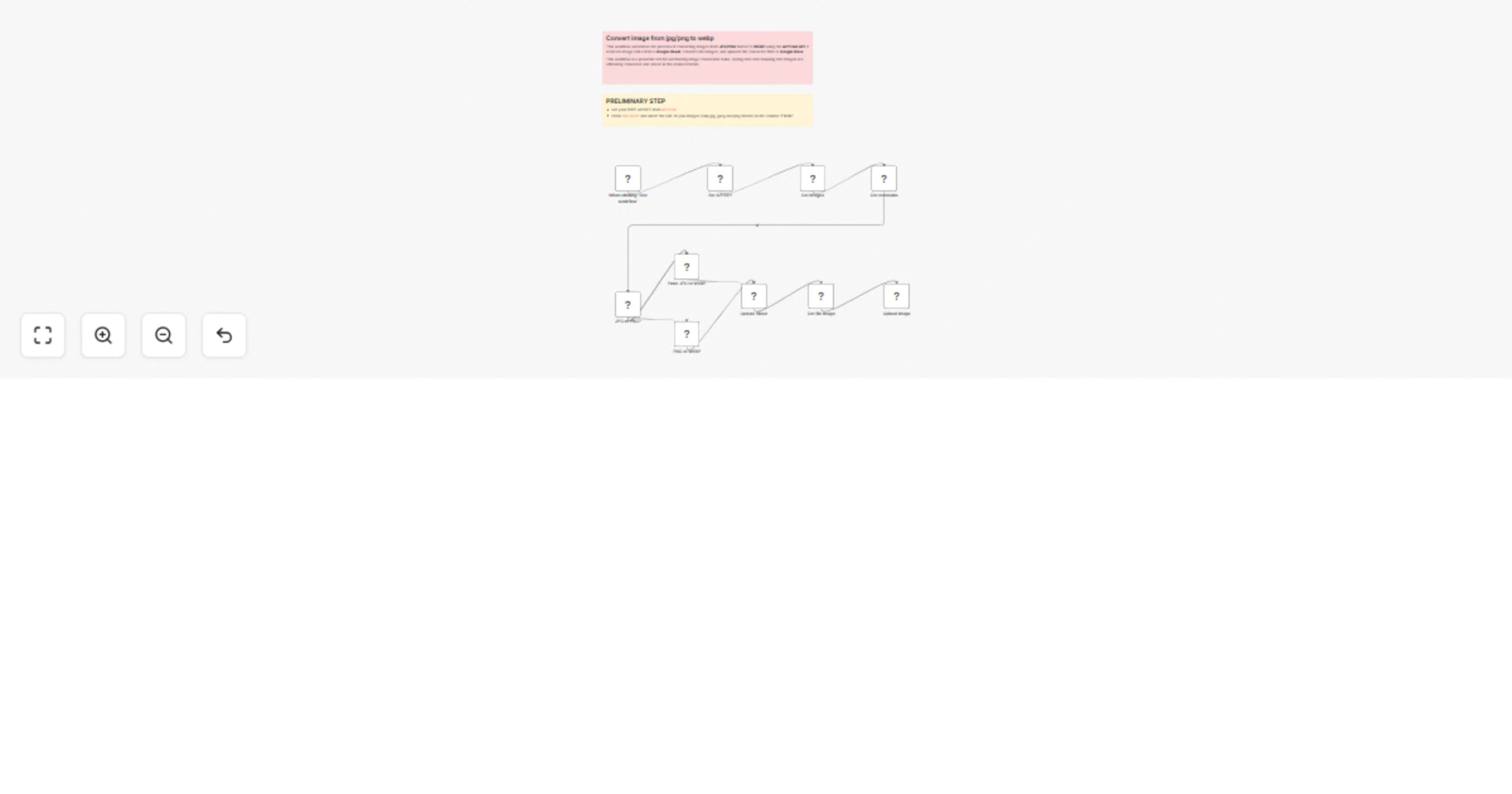
1. How It Works

The workflow is designed to convert images from JPG/PNG to WEBP format and manage the converted files. Here's how it works:

  1. Manual Trigger:

    • The workflow starts with a Manual Trigger node, which initiates the process when the user clicks "Test workflow."
  2. Set API Key:

    • The Set API KEY node defines the API key required to access the APYHub API.
  3. Get Images:

    • The Get Images node retrieves a list of image URLs from a Google Sheet. The sheet contains columns for the original image URL (FROM), the converted image URL (TO), and a status flag (DONE).
  4. Get Extension:

    • The Get Extension node extracts the file extension (JPG, JPEG, or PNG) from the image URL and adds it to the JSON data.
  5. Determine Image Type:

    • The JPG or PNG? node checks the file extension and routes the workflow to the appropriate conversion node:
      • JPG/JPEG: Routes to the From JPG to WEBP node.
      • PNG: Routes to the PNG to WEBP node.
  6. Convert Image:

    • The From JPG to WEBP and PNG to WEBP nodes send POST requests to the APYHub API to convert the images to WEBP format.
    • The API returns the URL of the converted image.
  7. Update Google Sheet:

    • The Update Sheet node updates the Google Sheet with the URL of the converted image and marks the row as done (DONE).
  8. Get Converted Image:

    • The Get File Image node downloads the converted WEBP image from the URL provided by the APYHub API.
  9. Upload to Google Drive:

    • The Upload Image node uploads the converted WEBP image to a specified folder in Google Drive.

2. Set Up Steps

To set up and use this workflow in n8n, follow these steps:

  1. APYHub API Key:

    • Obtain an API Key from APYHub.
    • In the Set API KEY node, define the API key.
  2. Google Sheets Integration:

    • Set up Google Sheets credentials in n8n for the Get Images and Update Sheet nodes.
    • Create a Google Sheet with columns for FROM (original image URL), TO (converted image URL), and DONE (status flag).
    • Provide the Document ID and Sheet Name in the Get Images node.
  3. Google Drive Integration:

    • Set up Google Drive credentials in n8n for the Upload Image node.
    • Specify the folder ID in Google Drive where the converted images will be uploaded.
  4. Test the Workflow:

    • Click the "Test workflow" button in n8n to trigger the workflow.
    • The workflow will:
      • Retrieve image URLs from the Google Sheet.
      • Convert the images to WEBP format using the APYHub API.
      • Update the Google Sheet with the converted image URLs.
      • Upload the converted images to Google Drive.
  5. Optional Customization:

    • Modify the workflow to include additional features, such as:
      • Adding more image formats for conversion.
      • Sending notifications when the conversion is complete.
      • Integrating with other storage services (e.g., Dropbox, AWS S3).

1.2 Logical Blocks

This catalog entry is organized from the workflow JSON. The node-level section below shows the executable blocks available for review before importing the template.

2. Block-by-Block Analysis

Block 1 - When clicking ‘Test workflow’

Type / Role
n8n-nodes-base.manualTrigger - manualTrigger
Config choices
Version 1

Block 2 - Set API KEY

Type / Role
n8n-nodes-base.set - set
Config choices
Version 3.4

Block 3 - Get images

Type / Role
n8n-nodes-base.googleSheets - googleSheets
Config choices
Version 4.5

Block 4 - Get extension

Type / Role
n8n-nodes-base.code - code
Config choices
Version 2

Block 5 - JPG or PNG?

Type / Role
n8n-nodes-base.switch - switch
Config choices
Version 3.2

Block 6 - From JPG to WEBP

Type / Role
n8n-nodes-base.httpRequest - httpRequest
Config choices
Version 4.2

Block 7 - PNG to WEBP

Type / Role
n8n-nodes-base.httpRequest - httpRequest
Config choices
Version 4.2

Block 8 - Update Sheet

Type / Role
n8n-nodes-base.googleSheets - googleSheets
Config choices
Version 4.5

Block 9 - Get file image

Type / Role
n8n-nodes-base.httpRequest - httpRequest
Config choices
Version 4.2

Block 10 - Upload image

Type / Role
n8n-nodes-base.googleDrive - googleDrive
Config choices
Version 3

Block 11 - Sticky Note

Type / Role
n8n-nodes-base.stickyNote - stickyNote
Config choices
Version 1

Block 12 - Sticky Note1

Type / Role
n8n-nodes-base.stickyNote - stickyNote
Config choices
Version 1

3. Summary Table

Workflow Automated image optimizer: convert JPG/PNG to WebP with APYHub and Google Drive
Complexity intermediate
Nodes 12
Categories File Management, Multimodal AI
Author Davide
Published 21 Mar 2025

4. Reproducing the Workflow from Scratch

  1. 1. Download the workflow JSON

    Use the JSON export at /data/workflows/3278/3278.json as the source template for this automation.

  2. 2. Import the template into n8n

    Open n8n, import the downloaded JSON, and review each node before activating the workflow.

  3. 3. Configure credentials and variables

    Replace placeholder credentials, API keys, webhook URLs, account IDs, and environment-specific values with your own settings.

  4. 4. Test with sample data

    Run the workflow manually or in a staging workspace, inspect node output, and confirm downstream systems receive the expected data.

  5. 5. Activate and monitor

    Enable the workflow only after testing, then monitor executions, errors, and rate limits during the first production runs.

5. General Notes & Resources

Review imported nodes carefully before activation. This catalog entry is intended to help you inspect the workflow structure, understand required services, and find related templates faster.

Node names, credentials, schedules, webhook paths, and external service limits may need adjustment for your workspace.

Frequently asked questions

What does Automated image optimizer: convert JPG/PNG to WebP with APYHub and Google Drive do?

This workflow automates the process of converting images from JPG/PNG format to WEBP using the APYHub API . It retrieves image URLs from a Google Sheet , converts the images, and uploads the conver...

What do I need before importing this workflow?

Review the workflow JSON, configure any required credentials in n8n, and test the automation in a safe workspace before using it in production.

Can I customize this workflow?

Yes. Use the block-by-block analysis and the downloadable JSON to inspect each node, then adjust credentials, prompts, schedules, filters, or destinations for your File Management, Multimodal AI use case.