Automated customer feedback triage & follow-up with Gemini, Jotform, Gmail, Jira

Workflow preview

Workflow preview
100%
Automated customer feedback triage & follow-up with Gemini, Jotform, Gmail, Jira preview
Open on n8n.io

Important notice

This workflow is provided as-is. Please review and test before using in production.

1. Workflow Overview

AI Powered Customer Feedback: Triage and Insight Driven Chat This n8n workflow creates a two phase system for handling customer feedback received via a Jotform submission. The first agent quickly t...

Best for

  • Ticket Management automation workflows
  • AI Chatbot automation workflows
  • intermediate n8n builders looking for reusable templates

Tools used

n8n-nodes-base.jotformtrigger, @n8n/n8n-nodes-langchain.agent, @n8n/n8n-nodes-langchain.lmchatgooglegemini, n8n-nodes-base.gmailtrigger, @n8n/n8n-nodes-langchain.memorybufferwindow, n8n-nodes-base.gmailtool, n8n-nodes-base.set, n8n-nodes-base.jiratool

Source and attribution

This workflow is cataloged by N8N Workflows and links back to its original n8n.io source page by Zain Khan.

Original n8n.io source

1.1 Workflow description

Title
Automated customer feedback triage & follow-up with Gemini, Jotform, Gmail, Jira
Workflow name
Automated customer feedback triage & follow-up with Gemini, Jotform, Gmail, Jira

AI-Powered Customer Feedback: Triage and Insight-Driven Chat

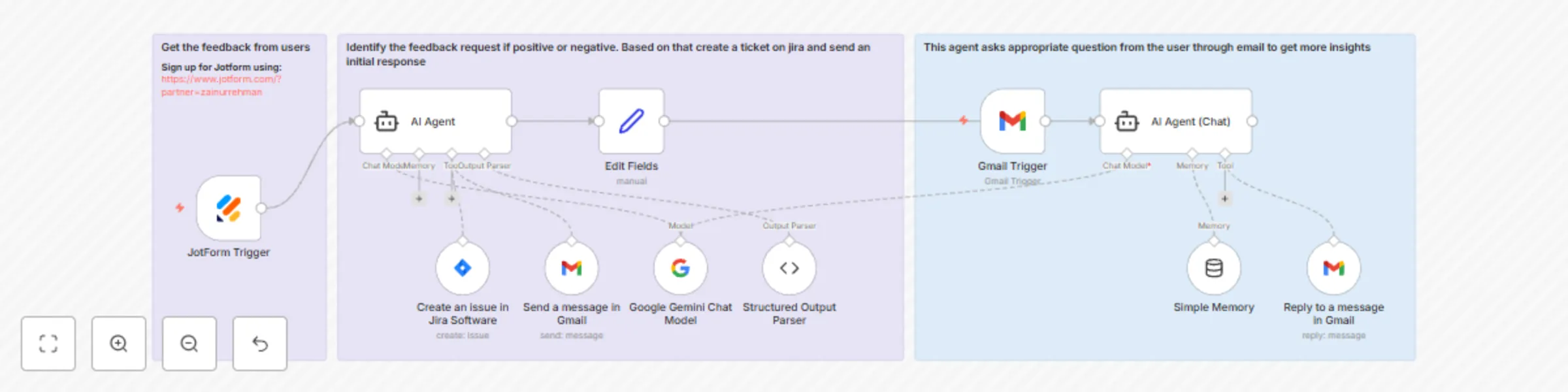
This n8n workflow creates a two-phase system for handling customer feedback received via a Jotform submission. The first agent quickly triages the issue, and the second agent engages in a persistent, conversational exchange over email to collect the information necessary for a resolution.

Phase 1: Triage and Initial Action (AI Agent)

This phase is triggered by a new submission on the Jotform. The goal is to immediately categorize the feedback and take the appropriate initial action.

  1. Jotform Trigger: The workflow starts instantly when a user submits your designated feedback form.
  2. AI Agent (Triage): This agent (powered by Google Gemini) is tasked with two primary jobs:
    • Sentiment Analysis and Response Drafting: It reads the feedback (q6_typeA6) and the user's name (q3_name.first).
      • If Positive: It uses the Send a message in Gmail tool to send a concise, appreciative thank you note.
      • If Negative: It uses the Send a message in Gmail tool to send an initial, empathetic response acknowledging the issue and stating that a team member will follow up with questions. It also uses the Create an issue in Jira Software tool to log the bug or issue immediately.
    • Data Structuring: It uses the Structured Output Parser to extract key data points, most importantly the threadId of the initial email, which is crucial for the follow-up conversation agent.

Phase 2: Conversational Insight Gathering (AI Agent (Chat))

This phase takes over for all negative feedback, engaging the customer in a back-and-forth exchange to collect essential details required for the development or support team.

  1. Gmail Trigger: This node is set to poll for new, unread emails (which are expected to be replies from the customer).
  2. Simple Memory: This node is vital for the conversational aspect. It is configured to use the unique email threadId as its session key, allowing the AI Agent to remember the entire history of the conversation (previous questions asked and details provided) across multiple emails.
  3. AI Agent (Chat): This is the 2nd agent and the core of the conversational process.
    • Role: It acts as a dedicated feedback assistant.
    • Goal: Its instruction is to reply and ask for specific, missing information needed for the ticket, such as: what device they were using, if they know the steps to reproduce the issue, and to confirm that the team will send a free coupon for credits as a thank you for their help.
    • Tool: It uses the Reply to a message in Gmail tool to continue the conversation directly within the original email thread.
    • Resolution: The agent is trained to look for confirmation that all necessary information has been provided. Once it determines the issue details are complete, it will send a final thank you email and automatically use the Jira tool to summarize and update the existing Jira issue with the new insights, closing the loop on the data collection process.

Requirements

To implement and run this automated customer feedback workflow, the following accounts and credentials are required:

1. Automation Platform

2. Service Credentials

You must set up and connect the following credentials within your n8n instance:

  • Google Gemini API Key: Required to power both AI Agent nodes for sentiment analysis and conversational follow-up.
  • Gmail OAuth2/API Key: Required for:
    • The Send a message in Gmail tool (for initial replies).
    • The Gmail Trigger (to detect new replies).
    • The Reply to a message in Gmail tool (for the ongoing conversation).
  • Jotform API Key: Required for the Jotform Trigger node to instantly receive and process new form submissions. Sign up for Jotform using: https://www.jotform.com/?partner=zainurrehman
  • Jira Software Credentials: Required for the Create an issue in Jira Software tool (for the first agent) and the Jira Tool (for the second agent to update the ticket).

3. External Configurations

  • Jotform Setup: A live Jotform must be configured with specific fields to capture the user's name, email, and the feedback text.
  • Jira Setup: You need a designated Jira Project and a defined Issue Type for the workflow to create and update tickets.

1.2 Logical Blocks

This catalog entry is organized from the workflow JSON. The node-level section below shows the executable blocks available for review before importing the template.

2. Block-by-Block Analysis

Block 1 - JotForm Trigger

Type / Role
n8n-nodes-base.jotFormTrigger - jotFormTrigger
Config choices
Version 1

Block 2 - AI Agent

Type / Role
@n8n/n8n-nodes-langchain.agent - agent
Config choices
Version 2.2

Block 3 - Google Gemini Chat Model

Type / Role
@n8n/n8n-nodes-langchain.lmChatGoogleGemini - lmChatGoogleGemini
Config choices
Version 1

Block 4 - Gmail Trigger

Type / Role
n8n-nodes-base.gmailTrigger - gmailTrigger
Config choices
Version 1.2

Block 5 - Simple Memory

Type / Role
@n8n/n8n-nodes-langchain.memoryBufferWindow - memoryBufferWindow
Config choices
Version 1.3

Block 6 - Reply to a message in Gmail

Type / Role
n8n-nodes-base.gmailTool - gmailTool
Config choices
Version 2.1

Block 7 - AI Agent (Chat)

Type / Role
@n8n/n8n-nodes-langchain.agent - agent
Config choices
Version 2.1

Block 8 - Send a message in Gmail

Type / Role
n8n-nodes-base.gmailTool - gmailTool
Config choices
Version 2.1

Block 9 - Edit Fields

Type / Role
n8n-nodes-base.set - set
Config choices
Version 3.4

Block 10 - Create an issue in Jira Software

Type / Role
n8n-nodes-base.jiraTool - jiraTool
Config choices
Version 1

Block 11 - Structured Output Parser

Type / Role
@n8n/n8n-nodes-langchain.outputParserStructured - outputParserStructured
Config choices
Version 1.3

Block 12 - Sticky Note

Type / Role
n8n-nodes-base.stickyNote - stickyNote
Config choices
Version 1

Block 13 - Sticky Note1

Type / Role
n8n-nodes-base.stickyNote - stickyNote
Config choices
Version 1

Block 14 - Sticky Note2

Type / Role
n8n-nodes-base.stickyNote - stickyNote
Config choices
Version 1

3. Summary Table

Workflow Automated customer feedback triage & follow-up with Gemini, Jotform, Gmail, Jira
Complexity intermediate
Nodes 14
Categories Ticket Management, AI Chatbot
Author Zain Khan
Published 21 Oct 2025

4. Reproducing the Workflow from Scratch

  1. 1. Download the workflow JSON

    Use the JSON export at /data/workflows/9976/9976.json as the source template for this automation.

  2. 2. Import the template into n8n

    Open n8n, import the downloaded JSON, and review each node before activating the workflow.

  3. 3. Configure credentials and variables

    Replace placeholder credentials, API keys, webhook URLs, account IDs, and environment-specific values with your own settings.

  4. 4. Test with sample data

    Run the workflow manually or in a staging workspace, inspect node output, and confirm downstream systems receive the expected data.

  5. 5. Activate and monitor

    Enable the workflow only after testing, then monitor executions, errors, and rate limits during the first production runs.

5. General Notes & Resources

Review imported nodes carefully before activation. This catalog entry is intended to help you inspect the workflow structure, understand required services, and find related templates faster.

Node names, credentials, schedules, webhook paths, and external service limits may need adjustment for your workspace.

Frequently asked questions

What does Automated customer feedback triage & follow-up with Gemini, Jotform, Gmail, Jira do?

AI Powered Customer Feedback: Triage and Insight Driven Chat This n8n workflow creates a two phase system for handling customer feedback received via a Jotform submission. The first agent quickly t...

What do I need before importing this workflow?

Review the workflow JSON, configure any required credentials in n8n, and test the automation in a safe workspace before using it in production.

Can I customize this workflow?

Yes. Use the block-by-block analysis and the downloadable JSON to inspect each node, then adjust credentials, prompts, schedules, filters, or destinations for your Ticket Management, AI Chatbot use case.