Zain Khan
Workflows by Zain Khan
Build a website-powered customer support chatbot with Decodo, Pinecone and Gemini
**Categories:** Business Automation, Customer Support, AI, Knowledge Management This comprehensive workflow enables businesses to build and deploy a custom-trained AI Chatbot in minutes. By combining a sophisticated data scraping engine with a RAG-based (Retrieval-Augmented Generation) chat interface, it allows you to transform website content into a high-performance support agent. Powered by **Google Gemini** and **Pinecone**, this system ensures your chatbot provides accurate, real-time answers based exclusively on your business data. ### **Benefits** * **Instant Knowledge Sync** - Automatically crawls sitemaps and URLs to keep your AI up-to-date with your latest website content. * **Embeddable Anywhere** - Features a ready-to-use chat trigger that can be integrated into the bottom-right of any website via a simple script. * **High-Fidelity Retrieval** - Uses vector embeddings to ensure the AI "searches" your documentation before answering, reducing hallucinations. * **Smart Conversational Memory** - Equipped with a 10-message window buffer, allowing the bot to handle complex follow-up questions naturally. * **Cost-Efficient Scaling** - Leverages Gemini’s efficient API and Pinecone’s high-speed indexing to manage thousands of customer queries at a low cost. ### **How It Works** 1. **Dual-Path Ingestion:** The process begins with an n8n Form where you provide a sitemap or individual URLs. The workflow automatically handles XML parsing and URL cleaning to prepare a list of pages for processing. 2. **Clean Content Extraction:** Using **Decodo**, the workflow fetches the HTML of each page and uses a specialized extraction node to strip away code, ads, and navigation, leaving only the high-value text content. **SignUp using:** [dashboard.decodo.com/register?referral_code=55543bbdb96ffd8cf45c2605147641ee017e7900](dashboard.decodo.com/register?referral_code=55543bbdb96ffd8cf45c2605147641ee017e7900). 3. **Vectorization & Storage:** The cleaned text is passed to the **Gemini Embedding** model, which converts the information into 3076-dimensional vectors. These are stored in a **Pinecone** "supportbot" index for instant retrieval. 4. **RAG-Powered Chat Agent:** When a user sends a message through the chat widget, an **AI Agent** takes over. It uses the user's query to search the Pinecone database for relevant business facts. 5. **Intelligent Response Generation:** The AI Agent passes the retrieved facts and the current chat history to **Google Gemini**, which generates a polite, accurate, and contextually relevant response for the user. ### **Requirements** * **n8n Instance:** A self-hosted or cloud instance of n8n. * **Google Gemini API Key:** For text embeddings and chat generation. * **Pinecone Account:** An API key and a "supportbot" index to store your knowledge base. * **Decodo Access:** For high-quality website content extraction. ### **How to Use** 1. **Initialize the Knowledge Base:** Use the Form Trigger to input your website URL or Sitemap. Run the ingestion flow to populate your Pinecone index. 2. **Configure Credentials:** Authenticate your Google Gemini and Pinecone accounts within n8n. 3. **Deploy the Chatbot:** Enable the Chat Trigger node. Use the provided webhook URL to connect the backend to your website's frontend chat widget. 4. **Test & Refine:** Interact with the bot to ensure it retrieves the correct data, and update your knowledge base by re-running the ingestion flow whenever your website content changes. ### **Business Use Cases** * **Customer Support Teams** - Automate answers to 80% of common FAQs using your existing documentation. * **E-commerce Sites** - Help customers find product details, shipping policies, and return information instantly. * **SaaS Providers** - Build an interactive technical documentation assistant to help users navigate your software. * **Marketing Agencies** - Offer "AI-powered site search" as an add-on service for client websites. ### **Efficiency Gains** * **Reduce Ticket Volume** by providing instant self-service options. * **Eliminate Manual Data Entry** by scraping content directly from the live website. * **Improve UX** with 24/7 availability and zero wait times for customers. **Difficulty Level:** Intermediate **Estimated Setup Time:** 30 min **Monthly Operating Cost:** Low (variable based on AI usage and Pinecone tier)
Automated customer feedback triage & follow-up with Gemini, Jotform, Gmail, Jira
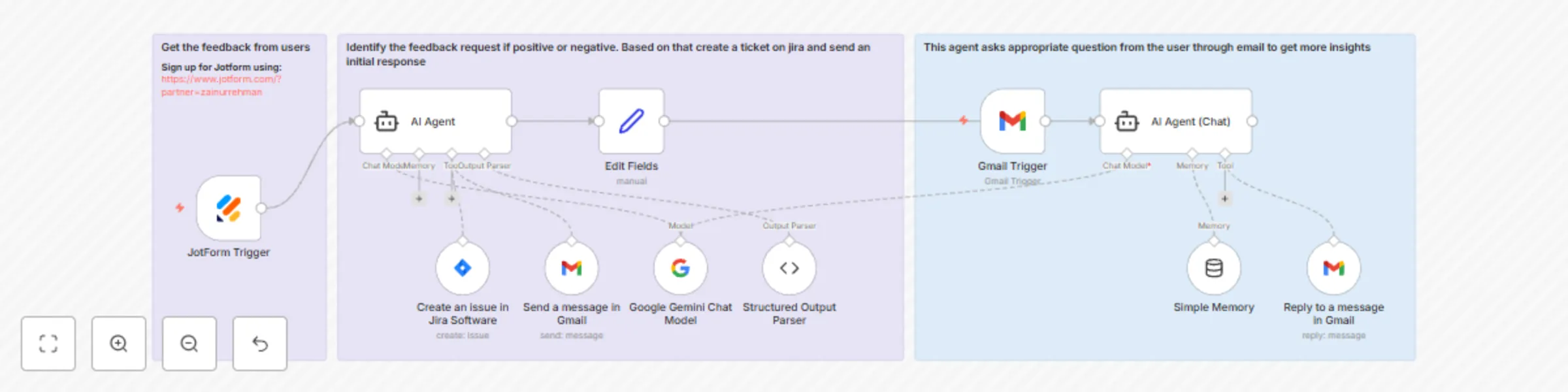
## AI-Powered Customer Feedback: Triage and Insight-Driven Chat This n8n workflow creates a two-phase system for handling customer feedback received via a **Jotform** submission. The first agent quickly triages the issue, and the second agent engages in a persistent, conversational exchange over email to collect the information necessary for a resolution. ### Phase 1: Triage and Initial Action (AI Agent) This phase is triggered by a new submission on the **Jotform**. The goal is to immediately categorize the feedback and take the appropriate initial action. 1. **Jotform Trigger:** The workflow starts instantly when a user submits your designated feedback form. 2. **AI Agent (Triage):** This agent (powered by **Google Gemini**) is tasked with two primary jobs: * **Sentiment Analysis and Response Drafting:** It reads the feedback (`q6_typeA6`) and the user's name (`q3_name.first`). * **If Positive:** It uses the **Send a message in Gmail** tool to send a concise, appreciative thank you note. * **If Negative:** It uses the **Send a message in Gmail** tool to send an initial, empathetic response acknowledging the issue and stating that a team member will follow up with questions. It also uses the **Create an issue in Jira Software** tool to log the bug or issue immediately. * **Data Structuring:** It uses the **Structured Output Parser** to extract key data points, most importantly the `threadId` of the initial email, which is crucial for the follow-up conversation agent. ### Phase 2: Conversational Insight Gathering (AI Agent (Chat)) This phase takes over for all negative feedback, engaging the customer in a back-and-forth exchange to collect essential details required for the development or support team. 1. **Gmail Trigger:** This node is set to **poll for new, unread emails** (which are expected to be replies from the customer). 2. **Simple Memory:** This node is vital for the conversational aspect. It is configured to use the unique email **`threadId`** as its session key, allowing the AI Agent to remember the entire history of the conversation (previous questions asked and details provided) across multiple emails. 3. **AI Agent (Chat):** This is the **2nd agent** and the core of the conversational process. * **Role:** It acts as a dedicated feedback assistant. * **Goal:** Its instruction is to **reply and ask for specific, missing information** needed for the ticket, such as: *what device they were using*, *if they know the steps to reproduce the issue*, and to confirm that the team will send a **free coupon for credits** as a thank you for their help. * **Tool:** It uses the **Reply to a message in Gmail** tool to continue the conversation directly within the original email thread. * **Resolution:** The agent is trained to look for confirmation that all necessary information has been provided. Once it determines the issue details are complete, it will send a final thank you email and automatically use the **Jira tool** to **summarize and update the existing Jira issue** with the new insights, closing the loop on the data collection process. --- ## Requirements To implement and run this automated customer feedback workflow, the following accounts and credentials are required: ### 1. Automation Platform * **n8n Instance:** A running instance of n8n (Cloud or self-hosted) to host and execute the workflow. **Sign up for n8n using:** [https://n8n.partnerlinks.io/pe6gzwqi3rqw](https://n8n.partnerlinks.io/pe6gzwqi3rqw) ### 2. Service Credentials You must set up and connect the following credentials within your n8n instance: * **Google Gemini API Key:** Required to power both **AI Agent** nodes for sentiment analysis and conversational follow-up. * **Gmail OAuth2/API Key:** Required for: * The **Send a message in Gmail** tool (for initial replies). * The **Gmail Trigger** (to detect new replies). * The **Reply to a message in Gmail** tool (for the ongoing conversation). * **Jotform API Key:** Required for the **Jotform Trigger** node to instantly receive and process new form submissions. **Sign up for Jotform using:** [https://www.jotform.com/?partner=zainurrehman](https://www.jotform.com/?partner=zainurrehman) * **Jira Software Credentials:** Required for the **Create an issue in Jira Software** tool (for the first agent) and the **Jira Tool** (for the second agent to update the ticket). ### 3. External Configurations * **Jotform Setup:** A live Jotform must be configured with specific fields to capture the user's name, email, and the feedback text. * **Jira Setup:** You need a designated **Jira Project** and a defined **Issue Type** for the workflow to create and update tickets.
Automate support ticket prioritization with Jotform, Gemini AI, ClickUp tasks
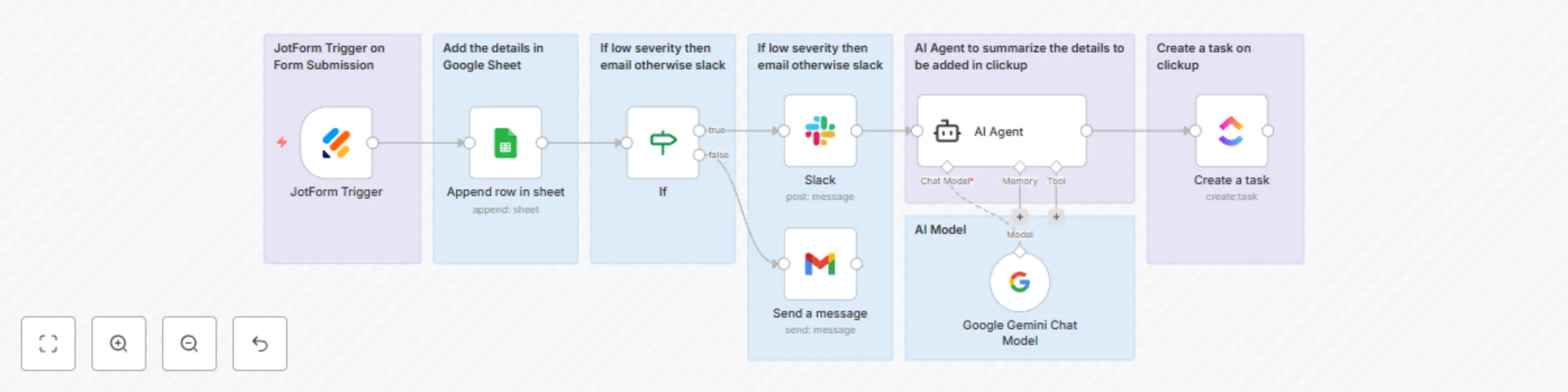
## Automated Support Prioritization and AI Task Creation This n8n workflow instantly captures support issues submitted via **Jotform** and efficiently **routes** them to the appropriate team and logging system based on the **severity level** defined by the customer. It then uses an **AI Agent (Google Gemini)** to transform the raw customer data into a clear, concise, and actionable task for the development team. ### Workflow Overview 1. **Ingestion & Logging:** A new support ticket is received via **Jotform** and immediately logged into a **Google Sheet** as a central record. 2. **Priority Assessment & Routing:** An **If** node checks the reported issue **Severity**. * **High/Medium Severity:** The ticket details are instantly sent to a dedicated **Slack** channel for immediate team attention. * **Low Severity:** The ticket details are sent via **Gmail** (acting as an internal email notification) to a support inbox, allowing for less immediate handling. 3. **AI Processing:** An **AI Agent** summarizes the raw feedback into a clear, professional task description. 4. **Task Creation:** The AI-generated task is automatically created in **ClickUp** for the development team to manage. *** ## Requirements To implement and run this automated support workflow, the following accounts and credentials are required: ### 1. Service Credentials * **Jotform API Key:** For the **Jotform Trigger** to receive real-time form submissions. * **Google Sheets OAuth2/API Key:** To write data to the designated sheet. * **Slack OAuth2/API Key:** To post messages to the target Slack channel. * **Gmail OAuth2/API Key:** To send internal email notifications. * **Google Gemini API Key:** To power the **AI Agent** for task summarization. * **ClickUp API Key:** To create tasks in the target workspace. **Sign up for n8n using:** [https://n8n.partnerlinks.io/pe6gzwqi3rqw](https://n8n.partnerlinks.io/pe6gzwqi3rqw) ### 2. External Configurations * **Jotform Setup:** A form configured with fields for Name, Email, Issue, Description, and the crucial **Severity** field. **Sign up for Jotform using:** [https://www.jotform.com/?partner=zainurrehman](https://www.jotform.com/?partner=zainurrehman) * **ClickUp Setup:** The specific **Team, Space, Folder, and List IDs** must be configured in the **Create a task** node to ensure tickets are created in the correct project board.
Qualify & verify leads with Google Gemini and sync to HubSpot from Jotform
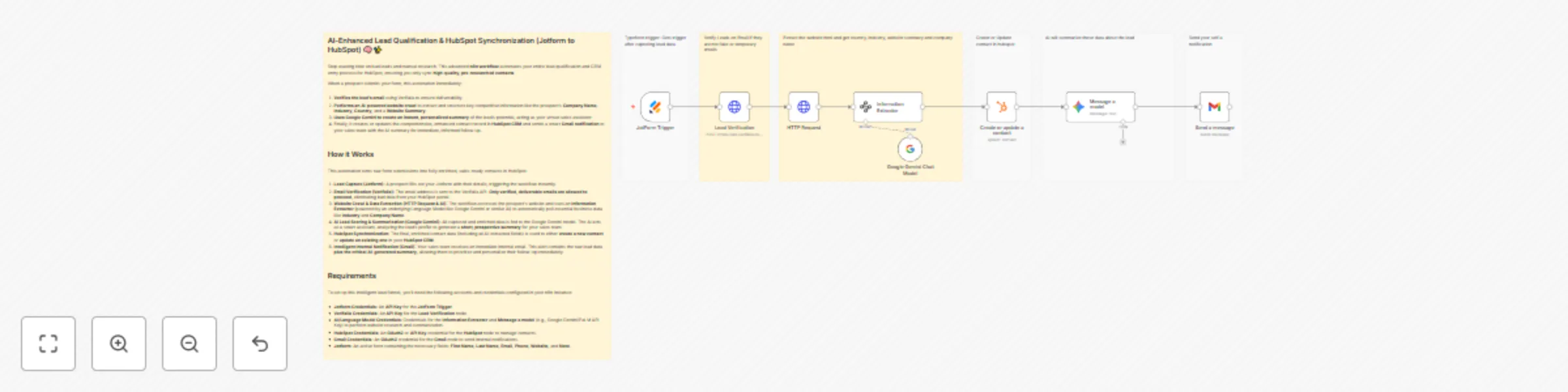
## AI-Enhanced Lead Qualification & HubSpot Synchronization (Jotform to HubSpot) 🧠✨ Stop wasting time on bad leads and manual research. This advanced **n8n workflow** automates your entire lead qualification and CRM entry process for HubSpot, ensuring you only sync **high-quality, pre-researched contacts**. When a prospect submits your form, this automation immediately: 1. **Verifies the lead's email** using Verifalia to ensure deliverability. 2. **Performs an AI-powered website crawl** to extract and structure key competitive information like the prospect's **Company Name**, **Industry**, **Country**, and a **Website Summary**. 3. **Uses Google Gemini to create an instant, personalized summary** of the lead's potential, acting as your *virtual sales assistant*. 4. Finally, it creates or updates the comprehensive, enhanced contact record in **HubSpot CRM** and sends a smart **Gmail notification** to your sales team with the AI summary for immediate, informed follow-up. *** ## How it Works This automation turns raw form submissions into fully enriched, sales-ready contacts in HubSpot: 1. **Lead Capture (Jotform):** A prospect fills out your Jotform with their details, triggering the workflow instantly. 2. **Email Verification (Verifalia):** The email address is sent to the Verifalia API. **Only verified, deliverable emails are allowed to proceed**, eliminating bad data from your HubSpot portal. 3. **Website Crawl & Data Extraction (HTTP Request & AI):** The workflow accesses the prospect's website and uses an **Information Extractor** (powered by an underlying Language Model like Google Gemini or similar AI) to automatically pull essential business data like **Industry** and **Company Name**. 4. **AI Lead Scoring & Summarization (Google Gemini):** All captured and enriched data is fed to the Google Gemini model. The AI acts as a smart assistant, analyzing the lead's profile to generate a **short, prospective summary** for your sales team. 5. **HubSpot Synchronization:** The final, enriched contact data (including all AI-extracted fields) is used to either **create a new contact** or **update an existing one** in your **HubSpot CRM**. 6. **Intelligent Internal Notification (Gmail):** Your sales team receives an immediate internal email. This alert contains the raw lead data **plus the critical AI-generated summary**, allowing them to prioritize and personalize their follow-up immediately. *** ## Requirements To set up this intelligent lead funnel, you'll need the following accounts and credentials configured in your n8n instance: * **Jotform Credentials:** An **API Key** for the **JotForm Trigger**. **Sign up for Jotform here:** [https://www.jotform.com/?partner=zainurrehman](https://www.jotform.com/?partner=zainurrehman) * **Verifalia Credentials:** An **API Key** for the **Lead Verification** node. * **AI/Language Model Credentials:** Credentials for the **Information Extractor** and **Message a model** (e.g., Google Gemini/PaLM API Key) to perform website research and summarization. * **HubSpot Credentials:** An **OAuth2** or **API Key** credential for the **HubSpot** node to manage contacts. * **Gmail Credentials:** An **OAuth2** credential for the **Gmail** node to send internal notifications. * **Jotform:** An active form containing the necessary fields: **First Name**, **Last Name**, **Email**, **Phone**, **Website**, and **Note**.
Automate quiz creation from documents with Google Gemini and Jotform
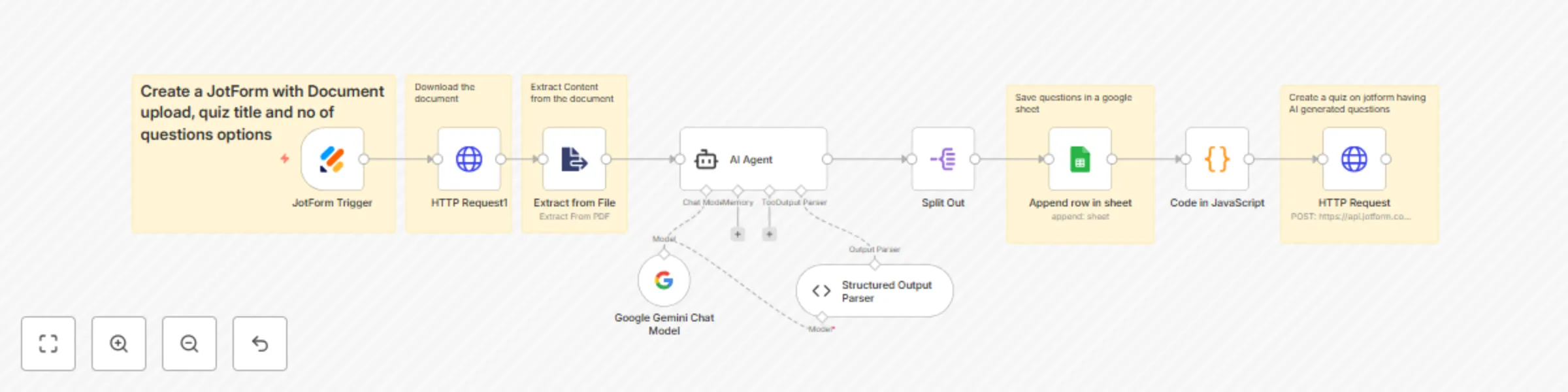
## AI-Powered Quiz Generator for Instructors 📝🤖 Instantly turn any document into a shareable online quiz! This **n8n workflow** automates the entire quiz creation process: a new Jotform submission triggers the flow, the **Google Gemini AI** extracts key concepts and generates **multiple-choice questions** with correct answers, saves the questions to a **Google Sheet** for record-keeping, and finally creates a **fully built, ready-to-share Jotform quiz** using an HTTP request. *** ## How it Works This powerful workflow acts as a complete "document-to-quiz" automation tool, simplifying the process of creating educational or testing materials: 1. **Trigger & Input:** The process starts when a user fills out the main **Jotform** submission form, providing a **document (PDF/file upload)**, the desired **Quiz Title**, and the **Number of Questions** to generate. **Create a jotform like this:** [https://form.jotform.com/252856893250062](https://form.jotform.com/252856893250062) having fields for Quiz Name, File Upload and Number of questions. 2. **Document Processing:** The workflow retrieves the uploaded document via an HTTP request and uses the **Extract from File** node to parse and extract the raw text content from the file. 3. **AI Question Generation:** The extracted text, quiz title, and desired question count are passed to the **Google Gemini AI Agent**. Following strict instructions, the AI analyzes the content and generates the specified number of **multiple-choice questions** (with four options and the correct answer indicated) in a precise JSON format. 4. **Data Structuring:** The generated JSON is validated and formatted using a **Structured Output Parser** and split into individual items for each question. 5. **Record Keeping (Google Sheets):** Each generated question, along with all its options and the confirmed correct answer, is appended as a new row in a designated **Google Sheet** for centralized record-keeping and review. 6. **Jotform Quiz Creation (HTTP Request):** The workflow dynamically constructs the required API body, converting the AI-generated questions and options into the necessary fields for a new Jotform. It then uses an **HTTP Request** node to call the Jotform API, **creating a brand-new, ready-to-use quiz form**. 7. **Final Output:** The final output provides the link to the newly created quiz, which can be shared immediately for submissions. *** ## Requirements To deploy this automated quiz generator, ensure you have the following accounts and credentials configured in your n8n instance: * **Jotform Credentials:** An **API Key** is required for both the **Jotform Trigger** (to start the workflow) and for the final **HTTP Request** (to create the new quiz form via the API). **Sign up for Jotform here:** [https://www.jotform.com/?partner=zainurrehman](https://www.jotform.com/?partner=zainurrehman) * **Google Gemini API Key:** An API key for the **Google Gemini Chat Model** to power the **AI Agent** for question generation. * **Google Sheets Credentials:** An **OAuth2** or **API Key** credential for the **Google Sheets** node to save the generated questions. * **Initial Jotform:** A source Jotform that accepts the user input: a **File Upload** field, a **Text** field for the Quiz Title, and a **Number** field for the Number of Questions. *** **Pro Tip:** After the final **HTTP Request**, add an additional step (like an **Email** or **Slack** node) to automatically send the generated quiz link back to the user who submitted the initial request!
Generate AI product photos using Gemini Nano Banana with Jotform & Google Sheets
# AI Product Photography With Nano Banana and Jotform 📸✨ Automate your product visuals! This **n8n workflow** instantly processes new product photography requests from **Jotform** or **Google Sheets**, uses an **AI agent** (**Gemini Nano Banana**) to generate professional **AI product photography** based on your product details and **reference images**, saves the final image to **Google Drive**, and updates the photo link in your **Google Sheet** for seamless **record** keeping. --- ## How it Works This n8n workflow operates as a fully automated pipeline for generating and managing AI product photographs: 1. **Trigger:** The workflow is triggered either manually, on a set schedule (e.g., hourly), or immediately upon a new submission from the connected **Jotform** (or when new "Pending" rows are detected in the **Google Sheet** on a scheduled or manual run). 2. **Data Retrieval:** If triggered by a schedule or manually, the workflow fetches new rows with a "Status" of "**Pending**" from the designated **Google Sheet**. 3. **Data Preparation:** The input data (Product Name, Description, Requirements, and URLs for the Product and Reference Images) is prepared. The Product and Reference Images are downloaded using HTTP Requests. 4. **AI Analysis & Prompt Generation:** An **AI agent** (using the Gemini model) analyzes the product details and image requirements, then generates a refined, professional prompt for the image generation model. 5. **AI Photo Generation:** The generated prompt, along with the downloaded product and reference images, is sent to the image generation model, referred to as "**Gemini Nano Banana**" (a powerful Google AI model for image generation), to create the final, high-quality AI product photograph. 6. **File Handling:** The raw image data is converted into a binary file format. 7. **Storage:** The generated photograph is saved with the **Product Name** as the filename to your specified **Google Drive** folder. 8. **Record Update:** The workflow updates the original row in the **Google Sheet**, changing the "**Status**" to "**Completed**" and adding the public URL of the newly saved image in the "**Generated Image**" column. If the trigger was from Jotform, a new record is appended to the Google Sheet. --- ## Requirements To use this workflow, you'll need the following accounts and credentials configured in n8n: * **n8n Account:** Your self-hosted or cloud n8n instance. * **Google Sheets/Drive Credentials:** An **OAuth2** or **API Key** credential for the Google Sheets and Google Drive nodes to read input and save the generated image. * **Google Gemini API Key:** An API key for the Google Gemini nodes to access the AI agent for prompt generation and the image generation service (**Gemini Nano Banana**). * **Jotform Credential (Optional):** A Jotform credential is only required if you want to use the Jotform Webhook trigger. **Sign up for Jotform here:** [https://www.jotform.com/?partner=zainurrehman](https://www.jotform.com/?partner=zainurrehman) * **A Google Sheet and Jotform:** with columns/fields for: `Product Name`, `Product Description`, `Product Image` (URL), `Requirement`, `Reference Image 1` (URL), `Reference Image 2` (URL), `Status`, and a blank `Generated Image` column. --- ## How to Use ### 1. Set Up Your Integrations 1. Add the necessary **Credentials** (Google Sheets, Google Drive, Gemini API, and optionally Jotform) in your n8n settings. 2. Specify the **Google Sheet Document ID** and **Sheet Name** in the Google Sheet nodes. 3. In the `Upload to Drive` node, select your desired **Drive ID** and **Folder ID** where the final images should be saved. ### 2. Prepare Input Data You can start the workflow either by: * **Submitting a Form:** Fill out and submit the connected **Jotform** with the product details and image links. * **Adding to a Sheet:** Manually add a new row to your Google Sheet with all the product and image details, ensuring the **Status** is set to **"Pending"**. ### 3. Run the Workflow * **For Jotform Trigger:** Once the workflow is **Active**, a Jotform submission will automatically start the process. * **For Scheduled/Manual Trigger:** Activate the **Schedule Trigger** for automatic runs (e.g., hourly), or click the **Manual Trigger** node and select **"Execute Workflow"** to process all current "Pending" requests in the Google Sheet. The generated photograph will be uploaded to Google Drive, and its link will be automatically recorded in the "Generated Image" column in your Google Sheet.
Cold email outreach personalized by business with Gmail, Google Sheet and Gemini
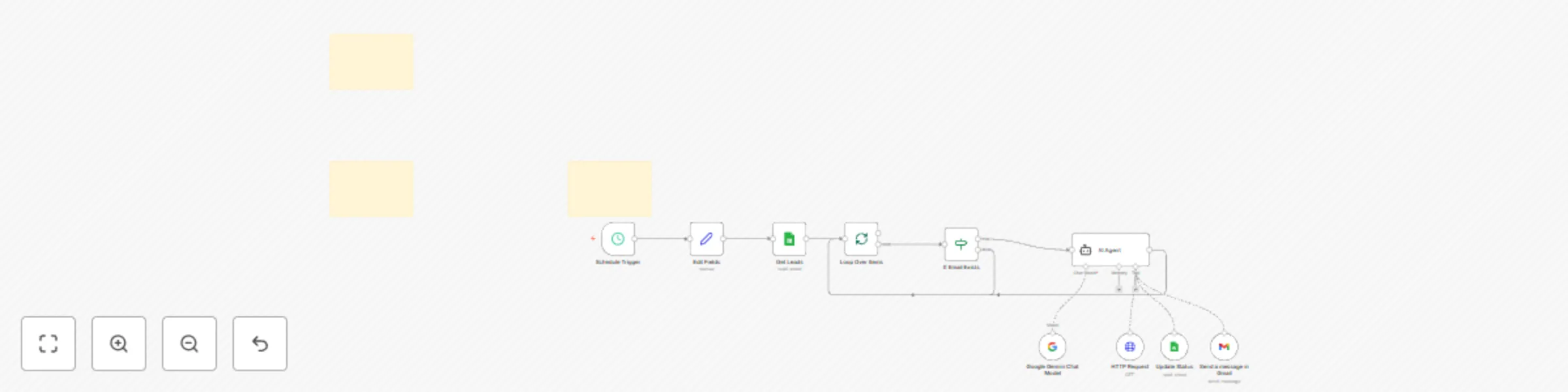
## AI-Powered Personalized Cold Email Outreach System **Categories:** Lead Generation, Business Automation, AI This workflow automates personalized cold email outreach by fetching lead data from a **Google Sheet**, using an **AI Agent** (e.g., GPT-5) to analyze the prospect's business website, crafting a tailored message, and sending it via **Gmail**. It updates the sheet to track who has been contacted, creating a completely automated and intelligent outreach system. --- ### Benefits * **Hyper-Personalized Outreach** - Generates unique email copy for each lead by analyzing their specific business website. * **Automated & Efficient** - Runs automatically on a schedule, saving hours of manual lead research and email writing. * **Seamless Integration** - Connects directly to **Google Sheets** and **Gmail** for a smooth, end-to-end process. * **Flexible & Customizable** - The **AI Agent's** prompt can be easily adjusted to change the email tone, focus, and call-to-action. * **Clear Tracking** - Updates the lead's status in your spreadsheet to prevent duplicate outreach and maintain a clean record. ### How It Works 1. **Scheduled Trigger**: The workflow is activated at a pre-set time using the **Schedule Trigger** node. 2. **Lead Ingestion**: It pulls leads from a designated **Google Sheet** where the `Outreach Status` is marked as `Pending`. 3. **AI Analysis & Email Crafting**: * The **AI Agent** node reads the lead's website and other data. * It uses an advanced prompt to act as an email specialist, crafting a unique, value-driven email pitch tailored to the prospect. 4. **Email Dispatch**: The workflow sends the personalized email to the prospect's address using the **Gmail** node. 5. **Status Update**: It updates the `Outreach Status` in the **Google Sheet** from `Pending` to `Sent` for the processed lead. --- ### Requirements * **n8n**: A deployed instance of n8n. * **Google Sheets**: A Google account with a designated spreadsheet for your leads. * **Gmail**: A Google account for sending emails. * **AI/LLM service**: A credential for an AI service like **Google Gemini** or **OpenAI**. --- ### How to Use 1. **Set up your spreadsheet**: Ensure your Google Sheet has the required columns: `Title`, `Website`, `Email`, `Industry`, and `Outreach Status`. Mark leads you want to process as `Pending`. 2. **Configure the workflow**: * Authenticate your **Google Sheets**, **Gmail**, and **AI/LLM** accounts. * Open the **Edit Fields** node to add your name and company for the email signature. 3. **Customize & Run**: Adjust the prompt in the **AI Agent** node to refine the email's style and set the **Schedule Trigger** to your preferred time. The workflow will begin automatically sending emails. ### Business Use Cases * **Sales Teams** - Generate hyper-personalized cold emails at scale to close more deals. * **Marketing Agencies** - Offer AI-driven outreach services to clients to boost their lead generation efforts. * **Recruiters** - Send tailored emails to passive candidates by referencing their professional profiles. * **SaaS Companies** - Target potential customers with highly relevant email pitches that address their specific business needs. * **Startups** - Efficiently validate product ideas or find early adopters by reaching out to a targeted audience. ### Revenue Potential This system can completely revolutionize your sales and marketing efforts: * **High conversion rates** due to personalized and relevant outreach can help you win clients of $5000+. * **Reduced manual effort** allows you to focus on high-value tasks. * **Scalable** to handle thousands of leads with minimal per-email cost. * Perfect for agencies offering **"Done-For-You"** AI-powered outreach services. **Difficulty Level:** Intermediate **Estimated Setup Time:** 20 min **Monthly Operating Cost:** Low (variable based on AI usage) ### Advanced Optimizations * **Enrichment**: Add a step to automatically enrich your leads with company data before the AI personalization step. * **A/B Testing**: Create multiple versions of the **AI Agent** prompt to test different messaging styles and optimize for conversion. * **Follow-up Sequence**: Extend the workflow to automatically send a follow-up email if the prospect doesn't reply within a certain number of days. *** ### Google Sheet Template You can copy [this sample Google Sheet](https://docs.google.com/spreadsheets/d/1JTeh0spxEzeZCvE7nT-lqDCpf6Awr7KH9Etst08WdIY/) to get started. **Need a lead generation pipeline to feed this workflow?** Check out [this n8n workflow](https://n8n.io/workflows/7406-automate-google-maps-lead-generation-with-free-email-enrichment-to-google-sheets/) that automates Google Maps lead generation without any paid tools.
Generate leads from Google Maps with email
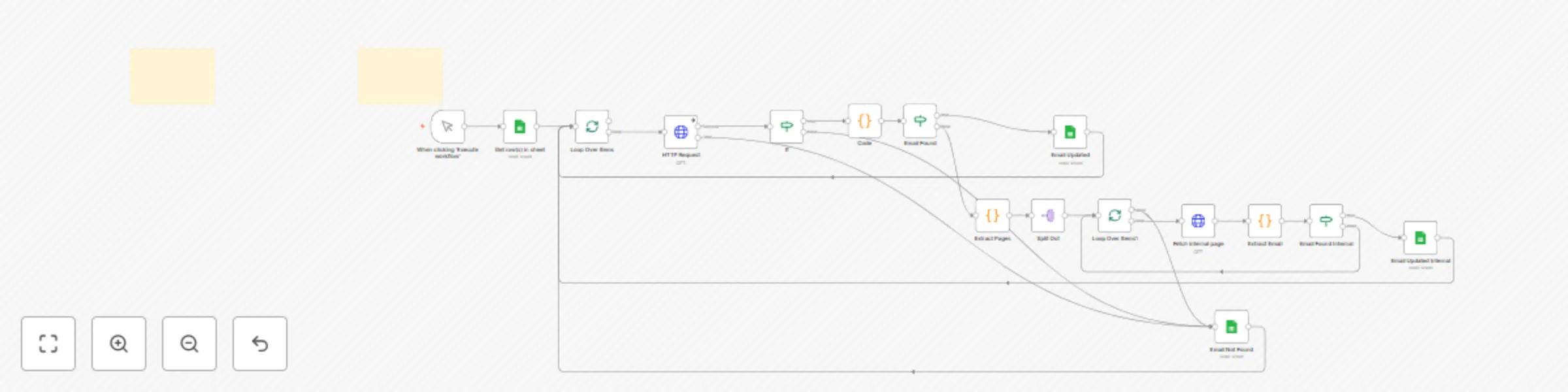
## Google Maps Lead Generation and Email Scraper **Categories:** Lead Generation, Web Scraping, Business Automation This workflow creates a completely free Google Maps email scraping system that extracts unlimited business emails without requiring expensive third-party APIs. Built entirely in N8N using simple HTTP requests and JavaScript, this system can generate thousands of targeted leads for any industry or location while operating at 99% free cost structure. --- ### Benefits * **Zero API Costs** - Operates entirely through free Google Maps scraping without expensive third-party services * **Unlimited Lead Generation** - Extract emails from thousands of Google Maps listings across any industry * **Geographic Targeting** - Search by specific cities, regions, or business types for precise lead targeting * **Built-in Data Cleaning** - Automatic duplicate removal, filtering, and data validation * **Scalable Processing** - Handle hundreds of businesses per search with intelligent rate limiting ### How It Works 1. **Lead Ingestion**: I have given a free browser extension to scrape leads from **Google Maps** and import them directly into a **Google Sheet**. 1. Business Name 2. Business Phone Number 3. Business Emails (From Step 3) 3. Rating 4. Reviews Count 5. Industry 6. Address 7. Website 8. Google Map Link 2. **Website Crawling**: The n8n workflow reads the leads from your sheet and automatically crawls each website to find all internal pages. 3. **Email Extraction**: For each page, the workflow intelligently scrapes for email addresses, filtering out image files and other non-relevant data. 4. **Enrich and Update**: * If an email is found, the workflow updates the corresponding row in your Google Sheet with the new email address. * If no email is found after crawling the main page and all sub-pages, it marks the lead as "Not Found" so you can easily track your progress. --- ### Requirements * **n8n**: A self-hosted or cloud instance of n8n. * **Google Sheets**: A Google account with a designated spreadsheet for your Google Maps leads. * **Browser Extension**: A free Google Maps scraping extension to get your initial lead data into the Google Sheet. --- ### How to Use 1. **Set up your spreadsheet**: Use the browser extension to scrape leads from Google Maps and populate your Google Sheet. Make sure the sheet has a column named **"Website"** and a column named **"Processed for Email"** (with an initial value of "Pending"). 2. **Configure the workflow**: Import this n8n workflow JSON into your n8n instance and connect your **Google Sheets** credentials. 3. **Run the workflow**: Click the "Execute workflow" button to start the process. The workflow will automatically begin crawling websites and enriching your lead list with emails. ### Business Use Cases * Local Service Providers - Find competitors and potential partners in specific geographic areas * B2B Sales Teams - Generate targeted prospect lists for cold outreach campaigns * Marketing Agencies - Build industry-specific lead databases for client campaigns * Real Estate Professionals - Identify businesses in target neighborhoods for commercial opportunities * Franchise Development - Research potential markets and existing competition * Market Research - Analyze business density and contact information across regions ### Revenue Potential This system transforms lead generation economics: * $0 per lead vs. $2-5 per lead from paid databases * Process 1,000+ leads daily without hitting API limits * Sell as a service for $500-2,000 per industry/location * Perfect for agencies offering lead generation to local businesses * Difficulty Level: Intermediate * Estimated Setup Time: 30 min Monthly Operating Cost: $0 (completely free) ### Advanced Optimizations we have Scale the system with: * Multi-Page Scraping: Extract URLs from homepages, then scrape contact pages for more emails * Proxy Integration: Add residential proxies for unlimited scraping without rate limits
AI-powered WhatsApp support bot with ticket creation for Google Sheets
This n8n workflow automates the entire process, from learning based on your website data, documents to a multi-channel chatbot with automated ticket creation. It's the perfect solution for businesses looking to build a powerful and intelligent chatbot, replace their customer support operations team with a website widget support and a dedicated WhatsApp support agent. #### How it Works 1. **Data Ingestion & Vectorization**: * The workflow starts with a simple form where you can input your website's **sitemap**, specific **page URLs**, and relevant documents containing your business information. * n8n crawls and scrapes all the data from these sources. * The scraped data is then processed and vectorized (converted into numerical representations). * These vector embeddings are stored in a **Pinecone Vector DB** to create a powerful and searchable knowledge base. 2. **Multi-Channel User Interaction**: * **Website Widget Support**: An integrated chatbot can be embedded directly onto your website. Users can ask questions and receive instant, accurate answers based on the vectorized data in Pinecone. * **WhatsApp Support Agent**: A **WhatsApp trigger** allows users to interact with your business via WhatsApp. The bot responds to queries using the same knowledge base, making support accessible on a popular messaging platform. 3. **Intelligent Ticket Creation**: * If a user describes a specific issue that requires human intervention, the bot will intelligently ask for more specific information (e.g., order number, user ID). * Once the required information is provided, the workflow automatically creates a new support **ticket** in a designated **Google Sheet**. 4. **Automated Communication**: * After a ticket is created, the workflow automatically sends a confirmation email to the user. * This email contains the ticket details and a confirmation that their issue has been logged, ensuring a smooth and professional customer experience. #### Requirements * **n8n**: A self-hosted or cloud instance of n8n. * **Pinecone**: An account and API key for Pinecone to store your vector data. * **Google Sheets**: A Google account with a designated spreadsheet for storing support tickets. * **Email Service**: An email service provider (e.g., Gmail, SendGrid, Mailgun) configured with n8n to send automated emails. * **WhatsApp Business API**: Access to the WhatsApp Business API for the WhatsApp trigger. #### How to Use 1. **Configure Credentials**: Set up your credentials for Pinecone, Google Sheets, your email service, and the WhatsApp Business API within n8n. 2. **Populate the Knowledge Base**: Use the provided form to enter your website's sitemap, specific URLs, and documents. Run the initial part of the workflow to scrape and store this data in Pinecone. 3. **Activate the Chatbots**: Deploy the website widget and activate the WhatsApp trigger. 4. **Monitor and Manage**: Monitor the incoming tickets in your Google Sheet and manage customer queries efficiently, knowing that the automated system is handling the initial interactions and basic queries.
AI-powered Elementor blog post automation system for agencies with Gemini
## AI-Powered Elementor Blog Post Automation System for Agencies **Categories:** Business Automation, Content Creation, SEO, AI This advanced workflow automates every step of content publishing for agencies, from managing multiple clients and creating **SEO-optimized blog content** to **AI-powered image generation** and publishing directly to **Elementor-powered WordPress sites**. It's a game-changer for scaling your content operations and freeing up your team for strategic work. --- ### Benefits * **Complete Automation** - An end-to-end solution that handles content generation, image creation, scheduling, and publishing. * **Elementor-Ready Content** - Creates posts that inherit your client's theme styling and responsiveness, eliminating manual design work. * **Centralized Management** - Organizes clients, content ideas, and publishing history in a simple **Google Sheets** system. * **Intelligent AI Creation** - Uses **Google Gemini** to produce high-quality, SEO-optimized content with customizable tone and strict guidelines. * **Flexible Publishing** - Offers both **on-demand** and **scheduled** triggers to fit any content strategy. ### How It Works 1. **Flexible Triggers**: The workflow can be initiated in two ways: * **Manual Trigger**: Fill out a simple **n8n form** with client details, keywords, and content guidelines for an on-demand post. * **Automated Trigger**: The workflow checks a **Google Sheet** hourly and automatically publishes any scheduled posts. 2. **Centralized Management**: A three-sheet **Google Sheets** system acts as your core database for: * **Clients**: Stores client information and **WordPress app credentials**. * **Blog Ideas/Schedule**: Your content calendar where you plan and track upcoming posts. * **History**: A log of every successfully published post. 3. **Intelligent AI Content Generation**: An **AI Agent** with a customizable prompt leverages **Google Gemini** to: * Analyze competitor URLs to create more comprehensive content. * Adhere to strict SEO and formatting guidelines. * Generate a unique **featured image** based on the article's keywords. 4. **Elementor Conversion**: A custom **JavaScript function** parses the AI's HTML output and converts it into a native **Elementor JSON format**. This is the core magic that ensures the post is perfectly structured and responsive. 5. **Seamless WordPress Integration**: The workflow uses a **WordPress node** to send the post's title and the Elementor JSON data to the client's site, publishing a new blog post that looks as if it was manually created with the Elementor editor. --- ### Requirements * **n8n Instance**: A self-hosted or cloud instance of n8n. * **Google Account**: A Google account for managing your client and content sheets. * **Google Gemini API Key**: A valid API key for content generation. * **WordPress App Passwords**: App passwords for each of your clients' WordPress sites. --- ### How to Use 1. **Set up your spreadsheet**: Copy the provided Google Sheets template and populate the `Clients` sheet with your clients' details and credentials. 2. **Connect your accounts**: Authenticate your **Google Sheets**, **Google Gemini**, and **n8n** accounts within your n8n instance. 3. **Run the workflow**: Add your blog post ideas to the `Schedule` sheet for automated publishing, or use the **n8n form** for on-demand posts. The workflow will handle the rest. ### Business Use Cases * **Content Marketing Agencies** - Scale content production for dozens of clients without hiring more writers. * **SEO Agencies** - Instantly create high-quality, long-form content to improve client search rankings. * **Freelancers** - Offer comprehensive content services that would normally require a team. * **SaaS Companies** - Automate blog content to build an inbound marketing engine. * **Website Developers** - Provide ongoing content services to clients after a site launch. ### Revenue Potential This system allows you to: * **Scale content services** without scaling your team. * **Increase profitability** by reducing the time and cost per blog post. * Offer a **differentiated service** that provides superior, Elementor-ready content. * Potentially sell this automation as a service to other agencies. **Difficulty Level:** Intermediate **Estimated Setup Time:** 45 min **Monthly Operating Cost:** Low (variable based on AI usage)
Daily meeting summaries with Google Calendar & Gemini for Slack-Discord-WhatsApp
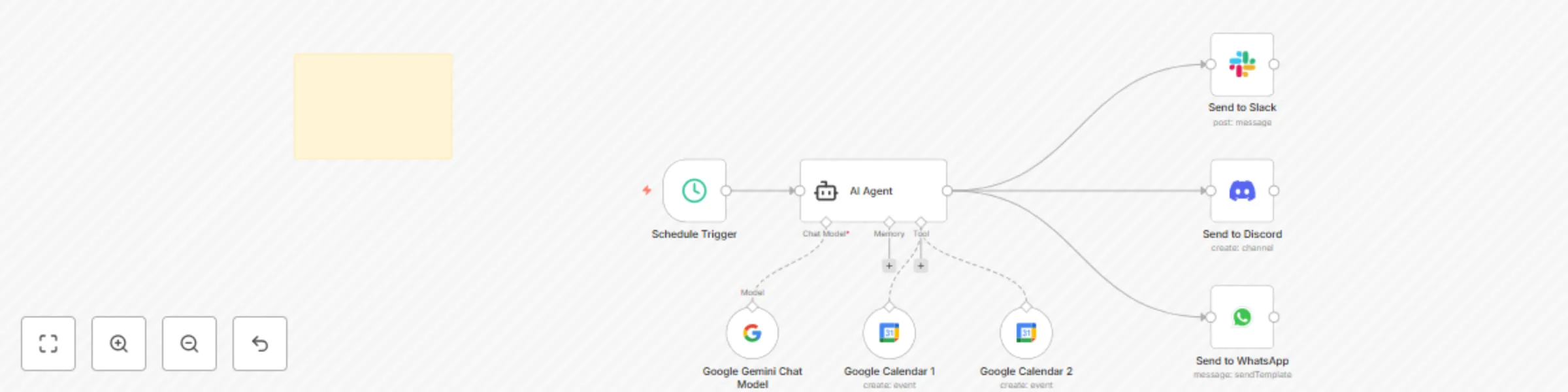
This workflow automatically summarizes your team's daily meetings from multiple Google Calendars daily at 9AM and sends the digest to your preferred communication channels. It uses AI to identify and format meeting details, making it easy to see your schedule at a glance. --- ### **Good to Know** * **Multi-Calendar Support**: This workflow is designed to pull events from any number of Google Calendars you've connected, providing a single, consolidated summary. * **AI-Powered Summaries**: The AI Agent, powered by Google Gemini, is instructed to format the output with key details like title, time, duration, and a link to join the meeting. This saves you from sifting through calendar invites. ### **How It Works** 1. A **Schedule Trigger** starts the workflow at a set time each day e.g at 9 AM (or any other time you choose). 2. An **AI Agent** with access to the Google Calendar tool is prompted to fetch today's events from all connected calendars. 3. The **Google Calendar** nodes retrieve all meetings for the current day. 4. The AI Agent processes this information and generates a clean, structured summary. 5. Finally, the formatted summary is sent to your team's chosen communication platforms: **Slack**, **Discord**, and **WhatsApp**. --- ### **How to Use** 1. **Set the Schedule**: Adjust the **Schedule Trigger** to run at a time that works best for your team—for example, every morning before the workday begins. 2. **Connect Your Accounts**: Add your **Google Calendar** credentials to connect all the calendars you want to monitor. 3. **Choose Your Channels**: Connect the appropriate **Slack**, **Discord**, and/or **WhatsApp** nodes and configure them to send the message to your desired channels or groups. --- ### **Requirements** * **Google Gemini account**: A Google Gemini account is needed for the AI Agent and Chat Model to function. * **Google Calendar account(s)**: You'll need to connect the Google Calendar accounts you wish to pull data from. * **Communication platform account(s)**: Credentials for the communication apps you want to use (Slack, Discord, WhatsApp). --- ### **Customizing This Workflow** * **Modify the Trigger**: You can change the **Schedule Trigger** to a different interval or even trigger the workflow manually with a webhook. * **Adjust the AI Prompt**: Fine-tune the AI Agent's prompt to change the summary format, include more details, or even ask it to highlight the most important meetings of the day. * **Add More Platforms**: Easily add more communication nodes to send the daily summary to other platforms like Microsoft Teams, email, or even a custom CRM.
Automated Upwork messages alerts to Slack with Gmail and Google Gemini AI
## Upwork Messages Notifications (Gmail to Slack) - Fully Automated Alerts This n8n workflow streamlines how you receive Upwork client messages, sending instant notifications to Slack. It demonstrates two approaches: a code-based extraction and an AI-powered one with Google Gemini. --- ### Use Cases * **Instant Communication:** Get real-time alerts for new Upwork client messages in your team's Slack channel. * **Improved Responsiveness:** Quickly respond to client inquiries and maintain strong communication. * **Centralized Notifications:** Keep all your essential work-related notifications in one place. ### Good to Know * The workflow is set to poll your Gmail every *3 minutes* for unread Upwork messages, which can be reduced or increased. * The **AI Information Extractor** with Google Gemini provides a more refined and robust method for data parsing compared to custom code. * Usage of Google Gemini may incur costs. Refer to [Gemini Pricing](https://ai.google.dev/gemini-api/docs/pricing) for updated information. * Google Gemini models can be geo-restricted. If you encounter a "model not found" error, it might not be available in your region. ### How it Works **Method 1: Code-Based Extraction** 1. **Gmail Trigger:** The workflow starts by monitoring your Gmail for new, unread emails from "via Upwork". 2. **Code Node:** A custom JavaScript code block is used to extract the client's name and the message content directly from the email's text. 3. **Slack Notification:** The extracted client name and message are then formatted and sent as a new message to a designated Slack channel. **Method 2: AI-Powered Extraction with Google Gemini (Recommended)** 1. **Gmail Trigger X:** Similar to Method 1, this part also triggers on new unread Upwork emails. 2. **Information Extractor (AI):** This powerful node, powered by Google Gemini, takes the entire email text and intelligently extracts structured information like the "client" name and the "message" content based on a defined schema. This method is more robust and requires less manual parsing logic. 3. **Google Gemini Chat Model:** (Implicitly used by the Information Extractor) This node provides the underlying AI capabilities for intelligent information extraction. 4. **Send to Slack X:** The refined output from the AI Information Extractor (client name and message) is then sent to a Slack channel. ### How to Use 1. **Gmail Credentials:** Ensure you have configured your Gmail OAuth2 credentials in n8n for both "Gmail Trigger" nodes. 2. **Slack Credentials:** Set up your Slack OAuth2 credentials in n8n for both "Send to Slack" nodes and select the desired Slack channel. 3. **Google Gemini Credentials:** For the AI-powered workflow, you'll need to set up your Google Gemini API key as a credential in n8n. 4. **Activate Workflows:** Enable both workflows in n8n to start receiving notifications. You can compare the output quality of each method. ### Requirements * **n8n instance** (self-hosted or cloud) * **Gmail Account** connected to Upwork notifications. * **Slack Workspace** and a designated channel for notifications. * **Google Gemini API key** for the AI-powered extraction workflow.
Fetch all page content from website and store with Gemini embedding in Pinecone
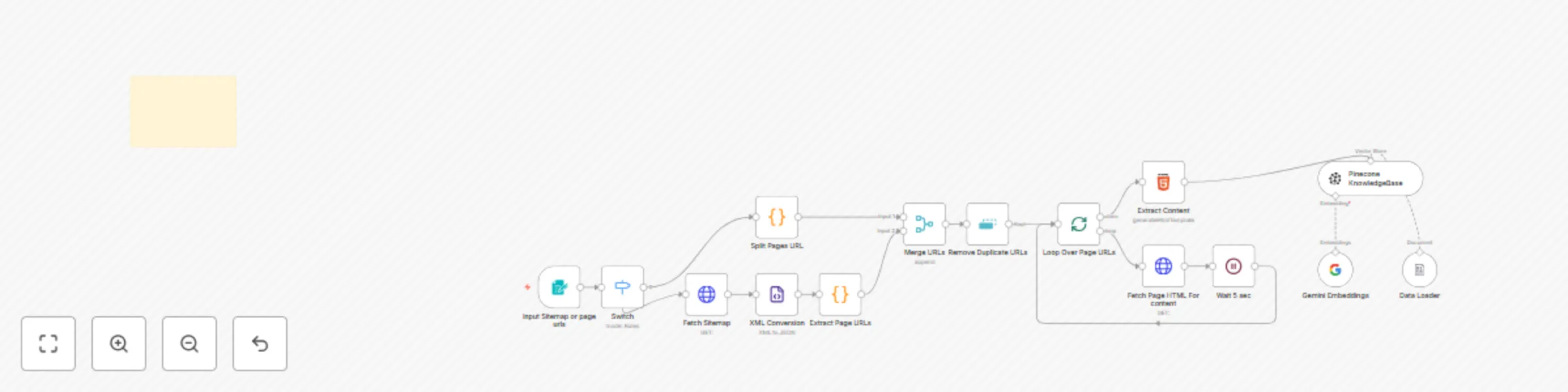
## Fetch and Extract all Website Pages Content and Store in Pinecone Vector Database as KnowledgeBase with Google Gemini Embeddings Use cases are many: Populate a custom chatbot's knowledge base, create a powerful search index for your website, or build a comprehensive repository of information for internal tools! **Good to know** * At time of writing, Pinecone and Gemini API costs apply based on usage. Refer to their respective pricing pages for updated information. * The models used in this workflow are subject to regional availability. If you encounter a "model not found" error, the service may not be available in your country or region. **How it works** 1. **Input Collection:** The workflow starts by collecting URLs, either from a user-provided sitemap or a list of individual page URLs. 2. **URL Processing:** It then fetches sitemap XML (if provided), converts it to JSON, extracts all page URLs, and merges them with any manually entered URLs. All duplicate URLs are removed to ensure efficiency. 3. **Content Fetching:** The workflow iterates through the unique URLs, sending HTTP requests to download the HTML content of each page. A small delay is added between requests to be courteous to the website servers. 4. **Content Extraction:** The HTML content is then processed to extract the main textual content from the page's body, excluding images, and cleaning the text for better quality. 5. **Embedding Generation:** Gemini's embedding model converts the extracted text into vector embeddings, capturing the semantic meaning of the content. 6. **Pinecone Storage:** Finally, these vector embeddings, along with their associated content, are uploaded to your specified Pinecone index, creating a searchable knowledge base. Existing data in the namespace is cleared before new data is inserted. **How to use** * The workflow is triggered by a form where you input your sitemap or page URLs. * You can monitor the execution flow within n8n to see pages being processed and uploaded. * The `Wait 5 sec` node can be adjusted if you need to fetch content more rapidly or slowly, depending on the website's rate limits. **Requirements** * **Google Gemini API key** for text embeddings. * **Pinecone API key** for vector database storage. **Customising this workflow** This workflow can be adapted for various purposes. Consider: * Adding more sophisticated HTML parsing logic to extract specific sections of a webpage. * For building a Web Support Chatbot * Integrating with other services to trigger updates to the knowledge base (e.g., automatically updating when new blog posts are published). * Connecting the Pinecone knowledge base to a chatbot or search application for enhanced functionalities.