Automate lead ranking & task creation with Google Sheets + ClickUp

Workflow preview

Workflow preview
100%
Automate lead ranking & task creation with Google Sheets + ClickUp preview
Open on n8n.io

Important notice

This workflow is provided as-is. Please review and test before using in production.

1. Workflow Overview

Description Stop losing warm leads in the noise. This automation analyzes your lead engagement data, calculates priority scores based on activity and last contact date, and automatically queues you...

Best for

  • Lead Generation automation workflows
  • advanced n8n builders looking for reusable templates

Tools used

n8n-nodes-base.manualtrigger, n8n-nodes-base.stickynote, n8n-nodes-base.googlesheets, n8n-nodes-base.sort, n8n-nodes-base.limit, n8n-nodes-base.function, n8n-nodes-base.clickup

Source and attribution

This workflow is cataloged by N8N Workflows and links back to its original n8n.io source page by Rahul Joshi.

Original n8n.io source

1.1 Workflow description

Title
Automate lead ranking & task creation with Google Sheets + ClickUp
Workflow name
Automate lead ranking & task creation with Google Sheets + ClickUp

Description

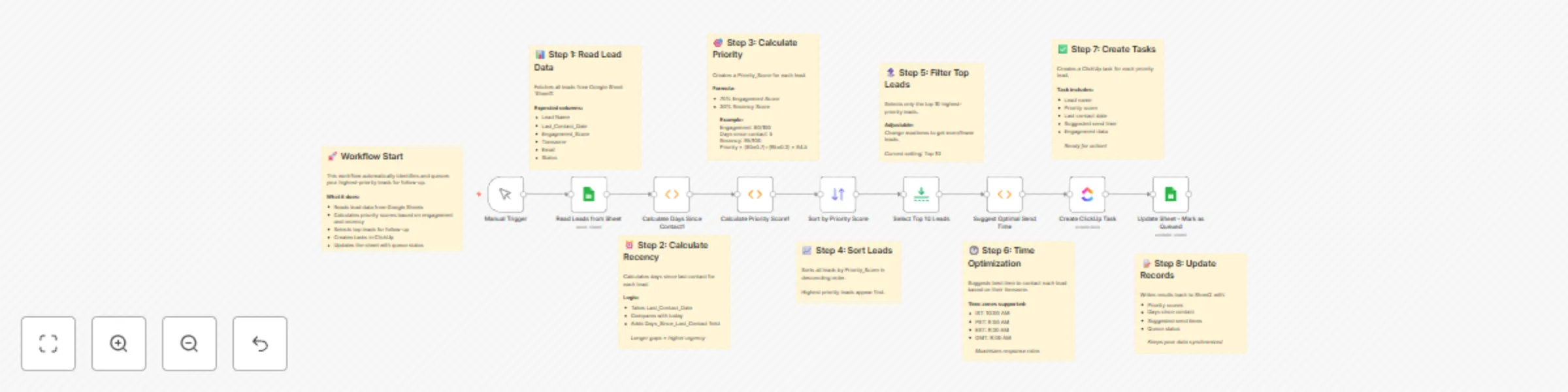
Stop losing warm leads in the noise. This automation analyzes your lead engagement data, calculates priority scores based on activity and last contact date, and automatically queues your top 10 leads for follow-up in ClickUp — complete with suggested send times based on timezone. ⚡

What This Template Does

Pulls lead data from Google Sheets (e.g., name, engagement, last contact date, timezone). 📄 Calculates days since last contact to measure lead freshness. ⏰ Combines engagement score and recency into a weighted priority score. 📊 Sorts and filters top 10 leads for immediate follow-up. 🔝 Suggests best time to reach out based on each lead’s timezone. 🌍 Creates corresponding ClickUp tasks with lead details. 🗂️ Updates the Google Sheet to mark leads as queued. ✅

Key Benefits

  • Automatically identify high-priority leads daily. 🎯
  • Increase conversion rates with timely, personalized follow-ups. ⏱️
  • Eliminate manual sorting and spreadsheet filtering. 🚫
  • Keep sales teams organized with ClickUp task automation. 💼
  • Works perfectly for SDRs, account managers, and B2B teams. 🤝

Features

  • Google Sheets integration for real-time lead updates. 📊
  • Smart recency calculator (days since last contact). ⏰
  • Weighted priority formula (70% engagement, 30% recency). 🧮
  • ClickUp task creation for seamless team coordination. 🔗
  • Timezone-based follow-up time suggestion. 🌐
  • Configurable limit (Top 10 leads — adjustable). ⚙️
  • Automatic sheet update with queue status tracking. 📋

Requirements

  1. n8n instance (cloud or self-hosted). 🧰
  2. Google Sheet with columns: Lead Name, Engagement_Score, Last_Contact_Date, Timezone, Email. 📑
  3. Connected Google Sheets and ClickUp credentials in n8n. 🔐
  4. Active ClickUp workspace with accessible list or space ID. 🧭

Target Audience

  • Sales and marketing teams managing large lead lists. 📈
  • B2B organizations using ClickUp for pipeline tracking. 🧩
  • SDRs who need to prioritize outreach daily. 🗓️
  • Agencies managing multiple clients and follow-up cadences. 🤝

Step-by-Step Setup Instructions (Concise)

  • Create or connect a Google Sheet with all required headers. 📋
  • Update node credentials for Google Sheets and ClickUp. 🔑
  • Adjust weightage logic or maxItems count if needed. ⚙️
  • Test workflow using the manual trigger. ▶️
  • (Optional) Schedule it to run daily for auto-prioritization. ⏰
  • Review ClickUp tasks and follow up with top leads. 📨

Security Best Practices

  • Share the Google Sheet only with the n8n Google account (Editor). 🔒
  • Keep ClickUp API credentials encrypted within n8n. 🛡️
  • Review ClickUp task creation permissions before activation. ✅
  • Regularly clean archived leads from the Google Sheet. 🧹

1.2 Logical Blocks

This catalog entry is organized from the workflow JSON. The node-level section below shows the executable blocks available for review before importing the template.

2. Block-by-Block Analysis

Block 1 - Manual Trigger

Type / Role
n8n-nodes-base.manualTrigger - manualTrigger
Config choices
Version 1

Block 2 - Sticky Note

Type / Role
n8n-nodes-base.stickyNote - stickyNote
Config choices
Version 1

Block 3 - Read Leads from Sheet

Type / Role
n8n-nodes-base.googleSheets - googleSheets
Config choices
Version 3

Block 4 - Sticky Note1

Type / Role
n8n-nodes-base.stickyNote - stickyNote
Config choices
Version 1

Block 5 - Sticky Note2

Type / Role
n8n-nodes-base.stickyNote - stickyNote
Config choices
Version 1

Block 6 - Sticky Note3

Type / Role
n8n-nodes-base.stickyNote - stickyNote
Config choices
Version 1

Block 7 - Sort by Priority Score

Type / Role
n8n-nodes-base.sort - sort
Config choices
Version 1

Block 8 - Sticky Note4

Type / Role
n8n-nodes-base.stickyNote - stickyNote
Config choices
Version 1

Block 9 - Select Top 10 Leads

Type / Role
n8n-nodes-base.limit - limit
Config choices
Version 1

Block 10 - Sticky Note5

Type / Role
n8n-nodes-base.stickyNote - stickyNote
Config choices
Version 1

Block 11 - Suggest Optimal Send Time

Type / Role
n8n-nodes-base.function - function
Config choices
Version 1

Block 12 - Sticky Note6

Type / Role
n8n-nodes-base.stickyNote - stickyNote
Config choices
Version 1

Block 13 - Create ClickUp Task

Type / Role
n8n-nodes-base.clickUp - clickUp
Config choices
Version 1

Block 14 - Sticky Note7

Type / Role
n8n-nodes-base.stickyNote - stickyNote
Config choices
Version 1

Block 15 - Update Sheet - Mark as Queued

Type / Role
n8n-nodes-base.googleSheets - googleSheets
Config choices
Version 3

Block 16 - Sticky Note8

Type / Role
n8n-nodes-base.stickyNote - stickyNote
Config choices
Version 1

Block 17 - Calculate Days Since Contact1

Type / Role
n8n-nodes-base.function - function
Config choices
Version 1

Block 18 - Calculate Priority Score1

Type / Role
n8n-nodes-base.function - function
Config choices
Version 1

3. Summary Table

Workflow Automate lead ranking & task creation with Google Sheets + ClickUp
Complexity advanced
Nodes 18
Categories Lead Generation
Author Rahul Joshi
Published 07 Oct 2025

4. Reproducing the Workflow from Scratch

  1. 1. Download the workflow JSON

    Use the JSON export at /data/workflows/9345/9345.json as the source template for this automation.

  2. 2. Import the template into n8n

    Open n8n, import the downloaded JSON, and review each node before activating the workflow.

  3. 3. Configure credentials and variables

    Replace placeholder credentials, API keys, webhook URLs, account IDs, and environment-specific values with your own settings.

  4. 4. Test with sample data

    Run the workflow manually or in a staging workspace, inspect node output, and confirm downstream systems receive the expected data.

  5. 5. Activate and monitor

    Enable the workflow only after testing, then monitor executions, errors, and rate limits during the first production runs.

5. General Notes & Resources

Review imported nodes carefully before activation. This catalog entry is intended to help you inspect the workflow structure, understand required services, and find related templates faster.

Node names, credentials, schedules, webhook paths, and external service limits may need adjustment for your workspace.

Frequently asked questions

What does Automate lead ranking & task creation with Google Sheets + ClickUp do?

Description Stop losing warm leads in the noise. This automation analyzes your lead engagement data, calculates priority scores based on activity and last contact date, and automatically queues you...

What do I need before importing this workflow?

Review the workflow JSON, configure any required credentials in n8n, and test the automation in a safe workspace before using it in production.

Can I customize this workflow?

Yes. Use the block-by-block analysis and the downloadable JSON to inspect each node, then adjust credentials, prompts, schedules, filters, or destinations for your Lead Generation use case.