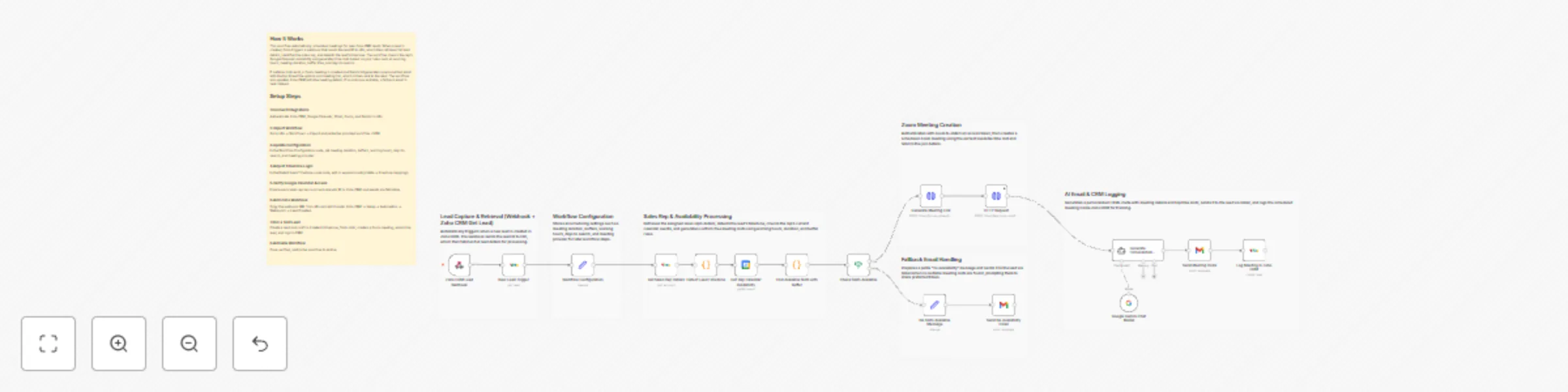
Automate lead meeting scheduling with Zoho CRM, Google Calendar & Gemini AI

Workflow preview

Workflow preview
100%
Automate lead meeting scheduling with Zoho CRM, Google Calendar & Gemini AI preview
Open on n8n.io

Important notice

This workflow is provided as-is. Please review and test before using in production.

1. Workflow Overview

Zoho CRM Smart Meeting Scheduler This workflow automatically schedules meetings for new Zoho CRM leads by detecting their timezone, checking the sales rep’s Google Calendar, generating conflict fre...

Best for

  • Lead Nurturing automation workflows
  • AI Chatbot automation workflows
  • advanced n8n builders looking for reusable templates

Tools used

n8n-nodes-base.zohocrm, n8n-nodes-base.set, n8n-nodes-base.code, n8n-nodes-base.googlecalendar, n8n-nodes-base.if, n8n-nodes-base.httprequest, @n8n/n8n-nodes-langchain.agent, n8n-nodes-base.gmail

Source and attribution

This workflow is cataloged by N8N Workflows and links back to its original n8n.io source page by WeblineIndia.

Original n8n.io source

1.1 Workflow description

Title
Automate lead meeting scheduling with Zoho CRM, Google Calendar & Gemini AI
Workflow name
Automate lead meeting scheduling with Zoho CRM, Google Calendar & Gemini AI

Zoho CRM - Smart Meeting Scheduler

This workflow automatically schedules meetings for new Zoho CRM leads by detecting their timezone, checking the sales rep’s Google Calendar, generating conflict-free time slots, creating a Zoom meeting and sending a personalized AI-generated email to the lead. If no slots are available, it sends a fallback message to the lead without updating Zoho CRM. When a meeting is created, all details are logged inside Zoho CRM for visibility.

⚡ Quick Implementation Steps (Fast Start Guide)

  • Import the workflow JSON into n8n.
  • Configure Zoho CRM, Google Calendar, Gmail, Zoom OAuth and Gemini AI credentials.
  • Update meeting duration, working hours, buffer time and search window.
  • Set email recipient to the lead’s email instead of test/static values.
  • Add the webhook URL to Zoho CRM → Automation → Webhooks.
  • Test with a new lead and activate the workflow.

📘 What It Does

This workflow automates scheduling for new Zoho CRM leads. As soon as a lead is created, it retrieves full lead and owner details, detects the lead’s timezone and checks the assigned sales rep’s upcoming Google Calendar events. This helps identify when the rep is available.

Using your settings—working hours, meeting duration, buffer before/after and days to evaluate—the system generates valid meeting time slots with no conflicts. If suitable slots exist, it authenticates with Zoom and creates a meeting for the earliest option, then generates a polished HTML invitation using Gemini AI and emails it to the lead. This ensures a fast, smart and personalized lead engagement process.

If no slots exist, the workflow sends a fallback email informing the lead that no availability is open in the next few days. In this branch, Zoho CRM is not updated, because no meeting was scheduled.

🎯 Who’s It For

This workflow is perfect for:

  • Sales teams managing high inbound volume
  • CRM managers automating lead qualification & engagement
  • SaaS companies scheduling demos automatically
  • Agencies booking consultation calls
  • Any team struggling with timezone-based scheduling manually

🔧 Requirements to Use This Workflow

Platform Requirements

  • n8n (Cloud or self-hosted)

Required Integrations

  • Zoho CRM OAuth2
  • Google Calendar OAuth2
  • Gmail OAuth2
  • Zoom OAuth (account-level)
  • Gemini AI / Google PaLM API

Required Lead Fields

  • Email (mandatory for sending the invite)
  • Country / State (for timezone detection)
  • Lead Owner (to fetch rep details)

🔄 How It Works

  1. Zoho CRM Webhook triggers when a new lead is created.
  2. Workflow fetches full lead and owner details.
  3. Detects the lead’s timezone using country/state mapping.
  4. Fetches the sales rep’s availability from Google Calendar.
  5. Generates valid time slots based on working hours, buffers and meeting duration.

If slots exist:

  • Authenticate with Zoom
  • Create a Zoom meeting
  • Generate personalized HTML invite using Gemini AI
  • Send email to the lead
  • Log meeting details in Zoho CRM

If no slots exist:

  • Generate fallback message
  • Send fallback email to the lead
  • (Zoho CRM is NOT updated in this path)

🛠️ Setup Steps (Configuration Guide)

1. Import Workflow

Go to: n8n → Workflows → Import and upload the JSON file.

2. Add Required Credentials

Configure the following inside n8n:

  • Zoho CRM OAuth
  • Google Calendar OAuth
  • Gmail OAuth
  • Zoom OAuth
  • Gemini AI API key

3. Update Workflow Configuration Node

Set:

  • Meeting duration
  • Buffer before/after
  • Working hours
  • Days to look ahead
  • Default meeting provider (Zoom)

4. Fix Email Recipient

In Send Meeting Invite node, set: sendTo = {{$('Detect Lead Timezone').item.json.Email}}

yaml Copy code

5. Update Google Calendar Email/ID

Ensure the calendar ID matches the sales rep’s Google Calendar.

6. Add Webhook in Zoho CRM

Navigate to:
Setup → Automation → Webhooks → Create Webhook → Lead Created
Paste the webhook URL from n8n.

7. Test the Automation

Verify:

  • Correct timezone detection
  • Calendar availability check
  • Zoom meeting creation
  • AI email sent to the lead
  • Zoho CRM updated only when meeting is created

8. Activate Workflow

Enable the workflow for live operation.

🧩 How To Customize Nodes

1. Adjust Meeting Logic

Modify the Workflow Configuration node to change:

  • Slot duration
  • Buffer time
  • Working hour ranges
  • Days to consider

2. Expand Timezone Detection

Edit the Detect Lead Timezone node to add new countries/states.

3. Personalize Email Content

Update the prompt inside the Generate Personalized Invite node.

4. Add New Regions

Duplicate timezone logic for new regions (Australia, Middle East, etc.)

5. Replace Zoom

Swap Zoom with Google Meet, Microsoft Teams or Zoho Meeting.

➕ Add-Ons (Optional Enhancements)

  • Auto-book calendar events when lead confirms a slot
  • WhatsApp notifications via Twilio or Gupshup
  • Slack/Email internal alerts for reps
  • Follow-up reminder emails
  • Log lead activity to Google Sheets
  • Attach downloadable ICS calendar file

💼 Use Case Examples

  • SaaS demo scheduling
  • Consultation & discovery calls
  • Global timezone-based sales teams
  • Onboarding/support calls
  • Event follow-up scheduling

(And many more…)

🩻 Troubleshooting Guide

Issue Possible Cause Solution
Lead not receiving email Gmail OAuth expired / wrong email field Reconnect Gmail OAuth & fix sendTo value
Wrong time slots Incorrect timezone detection Update mapping in Detect Lead Timezone
Zoom meeting not created Invalid/expired Zoom OAuth Reconnect Zoom credentials
CRM not updated after fallback email Expected behavior No CRM update when slots don’t exist
Workflow not triggering Missing Zoho webhook Re-add webhook
Empty AI email Gemini key incorrect Reconfigure Gemini credentials

🤝 Need Help?

If you want assistance setting up, customizing or extending this workflow, the n8n automation team at WeblineIndia is here to help. We specialize in:

  • Advanced automation workflows
  • Multi-timezone scheduling systems
  • CRM-integrated AI communication
  • Custom Zoho + n8n development
  • End-to-end automation architecture

👉 Contact WeblineIndia for expert workflow development and enhancements.

1.2 Logical Blocks

This catalog entry is organized from the workflow JSON. The node-level section below shows the executable blocks available for review before importing the template.

2. Block-by-Block Analysis

Block 1 - New Lead Trigger

Type / Role
n8n-nodes-base.zohoCrm - zohoCrm
Config choices
Version 1

Block 2 - Workflow Configuration

Type / Role
n8n-nodes-base.set - set
Config choices
Version 3.4

Block 3 - Get Sales Rep Details

Type / Role
n8n-nodes-base.zohoCrm - zohoCrm
Config choices
Version 1

Block 4 - Detect Lead Timezone

Type / Role
n8n-nodes-base.code - code
Config choices
Version 2

Block 5 - Get Rep Calendar Availability

Type / Role
n8n-nodes-base.googleCalendar - googleCalendar
Config choices
Version 1.3

Block 6 - Find Available Slots with Buffer

Type / Role
n8n-nodes-base.code - code
Config choices
Version 2

Block 7 - Check Slots Available

Type / Role
n8n-nodes-base.if - if
Config choices
Version 2.2

Block 8 - Generate Meeting Link

Type / Role
n8n-nodes-base.httpRequest - httpRequest
Config choices
Version 4.3

Block 9 - Generate Personalized Invite

Type / Role
@n8n/n8n-nodes-langchain.agent - agent
Config choices
Version 3

Block 10 - Send Meeting Invite

Type / Role
n8n-nodes-base.gmail - gmail
Config choices
Version 2.1

Block 11 - Log Meeting in Zoho CRM

Type / Role
n8n-nodes-base.zohoCrm - zohoCrm
Config choices
Version 1

Block 12 - No Slots Available Message

Type / Role
n8n-nodes-base.set - set
Config choices
Version 3.4

Block 13 - Send No Availability Email

Type / Role
n8n-nodes-base.gmail - gmail
Config choices
Version 2.1

Block 14 - Zoho CRM Lead Webhook

Type / Role
n8n-nodes-base.webhook - webhook
Config choices
Version 2.1

Block 15 - Google Gemini Chat Model

Type / Role
@n8n/n8n-nodes-langchain.lmChatGoogleGemini - lmChatGoogleGemini
Config choices
Version 1

Block 16 - HTTP Request

Type / Role
n8n-nodes-base.httpRequest - httpRequest
Config choices
Version 4.3

Block 17 - Sticky Note1

Type / Role
n8n-nodes-base.stickyNote - stickyNote
Config choices
Version 1

Block 18 - Sticky Note

Type / Role
n8n-nodes-base.stickyNote - stickyNote
Config choices
Version 1

Block 19 - Sticky Note2

Type / Role
n8n-nodes-base.stickyNote - stickyNote
Config choices
Version 1

Block 20 - Sticky Note3

Type / Role
n8n-nodes-base.stickyNote - stickyNote
Config choices
Version 1

Block 21 - Sticky Note4

Type / Role
n8n-nodes-base.stickyNote - stickyNote
Config choices
Version 1

Block 22 - Sticky Note5

Type / Role
n8n-nodes-base.stickyNote - stickyNote
Config choices
Version 1

Block 23 - Sticky Note6

Type / Role
n8n-nodes-base.stickyNote - stickyNote
Config choices
Version 1

3. Summary Table

Workflow Automate lead meeting scheduling with Zoho CRM, Google Calendar & Gemini AI
Complexity advanced
Nodes 23
Categories Lead Nurturing, AI Chatbot
Author WeblineIndia
Published 08 Dec 2025

4. Reproducing the Workflow from Scratch

  1. 1. Download the workflow JSON

    Use the JSON export at /data/workflows/11600/11600.json as the source template for this automation.

  2. 2. Import the template into n8n

    Open n8n, import the downloaded JSON, and review each node before activating the workflow.

  3. 3. Configure credentials and variables

    Replace placeholder credentials, API keys, webhook URLs, account IDs, and environment-specific values with your own settings.

  4. 4. Test with sample data

    Run the workflow manually or in a staging workspace, inspect node output, and confirm downstream systems receive the expected data.

  5. 5. Activate and monitor

    Enable the workflow only after testing, then monitor executions, errors, and rate limits during the first production runs.

5. General Notes & Resources

Review imported nodes carefully before activation. This catalog entry is intended to help you inspect the workflow structure, understand required services, and find related templates faster.

Node names, credentials, schedules, webhook paths, and external service limits may need adjustment for your workspace.

Frequently asked questions

What does Automate lead meeting scheduling with Zoho CRM, Google Calendar & Gemini AI do?

Zoho CRM Smart Meeting Scheduler This workflow automatically schedules meetings for new Zoho CRM leads by detecting their timezone, checking the sales rep’s Google Calendar, generating conflict fre...

What do I need before importing this workflow?

Review the workflow JSON, configure any required credentials in n8n, and test the automation in a safe workspace before using it in production.

Can I customize this workflow?

Yes. Use the block-by-block analysis and the downloadable JSON to inspect each node, then adjust credentials, prompts, schedules, filters, or destinations for your Lead Nurturing, AI Chatbot use case.