Automate lead generation with Apollo, AI scoring and Brevo email outreach

Workflow preview

Workflow preview
100%
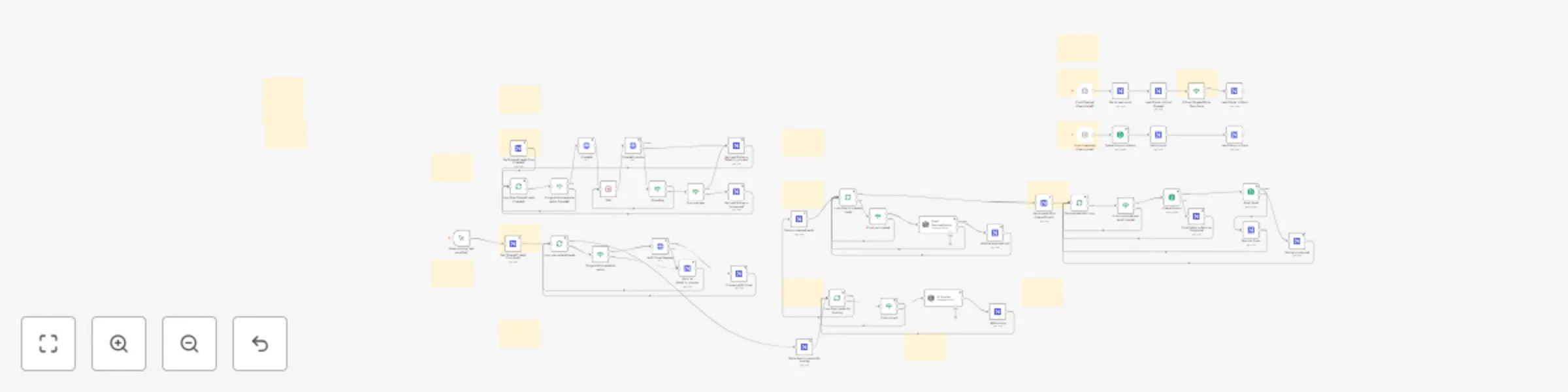
Automate lead generation with Apollo, AI scoring and Brevo email outreach preview
Open on n8n.io

Important notice

This workflow is provided as-is. Please review and test before using in production.

1. Workflow Overview

AI Scoring, Personalized Email Creation and Outreach Overview This comprehensive automation flow helps you scale your outreach to potential customers through intelligent personalized email campaign...

Best for

  • Lead Generation automation workflows
  • Multimodal AI automation workflows
  • advanced n8n builders looking for reusable templates

Tools used

n8n-nodes-base.manualtrigger, n8n-nodes-base.stickynote, n8n-nodes-base.nocodb, n8n-nodes-base.if, n8n-nodes-base.httprequest, n8n-nodes-base.wait, @n8n/n8n-nodes-langchain.openai, n8n-nodes-base.splitinbatches

Source and attribution

This workflow is cataloged by N8N Workflows and links back to its original n8n.io source page by Luka Zivkovic.

Original n8n.io source

1.1 Workflow description

Title
Automate lead generation with Apollo, AI scoring and Brevo email outreach
Workflow name
Automate lead generation with Apollo, AI scoring and Brevo email outreach

AI Scoring, Personalized Email Creation and Outreach

Overview

This comprehensive automation flow helps you scale your outreach to potential customers through intelligent personalized email campaigns. The system combines web scraping, AI-powered lead scoring, and automated email sequences to maximize your conversion rates.

Key Features

  • Intelligent Website Analysis with automated scraping
  • AI-Powered Lead Scoring for prioritization
  • Personalized Email Generation using AI
  • Automated Email Outreach with tracking
  • Real-time Event Monitoring via Brevo webhooks
  • Centralized Data Management with NocoDB

System Architecture

The workflow integrates multiple platforms to create a seamless lead generation pipeline:

  • NocoDB - Central database and CRM
  • Crawl4AI - Website content analysis
  • OpenAI - Lead scoring and email personalization
  • Brevo - Email delivery and tracking

Setup Requirements

Prerequisites

Before starting, ensure you have accounts for the following services:

  1. NocoDB (Database & CRM)
  2. Apify (Web scraping platform)
  3. OpenAI (AI processing)
  4. Brevo (Email delivery service)

> 💡 Pro Tip: For advanced users, consider self-hosting NocoDB and Crawl4AI to significantly reduce operational costs.


Step-by-Step Setup

1. NocoDB Database Configuration

Create Your NocoDB Account
  1. Sign up at nocodb.com
  2. Create a new workspace
  3. Set up your first base (database)
Database Schema Setup

Create a new table with the following field structure:

Field Name Field Type Configuration
first_name Single Line Text -
last_name Single Line Text -
email Email -
headline Single Line Text -
linkedin_url URL -
industry Single Line Text -
organization_name Single Line Text -
organization_website URL -
organization_size Number -
organization_linkedin_url URL -
organization_facebook_url URL -
market_cap Single Line Text -
job_title Single Line Text -
country Single Line Text -
city Single Line Text -
lead_status Single Select Options: entered(make it default!), processed, email_created, contacted, trash, failed_to_process, opened_email, warm
website_summary Long Text -
score Number Default: 0
organization_description Long Text -
primary_phone Phone Number -
keywords Single Line Text -
email_subject Single Line Text -
email_body Long Text -
email_opened_times Number Default: 0
personal_email Single Line Text -

2. External Service Setup

Apify Configuration
  1. Create account at apify.com
  2. Navigate to SettingsAPI tokens
  3. Generate new API token
  4. Save token securely for automation setup
OpenAI API Setup
  1. Visit platform.openai.com
  2. Go to API Keys section
  3. Create new secret key
  4. Store API key securely
  5. Ensure billing is configured for API usage
Brevo Email Service
  1. Sign up at brevo.com
  2. Complete account verification
  3. Navigate to SMTP & API settings
  4. Generate API key for integration
  5. Configure sender authentication (SPF/DKIM)

Workflow Process

Phase 1: Lead Discovery & Data Collection

  1. Data Import - Populate NocoDB with lead information
  2. Status Update - Mark leads as entered

Phase 2: Website Analysis & Lead Scoring

  1. Website Scraping - Analyze company websites using Crawl4AI
  2. Content Processing - Extract key business information
  3. AI Scoring - Evaluate lead quality using OpenAI
  4. Database Update - Store analysis results and scores

Phase 3: Email Personalization & Outreach

  1. Content Generation - Create personalized email content
  2. Email Preparation - Format messages for delivery
  3. Automated Sending - Deploy via Brevo
  4. Status Tracking - Monitor delivery and engagement

Phase 4: Performance Monitoring

  1. Webhook Processing - Capture Brevo email events
  2. Engagement Tracking - Update open/click metrics
  3. Lead Qualification - Adjust lead status based on engagement
  4. Pipeline Management - Maintain lead progression

Lead Status Workflow

entered → processed → email_created → contacted → opened_email → warm
    ↓
failed_to_process / trash (for low-quality leads)

Status Definitions

  • entered: Initial lead data captured
  • processed: Website analyzed and scored
  • email_created: Personalized email generated
  • contacted: Email successfully sent
  • opened_email: Recipient opened the email
  • warm: High engagement, ready for follow-up
  • failed_to_process: Technical issues during processing
  • trash: Low-quality lead, removed from active pipeline

Best Practices

Data Quality

  • Regularly clean and deduplicate your lead database
  • Monitor lead scores to refine your targeting criteria
  • Archive or remove inactive leads to maintain performance

Email Deliverability

  • Warm up your sending domain before high-volume campaigns
  • Monitor bounce rates and adjust list quality
  • Implement proper SPF, DKIM, and DMARC records

Compliance

  • Ensure GDPR/CAN-SPAM compliance in all communications
  • Provide clear unsubscribe mechanisms
  • Respect recipient preferences and opt-outs

Performance Optimization

  • A/B test email subject lines and content
  • Analyze open rates and adjust sending times
  • Segment leads based on engagement levels for targeted follow-up

Next Steps

Once your setup is complete, you'll have a powerful, automated lead generation system that can:

  • Process hundreds of leads simultaneously
  • Provide intelligent lead prioritization
  • Generate personalized outreach at scale
  • Track and optimize campaign performance

Ready to transform your lead generation process? Start with the NocoDB setup and work through each integration step by step.

1.2 Logical Blocks

This catalog entry is organized from the workflow JSON. The node-level section below shows the executable blocks available for review before importing the template.

2. Block-by-Block Analysis

Block 1 - When clicking ‘Test workflow’

Type / Role
n8n-nodes-base.manualTrigger - manualTrigger
Config choices
Version 1

Block 2 - Sticky Note1

Type / Role
n8n-nodes-base.stickyNote - stickyNote
Config choices
Version 1

Block 3 - Fetch data to prepare for scoring

Type / Role
n8n-nodes-base.nocoDb - nocoDb
Config choices
Version 3

Block 4 - Sticky Note2

Type / Role
n8n-nodes-base.stickyNote - stickyNote
Config choices
Version 1

Block 5 - Sticky Note3

Type / Role
n8n-nodes-base.stickyNote - stickyNote
Config choices
Version 1

Block 6 - If not scored

Type / Role
n8n-nodes-base.if - if
Config choices
Version 2.2

Block 7 - Add a score

Type / Role
n8n-nodes-base.nocoDb - nocoDb
Config choices
Version 3

Block 8 - Crawl4AI

Type / Role
n8n-nodes-base.httpRequest - httpRequest
Config choices
Version 4.2

Block 9 - Crawl4AI resolve

Type / Role
n8n-nodes-base.httpRequest - httpRequest
Config choices
Version 4.2

Block 10 - Wait

Type / Role
n8n-nodes-base.wait - wait
Config choices
Version 1.1

Block 11 - If mail not created

Type / Role
n8n-nodes-base.if - if
Config choices
Version 2.2

Block 12 - Add Personalized mail

Type / Role
n8n-nodes-base.nocoDb - nocoDb
Config choices
Version 3

Block 13 - Ai Scoring

Type / Role
@n8n/n8n-nodes-langchain.openAi - openAi
Config choices
Version 1.8

Block 14 - Email Personalization

Type / Role
@n8n/n8n-nodes-langchain.openAi - openAi
Config choices
Version 1.8

Block 15 - Personalized Mail Loop

Type / Role
n8n-nodes-base.splitInBatches - splitInBatches
Config choices
Version 3

Block 16 - Sticky Note4

Type / Role
n8n-nodes-base.stickyNote - stickyNote
Config choices
Version 1

Block 17 - Mark as contacted

Type / Role
n8n-nodes-base.nocoDb - nocoDb
Config choices
Version 3

Block 18 - Email Exists -> Mark as Contacted

Type / Role
n8n-nodes-base.nocoDb - nocoDb
Config choices
Version 3

Block 19 - Email Send

Type / Role
n8n-nodes-base.sendInBlue - sendInBlue
Config choices
Version 1

Block 20 - Create Contact

Type / Role
n8n-nodes-base.sendInBlue - sendInBlue
Config choices
Version 1

Block 21 - If not contacted and email created

Type / Role
n8n-nodes-base.if - if
Config choices
Version 2.2

Block 22 - If pending

Type / Role
n8n-nodes-base.if - if
Config choices
Version 2.2

Block 23 - Mark as Trash

Type / Role
n8n-nodes-base.nocoDb - nocoDb
Config choices
Version 3

Block 24 - If not success

Type / Role
n8n-nodes-base.if - if
Config choices
Version 2.2

Showing the first 24 of 63 workflow blocks. Download the JSON for the full node graph.

3. Summary Table

Workflow Automate lead generation with Apollo, AI scoring and Brevo email outreach
Complexity advanced
Nodes 63
Categories Lead Generation, Multimodal AI
Author Luka Zivkovic
Published 31 May 2025

4. Reproducing the Workflow from Scratch

  1. 1. Download the workflow JSON

    Use the JSON export at /data/workflows/4539/4539.json as the source template for this automation.

  2. 2. Import the template into n8n

    Open n8n, import the downloaded JSON, and review each node before activating the workflow.

  3. 3. Configure credentials and variables

    Replace placeholder credentials, API keys, webhook URLs, account IDs, and environment-specific values with your own settings.

  4. 4. Test with sample data

    Run the workflow manually or in a staging workspace, inspect node output, and confirm downstream systems receive the expected data.

  5. 5. Activate and monitor

    Enable the workflow only after testing, then monitor executions, errors, and rate limits during the first production runs.

5. General Notes & Resources

Review imported nodes carefully before activation. This catalog entry is intended to help you inspect the workflow structure, understand required services, and find related templates faster.

Node names, credentials, schedules, webhook paths, and external service limits may need adjustment for your workspace.

Frequently asked questions

What does Automate lead generation with Apollo, AI scoring and Brevo email outreach do?

AI Scoring, Personalized Email Creation and Outreach Overview This comprehensive automation flow helps you scale your outreach to potential customers through intelligent personalized email campaign...

What do I need before importing this workflow?

Review the workflow JSON, configure any required credentials in n8n, and test the automation in a safe workspace before using it in production.

Can I customize this workflow?

Yes. Use the block-by-block analysis and the downloadable JSON to inspect each node, then adjust credentials, prompts, schedules, filters, or destinations for your Lead Generation, Multimodal AI use case.