Automate hotel price comparison with multi-platform scraping and email reporting
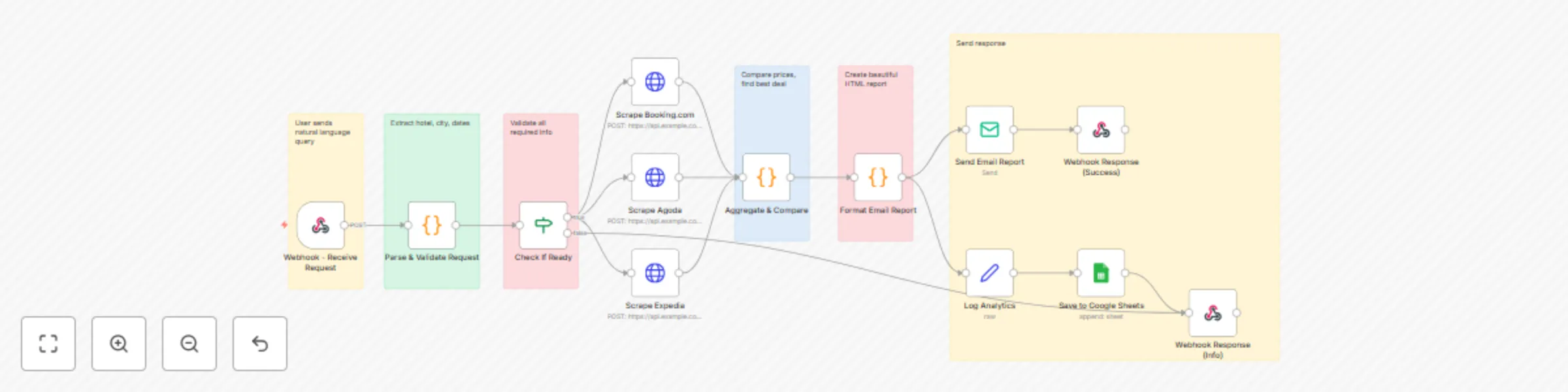
Workflow preview


 Early Deal
DISCOUNT 20%

Important notice
This workflow is provided as-is. Please review and test before using in production.
Overview
This is a production-ready, end-to-end workflow that automatically compares hotel prices across multiple booking platforms and delivers beautiful email reports to users. Unlike basic building blocks, this workflow is a complete solution ready to deploy.
✨ What Makes This Production-Ready
✅ Complete End-to-End Automation
- Input: Natural language queries via webhook
- Processing: Multi-platform scraping & comparison
- Output: Professional email reports + analytics
- Feedback: Real-time webhook responses
✅ Advanced Features
- 🧠 Natural Language Processing for flexible queries
- 🔄 Parallel scraping from multiple platforms
- 📊 Analytics tracking with Google Sheets integration
- 💌 Beautiful HTML email reports
- 🛡️ Error handling and graceful degradation
- 📱 Webhook responses for real-time feedback
✅ Business Value
- For Travel Agencies: Instant price comparison service for clients
- For Hotels: Competitive pricing intelligence
- For Travelers: Save time and money with automated research
🚀 Setup Instructions
Step 1: Import Workflow
- Copy the workflow JSON from the artifact
- In n8n, go to Workflows → Import from File/URL
- Paste the JSON and click Import
Step 2: Configure Credentials
A. SMTP Email (Required)
Settings → Credentials → Add Credential → SMTP

Host: smtp.gmail.com (for Gmail)
Port: 587
User: [email protected]
Password: your-app-password (not regular password!)
Gmail Setup:
- Enable 2FA on your Google Account
- Generate App Password: https://myaccount.google.com/apppasswords
- Use the generated password in n8n
B. Google Sheets (Optional - for analytics)
Settings → Credentials → Add Credential → Google Sheets OAuth2

Follow the OAuth flow to connect your Google account
Sheet Setup:
- Create a new Google Sheet
- Name the first sheet "Analytics"
- Add headers:
timestamp,query,hotel,city,checkIn,checkOut,bestPrice,platform,totalResults,userEmail - Copy the Sheet ID from URL and paste in the "Save to Google Sheets" node
Step 3: Set Up Scraping Service
You need to create a scraping API that the workflow calls. Here are your options:
Option A: Use Your Existing Python Script
Create a simple Flask API wrapper:
# api_wrapper.py
from flask import Flask, request, jsonify
import subprocess
import json

app = Flask(__name__)

@app.route('/scrape/<platform>', methods=['POST'])
def scrape(platform):
    data = request.json
    query = f"{data['checkIn']} to {data['checkOut']}, {data['hotel']}, {data['city']}"

    try:
        result = subprocess.run(
            ['python3', 'price_scrap_2.py', query, platform],
            capture_output=True,
            text=True,
            timeout=30
        )

        # Parse your script output
        output = result.stdout
        # Assuming your script returns price data

        return jsonify({
            'price': extracted_price,
            'currency': 'USD',
            'roomType': 'Standard Room',
            'url': booking_url,
            'availability': True
        })
    except Exception as e:
        return jsonify({'error': str(e)}), 500

if __name__ == '__main__':
    app.run(host='0.0.0.0', port=5000)
Deploy:
pip install flask
python api_wrapper.py
Update n8n HTTP Request nodes:
URL: http://your-server-ip:5000/scrape/booking
URL: http://your-server-ip:5000/scrape/agoda
URL: http://your-server-ip:5000/scrape/expedia
Option B: Use Third-Party Scraping Services
Recommended Services:
- ScraperAPI (scraperapi.com) - $49/month for 100k requests
- Bright Data (brightdata.com) - Pay as you go
- Apify (apify.com) - Has pre-built hotel scrapers
Example with ScraperAPI:
// In HTTP Request node
URL: http://api.scraperapi.com
Query Parameters:
  api_key: YOUR_API_KEY
  url: https://booking.com/search?hotel={{$json.hotelName}}...
Option C: Use n8n SSH Node (Like Your Original)
Keep your SSH approach but improve it:
- Replace HTTP Request nodes with SSH nodes
- Point to your server with the Python script
- Ensure error handling and timeouts
// SSH Node Configuration
Host: your-server-ip
Command: python3 /path/to/price_scrap_2.py "{{$json.hotelName}}" "{{$json.city}}" "{{$json.checkInISO}}" "{{$json.checkOutISO}}" "booking"
Step 4: Activate Webhook
- Click on "Webhook - Receive Request" node
- Click "Listen for Test Event"
- Copy the webhook URL (e.g.,
https://your-n8n.com/webhook/hotel-price-check) - Test with this curl command:
curl -X POST https://your-n8n.com/webhook/hotel-price-check \
  -H "Content-Type: application/json" \
  -d '{
    "message": "I want to check Marriott Hotel in Singapore from 15th March to 18th March",
    "email": "[email protected]",
    "name": "John Doe"
  }'
Step 5: Activate Workflow
- Toggle the workflow to Active
- The webhook is now live and ready to receive requests
📝 Usage Examples
Example 1: Basic Query
{
  "message": "Hilton Hotel in Dubai from 20th December to 23rd December",
  "email": "[email protected]",
  "name": "Sarah"
}
Example 2: Flexible Format
{
  "message": "I need prices for Taj Hotel, Mumbai. Check-in: 5th January, Check-out: 8th January",
  "email": "[email protected]"
}
Example 3: Short Format
{
  "message": "Hyatt Singapore March 10 to March 13",
  "email": "[email protected]"
}
🎨 Customization Options
1. Add More Booking Platforms
Steps:
- Duplicate an existing "Scrape" node
- Update the platform parameter
- Connect it to "Aggregate & Compare"
- Update the aggregation logic to include the new platform
2. Change Email Template
Edit the "Format Email Report" node's JavaScript:
- Modify HTML structure
- Change colors (currently purple gradient)
- Add your company logo
- Include terms and conditions
3. Add SMS Notifications
Using Twilio:
- Add new node: Twilio → Send SMS
- Connect after "Aggregate & Compare"
- Format: "Best deal: ${hotel} at ${platform} for ${price}"
4. Add Slack Integration
- Add Slack node after "Aggregate & Compare"
- Send to #travel-deals channel
- Include quick booking links
5. Implement Caching
Add Redis or n8n's built-in cache:
// Before scraping, check cache
const cacheKey = `${hotelName}-${city}-${checkIn}-${checkOut}`;
const cached = await $cache.get(cacheKey);

if (cached && Date.now() - cached.timestamp < 3600000) {
  return cached.data; // Use 1-hour cache
}
📊 Analytics & Monitoring
Google Sheets Dashboard
The workflow automatically logs to Google Sheets. Create a dashboard with:
Metrics to track:
- Total searches per day/week
- Most searched hotels
- Most searched cities
- Average price ranges
- Platform with best prices (frequency)
- User engagement (repeat users)
Example Sheet Formulas:
// Total searches today
=COUNTIF(A:A, TODAY())

// Most popular hotel
=INDEX(C:C, MODE(MATCH(C:C, C:C, 0)))

// Average best price
=AVERAGE(G:G)
Set Up Alerts
Add a node after "Aggregate & Compare":
// Alert if prices are unusually high
if (bestDeal.price > avgPrice * 1.5) {
  // Send alert to admin
  return [{
    json: {
      alert: true,
      message: `High prices detected for ${hotelName}`
    }
  }];
}
🛡️ Error Handling
The workflow includes comprehensive error handling:
1. Missing Information
If user doesn't provide hotel/city/dates → Responds with helpful prompt
2. Scraping Failures
If all platforms fail → Sends "No results" email with suggestions
3. Partial Results
If some platforms work → Shows available results + notes errors
4. Email Delivery Issues
Uses continueOnFail: true to prevent workflow crashes
🔒 Security Best Practices
1. Rate Limiting
Add rate limiting to prevent abuse:
// In Parse & Validate node
const userEmail = $json.email;
const recentSearches = await $cache.get(`searches:${userEmail}`);

if (recentSearches && recentSearches.length > 10) {
  return [{
    json: {
      status: 'rate_limited',
      response: 'Too many requests. Please try again in 1 hour.'
    }
  }];
}
2. Input Validation
Already implemented - validates hotel names, cities, dates
3. Email Verification
Add email verification before first use:
// Send verification code
const code = Math.random().toString(36).substring(7);
await $sendEmail({
  to: userEmail,
  subject: 'Verify your email',
  body: `Your code: ${code}`
});
4. API Key Protection
Never expose scraping API keys in responses or logs
🚀 Deployment Options
Option 1: n8n Cloud (Easiest)
- Sign up at n8n.cloud
- Import workflow
- Configure credentials
- Activate
Pros: No maintenance, automatic updates Cons: Monthly cost
Option 2: Self-Hosted (Most Control)
# Using Docker
docker run -it --rm \
  --name n8n \
  -p 5678:5678 \
  -v ~/.n8n:/home/node/.n8n \
  n8nio/n8n

# Using npm
npm install -g n8n
n8n start
Pros: Free, full control Cons: You manage updates
Option 3: Cloud Platforms
- Railway.app (recommended for beginners)
- DigitalOcean App Platform
- AWS ECS
- Google Cloud Run
📈 Scaling Recommendations
For < 100 searches/day
- Current setup is perfect
- Use n8n Cloud Starter or small VPS
For 100-1000 searches/day
- Add Redis caching (1-hour cache)
- Use queue system for scraping
- Upgrade to n8n Cloud Pro
For 1000+ searches/day
- Implement job queue (Bull/Redis)
- Use dedicated scraping service
- Load balance multiple n8n instances
- Consider microservices architecture
🐛 Troubleshooting
Issue: Webhook not responding
Solution:
- Check workflow is Active
- Verify webhook URL is correct
- Check n8n logs: Settings → Log Streaming
Issue: No prices returned
Solution:
- Test scraping endpoints individually
- Check if hotel name matches exactly
- Verify dates are in future
- Try different date ranges
Issue: Emails not sending
Solution:
- Verify SMTP credentials
- Check "less secure apps" setting (Gmail)
- Use App Password instead of regular password
- Check spam folder
Issue: Slow response times
Solution:
- Enable parallel scraping (already configured)
- Add timeout limits (30 seconds recommended)
- Implement caching
- Use faster scraping service