Automate email triage & meeting scheduling with Gmail, GPT-4 & Google Calendar

Workflow preview

Workflow preview
100%
Automate email triage & meeting scheduling with Gmail, GPT-4 & Google Calendar preview
Open on n8n.io

Important notice

This workflow is provided as-is. Please review and test before using in production.

1. Workflow Overview

This workflow acts as your personal inbox assistant. It automatically filters, classifies, and responds to incoming emails using AI, saving you from manually sorting through leads or inquiries 24/7...

Best for

  • Ticket Management automation workflows
  • AI Chatbot automation workflows
  • advanced n8n builders looking for reusable templates

Tools used

n8n-nodes-base.code, @n8n/n8n-nodes-langchain.openai, n8n-nodes-base.gmailtrigger, n8n-nodes-base.switch, n8n-nodes-base.merge, n8n-nodes-base.googlesheets, n8n-nodes-base.googlecalendar, n8n-nodes-base.wait

Source and attribution

This workflow is cataloged by N8N Workflows and links back to its original n8n.io source page by Adem Tasin.

Original n8n.io source

1.1 Workflow description

Title
Automate email triage & meeting scheduling with Gmail, GPT-4 & Google Calendar
Workflow name
Automate email triage & meeting scheduling with Gmail, GPT-4 & Google Calendar

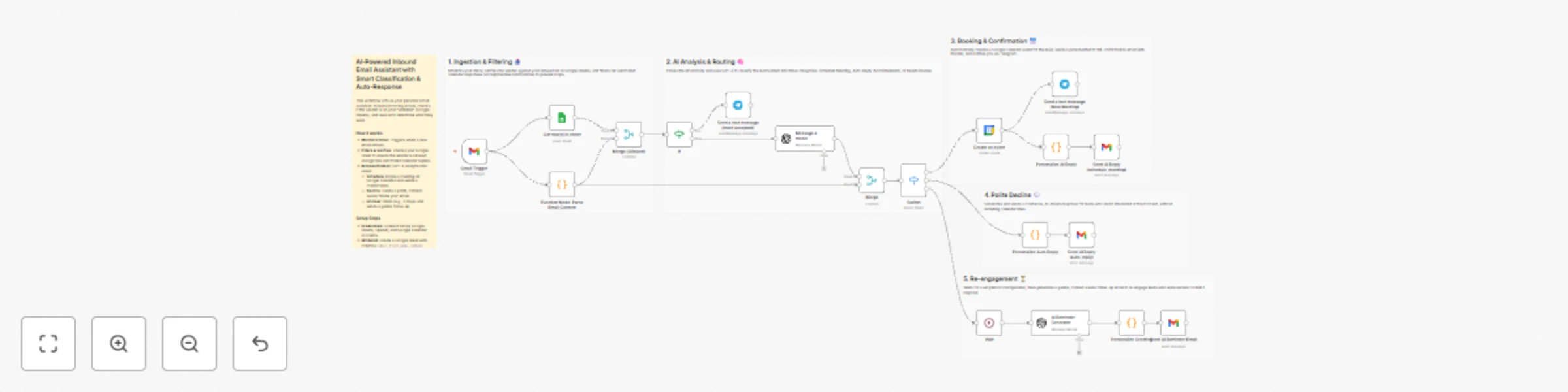
This workflow acts as your personal inbox assistant. It automatically filters, classifies, and responds to incoming emails using AI, saving you from manually sorting through leads or inquiries 24/7.

👥 Who’s it for

  • Freelancers & Consultants handling their own sales pipeline.
  • Sales Professionals who need to book meetings instantly.
  • Small Business Owners who want to automate customer support or lead triage.
  • Agencies managing inbound inquiries for multiple clients.

⚙️ How it works

This workflow monitors your Gmail inbox and processes emails in three main stages:

  1. Filtering: It first checks if the sender is on your "Whitelist" (a Google Sheet). It also ignores automated calendar replies (like "Accepted" or "Declined" notifications) to prevent loops.
  2. AI Analysis: OpenAI (GPT-4) reads the email body to understand the sender's intent.
  3. Action: Based on the intent, it takes one of three paths:
    • Schedule Meeting: If the lead wants to meet, it creates a Google Calendar event, sends a confirmation email with the link, and notifies you on Telegram.
    • Auto Reply: If the lead declines or isn't interested, it sends a polite, context-aware "thank you" email.
    • Needs Review: If the email is unclear, it waits (configurable delay) and sends a gentle follow-up email to re-engage them.

📋 Requirements

  • n8n (Self-hosted or Cloud)
  • Gmail Account (Connected via OAuth2)
  • Google Sheets (For the whitelist)
  • Google Calendar (For booking meetings)
  • OpenAI API Key (GPT-4o-mini or similar model)
  • Telegram (Optional, for notifications)

🛠️ How to set up

  1. Prepare the Whitelist: Create a Google Sheet with three columns: email, first_name, and company. Add the email addresses you want the bot to respond to.
  2. Configure Credentials: Connect your Google (Gmail, Sheets, Calendar) and OpenAI accounts in the workflow credentials settings.
  3. Link the Sheet: In the "Get row(s) in sheet" node, select your whitelist spreadsheet.
  4. Set the Model: Check the "Message a model" nodes to ensure your OpenAI model (e.g., gpt-4o-mini) is selected.
  5. Telegram (Optional): If you want notifications, create a bot with @BotFather and add your Chat ID/Credentials. If not, you can disable/remove the Telegram nodes.

🎨 How to customize the workflow

  • Adjust the Delay: The "Wait" node is currently set to minutes for testing. Change this to 3 Days (or your preferred duration) for a real-world scenario.
  • Brand Your Emails: Open the Code nodes (e.g., "Personalize AI Reply"). You will see HTML code inside. Update the senderName, senderEmail, and footer text to match your brand identity.
  • Refine AI Prompts: You can modify the system prompt in the "Message a model" node to change the AI's tone (e.g., make it more formal or casual).

🧑‍💻 Creator Information

Developed by: Adem Tasin
🌐 Website: ademtasin.com
💼 LinkedIn: Adem Tasin

1.2 Logical Blocks

This catalog entry is organized from the workflow JSON. The node-level section below shows the executable blocks available for review before importing the template.

2. Block-by-Block Analysis

Block 1 - Function Node: Parse Email Content

Type / Role
n8n-nodes-base.code - code
Config choices
Version 2

Block 2 - Message a model

Type / Role
@n8n/n8n-nodes-langchain.openAi - openAi
Config choices
Version 1.8

Block 3 - Gmail Trigger

Type / Role
n8n-nodes-base.gmailTrigger - gmailTrigger
Config choices
Version 1.3

Block 4 - Switch

Type / Role
n8n-nodes-base.switch - switch
Config choices
Version 3.3

Block 5 - Merge

Type / Role
n8n-nodes-base.merge - merge
Config choices
Version 3.2

Block 6 - Get row(s) in sheet

Type / Role
n8n-nodes-base.googleSheets - googleSheets
Config choices
Version 4.7

Block 7 - Merge (Allowed)

Type / Role
n8n-nodes-base.merge - merge
Config choices
Version 3.2

Block 8 - Create an event

Type / Role
n8n-nodes-base.googleCalendar - googleCalendar
Config choices
Version 1.3

Block 9 - Personalize AI Reply

Type / Role
n8n-nodes-base.code - code
Config choices
Version 2

Block 10 - Wait

Type / Role
n8n-nodes-base.wait - wait
Config choices
Version 1.1

Block 11 - Send AI Reminder Email

Type / Role
n8n-nodes-base.gmail - gmail
Config choices
Version 2.1

Block 12 - AI Reminder Generator

Type / Role
@n8n/n8n-nodes-langchain.openAi - openAi
Config choices
Version 1.8

Block 13 - Personalize Greeting

Type / Role
n8n-nodes-base.code - code
Config choices
Version 2

Block 14 - Send a text message (New Meeting)

Type / Role
n8n-nodes-base.telegram - telegram
Config choices
Version 1.2

Block 15 - Send AI Reply (schedule_meeting)

Type / Role
n8n-nodes-base.gmail - gmail
Config choices
Version 2.1

Block 16 - Send AI Reply (auto_reply)

Type / Role
n8n-nodes-base.gmail - gmail
Config choices
Version 2.1

Block 17 - Personalize Auto Reply

Type / Role
n8n-nodes-base.code - code
Config choices
Version 2

Block 18 - If

Type / Role
n8n-nodes-base.if - if
Config choices
Version 2.2

Block 19 - Send a text message (meet accepted)

Type / Role
n8n-nodes-base.telegram - telegram
Config choices
Version 1.2

Block 20 - Sticky Note

Type / Role
n8n-nodes-base.stickyNote - stickyNote
Config choices
Version 1

Block 21 - Sticky Note1

Type / Role
n8n-nodes-base.stickyNote - stickyNote
Config choices
Version 1

Block 22 - Sticky Note2

Type / Role
n8n-nodes-base.stickyNote - stickyNote
Config choices
Version 1

Block 23 - Sticky Note3

Type / Role
n8n-nodes-base.stickyNote - stickyNote
Config choices
Version 1

Block 24 - Sticky Note4

Type / Role
n8n-nodes-base.stickyNote - stickyNote
Config choices
Version 1

Showing the first 24 of 25 workflow blocks. Download the JSON for the full node graph.

3. Summary Table

Workflow Automate email triage & meeting scheduling with Gmail, GPT-4 & Google Calendar
Complexity advanced
Nodes 25
Categories Ticket Management, AI Chatbot
Author Adem Tasin
Published 26 Nov 2025

4. Reproducing the Workflow from Scratch

  1. 1. Download the workflow JSON

    Use the JSON export at /data/workflows/11243/11243.json as the source template for this automation.

  2. 2. Import the template into n8n

    Open n8n, import the downloaded JSON, and review each node before activating the workflow.

  3. 3. Configure credentials and variables

    Replace placeholder credentials, API keys, webhook URLs, account IDs, and environment-specific values with your own settings.

  4. 4. Test with sample data

    Run the workflow manually or in a staging workspace, inspect node output, and confirm downstream systems receive the expected data.

  5. 5. Activate and monitor

    Enable the workflow only after testing, then monitor executions, errors, and rate limits during the first production runs.

5. General Notes & Resources

Review imported nodes carefully before activation. This catalog entry is intended to help you inspect the workflow structure, understand required services, and find related templates faster.

Node names, credentials, schedules, webhook paths, and external service limits may need adjustment for your workspace.

Frequently asked questions

What does Automate email triage & meeting scheduling with Gmail, GPT-4 & Google Calendar do?

This workflow acts as your personal inbox assistant. It automatically filters, classifies, and responds to incoming emails using AI, saving you from manually sorting through leads or inquiries 24/7...

What do I need before importing this workflow?

Review the workflow JSON, configure any required credentials in n8n, and test the automation in a safe workspace before using it in production.

Can I customize this workflow?

Yes. Use the block-by-block analysis and the downloadable JSON to inspect each node, then adjust credentials, prompts, schedules, filters, or destinations for your Ticket Management, AI Chatbot use case.