A

Adem Tasin

4
Workflows

Workflows by Adem Tasin

Workflow preview: Repurpose YouTube videos into blogs and social posts with GPT-4o, WordPress, LinkedIn, X and Instagram
Free advanced

Repurpose YouTube videos into blogs and social posts with GPT-4o, WordPress, LinkedIn, X and Instagram

## Overview This workflow turns a single YouTube video into multiple content formats and publishes them across different platforms with an optional human approval step. It helps content creators, marketers, and agencies repurpose long-form video content into blog posts and social media updates automatically. ## How it works 1. Fetches the transcript from a YouTube video 2. Uses AI to generate blog and social media content 3. Optionally waits for manual approval 4. Publishes content to selected platforms 5. Logs the result for tracking ## Setup steps 1. Add your API credentials (AI, transcript, and social platforms) 2. Paste a YouTube video URL 3. Choose auto-publish or approval mode 4. Run the workflow ## Use cases - Content repurposing for YouTube creators - Automated blog and social media publishing - Marketing automation for agencies - AI-assisted content production pipelines --- ### 🧑‍💻 Creator Information Developed by: Adem Tasin 🌐 Website: ademtasin.com 💼 LinkedIn: Adem Tasin

A
Adem Tasin
Content Creation
29 Dec 2025
182
0
Workflow preview: Automate email triage & meeting scheduling with Gmail, GPT-4 & Google Calendar
Free advanced

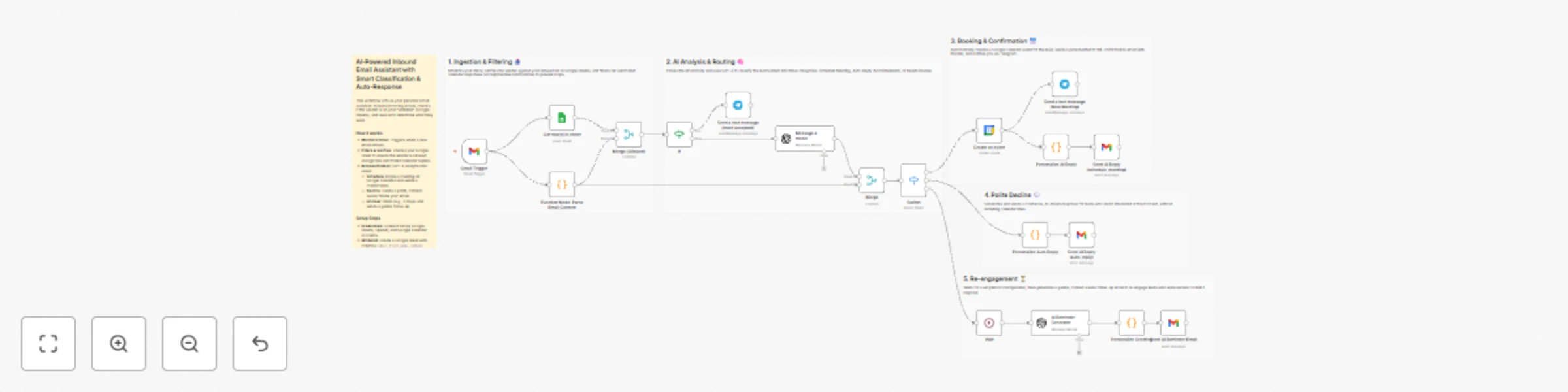
Automate email triage & meeting scheduling with Gmail, GPT-4 & Google Calendar

This workflow acts as your personal inbox assistant. It automatically filters, classifies, and responds to incoming emails using AI, saving you from manually sorting through leads or inquiries 24/7. ## 👥 Who’s it for * **Freelancers & Consultants** handling their own sales pipeline. * **Sales Professionals** who need to book meetings instantly. * **Small Business Owners** who want to automate customer support or lead triage. * **Agencies** managing inbound inquiries for multiple clients. ## ⚙️ How it works This workflow monitors your Gmail inbox and processes emails in three main stages: 1. **Filtering:** It first checks if the sender is on your "Whitelist" (a Google Sheet). It also ignores automated calendar replies (like "Accepted" or "Declined" notifications) to prevent loops. 2. **AI Analysis:** OpenAI (GPT-4) reads the email body to understand the sender's intent. 3. **Action:** Based on the intent, it takes one of three paths: * **Schedule Meeting:** If the lead wants to meet, it creates a Google Calendar event, sends a confirmation email with the link, and notifies you on Telegram. * **Auto Reply:** If the lead declines or isn't interested, it sends a polite, context-aware "thank you" email. * **Needs Review:** If the email is unclear, it waits (configurable delay) and sends a gentle follow-up email to re-engage them. ## 📋 Requirements * **n8n** (Self-hosted or Cloud) * **Gmail Account** (Connected via OAuth2) * **Google Sheets** (For the whitelist) * **Google Calendar** (For booking meetings) * **OpenAI API Key** (GPT-4o-mini or similar model) * **Telegram** (Optional, for notifications) ## 🛠️ How to set up 1. **Prepare the Whitelist:** Create a Google Sheet with three columns: `email`, `first_name`, and `company`. Add the email addresses you want the bot to respond to. 2. **Configure Credentials:** Connect your Google (Gmail, Sheets, Calendar) and OpenAI accounts in the workflow credentials settings. 3. **Link the Sheet:** In the **"Get row(s) in sheet"** node, select your whitelist spreadsheet. 4. **Set the Model:** Check the **"Message a model"** nodes to ensure your OpenAI model (e.g., `gpt-4o-mini`) is selected. 5. **Telegram (Optional):** If you want notifications, create a bot with @BotFather and add your Chat ID/Credentials. If not, you can disable/remove the Telegram nodes. ## 🎨 How to customize the workflow * **Adjust the Delay:** The **"Wait"** node is currently set to *minutes* for testing. Change this to *3 Days* (or your preferred duration) for a real-world scenario. * **Brand Your Emails:** Open the **Code** nodes (e.g., "Personalize AI Reply"). You will see HTML code inside. Update the `senderName`, `senderEmail`, and footer text to match your brand identity. * **Refine AI Prompts:** You can modify the system prompt in the **"Message a model"** node to change the AI's tone (e.g., make it more formal or casual). --- ## 🧑‍💻 Creator Information **Developed by:** Adem Tasin 🌐 **Website:** [ademtasin.com](https://www.ademtasin.com/) 💼 **LinkedIn:** [Adem Tasin](https://www.linkedin.com/in/adem-tasin/)

A
Adem Tasin
Ticket Management
26 Nov 2025
264
0
Workflow preview: Smart Lead Qualification & Routing from Typeform to HubSpot with Data Enrichment
Free advanced

Smart Lead Qualification & Routing from Typeform to HubSpot with Data Enrichment

### ✔ Short Description Automate your lead qualification pipeline — capture Typeform Webhook leads, enrich with APIs, score intelligently, and route to HubSpot, Slack, and Sheets in real-time. --- ### 🧩 Description Automate your lead management pipeline from form submission to CRM enrichment and routing. This workflow intelligently processes Typeform Webhook submissions, enriches leads using Hunter.io and Abstract API, scores them with dynamic logic, and routes them into HubSpot while keeping your sales team and tracking sheets up to date. It’s a full-stack automation designed to turn raw form submissions into prioritized, qualified CRM-ready leads — without manual intervention. --- ### 💡 Who’s it for - Marketing teams managing inbound leads from web forms - Sales operations teams that qualify and route leads - CRM administrators automating lead data entry and scoring - Automation professionals building data enrichment systems --- ### ⚙️ How it works / What it does 1. **Trigger:** Receives new Typeform Webhook submissions via Webhook. 2. **Data Extraction:** Parses name, email, and company info. 3. **Email Verification:** Validates email deliverability with Hunter.io. 4. **Company Enrichment:** Fetches company data (industry, size, country) using Abstract API. 5. **Lead Scoring Logic:** Calculates a lead score and assigns a *tier* (Hot / Warm / Cold). 6. **Conditional Routing:** - **Hot Leads (≥70)** → Sent to HubSpot as *Qualified*. - **Warm/Cold Leads (<70)** → Sent to HubSpot as *Nurture* stage. 7. **Revalidation Loop:** - Waits (e.g., 3 days) → Rechecks Nurture leads in HubSpot. - Logs them to Google Sheets and alerts your Slack channel. --- ![⚙️ How it works _ What it does visual selection.png](fileId:3128) --- ### 🧰 How to set up 1. **Connect accounts:** - Typeform Webhook (for inbound lead capture) - Hunter.io (API key for email verification) - Abstract API (for company enrichment) - HubSpot (via OAuth2 credentials) - Slack (for notifications) - Google Sheets (for logging) 2. **Customize the Webhook URL** inside your Typeform Webhook integration. 3. **Replace API keys** with your own (Hunter.io, Abstract). 4. **Adjust scoring logic** inside the `Lead Scoring & Routing Logic` node to fit your business. 5. **Set Wait duration** (default: 10 seconds for testing → change to 3 days for production). 6. **Activate the workflow** and test it with a sample form submission. --- ### 🔧 Requirements - Typeform account with webhook capability - Hunter.io account + API key - Abstract API account + API key - HubSpot account with OAuth2 credentials - Slack workspace & channel - Google Sheets integration --- ### 🎨 How to customize the workflow - **Scoring rules:** Modify the “Lead Scoring & Routing Logic” node to adjust how points are calculated (e.g., country, industry, employee size). - **CRM target:** Replace HubSpot nodes with another CRM (e.g., Pipedrive, Salesforce). - **Notification channel:** Swap Slack for Email, Discord, or MS Teams. - **Data source:** Replace Typeform Webhook with another trigger like Webflow Forms, Airtable, or custom API input. - **Tracking:** Add Google Analytics or Notion API for additional reporting. --- ### 🧭 Summary End-to-end lead automation workflow that combines **form data, enrichment APIs, CRM updates, and Slack alerts** into one intelligent system. Ideal for any team looking to centralize and qualify leads automatically — from submission to sales. # 🧑‍💻 Creator Information Developed by: Adem Tasin 🌐 Website: [ademtasin](https://www.ademtasin.com/) 💼 LinkedIn: [Adem Tasin](https://www.linkedin.com/in/adem-tasin/)

A
Adem Tasin
Lead Generation
27 Oct 2025
124
0
Workflow preview: Automated B2B lead generation & cold emails with OpenAI, Apify, Gmail & Telegram
Free advanced

Automated B2B lead generation & cold emails with OpenAI, Apify, Gmail & Telegram

## 🧩 Description A customized n8n workflow inspired by the **Lead Generation Agent** template. It automates B2B lead scraping via **Apify**, extracts contact emails with **AI**, sends cold emails via **Gmail**, and logs every interaction in **Google Sheets** with **Telegram alerts** for live monitoring. --- ### 🧠 How It Works This workflow automates the entire B2B lead generation and outreach process from data collection to email delivery. Once you enter your search keyword and location, the system scrapes business details using Apify, filters valid websites, and extracts email addresses with AI. Each lead is then enriched and logged in Google Sheets. The workflow automatically composes a personalized cold email based on your preferred tone (friendly, simple, or professional) and sends it through Gmail with short delays between each message to avoid spam filters. You’ll also receive Telegram notifications to monitor progress and any leads that fail to send. --- ### ⚙️ Setup Steps 1. **Clone the workflow** into your n8n instance. 2. **Add your API credentials:** - Apify API Token - OpenAI (or Gemini) API Key - Google Sheets & Gmail account connections - Telegram Bot Token + Chat ID *(optional)* 3. Open the **Form node** or **Manual Trigger**, and set your search criteria (e.g., *“marketing agencies in London”*). 4. Configure your **Google Sheet** — make sure the columns match the node mapping. 5. Adjust the **AI prompt** in the OpenAI node if you want a different tone or style for your emails. 6. Run the workflow manually to test one or two leads first. 7. Once confirmed, activate scheduling or keep it manual for on-demand lead generation. --- ### 🚀 Try It Out! Experience how AI and automation can take over your lead generation workflow. Just enter a business type and location, and watch as the system finds potential clients, extracts contact details, crafts a personalized cold email, and sends it — all without manual effort. Perfect for freelancers, agencies, or anyone looking to automate their B2B outreach process.

A
Adem Tasin
Lead Generation
17 Oct 2025
447
0