Block 1 - When clicking ‘Execute workflow’
- Type / Role
- n8n-nodes-base.manualTrigger - manualTrigger
- Config choices
- Version 1


 Early Deal
This workflow is provided as-is. Please review and test before using in production.
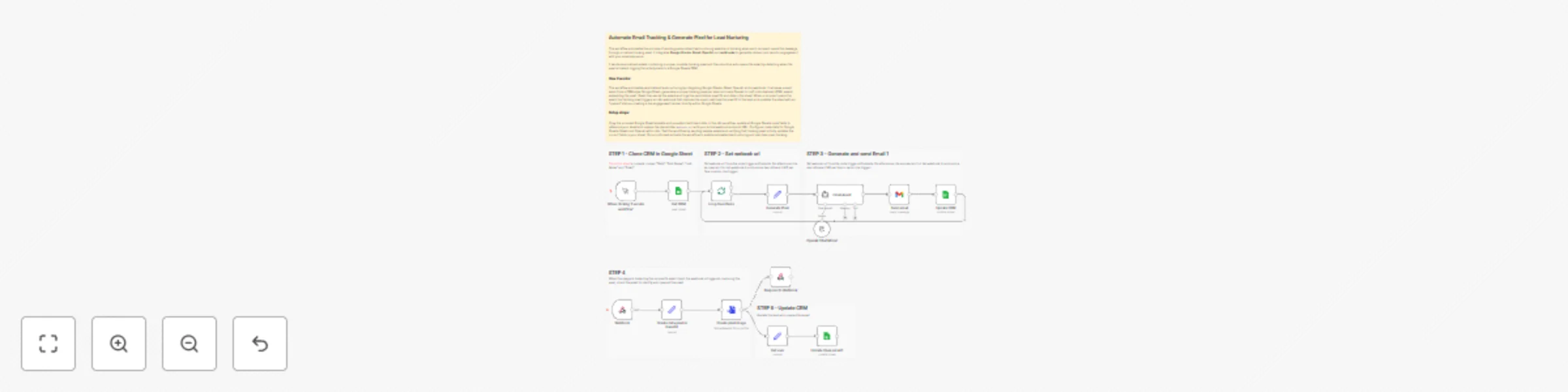
This workflow automates the process of sending personalized lead nurturing emails and tracking when each recipient opens the message through a custom tracking pixel. It integrates Google Sheets , G...
n8n-nodes-base.manualtrigger, n8n-nodes-base.webhook, n8n-nodes-base.respondtowebhook, @n8n/n8n-nodes-langchain.lmchatopenai, n8n-nodes-base.splitinbatches, n8n-nodes-base.googlesheets, n8n-nodes-base.set, @n8n/n8n-nodes-langchain.agent
This workflow is cataloged by N8N Workflows and links back to its original n8n.io source page by Davide.
Original n8n.io sourceThis workflow automates the process of sending personalized lead-nurturing emails and tracking when each recipient opens the message through a custom tracking pixel. It integrates Google Sheets, Gmail, OpenAI, and webhooks to generate, deliver, and monitor engagement with your email sequence.
It sends personalized emails containing a unique, invisible tracking pixel and then monitors who opens the email by detecting when the pixel is loaded, logging the activity back to a Google Sheets CRM.
Once leads are added to the Google Sheet, the workflow handles everything:
No manual actions required.
Thanks to the pixel + webhook integration:
You can send emails and track performance using:
This replicates features of expensive tools like HubSpot or Mailchimp—without their limits or pricing tiers.
The system keeps your CRM spreadsheet structured by automatically updating:
This ensures you always have accurate, up-to-date engagement data.
You can easily add:
The workflow is modular, so each step can be modified or extended.
Load Lead Data from Google Sheets
The workflow reads your CRM-like Google Sheet containing lead information (name, email, and status fields such as EMAIL 1 SEND, PIXEL EMAIL 1, etc.).
This allows the system to fetch only the leads that haven’t received Email 1 yet.
Generate a Unique Tracking Pixel
For each lead, the workflow creates a unique identifier (“pixel ID”).
This ID is later appended to a small invisible 1×1 image—your tracking pixel.
Example pixel structure used in emails:
<img src width="1" height="1">
When the email client loads this image, n8n detects the open event via the webhook.
Use AI to Generate a Personalized HTML Email
An OpenAI node creates the email body in HTML, inserting the tracking pixel directly inside the content.
This ensures the email is personalized, consistent, and automatically includes the tracking mechanism.
Send the Email via Gmail
The Gmail node sends the generated HTML email to the lead.
After sending, the workflow updates the Google Sheet to log:
Detect Email Opens with Webhook + Pixel Image When the recipient opens the email, their client loads the hidden pixel. That triggers your webhook, which:
Update CRM When Email Is Opened
The workflow updates the CRM by marking OPEN EMAIL 1 as “yes” for the corresponding pixel ID.
This transforms your sheet into a live tracking dashboard of lead engagement.
To configure this workflow, follow these steps:
Prepare the CRM:
Configure the Workflow:
documentId field to point to your new Google Sheet copy.webhook_url assignment. Replace the placeholder text https://YOUR_N8N_WEBHOOK_URL with the actual, production webhook URL generated by the "Webhook" node in your n8n environment. Important: After setting this, you must activate the workflow for the webhook to be live and able to receive requests.Configure Credentials:
Test and Activate:
This workflow provides a powerful, low-cost automation system that:
Contact me for consulting and support or add me on Linkedin.
This catalog entry is organized from the workflow JSON. The node-level section below shows the executable blocks available for review before importing the template.
| Workflow | Automate email tracking & generate pixel for lead nurturing with Google Sheet |
|---|---|
| Complexity | advanced |
| Nodes | 20 |
| Categories | Lead Nurturing, Multimodal AI |
| Author | Davide |
| Published | 26 Nov 2025 |
Use the JSON export at /data/workflows/11248/11248.json as the source template for this automation.
Open n8n, import the downloaded JSON, and review each node before activating the workflow.
Replace placeholder credentials, API keys, webhook URLs, account IDs, and environment-specific values with your own settings.
Run the workflow manually or in a staging workspace, inspect node output, and confirm downstream systems receive the expected data.
Enable the workflow only after testing, then monitor executions, errors, and rate limits during the first production runs.
Review imported nodes carefully before activation. This catalog entry is intended to help you inspect the workflow structure, understand required services, and find related templates faster.
Node names, credentials, schedules, webhook paths, and external service limits may need adjustment for your workspace.
This workflow automates the process of sending personalized lead nurturing emails and tracking when each recipient opens the message through a custom tracking pixel. It integrates Google Sheets , G...
Review the workflow JSON, configure any required credentials in n8n, and test the automation in a safe workspace before using it in production.
Yes. Use the block-by-block analysis and the downloadable JSON to inspect each node, then adjust credentials, prompts, schedules, filters, or destinations for your Lead Nurturing, Multimodal AI use case.