Automate customer support triage with GPT, Gmail, Slack & analytics dashboard

Workflow preview

Workflow preview
100%
Automate customer support triage with GPT, Gmail, Slack & analytics dashboard preview
Open on n8n.io

Important notice

This workflow is provided as-is. Please review and test before using in production.

1. Workflow Overview

How it Works This workflow automatically monitors your Gmail support inbox every minute for new unread messages, instantly sending each email to OpenAI for intelligent analysis. The AI engine evalu...

Best for

  • Ticket Management automation workflows
  • AI Summarization automation workflows
  • advanced n8n builders looking for reusable templates

Tools used

n8n-nodes-base.gmailtrigger, n8n-nodes-base.openai, n8n-nodes-base.code, n8n-nodes-base.switch, n8n-nodes-base.slack, n8n-nodes-base.airtable, n8n-nodes-base.googlesheets, n8n-nodes-base.stickynote

Source and attribution

This workflow is cataloged by N8N Workflows and links back to its original n8n.io source page by Daniel Shashko.

Original n8n.io source

1.1 Workflow description

Title
Automate customer support triage with GPT, Gmail, Slack & analytics dashboard
Workflow name
Automate customer support triage with GPT, Gmail, Slack & analytics dashboard

How it Works

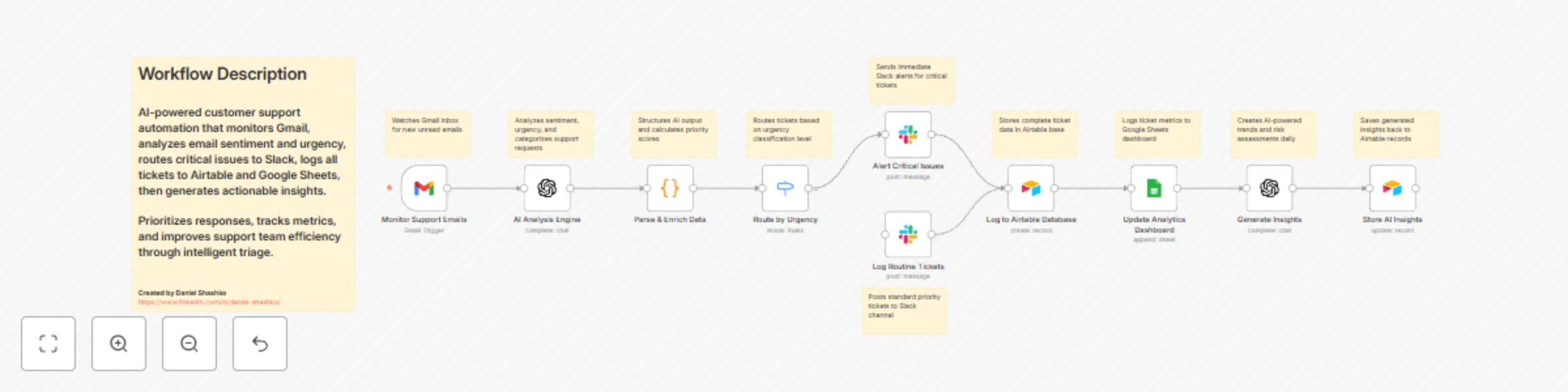
This workflow automatically monitors your Gmail support inbox every minute for new unread messages, instantly sending each email to OpenAI for intelligent analysis. The AI engine evaluates sentiment (Positive/Neutral/Negative/Critical), urgency level (Low/Medium/High/Critical), and categorizes requests into Technical, Billing, Feature Request, Bug Report, or General Inquiry, while extracting key issues and generating professional response templates.

The system calculates a priority score (0-110 points) by combining urgency weight (25 points per level) with sentiment impact (10 points per level), automatically flagging any Critical urgency or Critical sentiment tickets for immediate attention. Critical issues trigger instant Slack alerts with full context, suggested responses, and 30-minute SLA reminders, while routine tickets route to monitoring channels for standard processing.

Every ticket is logged to Airtable with complete analysis data and thread tracking, then simultaneously posted to a Google Sheets analytics dashboard for real-time metrics. A secondary AI pass generates strategic insights including trend identification, risk assessment, and actionable recommendations for the support team, storing these insights back in Airtable linked to the original ticket.

The entire process takes seconds from email arrival to team notification, eliminating manual triage and ensuring critical customer issues receive immediate attention while building a searchable knowledge base of support patterns.


Who is this for?

  • Customer support teams drowning in high email volumes needing automated prioritization
  • SaaS companies tracking support metrics and response times for customer satisfaction
  • Startups with lean support teams requiring intelligent ticket routing and escalation
  • E-commerce businesses managing technical support, returns, and billing inquiries simultaneously
  • Support managers needing data-driven insights into customer pain points and support trends

Setup Steps

  • Setup time: Approx. 20-30 minutes (OpenAI API, Gmail connection, database setup)

  • Requirements:

    • Gmail account with support email access
    • OpenAI API account with API key
    • Airtable account with workspace access
    • Google Sheets for analytics dashboard
    • Slack workspace with incoming webhooks
  • Sign up for OpenAI and obtain your API key for the AI analysis nodes.

  • Create an Airtable base with two tables: "tblSupportTickets" (main records) and "tblInsights" (AI insights) with matching column names.

  • Create a Google Sheet with columns for Date, Time, Customer, Email, Subject, Sentiment, Urgency, Category, Priority, Critical, Status.

  • Set up these nodes:

    • Monitor Support Emails: Connect Gmail account, configure to check INBOX label for unread messages.
    • AI Analysis Engine: Add OpenAI credentials and API key, system prompt pre-configured.
    • Parse & Enrich Data: JavaScript code automatically extracts and scores data (no changes needed).
    • Route by Urgency: Configure routing rules to split critical vs. routine tickets.
    • Slack Alert Nodes: Set up webhook URLs for critical alerts channel and routine monitoring channel.
    • Log to Airtable Database: Connect Airtable, select base and table, map all data fields.
    • Update Analytics Dashboard: Connect Google Sheets and select target sheet/range.
    • Generate Insights & Store AI Insights: OpenAI credentials already set, Airtable connection for storage.
  • Replace placeholder IDs: Airtable base ID (appXXXXXXXXXXXXXX), table names, Google Sheet document ID (1XXXXXXXXXXXXXXXXXXXXXXXXXXXXXXXXX).

  • Credentials must be entered into their respective nodes for successful execution.


Customization Guidance

  • Priority Scoring Formula: Adjust urgency multiplier (currently 25) and sentiment weight (currently 10) in the Code node to match your SLA requirements.
  • Urgency Thresholds: Modify critical routing logic—currently any "Critical" urgency or sentiment triggers immediate alerts.
  • AI Analysis Temperature: Lower OpenAI temperature (0.1-0.2) for more consistent categorization, or raise (0.4-0.5) for nuanced sentiment detection.
  • Polling Frequency: Change Gmail trigger from every minute to every 5/15/30 minutes based on support volume and urgency needs.
  • Email Filters: Add sender whitelist/blacklist, specific label filters, or date ranges to focus on particular customer segments.
  • Category Customization: Modify AI system prompt to add industry-specific categories like "Compliance," "Integration," "Onboarding," etc.
  • Multi-Language Support: Add language detection and translation steps before AI analysis for international support teams.
  • Auto-Response: Insert Gmail send node after AI analysis to automatically send suggested responses for low-priority inquiries.
  • Escalation Rules: Add additional routing for VIP customers, enterprise accounts, or tickets mentioning "cancel/refund."
  • Dashboard Enhancements: Connect to Data Studio, Tableau, or Power BI for advanced support analytics and team performance tracking.

Once configured, this workflow transforms your support inbox into an intelligent triage system that never misses critical issues, provides instant team visibility, and builds actionable customer insights—all while your team focuses on solving problems instead of sorting emails.


Built by Daniel Shashko
Connect on LinkedIn

1.2 Logical Blocks

This catalog entry is organized from the workflow JSON. The node-level section below shows the executable blocks available for review before importing the template.

2. Block-by-Block Analysis

Block 1 - Monitor Support Emails

Type / Role
n8n-nodes-base.gmailTrigger - gmailTrigger
Config choices
Version 1.3

Block 2 - AI Analysis Engine

Type / Role
n8n-nodes-base.openAi - openAi
Config choices
Version 1.1

Block 3 - Parse & Enrich Data

Type / Role
n8n-nodes-base.code - code
Config choices
Version 2

Block 4 - Route by Urgency

Type / Role
n8n-nodes-base.switch - switch
Config choices
Version 3

Block 5 - Alert Critical Issues

Type / Role
n8n-nodes-base.slack - slack
Config choices
Version 2.3

Block 6 - Log Routine Tickets

Type / Role
n8n-nodes-base.slack - slack
Config choices
Version 2.3

Block 7 - Log to Airtable Database

Type / Role
n8n-nodes-base.airtable - airtable
Config choices
Version 2.1

Block 8 - Update Analytics Dashboard

Type / Role
n8n-nodes-base.googleSheets - googleSheets
Config choices
Version 4.7

Block 9 - Generate Insights

Type / Role
n8n-nodes-base.openAi - openAi
Config choices
Version 1.1

Block 10 - Store AI Insights

Type / Role
n8n-nodes-base.airtable - airtable
Config choices
Version 2.1

Block 11 - Sticky Note

Type / Role
n8n-nodes-base.stickyNote - stickyNote
Config choices
Version 1

Block 12 - Sticky Note1

Type / Role
n8n-nodes-base.stickyNote - stickyNote
Config choices
Version 1

Block 13 - Sticky Note2

Type / Role
n8n-nodes-base.stickyNote - stickyNote
Config choices
Version 1

Block 14 - Sticky Note3

Type / Role
n8n-nodes-base.stickyNote - stickyNote
Config choices
Version 1

Block 15 - Sticky Note4

Type / Role
n8n-nodes-base.stickyNote - stickyNote
Config choices
Version 1

Block 16 - Sticky Note5

Type / Role
n8n-nodes-base.stickyNote - stickyNote
Config choices
Version 1

Block 17 - Sticky Note6

Type / Role
n8n-nodes-base.stickyNote - stickyNote
Config choices
Version 1

Block 18 - Sticky Note7

Type / Role
n8n-nodes-base.stickyNote - stickyNote
Config choices
Version 1

Block 19 - Sticky Note8

Type / Role
n8n-nodes-base.stickyNote - stickyNote
Config choices
Version 1

Block 20 - Sticky Note9

Type / Role
n8n-nodes-base.stickyNote - stickyNote
Config choices
Version 1

Block 21 - Sticky Note10

Type / Role
n8n-nodes-base.stickyNote - stickyNote
Config choices
Version 1

3. Summary Table

Workflow Automate customer support triage with GPT, Gmail, Slack & analytics dashboard
Complexity advanced
Nodes 21
Categories Ticket Management, AI Summarization
Author Daniel Shashko
Published 29 Oct 2025

4. Reproducing the Workflow from Scratch

  1. 1. Download the workflow JSON

    Use the JSON export at /data/workflows/10283/10283.json as the source template for this automation.

  2. 2. Import the template into n8n

    Open n8n, import the downloaded JSON, and review each node before activating the workflow.

  3. 3. Configure credentials and variables

    Replace placeholder credentials, API keys, webhook URLs, account IDs, and environment-specific values with your own settings.

  4. 4. Test with sample data

    Run the workflow manually or in a staging workspace, inspect node output, and confirm downstream systems receive the expected data.

  5. 5. Activate and monitor

    Enable the workflow only after testing, then monitor executions, errors, and rate limits during the first production runs.

5. General Notes & Resources

Review imported nodes carefully before activation. This catalog entry is intended to help you inspect the workflow structure, understand required services, and find related templates faster.

Node names, credentials, schedules, webhook paths, and external service limits may need adjustment for your workspace.

Frequently asked questions

What does Automate customer support triage with GPT, Gmail, Slack & analytics dashboard do?

How it Works This workflow automatically monitors your Gmail support inbox every minute for new unread messages, instantly sending each email to OpenAI for intelligent analysis. The AI engine evalu...

What do I need before importing this workflow?

Review the workflow JSON, configure any required credentials in n8n, and test the automation in a safe workspace before using it in production.

Can I customize this workflow?

Yes. Use the block-by-block analysis and the downloadable JSON to inspect each node, then adjust credentials, prompts, schedules, filters, or destinations for your Ticket Management, AI Summarization use case.