Daniel Shashko
Workflows by Daniel Shashko

Advanced multi-source AI research with Bright Data, OpenAI, Redis
## How it Works This workflow transforms natural language queries into research reports through a five-stage AI pipeline. When triggered via webhook (typically from Google Sheets using the companion [`google-apps-script.js`](https://gist.github.com/danishashko/fb509b733aebf5538676ca80b19fa28b) (GitHub gist), it first checks Redis cache for instant results. For new queries, GPT-4o breaks complex questions into focused sub-queries, optimizes them for search, then uses Bright Data's MCP Tool to find the top 5 credible sources (official sites, news, financial reports). URLs are scraped in parallel, bypassing bot detection. GPT-4o extracts structured data from each source: answers, facts, entities, sentiment, quotes, and dates. GPT-4o-mini validates source credibility and filters unreliable content. Valid results aggregate into a final summary with confidence scores, key insights, and extended analysis. Results cache for 1 hour and output via webhook, Slack, email, and DataTable—all in 30-90 seconds with 60 requests/minute rate limiting. --- ## Who is this for? - Research teams needing automated multi-source intelligence - Content creators and journalists requiring fact-checked information - Due diligence professionals conducting competitive intelligence - Google Sheets power users wanting AI research in spreadsheets - Teams managing large research volumes needing caching and rate limiting --- ## Setup Steps **Setup time:** 30-45 minutes **Requirements:** - Bright Data account (Web Scraping API + MCP token) - OpenAI API key (GPT-4o and GPT-4o-mini access) - Redis instance - Slack workspace (optional) - SMTP email provider (optional) - Google account (optional for Sheets integration) **Core Setup:** 1. Get Bright Data Web Scraping API token and MCP token 2. Get OpenAI API key 3. Set up Redis instance 4. Configure critical nodes: - **Webhook Entry:** Add Header Auth token - **Bright Data MCP Tool:** Add MCP endpoint with token - **Parallel Web Scraping:** Add Bright Data API credentials - **Redis Nodes:** Add connection credentials - **All GPT Nodes:** Add OpenAI API key (5 nodes) - **Slack/Email:** Add credentials if using **Google Sheets Integration:** 1. Create Google Sheet 2. Open **Extensions → Apps Script** 3. **Paste the companion [`google-apps-script.js`](https://gist.github.com/danishashko/fb509b733aebf5538676ca80b19fa28b) code** 4. Update webhook URL and auth token 5. Save and authorize **Test:** `{"prompt": "What is the population of Tokyo?", "source": "Test", "language": "English"}` --- ## Customization Guidance - **Source Count:** Change from 5 to 3-10 URLs per query - **Cache Duration:** Adjust from 1 hour to 24 hours for stable info - **Rate Limits:** Modify 60/minute based on usage needs - **Character Limits:** Adjust 400-char main answer to 200-1000 - **AI Models:** Swap GPT-4o for Claude or use GPT-4o-mini for all stages - **Geographic Targeting:** Add more regions beyond us/il - **Output Channels:** Add Notion, Airtable, Discord, Teams - **Temperature:** Lower (0.1-0.2) for facts, higher (0.4-0.6) for analysis --- Once configured, this workflow handles all web research, from fact-checking to complex analysis—delivering validated intelligence in seconds with automatic caching. --- **Built by Daniel Shashko** [Connect on LinkedIn](https://www.linkedin.com/in/daniel-shashko/)
AI meeting summary & action item tracker with Notion, Slack, and Gmail
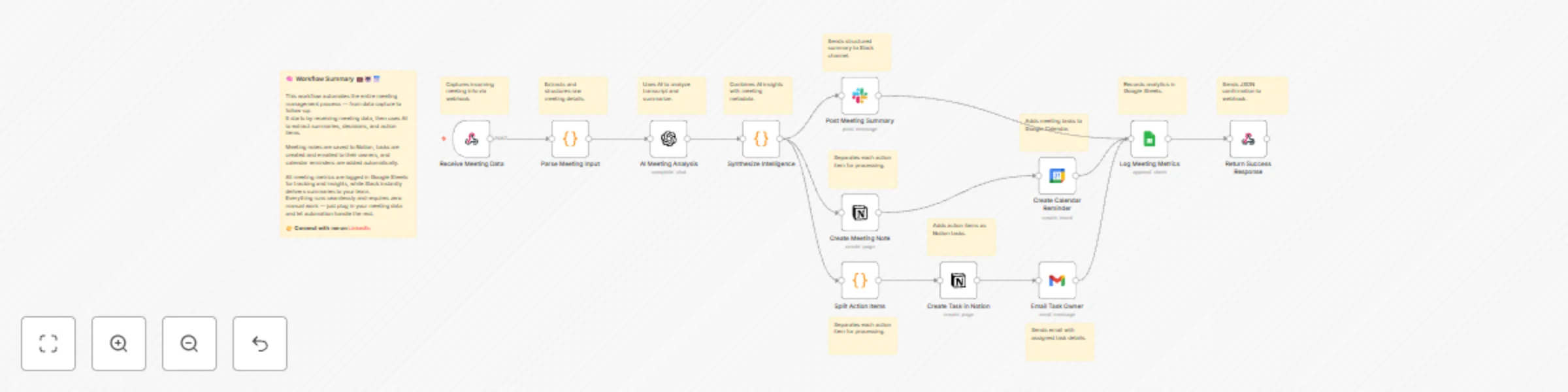
## How it Works This workflow accepts meeting transcripts via webhook (Zoom, Google Meet, Teams, Otter.ai, or manual notes), immediately processing them through an intelligent pipeline that eliminates post-meeting admin work. The system parses multiple input formats (JSON, form data, transcription outputs), extracting meeting metadata including title, date, attendees, transcript content, duration, and recording URLs. OpenAI analyzes the transcript to extract eight critical dimensions: executive summary, key decisions with ownership, action items with assigned owners and due dates, discussion topics, open questions, next steps, risks/blockers, and follow-up meeting requirements—all returned as structured JSON. The intelligence engine enriches each action item with unique IDs, priority scores (weighing urgency + owner assignment + due date), status initialization, and meeting context links, then calculates a completeness score (0-100) that penalizes missing owners and undefined deadlines. Multi-channel distribution ensures visibility: Slack receives formatted summaries with emoji categorization for decisions (✅), action items (🎯) with priority badges and owner assignments, and completeness scores (📊). Notion gets dual-database updates—meeting notes with formatted decisions and individual task cards in your action item database with full filtering and kanban capabilities. Task owners receive personalized HTML emails with priority color-coding and meeting context, while Google Calendar creates due-date reminders as calendar events. Every meeting logs to Google Sheets for analytics tracking: attendee count, duration, action items created, priority distribution, decision count, completeness score, and follow-up indicators. The workflow returns a JSON response confirming successful processing with meeting ID, action item count, and executive summary. The entire pipeline executes in 8-12 seconds from submission to full distribution. --- ## Who is this for? - Product and engineering teams drowning in scattered action items across tools - Remote-first companies where verbal commitments vanish after calls - Executive teams needing auditable decision records without dedicated note-takers - Startups juggling 10+ meetings daily without time for manual follow-up - Operations teams tracking cross-functional initiatives requiring accountability --- ## Setup Steps - **Setup time:** 25-35 minutes - **Requirements:** OpenAI API key, Slack workspace, Notion account, Google Workspace (Calendar/Gmail/Sheets), optional transcription service 1. **Webhook Trigger:** Automatically generates URL, configure as POST endpoint accepting JSON with title, date, attendees, transcript, duration, recording_url, organizer 2. **Transcription Integration:** Connect Otter.ai/Fireflies.ai/Zoom webhooks, or create manual submission form 3. **OpenAI Analysis:** Add API credentials, configure GPT-4 or GPT-3.5-turbo, temperature 0.3, max tokens 1500 4. **Intelligence Synthesis:** JavaScript calculates priority scores (0-40 range) and completeness metrics (0-100), customize thresholds 5. **Slack Integration:** Create app with `chat:write` scope, get bot token, replace channel ID placeholder with your #meeting-summaries channel 6. **Notion Databases:** Create "Meeting Notes" database (title, date, attendees, summary, action items, completeness, recording URL) and "Action Items" database (title, assigned to, due date, priority, status, meeting relation), share both with integration, add token 7. **Email Notifications:** Configure Gmail OAuth2 or SMTP, customize HTML template with company branding 8. **Calendar Reminders:** Enable Calendar API, creates events on due dates at 9 AM (adjustable), adds task owner as attendee 9. **Analytics Tracking:** Create Google Sheet with columns for Meeting_ID, Title, Date, Attendees, Duration, Action_Items, High_Priority, Decisions, Completeness, Unassigned_Tasks, Follow_Up_Needed 10. **Test:** POST sample transcript, verify Slack message, Notion entries, emails, calendar events, and Sheets logging --- ## Customization Guidance - **Meeting Types:** Daily standups (reduce tokens to 500, Slack-only), sprint planning (add Jira integration), client calls (add CRM logging), executive reviews (stricter completeness thresholds) - **Priority Scoring:** Add urgency multiplier for <48hr due dates, owner seniority weights, customer impact flags - **AI Prompt:** Customize to emphasize deadlines, blockers, or technical decisions; add date parsing for phrases like "by end of week" - **Notification Routing:** Critical priority (score >30) → Slack DM + email, High (20-30) → channel + email, Medium/Low → email only - **Tool Integrations:** Add Jira/Linear for ticket creation, Asana/Monday for project management, Salesforce/HubSpot for CRM logging, GitHub for issue creation - **Analytics:** Build dashboards for meeting effectiveness scores, action item velocity, recurring topic clustering, team productivity metrics - **Cost Optimization:** ~1,200 tokens/meeting × $0.002/1K (GPT-3.5) = $0.0024/meeting, use batch API for 50% discount, cache common patterns --- Once configured, this workflow becomes your team's institutional memory—capturing every commitment and decision while eliminating hours of weekly admin work, ensuring accountability is automatic and follow-through is guaranteed. --- **Built by Daniel Shashko** [Connect on LinkedIn](https://www.linkedin.com/in/daniel-shashko/)
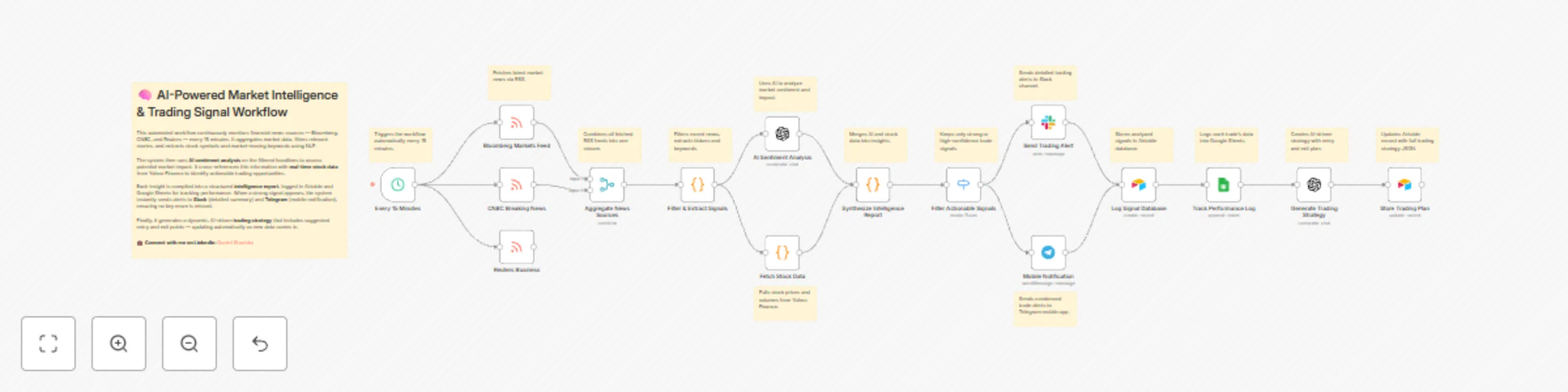
Monitor stock market with AI: news analysis & multi-channel alerts via Slack & Telegram
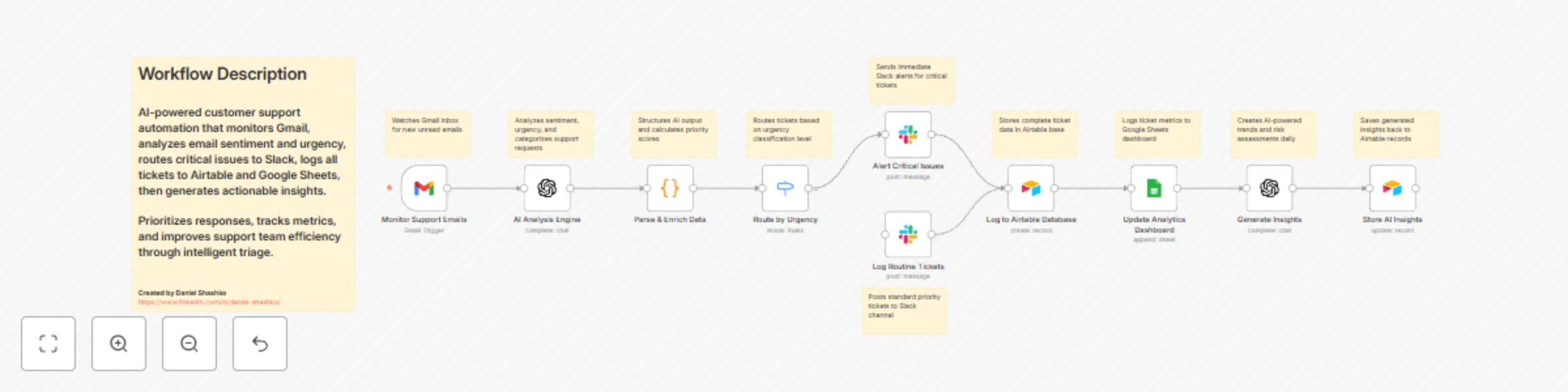
# AI Customer Support Triage with Gmail, OpenAI, Airtable & Slack ## How it Works This workflow monitors your Gmail support inbox every minute, automatically sending each unread email to OpenAI for intelligent analysis. The AI evaluates sentiment (Positive/Neutral/Negative/Critical), urgency level (Low/Medium/High/Critical), categorizes requests (Technical/Billing/Feature Request/Bug Report/General), extracts key issues, and generates professional response templates. The system calculates a priority score (0-110) by combining urgency and sentiment weights, then routes tickets accordingly. Critical issues trigger immediate Slack alerts with full context and 30-minute SLA reminders, while routine tickets post to standard monitoring channels. Every ticket logs to Airtable with complete analysis and thread tracking, then updates a Google Sheets dashboard for real-time analytics. A secondary AI pass generates strategic insights (trend identification, risk assessment, actionable recommendations) and stores them back in Airtable. The entire process takes seconds from email arrival to team notification, eliminating manual triage and ensuring critical issues get immediate attention. --- ## Who is this for? - Customer support teams needing automated prioritization for high email volumes - SaaS companies tracking support metrics and response times - Startups with lean teams requiring intelligent ticket routing - E-commerce businesses managing technical, billing, and return inquiries - Support managers needing data-driven insights into customer pain points --- ## Setup Steps - **Setup time:** 20-30 minutes - **Requirements:** Gmail, OpenAI API key, Airtable account, Google Sheets, Slack workspace 1. **Monitor Support Emails:** Connect Gmail via OAuth2, configure INBOX monitoring for unread emails 2. **AI Analysis Engine:** Add OpenAI API key, system prompt pre-configured for support analysis 3. **Parse & Enrich Data:** JavaScript code automatically calculates priority scores (no changes needed) 4. **Route by Urgency:** Configure routing rules for critical vs routine tickets 5. **Slack Alerts:** Create Slack app, get bot token and channel IDs, replace placeholders in nodes 6. **Airtable Database:** Create base with "tblSupportTickets" table, add API key and Base ID (replace `appXXXXXXXXXXXXXX`) 7. **Google Sheets Dashboard:** Create spreadsheet, enable Sheets API, add OAuth2 credentials, replace Sheet ID (`1XXXXXXXXXXXXXXXXXXXXXXXXXXXXXXXXX`) 8. **Generate Insights:** Second OpenAI call analyzes patterns, stores insights in Airtable 9. **Test:** Send test email, verify Slack alerts, check Airtable/Sheets data logging --- ## Customization Guidance - **Priority Scoring:** Adjust urgency weight (25) and sentiment weight (10) in Code node to match your SLA requirements - **Categories:** Modify AI system prompt to add industry-specific categories (e.g., healthcare: appointments, prescriptions) - **Routing Rules:** Add paths for High urgency, VIP customers, or specific categories - **Auto-Responses:** Insert Gmail send node after routine tickets for automatic acknowledgment emails - **Multi-Language:** Add Google Translate node for non-English support - **VIP Detection:** Query CRM APIs or match email domains to flag enterprise customers - **Team Assignment:** Route different categories to dedicated Slack channels by department - **Cost Optimization:** Use GPT-3.5 (~$0.001/email) instead of GPT-4, self-host n8n for unlimited executions --- Once configured, this workflow operates as your intelligent support triage layer—analyzing every email instantly, routing urgent issues to the right team, maintaining comprehensive analytics, and generating strategic insights to improve support operations. --- **Built by Daniel Shashko** [Connect on LinkedIn](https://www.linkedin.com/in/daniel-shashko/)
Automate customer support triage with GPT, Gmail, Slack & analytics dashboard
## How it Works This workflow automatically monitors your Gmail support inbox every minute for new unread messages, instantly sending each email to OpenAI for intelligent analysis. The AI engine evaluates sentiment (Positive/Neutral/Negative/Critical), urgency level (Low/Medium/High/Critical), and categorizes requests into Technical, Billing, Feature Request, Bug Report, or General Inquiry, while extracting key issues and generating professional response templates. The system calculates a priority score (0-110 points) by combining urgency weight (25 points per level) with sentiment impact (10 points per level), automatically flagging any Critical urgency or Critical sentiment tickets for immediate attention. Critical issues trigger instant Slack alerts with full context, suggested responses, and 30-minute SLA reminders, while routine tickets route to monitoring channels for standard processing. Every ticket is logged to Airtable with complete analysis data and thread tracking, then simultaneously posted to a Google Sheets analytics dashboard for real-time metrics. A secondary AI pass generates strategic insights including trend identification, risk assessment, and actionable recommendations for the support team, storing these insights back in Airtable linked to the original ticket. The entire process takes seconds from email arrival to team notification, eliminating manual triage and ensuring critical customer issues receive immediate attention while building a searchable knowledge base of support patterns. --- ## Who is this for? - Customer support teams drowning in high email volumes needing automated prioritization - SaaS companies tracking support metrics and response times for customer satisfaction - Startups with lean support teams requiring intelligent ticket routing and escalation - E-commerce businesses managing technical support, returns, and billing inquiries simultaneously - Support managers needing data-driven insights into customer pain points and support trends --- ## Setup Steps - Setup time: Approx. 20-30 minutes (OpenAI API, Gmail connection, database setup) - Requirements: - Gmail account with support email access - OpenAI API account with API key - Airtable account with workspace access - Google Sheets for analytics dashboard - Slack workspace with incoming webhooks - Sign up for OpenAI and obtain your API key for the AI analysis nodes. - Create an Airtable base with two tables: "tblSupportTickets" (main records) and "tblInsights" (AI insights) with matching column names. - Create a Google Sheet with columns for Date, Time, Customer, Email, Subject, Sentiment, Urgency, Category, Priority, Critical, Status. - Set up these nodes: - **Monitor Support Emails:** Connect Gmail account, configure to check INBOX label for unread messages. - **AI Analysis Engine:** Add OpenAI credentials and API key, system prompt pre-configured. - **Parse & Enrich Data:** JavaScript code automatically extracts and scores data (no changes needed). - **Route by Urgency:** Configure routing rules to split critical vs. routine tickets. - **Slack Alert Nodes:** Set up webhook URLs for critical alerts channel and routine monitoring channel. - **Log to Airtable Database:** Connect Airtable, select base and table, map all data fields. - **Update Analytics Dashboard:** Connect Google Sheets and select target sheet/range. - **Generate Insights & Store AI Insights:** OpenAI credentials already set, Airtable connection for storage. - Replace placeholder IDs: Airtable base ID (appXXXXXXXXXXXXXX), table names, Google Sheet document ID (1XXXXXXXXXXXXXXXXXXXXXXXXXXXXXXXXX). - Credentials must be entered into their respective nodes for successful execution. --- ## Customization Guidance - **Priority Scoring Formula:** Adjust urgency multiplier (currently 25) and sentiment weight (currently 10) in the Code node to match your SLA requirements. - **Urgency Thresholds:** Modify critical routing logic—currently any "Critical" urgency or sentiment triggers immediate alerts. - **AI Analysis Temperature:** Lower OpenAI temperature (0.1-0.2) for more consistent categorization, or raise (0.4-0.5) for nuanced sentiment detection. - **Polling Frequency:** Change Gmail trigger from every minute to every 5/15/30 minutes based on support volume and urgency needs. - **Email Filters:** Add sender whitelist/blacklist, specific label filters, or date ranges to focus on particular customer segments. - **Category Customization:** Modify AI system prompt to add industry-specific categories like "Compliance," "Integration," "Onboarding," etc. - **Multi-Language Support:** Add language detection and translation steps before AI analysis for international support teams. - **Auto-Response:** Insert Gmail send node after AI analysis to automatically send suggested responses for low-priority inquiries. - **Escalation Rules:** Add additional routing for VIP customers, enterprise accounts, or tickets mentioning "cancel/refund." - **Dashboard Enhancements:** Connect to Data Studio, Tableau, or Power BI for advanced support analytics and team performance tracking. --- Once configured, this workflow transforms your support inbox into an intelligent triage system that never misses critical issues, provides instant team visibility, and builds actionable customer insights—all while your team focuses on solving problems instead of sorting emails. --- **Built by Daniel Shashko** [Connect on LinkedIn](https://www.linkedin.com/in/daniel-shashko/)
Automate Reddit brand monitoring & responses with GPT-4o-mini, Sheets & Slack
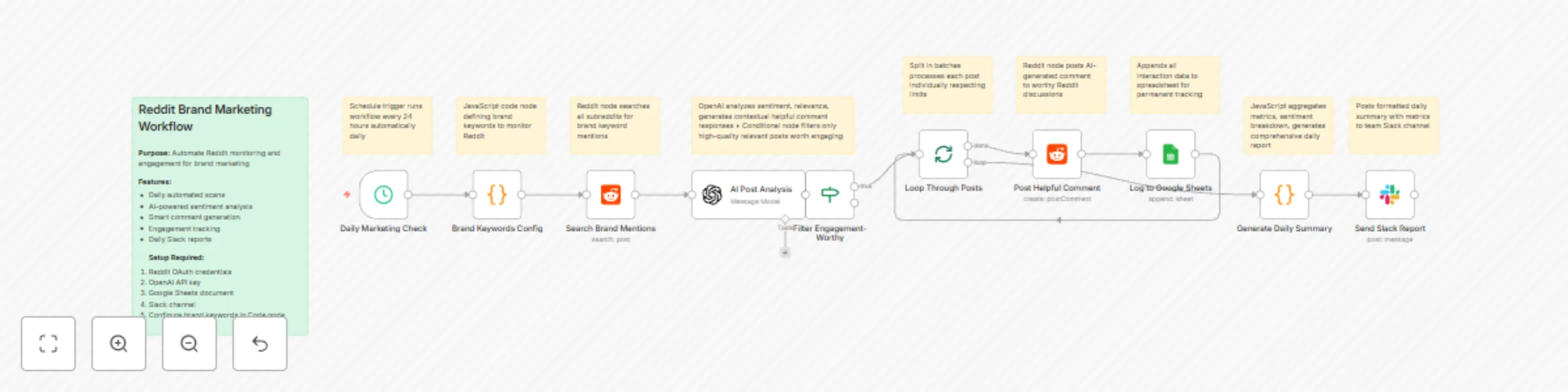
## How it Works This workflow automates intelligent Reddit marketing by monitoring brand mentions, analyzing sentiment with AI, and engaging authentically with communities. Every 24 hours, the system searches Reddit for posts containing your configured brand keywords across all subreddits, finding up to 50 of the newest mentions to analyze. Each discovered post is sent to OpenAI's GPT-4o-mini model for comprehensive analysis. The AI evaluates sentiment (positive/neutral/negative), assigns an engagement score (0-100), determines relevance to your brand, and generates contextual, helpful responses that add genuine value to the conversation. It also classifies the response type (educational/supportive/promotional) and provides reasoning for whether engagement is appropriate. The workflow intelligently filters posts using a multi-criteria system: only posts that are relevant to your brand, score above 60 in engagement quality, and warrant a response type other than "pass" proceed to engagement. This prevents spam and ensures every interaction is meaningful. Selected posts are processed one at a time through a loop to respect Reddit's rate limits. For each worthy post, the AI-generated comment is posted, and complete interaction data is logged to Google Sheets including timestamp, post details, sentiment, engagement scores, and success status. This creates a permanent audit trail and analytics database. At the end of each run, the workflow aggregates all data into a comprehensive daily summary report with total posts analyzed, comments posted, engagement rate, sentiment breakdown, and the top 5 engagement opportunities ranked by score. This report is automatically sent to Slack with formatted metrics, giving your team instant visibility into your Reddit marketing performance. --- ## Who is this for? - **Brand managers and marketing teams** needing automated social listening and engagement on Reddit - **Community managers** responsible for authentic brand presence across multiple subreddits - **Startup founders and growth marketers** who want to scale Reddit marketing without hiring a team - **PR and reputation teams** monitoring brand sentiment and responding to discussions in real-time - **Product marketers** seeking organic engagement opportunities in product-related communities - **Any business** that wants to build authentic Reddit presence while avoiding spammy marketing tactics --- ## Setup Steps - **Setup time:** Approx. 30-40 minutes (credential configuration, keyword setup, Google Sheets creation, Slack integration) - **Requirements:** - Reddit account with OAuth2 application credentials (create at reddit.com/prefs/apps) - OpenAI API key with GPT-4o-mini access - Google account with a new Google Sheet for tracking interactions - Slack workspace with posting permissions to a marketing/monitoring channel - Brand keywords and subreddit strategy prepared 1. **Create Reddit OAuth Application:** Visit reddit.com/prefs/apps, create a "script" type app, and obtain your client ID and secret 2. **Configure Reddit Credentials in n8n:** Add Reddit OAuth2 credentials with your app credentials and authorize access 3. **Set up OpenAI API:** Obtain API key from platform.openai.com and configure in n8n OpenAI credentials 4. **Create Google Sheet:** Set up a new sheet with columns: timestamp, postId, postTitle, subreddit, postUrl, sentiment, engagementScore, responseType, commentPosted, reasoning 5. **Configure these nodes:** - **Brand Keywords Config:** Edit the JavaScript code to include your brand name, product names, and relevant industry keywords - **Search Brand Mentions:** Adjust the limit (default 50) and sort preference based on your needs - **AI Post Analysis:** Customize the prompt to match your brand voice and engagement guidelines - **Filter Engagement-Worthy:** Adjust the engagementScore threshold (default 60) based on your quality standards - **Loop Through Posts:** Configure max iterations and batch size for rate limit compliance - **Log to Google Sheets:** Replace YOUR_SHEET_ID with your actual Google Sheets document ID - **Send Slack Report:** Replace YOUR_CHANNEL_ID with your Slack channel ID 6. **Test the workflow:** Run manually first to verify all connections work and adjust AI prompts 7. **Activate for daily runs:** Once tested, activate the Schedule Trigger to run automatically every 24 hours --- ## Node Descriptions (10 words each) 1. **Daily Marketing Check** - Schedule trigger runs workflow every 24 hours automatically daily 2. **Brand Keywords Config** - JavaScript code node defining brand keywords to monitor Reddit 3. **Search Brand Mentions** - Reddit node searches all subreddits for brand keyword mentions 4. **AI Post Analysis** - OpenAI analyzes sentiment, relevance, generates contextual helpful comment responses 5. **Filter Engagement-Worthy** - Conditional node filters only high-quality relevant posts worth engaging 6. **Loop Through Posts** - Split in batches processes each post individually respecting limits 7. **Post Helpful Comment** - Reddit node posts AI-generated comment to worthy Reddit discussions 8. **Log to Google Sheets** - Appends all interaction data to spreadsheet for permanent tracking 9. **Generate Daily Summary** - JavaScript aggregates metrics, sentiment breakdown, generates comprehensive daily report 10. **Send Slack Report** - Posts formatted daily summary with metrics to team Slack channel
Affiliate competitor tracking & analysis with AI, Bright Data, Sheets & Slack
## How it Works This workflow automatically monitors competitor affiliate programs twice daily using Bright Data's web scraping API to extract commission rates, cookie durations, average order values, and payout terms from competitor websites. The AI analysis engine scores each competitor (0-100 points) by comparing their commission rates, cookie windows, earnings per click (EPC), and affiliate-friendliness against your program, then categorizes them as Critical (70+), High (45-69), Medium (25-44), or Low (0-24) threat levels. Critical and high-threat competitors trigger immediate Slack alerts with detailed head-to-head comparisons and strategic recommendations, while lower threats route to monitoring channels. All competitors are logged to Google Sheets for tracking and historical analysis. The system generates personalized email reports—urgent action plans with 24-48 hour deadlines for critical threats, or standard intelligence updates for routine monitoring. The entire process takes minutes from scraping to strategic alert, eliminating manual competitive research and ensuring you never lose affiliates to better-positioned competitor programs. --- ## Who is this for? - Affiliate program managers monitoring competitor programs who need automated intelligence - E-commerce brands in competitive verticals who can't afford to lose top affiliates - Affiliate networks managing multiple merchants needing competitive benchmarking - Performance marketing teams responding to commission rate wars in their industry --- ## Setup Steps - Setup time: Approx. 20-30 minutes (Bright Data setup, API configuration, spreadsheet creation) - Requirements: - Bright Data account with web scraping API access - Google account with a competitor tracking spreadsheet - Slack workspace - SMTP email provider (Gmail, SendGrid, etc.) - Sign up for Bright Data and get your API credentials and dataset ID. - Create a Google Sheets with two tabs: "Competitor Analysis" and "Historical Log" with appropriate column headers. - Set up these nodes: - **Schedule Competitor Check:** Pre-configured for twice daily (adjust timing if needed). - **Scrape Competitor Sites:** Add Bright Data credentials, dataset ID, and competitor URLs. - **AI Offer Analysis:** Review scoring thresholds (commission, cookies, AOV, EPC). - **Route by Threat Level:** Automatically splits by 70-point critical and 45-point high thresholds. - **Google Sheets Nodes:** Connect spreadsheet and map data fields. - **Slack Alerts:** Configure channels for critical alerts and routine monitoring. - **Email Reports:** Set up SMTP and recipient addresses. - Credentials must be entered into their respective nodes for successful execution. --- ## Customization Guidance - **Scoring Weights:** Adjust point values for commission (35), cookies (25), cost efficiency (25), volume (15) based on your priorities. - **Threat Thresholds:** Modify 70-point critical and 45-point high thresholds for your risk tolerance. - **Benchmark Values:** Update commission gap thresholds (5%+ = critical, 2%+ = warning) and cookie duration benchmarks (30+ days = critical). - **Competitor URLs:** Add or remove competitor websites to monitor in the HTTP Request node. - **Alert Routing:** Create tier-based channels or route to Microsoft Teams, Discord, or SMS via Twilio. - **Scraping Frequency:** Change from twice-daily to hourly for competitive markets or weekly for stable industries. - **Additional Networks:** Duplicate workflow for different affiliate networks (CJ, ShareASale, Impact, Rakuten). --- Once configured, this workflow will continuously monitor competitive threats and alert you before top affiliates switch to better-paying programs, protecting your affiliate revenue from competitive pressure. --- **Built by Daniel Shashko** [Connect on LinkedIn](https://www.linkedin.com/in/daniel-shashko/)
PPC campaign intelligence & optimization with Google Ads, Sheets & Slack
## How it Works This workflow automatically monitors your Google Ads campaigns every day, analyzing performance with AI-powered scoring to identify scaling opportunities and catch issues before they drain your budget. Each morning at 9 AM, it fetches all active campaign data including clicks, impressions, conversions, costs, and conversion rates from your Google Ads account. The AI analysis engine evaluates four critical dimensions: CTR (click-through rate) to measure ad relevance, conversion rate to assess landing page effectiveness, cost per conversion to evaluate profitability, and traffic volume to identify scale-readiness. Each campaign receives a performance score (0-100 points) and is automatically categorized as Excellent (75+), Good (55-74), Fair (35-54), or Underperforming (0-34). High-performing campaigns trigger instant Slack alerts to your PPC team with detailed scaling recommendations and projected ROI improvements, while underperforming campaigns generate urgent alerts with specific optimization actions. Every campaign is logged to your Google Sheets dashboard with daily metrics, and the system generates personalized email reports—action-oriented scaling plans for top performers and troubleshooting guides for campaigns needing attention. The entire analysis takes minutes, providing your team with daily intelligence reports that would otherwise require hours of manual spreadsheet work and data analysis. --- ## Who is this for? - PPC managers and paid media specialists drowning in campaign data and manual reporting - Marketing agencies managing multiple client accounts needing automated performance monitoring - E-commerce brands running high-spend campaigns who can't afford budget waste - Growth teams looking to scale winners faster and pause losers immediately - Anyone spending $5K+ monthly on Google Ads who needs data-driven optimization decisions --- ## Setup Steps - **Setup time:** Approx. 15-25 minutes (credential configuration, dashboard setup, alert customization) - **Requirements:** - Google Ads account with active campaigns - Google account with a tracking spreadsheet - Slack workspace - SMTP email provider (Gmail, SendGrid, etc.) - Create a Google Sheets dashboard with two tabs: "Daily Performance" and "Campaign Log" with appropriate column headers. - Set up these nodes: - **Schedule Daily Check:** Pre-configured to run at 9 AM daily (adjust timing if needed). - **Fetch Google Ads Data:** Connect your Google Ads account and authorize API access. - **AI Performance Analysis:** Review scoring thresholds (CTR, conversion rate, cost benchmarks). - **Route by Performance:** Automatically splits campaigns into high-performers vs. issues. - **Update Campaign Dashboard:** Connect Google Sheets and select your "Daily Performance" tab. - **Log All Campaigns:** Select your "Campaign Log" tab for historical tracking. - **Slack Alerts:** Connect workspace and configure separate channels for scaling opportunities and performance issues. - **Generate Action Plan:** Customize email templates with your brand voice and action items. - **Email Performance Report:** Configure SMTP and set recipient email addresses. - Credentials must be entered into their respective nodes for successful execution. --- ## Customization Guidance - **Scoring Weights:** Adjust point values for CTR (30), conversion rate (35), cost efficiency (25), and volume (10) in the AI Performance Analysis node based on your business priorities. - **Performance Thresholds:** Modify the 75-point Excellent threshold and 55-point Good threshold to match your campaign quality distribution and industry benchmarks. - **Benchmark Values:** Update CTR benchmarks (5% excellent, 3% good, 1.5% average) and conversion rate targets (10%, 5%, 2%) for your industry. - **Alert Channels:** Create separate Slack channels for different alert types or route critical alerts to Microsoft Teams, Discord, or SMS via Twilio. - **Email Recipients:** Configure different recipient lists for scaling alerts (executives, growth team) vs. optimization alerts (campaign managers). - **Schedule Frequency:** Change from daily to hourly monitoring for high-spend campaigns, or weekly for smaller accounts. - **Additional Platforms:** Duplicate the workflow structure for Facebook Ads, Microsoft Ads, or LinkedIn Ads with platform-specific nodes. - **Budget Controls:** Add nodes to automatically pause campaigns exceeding cost thresholds or adjust bids based on performance scores. --- Once configured, this workflow will continuously monitor your ad spend, identify opportunities worth thousands in additional revenue, and alert you to issues before they waste your budget—transforming manual reporting into automated intelligence. --- **Built by Daniel Shashko** [Connect on LinkedIn](https://www.linkedin.com/in/daniel-shashko/)
Automated UGC video generator with Gemini images and SORA 2
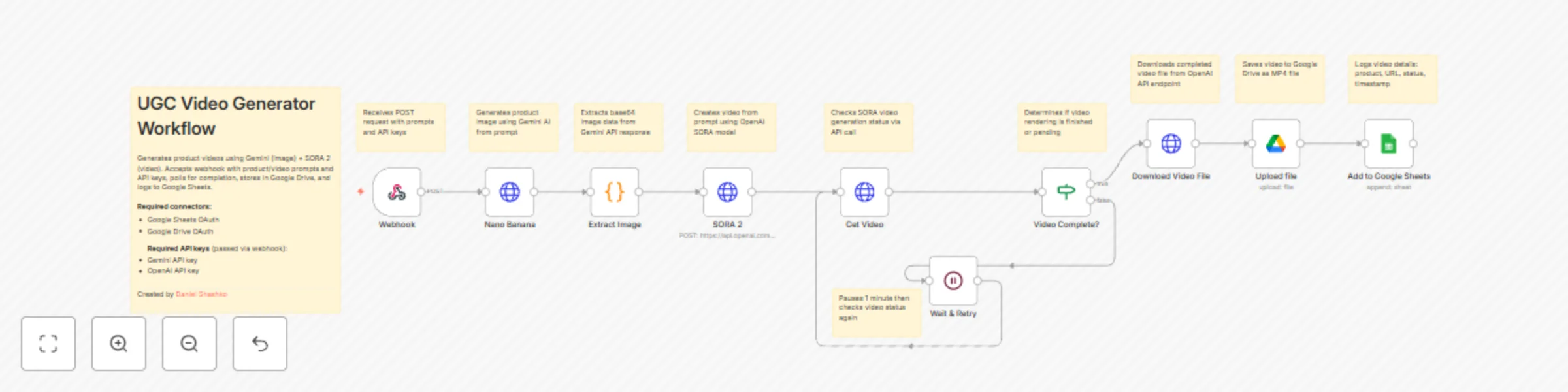
 This workflow automates the creation of user-generated-content-style product videos by combining Gemini's image generation with OpenAI's SORA 2 video generation. It accepts webhook requests with product descriptions, generates images and videos, stores them in Google Drive, and logs all outputs to Google Sheets for easy tracking. ### Main Use Cases * Automate product video creation for e-commerce catalogs and social media. * Generate UGC-style content at scale without manual design work. * Create engaging video content from simple text prompts for marketing campaigns. * Build a centralized library of product videos with automated tracking and storage. ### How it works The workflow operates as a webhook-triggered process, organized into these stages: 1. **Webhook Trigger & Input** * Accepts POST requests to the `/create-ugc-video` endpoint. * Required payload includes: product prompt, video prompt, Gemini API key, and OpenAI API key. 2. **Image Generation (Gemini)** * Sends the product prompt to Google's Gemini 2.5 Flash Image model. * Generates a product image based on the description provided. 3. **Data Extraction** * Code node extracts the base64 image data from Gemini's response. * Preserves all prompts and API keys for subsequent steps. 4. **Video Generation (SORA 2)** * Sends the video prompt to OpenAI's SORA 2 API. * Initiates video generation with specifications: 720x1280 resolution, 8 seconds duration. * Returns a video generation job ID for polling. 5. **Video Status Polling** * Continuously checks video generation status via OpenAI API. * If status is "completed": proceeds to download. * If status is still processing: waits 1 minute and retries (polling loop). 6. **Video Download & Storage** * Downloads the completed video file from OpenAI. * Uploads the MP4 file to Google Drive (root folder). * Generates a shareable Google Drive link. 7. **Logging to Google Sheets** * Records all generation details in a tracking spreadsheet: * Product description * Video URL (Google Drive link) * Generation status * Timestamp ### Summary Flow: Webhook Request → Generate Product Image (Gemini) → Extract Image Data → Generate Video (SORA 2) → Poll Status → If Complete: Download Video → Upload to Google Drive → Log to Google Sheets → Return Response If Not Complete: Wait 1 Minute → Poll Status Again ### Benefits: * Fully automated video creation pipeline from text to finished product. * Scalable solution for generating multiple product videos on demand. * Combines cutting-edge AI models (Gemini + SORA 2) for high-quality output. * Centralized storage in Google Drive with automatic logging in Google Sheets. * Flexible webhook interface allows integration with any application or service. * Retry mechanism ensures videos are captured even with longer processing times. --- Created by [Daniel Shashko](https://www.linkedin.com/in/daniel-shashko/)
Competitive price monitoring & alerts with Bright Data, Sheets & Slack
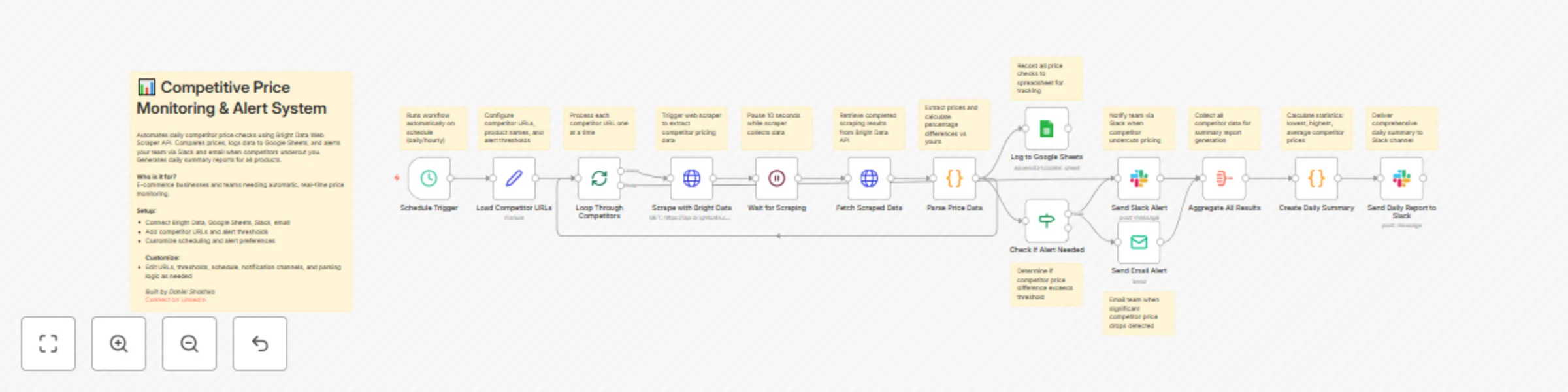
 ## How it Works This workflow automates competitive price intelligence using Bright Data's enterprise web scraping API. On a scheduled basis (default: daily at 9 AM), the system loops through configured competitor product URLs, triggers Bright Data's web scraper to extract real-time pricing data from each site, and intelligently compares competitor prices against your current pricing. The workflow handles the full scraping lifecycle: it sends scraping requests to Bright Data, waits for completion, fetches the scraped product data, and parses prices from various formats and website structures. All pricing data is automatically logged to Google Sheets for historical tracking and trend analysis. When a competitor's price drops below yours by more than the configured threshold (e.g., 10% cheaper), the system immediately sends detailed alerts via Slack and email to your pricing team with actionable intelligence. At the end of each monitoring run, the workflow generates a comprehensive daily summary report that aggregates all competitor data, calculates average price differences, identifies the lowest and highest competitors, and provides a complete competitive landscape view. This eliminates hours of manual competitor research and enables data-driven pricing decisions in real-time. --- ## Who is this for? - E-commerce businesses and online retailers needing automated competitive price monitoring - Product managers and pricing strategists requiring real-time competitive intelligence - Revenue operations teams managing dynamic pricing strategies across multiple products - Marketplaces competing in price-sensitive categories where margins matter - Any business that needs to track competitor pricing without manual daily checks --- ## Setup Steps - Setup time: Approx. 30-40 minutes (Bright Data configuration, credential setup, competitor URL configuration) - Requirements: - Bright Data account with Web Scraper API access - Bright Data API token (from dashboard) - Google account with a spreadsheet for price tracking - Slack workspace with pricing channels - SMTP email provider for alerts - Sign up for Bright Data and create a web scraping dataset (use e-commerce template for product data) - Obtain your Bright Data API token and dataset ID from the dashboard - Configure these nodes: - **Schedule Daily Check:** Set monitoring frequency using cron expression (default: 9 AM daily) - **Load Competitor URLs:** Add competitor product URLs array, configure your current price, set alert threshold percentage - **Loop Through Competitors:** Automatically handles multiple URLs (no configuration needed) - **Scrape with Bright Data:** Add Bright Data
Automated lead qualification & nurturing with JotForm, HubSpot, Email & AI scoring
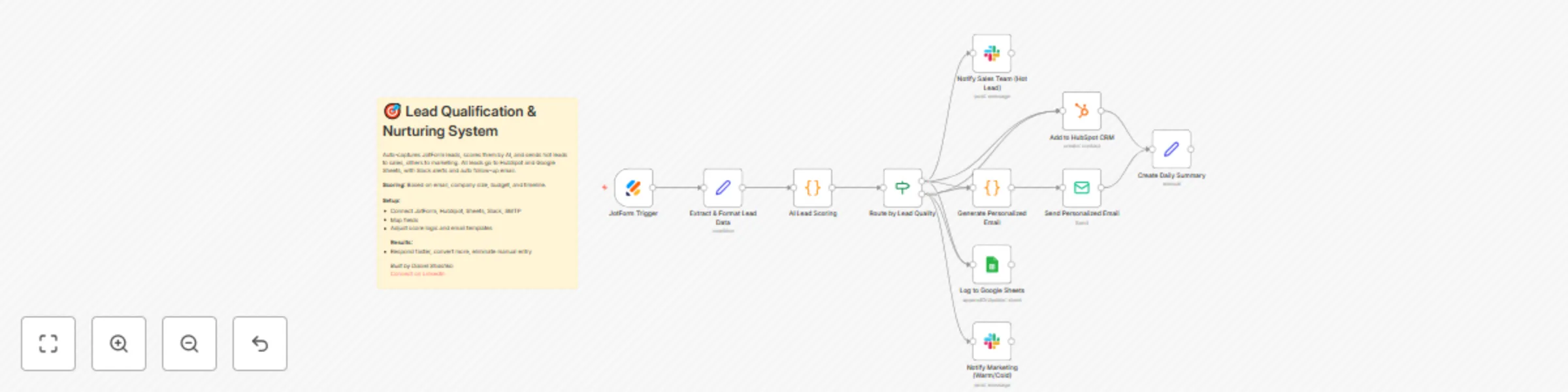
 ## How it Works This workflow automates the entire lead qualification process from form submission to personalized follow-up. When a prospect fills out your [JotForm](https://www.jotform.com/), the workflow instantly captures their information, runs it through an intelligent scoring algorithm that evaluates email domain, company size, budget, and timeline to assign a lead score (0-100 points). Based on the score, leads are automatically categorized as Hot (75+), Warm (50-74), or Cold (0-49) and routed accordingly. Hot leads trigger immediate notifications to your sales team via [Slack](https://slack.com/) with full contact details and qualification notes, while warm and cold leads are routed to marketing for nurture campaigns. All leads are simultaneously logged to HubSpot CRM with custom properties and Google Sheets for tracking and reporting. The workflow then generates personalized follow-up emails based on the lead tier—urgent, action-oriented messages for hot leads and educational, resource-focused content for others—and sends them automatically via SMTP. The entire process takes seconds from form submission to follow-up, eliminating manual data entry and ensuring no lead falls through the cracks. --- ## Who is this for? - Sales and marketing teams drowning in manual lead qualification and data entry - Startups and SMBs needing to respond to leads instantly without a large sales team - Revenue operations professionals looking to improve lead routing and response times - Anyone using JotForm for lead generation who wants automated CRM integration --- ## Setup Steps - Setup time: Approx. 20-30 minutes (credential configuration, field mapping, template customization) - Requirements: - JotForm account with an active lead capture form - HubSpot CRM account - Google account with a tracking spreadsheet - Slack workspace - SMTP email provider (Gmail, SendGrid, etc.) - Configure your JotForm to collect: Name, Email, Company, Phone, Company Size, Budget Range, and Implementation Timeline. - Set up these nodes: - **JotForm Trigger:** Connect your JotForm account and select your lead capture form. - **Extract & Format Lead Data:** Map your JotForm field names to workflow variables. - **AI Lead Scoring:** Review and adjust scoring weights if needed (optional). - **Route by Lead Quality:** Automatically splits leads based on score thresholds. - **Add to HubSpot CRM:** Connect HubSpot and create required custom properties (lead_score, lead_tier, budget_range, company_size, timeline). - **Log to Google Sheets:** Connect Google account, select spreadsheet, and ensure column headers match. - **Slack Notifications:** Connect workspace and select channels for hot leads (sales) and warm/cold leads (marketing). - **Generate Personalized Email:** Customize email templates for each lead tier. - **Send Email:** Configure SMTP credentials and sender information. - Credentials must be entered into their respective nodes for successful execution. --- ## Customization Guidance - **Scoring Algorithm:** Adjust point values for email domain (25), company size (30), budget (25), and timeline (20) in the AI Lead Scoring node based on your priorities. - **Lead Tier Thresholds:** Modify the 75-point hot lead threshold and 50-point warm lead threshold to match your lead quality distribution. - **Email Templates:** Edit the JavaScript in the Generate Personalized Email node to include your calendar links, case studies, and value propositions. - **Field Mapping:** Update the Extract & Format Lead Data node if your JotForm uses different field names. - **CRM Customization:** Replace HubSpot with Salesforce, Pipedrive, or any other CRM that n8n supports. - **Notification Channels:** Add additional Slack channels, Microsoft Teams, or SMS notifications via Twilio for different routing scenarios. - **Additional Enrichment:** Insert data enrichment nodes (Clearbit, Hunter.io) between scoring and CRM creation for enhanced lead profiles. --- Once configured, this workflow will automatically qualify, score, route, and follow up with every lead—reducing response time from hours to seconds and eliminating manual data entry entirely. --- **Built by Daniel Shashko** [Connect on LinkedIn](https://www.linkedin.com/in/daniel-shashko/)
Smart RSS feed monitoring with AI filtering, Baserow storage, and Slack alerts
 This workflow automates the process of monitoring multiple RSS feeds, intelligently identifying new articles, maintaining a record of processed content, and delivering timely notifications to a designated Slack channel. It leverages AI to ensure only truly new and relevant articles are dispatched, preventing duplicate alerts and information overload. 🚀 ## Main Use Cases * **Automated News Aggregation:** Continuously monitor industry news, competitor updates, or specific topics from various RSS feeds. 📈 * **Content Curation:** Filter and deliver only new, unprocessed articles to a team or personal Slack channel. 🎯 * **Duplicate Prevention:** Maintain a persistent record of seen articles to avoid redundant notifications. 🛡️ * **Enhanced Information Delivery:** Provide a streamlined and intelligent way to stay updated without manual checking. 📧 ## How it works The workflow operates in distinct, interconnected phases to ensure efficient and intelligent article delivery: ### 1. RSS Feed Data Acquisition 📥 * **Initiation:** The workflow is manually triggered to begin the process. 🖱️ * **RSS Link Retrieval:** It connects to a Baserow database to fetch a list of configured RSS feed URLs. 🔗 * **Individual Feed Processing:** Each RSS feed URL is then processed independently. 🔄 * **Content Fetching & Parsing:** An HTTP Request node downloads the raw XML content of each RSS feed, which is then parsed into a structured JSON format for easy manipulation. 📄➡️🌳 ### 2. Historical Data Management 📚 * **Seen Articles Retrieval:** Concurrently, the workflow queries another Baserow table to retrieve a comprehensive list of article GUIDs or links that have been previously processed and notified. This forms the basis for duplicate detection. 🔍 ### 3. Intelligent Article Filtering with AI 🧠 * **Data Structuring for AI:** A Code node prepares the newly fetched articles and the list of already-seen articles into a specific JSON structure required by the AI Agent. 🏗️ * **AI-Powered Filtering:** An AI Agent, powered by an OpenAI Chat Model and supported by a Simple Memory component, receives this structured data. It is precisely prompted to compare the new articles against the historical "seen" list and return only those articles that are genuinely new and unprocessed. 🤖 * **Output Validation:** A Structured Output Parser ensures that the AI Agent's response adheres to a predefined JSON schema, guaranteeing data integrity for subsequent steps. ✅ * **JSON Cleaning:** A final Code node takes the AI's raw JSON string output, parses it, and formats it into individual n8n items, ready for notification and storage. 🧹 ### 4. Notification & Record Keeping 🔔 * **Persistent Record:** For each newly identified article, its link is saved to the Baserow "seen products" table, marking it as processed and preventing future duplicate notifications. 💾 * **Slack Notification:** The details of the new article (title, content, link) are then formatted and sent as a rich message to a specified Slack channel, providing real-time updates. 💬 ## Summary Flow: Manual Trigger → RSS Link Retrieval (Baserow) → HTTP Request → XML Parsing | Seen Articles Retrieval (Baserow) → Data Structuring (Code) → AI-Powered Filtering (AI Agent, OpenAI, Memory, Parser) → JSON Cleaning (Code) → Save Seen Articles (Baserow) → Slack Notification 🎉 ## Benefits: * **Fully Automated:** Eliminates manual checking of RSS feeds and Slack notifications. ⏱️ * **Intelligent Filtering:** Leverages AI to accurately identify and deliver only new content, avoiding duplicates. 💡 * **Centralized Data Management:** Utilizes Baserow for robust storage of RSS feed configurations and processed article history. 🗄️ * **Real-time Alerts:** Delivers timely updates directly to your team or personal Slack channel. ⚡ * **Scalable & Customizable:** Easily adaptable to monitor various RSS feeds and integrate with different Baserow tables and Slack channels. ⚙️ ## Setup Requirements: * **Baserow API Key:** Required for accessing and updating your Baserow databases. 🔑 * **OpenAI API Key:** Necessary for the AI Agent to function. 🤖 * **Slack Credentials:** Either a Slack OAuth token (recommended for full features) or a Webhook URL for sending messages. 🗣️ * **Baserow Table Configuration:** * A table with an `rssLink` column to store your RSS feed URLs. * A table with a `Nom` column to store the links of processed articles. --- For any questions or further assistance, feel free to connect with me on LinkedIn: [https://www.linkedin.com/in/daniel-shashko/](https://www.linkedin.com/in/daniel-shashko/)
E-commerce product fine-tuning with Bright Data and OpenAI
 *This workflow contains community nodes that are only compatible with the self-hosted version of n8n.* This workflow automates the process of scraping product data from e-commerce websites and using it to fine-tune a custom OpenAI GPT model for generating high-quality marketing copy and product descriptions. ### Main Use Cases * [Fine-tune OpenAI models](https://platform.openai.com/docs/guides/fine-tuning/fine-tuning) with real product data from hundreds of supported e-commerce websites for marketing content generation. * Create custom AI models specialized in writing compelling product descriptions across different industries and platforms. * Automate the entire pipeline from data collection to model training using Bright Data's extensive scraper library. * Generate marketing copy using your custom-trained model via an interactive chat interface. ### How it works The workflow operates in two main phases: model training and model usage, organized into these stages: 1. **Data Collection & Processing** * Manually triggered to start the fine-tuning process. * Uses [Bright Data's web scraper](https://brightdata.com/products/web-scraper) to extract product information from any supported e-commerce platform (Amazon, eBay, Shopify stores, Walmart, Target, and hundreds of other websites). * Collects product titles, brands, features, descriptions, ratings, and availability status from your chosen platform. * Easily customizable to scrape from different websites by simply changing the dataset configuration and product URLs. 2. **Training Data Preparation** * A Code node processes the scraped product data to create training examples in OpenAI's required JSONL format. * For each product, generates a complete training example with: * System message defining the AI's role as a marketing assistant. * User prompt containing specific product details (title, brand, features, original description snippet). * Assistant response providing an ideal marketing description template. * Compiles all training examples into a single JSONL file ready for OpenAI fine-tuning. 3. **Model Fine-Tuning** * Uploads the training file to OpenAI using the OpenAI File Upload node. * Initiates a fine-tuning job via HTTP Request to OpenAI's fine-tuning API using the GPT-4o-mini model as the base. * The fine-tuning process runs on OpenAI's servers to create your custom model. 4. **Interactive Chat Interface** * Provides a chat trigger that allows real-time interaction with your fine-tuned model. * An AI Agent node connects to your custom-trained OpenAI model. * Users can chat with the model to generate product descriptions, marketing copy, or other content based on the training. 5. **Custom Model Integration** * The OpenAI Chat Model node is configured to use your specific fine-tuned model ID. * Delivers responses trained on your product data for consistent, high-quality marketing content. ### Summary Flow: Manual Trigger → Scrape E-commerce Products (Bright Data) → Process & Format Training Data (Code) → Upload Training File (OpenAI) → Start Fine-Tuning Job (HTTP Request) | Parallel: Chat Trigger → AI Agent → Custom Fine-Tuned Model Response ### Benefits: * Fully automated pipeline from raw product data to trained AI model. * Works with hundreds of different e-commerce websites through Bright Data's extensive scraper library. * Creates specialized models trained on real e-commerce data for authentic marketing copy across various industries. * Scalable solution that can be adapted to different product categories, niches, or websites. * Interactive chat interface for immediate access to your custom-trained model. * Cost-effective fine-tuning using OpenAI's most efficient model (GPT-4o-mini). * Easily customizable with different websites, product URLs, training prompts, and model configurations. ### Setup Requirements: * Bright Data API credentials for web scraping (supports hundreds of e-commerce websites). * OpenAI API key with fine-tuning access. * Replace placeholder credential IDs and model IDs with your actual values. * Customize the product URLs list and Bright Data dataset for your specific website and use case. * The workflow can be adapted for any e-commerce platform supported by Bright Data's scraping infrastructure.
Automated brand mentions tracker with GPT-4o, Google Sheets, and email
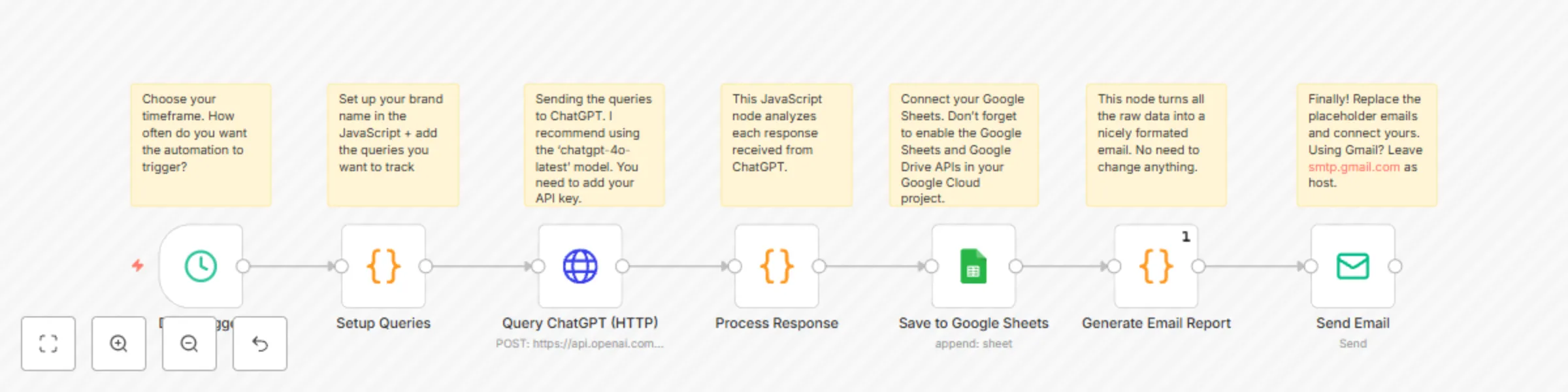
 This workflow enables you to automate the daily monitoring of how an AI model (like ChatGPT) responds to specific queries relevant to your market. It identifies mentions of your brand and predefined competitors, logs detailed interactions in Google Sheets, and delivers a comprehensive email report. ### Main Use Cases * Monitor how your brand is mentioned by AI in response to relevant user queries. * Track mentions of key competitors to understand AI's comparative positioning. * Gain insights into AI's current knowledge and portrayal of your brand and market landscape. * Automate daily intelligence gathering on AI-driven brand perception. ### How it works The workflow operates as a scheduled process, organized into these stages: 1. **Configuration & Scheduling** * Triggers daily (or can be run manually). * Key variables are defined within the workflow: your brand name (e.g., "YourBrandName"), a list of queries to ask the AI, and a list of competitor names to track in responses. 2. **AI Querying** * For each predefined query, the workflow sends a request to the OpenAI ChatGPT API (via an HTTP Request node). 3. **Response Analysis** * Each AI response is processed by a Code node to: * Check if your brand name is mentioned (case-insensitive). * Identify if any of the listed competitors are mentioned (case-insensitive). * Extract the core AI response content (limited to 500 characters for brevity in logs/reports). 4. **Data Logging to Google Sheets** * Detailed results for each query—including timestamp, date, the query itself, query index, your brand name, the AI's response, whether your brand was mentioned, and any errors—are appended to a specified Google Sheet. 5. **Email Report Generation** * A comprehensive HTML email report is compiled. This report summarizes: * Total queries processed, number of times your brand was mentioned, total competitor mentions, and any errors encountered. * A summary of competitor mentions, listing each competitor and how many times they were mentioned. * A detailed table listing each query, whether your brand was mentioned, and which competitors (if any) were mentioned in the AI's response. 6. **Automated Reporting** * The generated HTML email report is sent to specified recipients, providing a daily snapshot of AI interactions. ### Summary Flow: Schedule/Workflow Trigger → Initialize Brand, Queries, Competitors (in Code node) → For each Query: Query ChatGPT API → Process AI Response (Check for Brand & Competitor Mentions) → Log Results to Google Sheets → Generate Consolidated HTML Email Report → Send Email Notification ### Benefits: * Fully automated daily monitoring of AI responses concerning your brand and competitors. * Provides objective insights into how AI models are representing your brand in user interactions. * Delivers actionable competitive intelligence by tracking competitor mentions. * Centralized logging in Google Sheets for historical analysis and trend spotting. * Easily customizable with your specific brand, queries, competitor list, and reporting recipients.
Automated website change monitoring with Bright Data, GPT-4.1 & Google Workspace
 **Note: This template is for self-hosted n8n instances only** You can use this workflow to fully automate website content monitoring and change detection on a weekly basis—even when there’s no native node for scraping or structured comparison. It uses an AI-powered scraper, structured data extraction, and integrates Google Sheets, Drive, Docs, and email for seamless tracking and reporting. ## Main Use Cases - Monitor and report changes to websites (e.g., pricing, content, headings, FAQs) over time - Automate web audits, compliance checks, or competitive benchmarking - Generate detailed change logs and share them automatically with stakeholders ## How it works The workflow operates as a scheduled process, organized into these stages: ### 1. Initialization & Configuration - Triggers weekly (or manually) and initializes key variables: Google Drive folder, spreadsheet IDs, notification emails, and test mode. ### 2. Input Retrieval - Reads the list of URLs to be monitored from a Google Sheet. ### 3. Web Scraping & Structuring - For each URL, an AI agent uses [Bright Data's](https://brightdata.com/) `scrape_as_markdown` tool to extract the full web page content. - The workflow then parses this content into a well-structured JSON, capturing elements like metadata, headings, pricing, navigation, calls to action, contacts, banners, and FAQs. ### 4. Saving Current Week’s Results - The structured JSON is saved to Google Drive as the current week’s snapshot for each monitored URL. - The Google Sheet is updated with file references for traceability. ### 5. Comparison with Previous Snapshot - If a prior week’s file exists, it is downloaded and parsed. - The workflow compares the current and previous JSON snapshots, detecting and categorizing all substantive content changes (e.g., new/updated plans, FAQ edits, contact info modifications). - Optionally, in test mode, mock changes are introduced for demo and validation purposes. ### 6. Change Report Generation & Delivery - A rich Markdown-formatted changelog is generated, summarizing the detected changes, and then converted to HTML. - The changelog is uploaded to Google Docs and linked back to the tracking sheet. - An HTML email with the full report and relevant links is sent to recipients. --- **Summary Flow:** 1. Schedule/workflow trigger → initialize variables 2. Read URL list from spreadsheet 3. For each URL: - Scrape & structure as JSON - Save to Drive, update tracking sheet - If previous week exists: - Download & parse previous - Compare, generate changelog - Convert to HTML, save to Docs, update Sheet - Email results --- **Benefits:** - Fully automated website change tracking with end-to-end reporting - Adaptable and extensible for any set of monitored pages and content types - Easy integration with Google Workspace tools for collaboration and storage - Minimal manual intervention required after initial setup
Track Google search rankings with Bright Data, Google Sheets & Gmail
 This workflow automates daily or manual keyword rank tracking on Google Search for your target domain. Results are logged in Google Sheets and sent via email using [Bright Data's SERP API](https://brightdata.com/products/serp-api). **Requirements:** - n8n (local or cloud) with Google Sheets and Gmail nodes enabled - Bright Data API credentials --- ## Main Use Cases - Track Google search rankings for multiple keywords and domains automatically - Maintain historical rank logs in Google Sheets for SEO analysis - Receive scheduled or on-demand HTML email reports with ranking summaries - Customize or extend for advanced SEO monitoring and reporting --- ## How it works The workflow is divided into several logical steps: ### 1. Workflow Triggers - **Manual:** Start by clicking 'Test workflow' in n8n. - **Scheduled:** Automatically triggers every 24 hours via Schedule Trigger. ### 2. Read Keywords and Target Domains - Fetches keywords and domains from a specified Google Sheets document. - The sheet must have columns: `Keyword` and `Domain`. ### 3. Transform Keywords - Formats each keyword for URL querying (spaces become `+`, e.g., `seo expert` → `seo+expert`). ### 4. Batch Processing - Processes keywords in batches so each is checked individually. ### 5. Get Google Search Results via Bright Data - Sends a request to Bright Data's SERP API for each keyword with location (default: US). - Receives the raw HTML of the search results. ### 6. Parse and Find Ranking - Extracts all non-Google links from HTML. - Searches for the target domain among the results. - Captures the rank (position), URL, and total number of results checked. Saves timestamp. ### 7. Save Results to Google Sheets - Appends the findings (keyword, domain, rank, found URL, check time) to a “Results” sheet for history. ### 8. Generate HTML Report and Send Email - Builds an HTML table with current rankings. - Emails the formatted table to the specified recipient(s) with Gmail. --- ## Setup Steps 1. **Google Sheets:** - Create a sheet named “Results”, and another with `Keyword` and `Domain` columns. - Update document ID and sheet names in the workflow’s config. 2. **Bright Data API:** - Acquire your Bright Data API token. - Enter it in the Authorization header of the 'Getting Ranks' HTTP Request node. 3. **Gmail:** - Connect your Gmail account via OAuth2 in n8n. - Set your destination email in the 'Sending Email Message' node. 4. **Location Customization:** - Modify the `gl=` parameter in the SERP API URL to change country/location (e.g., `gl=GB` for the UK). --- ## Notes - This workflow is designed for n8n local or cloud environments with suitable connector credentials. - Customize batch size, recipient list, or ranking extraction logic per your needs. - Use sticky notes in n8n for further setup guidance and workflow tips. --- With this workflow, you have an automated, repeatable process to monitor, log, and report Google search rankings for your domains—ideal for SEO, digital marketing, and reporting to clients or stakeholders.
Generate a personal newsfeed using Bright Data web scraping and GPT-4.1
 ## How it Works **Disclaimer: This template is for self-hosted n8n instances only.** This workflow is designed for developers, data analysts, and automation enthusiasts seeking to automate personalized news collection and delivery. It seamlessly combines n8n, OpenAI (e.g., GPT-4.1), and [Bright Data’s Model Context Protocol (MCP)](https://github.com/luminati-io/brightdata-mcp) to collect, extract, and email the latest global news headlines. On a schedule or via a manual trigger, the workflow prompts an AI agent to gather fresh news. The agent leverages context-aware memory and integrated MCP tools to conduct both search engine queries and direct web page scraping in real time, delivering more than just meta search results—it extracts actual on-page headlines and trusted links. Results are formatted and delivered automatically by email via your SMTP provider, requiring zero manual effort once configured. --- ## Who is this for? - Developers, data engineers, or automation pros wanting an AI-powered, fully automated newsfeed - Teams needing up-to-date news digests from trusted global sources - Anyone self-hosting n8n who wishes to combine advanced LLMs with real-time web data --- ## Setup Steps - Setup time: Approx. 15–30 minutes (n8n install, API configuration, node setup) - Requirements: - Self-hosted n8n instance - OpenAI API key - Bright Data MCP account credentials - SMTP/email provider details - Install the community MCP node (`n8n-nodes-mcp`) for n8n and set up Bright Data MCP access. - Configure these nodes: - **Schedule Trigger:** For automated delivery at your chosen interval. - **Edit Fields:** To inject your AI news collection prompt. - **AI Agent:** Connects to OpenAI and MCP, enabled with memory for context. - **OpenAI Chat Model:** Connects via your OpenAI credentials. - **MCP Clients:** Configure at least two—one for search (e.g. `search_engine`) and one for scraping (e.g. `scrape_as_markdown`). - **Send Email:** Set up with recipient and SMTP information. - Credentials must be entered into their respective nodes for successful execution. --- ## Customization Guidance - **Prompt Tweaks:** Refine your AI news prompt to target specific genres, regions, or sources, or broaden/narrow the coverage as needed. - **Tool Configuration:** Carefully define tool descriptions and parameters in MCP client nodes so the agent can pick the best tool for each step (e.g., only scrape real news sites). - **Delivery Settings:** Adjust email recipient(s) and SMTP details as needed. - **Workflow Enhancements:** Use sticky notes in n8n for extended documentation, alternate prompts, or troubleshooting tips. - **Run Frequency:** Set schedule as needed—from hourly to daily updates. --- Once configured, this workflow will automatically gather, extract, and email curated news headlines and links—no manual curation required!