Automate contact enrichment with Surfe, Google Sheets & HubSpot

Workflow preview

Workflow preview
100%
Automate contact enrichment with Surfe, Google Sheets & HubSpot preview
Open on n8n.io

Important notice

This workflow is provided as-is. Please review and test before using in production.

1. Workflow Overview

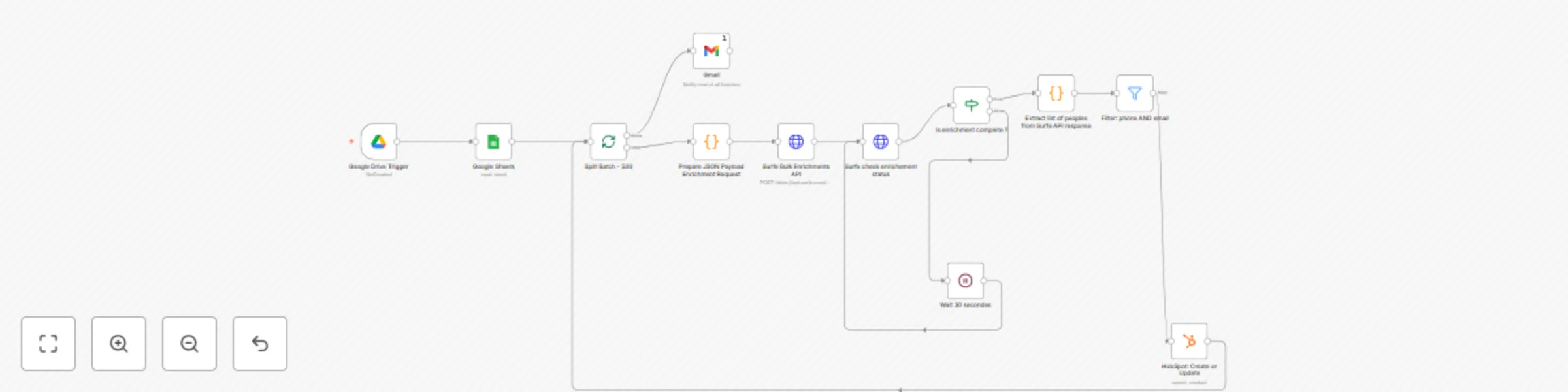
This template enables fully automated lead enrichment using Surfe’s bulk API. Simply drop a Google Spreadsheet into your Google Drive, and n8n will handle everything — from reading the leads, enric...

Best for

  • Lead Generation automation workflows
  • intermediate n8n builders looking for reusable templates

Tools used

n8n-nodes-base.googlesheets, n8n-nodes-base.googledrivetrigger, n8n-nodes-base.filter, n8n-nodes-base.code, n8n-nodes-base.if, n8n-nodes-base.httprequest, n8n-nodes-base.gmail, n8n-nodes-base.splitinbatches

Source and attribution

This workflow is cataloged by N8N Workflows and links back to its original n8n.io source page by go-surfe.

Original n8n.io source

1.1 Workflow description

Title
Automate contact enrichment with Surfe, Google Sheets & HubSpot
Workflow name
Automate contact enrichment with Surfe, Google Sheets & HubSpot

This template enables fully automated lead enrichment using Surfe’s bulk API. Simply drop a Google Spreadsheet into your Google Drive, and n8n will handle everything — from reading the leads, enriching them in batches, filtering valid data, and pushing results to HubSpot.

1. ❓ What Problem Does This Solve?

Manually enriching contact lists is tedious, error-prone, and doesn’t scale. Whether you’re importing leads from events, marketing forms, or partners, this workflow ensures each record is enriched and synced to your CRM — hands-free.


2. 🧰 Prerequisites

To use this template, you’ll need:

  • A self-hosted or cloud instance of n8n
  • A Surfe API Key
  • A Google Drive and Sheets account (with OAuth or service account)
  • A HubSpot account with access to create/update contacts (via OAuth or Private App Token)
  • The workflow JSON file (included with this tutorial)

3. 📌 Input File Format

To run the automation, you must upload a Google Spreadsheet to a specific folder in your Drive.

The spreadsheet must contain the following columns:

  • first name (required)
  • last name (required)
  • Either company name or company domain (at least one is required)
  • linkedin url (optional)

🛑 Important: Any row missing first name, last name, and both company name and company domain will be ignored automatically by the workflow.

Each row represents a person to enrich. We recommend including the linkedin url if available, but it's not mandatory.


4. ⚙️ Setup Instructions

4.1 🔐 Create Your Credentials in n8n

4.1.1 📁 Google Drive

To connect Google Drive and Google Sheets in your workflow, you need to authorize n8n via Google OAuth 2.0 using a Client ID and Client Secret from the Google Cloud Console.


📋 Step 1: Create a Google Cloud Project

  1. Visit Google Cloud Console
  2. Create a new project or select an existing one
  3. Navigate to APIs & Services → OAuth consent screen

⚙️ Step 2: Configure the OAuth Consent Screen

  1. Enter the following:
    • App name (e.g. n8n Integration)
    • User support email
  2. Choose Audience Type:
    • Internal if you’re using a Google Workspace account
    • External if using a personal Gmail account
  3. Under Contact information
    • email address
  4. Click Save and Continue


🔑 Step 3: Create OAuth Client Credentials

  1. Go to APIs & Services → Credentials

  2. Click + Create Credentials → OAuth Client ID

  3. Select Web application as the application type

  4. Name it (e.g. n8n Google Drive Access)

  5. In Authorized redirect URIs, paste this:

    https://oauth.n8n.cloud/oauth2/callback
    

    (Or your self-hosted n8n redirect URI)

  6. Click Create

  7. Copy the Client ID and Client Secret


✅ Step 4: Finish Setup in n8n

  1. In n8n, go to Credentials → Create New → Google Drive / Google Sheets
  2. Choose OAuth2
  3. Paste your:
    • Client ID
    • Client Secret
    • Redirect URL (should match Google Console)
  4. Click Sign in with Google
  5. Authorize access and save the credential

✅ Your Google Drive is now ready to use in workflows.


4.1.2 📊 Google Sheets OAuth2 API

  1. Go to n8n → Credentials
  2. Create new credentials:
    • Type: Google Sheets OAuth2 API
  3. Here a pop-up will open where you can login to your Google account from where you will read the Google Sheets

When it’s done you should see this on n8n


4.1.3 📧 Gmail OAuth2 API

  1. Go to n8n → Credentials
  2. Create new credentials:
    • Type: Gmail OAuth2 API
  3. A pop-up window will appear where you can log in with your Google account that is linked to Gmail
    • Make sure you grant email send permissions when prompted


4.1.4 🚀 Surfe API

  1. In your Surfe dashboard → Use Surfe Api → copy your API key
  2. Go to n8n → Credentials → Create Credential
    1. Choose Credential Type: Bearer Auth
    2. Name it something like SURFE API Key
    3. Paste your API key into the Bearer Token
    4. Save


4.1.5 🎯 HubSpot

🔓 Private App Token

  1. Go to HubSpot → Settings → Integrations → Private Apps
    1. Create an app with scopes:
      • crm.objects.contacts.read
      • crm.objects.contacts.write
      • crm.schemas.contacts.read
    2. Save the App token
  2. Go to n8n → Credentials → Create Credential → HubSpot App Token
    1. Paste your App Token

✅ You are now all set for the credentials


4.2 📥 Import and Configure the N8N Workflow

  • Import the provided JSON workflow into N8N
    • Create a New Blank Workflow
    • click the on the top left
    • Import from File

4.2.1 🔗 Link Nodes to Your Credentials

In the workflow, link your newly created credentials to each node of this list :

  • Google Drive Node -> Credentials to connect withGoogle Drive Account
  • Google Sheets -> Credentials to connect withGoogle Sheets Account
  • Gmail Node Credentials to connect withGmail account
  • Hubspot NodeCredentials to connect withGmail account
  • Surfe HTTP nodes:
    • Authentication → Generic Credential Type
    • Generic Auth Type → Bearer Auth
    • Bearer Auth → Select the credentials you created before

Surfe HTTP nodes

Surfe HTTP nodes

  • HubSpot node → Credentials to connect with → select your HubSpot credentials in the list

4.2.2 🔧 Additional Setup for the Google Drive Trigger Node


5. 🔄 How This N8N Workflow Works

  1. A new Google Sheet containing a linkedin_url column is added to a specific folder in Google Drive
  2. n8n detects the new file automatically via the Google Drive Trigger
  3. All rows are read and batched in groups of 500 to comply with Surfe’s API limits
  4. Each batch is sent to Surfe’s Bulk Enrichment API
  5. n8n polls Surfe until the enrichment job is complete
  6. It extracts the enriched contact data from Surfe’s response
  7. Only contacts with both email and phone number are kept
  8. These validated leads are pushed to HubSpot
  9. Finally, a Gmail notification is sent to confirm the job is complete

6. 🧩 Use Cases

  • Post-event contact enrichment – After a trade show, upload a list of LinkedIn profile URLs from badge scans or lead capture forms
  • Outbound LinkedIn campaign follow-ups – Gather LinkedIn URLs from manual outreach and enrich them into usable CRM leads
  • CRM data enhancement – Use LinkedIn URLs to fill in missing contact info for existing or imported contacts
  • List building from LinkedIn exports – Upload a list of LinkedIn profiles (e.g. from Sales Navigator) and turn them into fully enriched contacts in HubSpot

7. 🛠 Customization Ideas

  • 🔁 Add retry logic for failed Surfe enrichment jobs
  • 📤 Log enriched contacts into a Google Sheet or Airtable
  • 🔍 Add pre-check logic to avoid creating duplicates in HubSpot
  • 📊 Extend the flow to generate a basic summary report of enriched vs rejected contacts

8. ✅ Summary

This workflow turns a basic Google Sheet of LinkedIn URLs into fully enriched, CRM-ready contacts — automatically synced with HubSpot.

Just upload your file.

Let Surfe do the rest.

1.2 Logical Blocks

This catalog entry is organized from the workflow JSON. The node-level section below shows the executable blocks available for review before importing the template.

2. Block-by-Block Analysis

Block 1 - Google Sheets

Type / Role
n8n-nodes-base.googleSheets - googleSheets
Config choices
Version 4.6

Block 2 - Google Drive Trigger

Type / Role
n8n-nodes-base.googleDriveTrigger - googleDriveTrigger
Config choices
Version 1

Block 3 - Filter: phone AND email

Type / Role
n8n-nodes-base.filter - filter
Config choices
Version 2.2

Block 4 - Extract list of peoples from Surfe API response

Type / Role
n8n-nodes-base.code - code
Config choices
Version 2

Block 5 - Is enrichment complete ?

Type / Role
n8n-nodes-base.if - if
Config choices
Version 2.2

Block 6 - Surfe Bulk Enrichments API

Type / Role
n8n-nodes-base.httpRequest - httpRequest
Config choices
Version 4.2

Block 7 - Surfe check enrichement status

Type / Role
n8n-nodes-base.httpRequest - httpRequest
Config choices
Version 4.2

Block 8 - Gmail

Type / Role
n8n-nodes-base.gmail - gmail
Config choices
Version 2.1

Block 9 - Split Batch - 500

Type / Role
n8n-nodes-base.splitInBatches - splitInBatches
Config choices
Version 3

Block 10 - HubSpot: Create or Update

Type / Role
n8n-nodes-base.hubspot - hubspot
Config choices
Version 2.1

Block 11 - Wait 30 secondes

Type / Role
n8n-nodes-base.wait - wait
Config choices
Version 1.1

Block 12 - Prepare JSON Payload Enrichment Request

Type / Role
n8n-nodes-base.code - code
Config choices
Version 2

3. Summary Table

Workflow Automate contact enrichment with Surfe, Google Sheets & HubSpot
Complexity intermediate
Nodes 12
Categories Lead Generation
Author go-surfe
Published 08 Jul 2025

4. Reproducing the Workflow from Scratch

  1. 1. Download the workflow JSON

    Use the JSON export at /data/workflows/5776/5776.json as the source template for this automation.

  2. 2. Import the template into n8n

    Open n8n, import the downloaded JSON, and review each node before activating the workflow.

  3. 3. Configure credentials and variables

    Replace placeholder credentials, API keys, webhook URLs, account IDs, and environment-specific values with your own settings.

  4. 4. Test with sample data

    Run the workflow manually or in a staging workspace, inspect node output, and confirm downstream systems receive the expected data.

  5. 5. Activate and monitor

    Enable the workflow only after testing, then monitor executions, errors, and rate limits during the first production runs.

5. General Notes & Resources

Review imported nodes carefully before activation. This catalog entry is intended to help you inspect the workflow structure, understand required services, and find related templates faster.

Node names, credentials, schedules, webhook paths, and external service limits may need adjustment for your workspace.

Frequently asked questions

What does Automate contact enrichment with Surfe, Google Sheets & HubSpot do?

This template enables fully automated lead enrichment using Surfe’s bulk API. Simply drop a Google Spreadsheet into your Google Drive, and n8n will handle everything — from reading the leads, enric...

What do I need before importing this workflow?

Review the workflow JSON, configure any required credentials in n8n, and test the automation in a safe workspace before using it in production.

Can I customize this workflow?

Yes. Use the block-by-block analysis and the downloadable JSON to inspect each node, then adjust credentials, prompts, schedules, filters, or destinations for your Lead Generation use case.